Introduction
Customizing an alert definition allows you to quickly create a new alert definition based on an existing one. This helps maintain consistency across partners or clients while saving time by avoiding the need to configure alert definitions from scratch. You can create a new alert definition from an existing Global alert definition and then customize it ensuring it meets specific requirements and aligns with your operational needs.
Benefits of customizing an alert definition
Customizing an alert definition offers significant operational and management advantages, helping ensure efficiency and standardization across the platform.
Following are some benefits:
- Improves productivity: Customizing allows you to create new alert definitions quickly by reusing existing, well-configured ones. This eliminates the need to rebuild settings from scratch, saving time and effort and ensuring faster alert definition deployment.
- Encourages uniform configurations: Using customized alert definitions ensures that similar configurations and naming conventions are maintained across partners or clients. This helps enforce organization-wide standards and improves overall standardization in an alert definition management.
- Ensures correct configurations: Reusing verified configurations reduces the possibility of manual errors that can occur during alert definition setup. Customizing keeps the settings and rules that have already been tested, making deployments more reliable and reducing mistakes.
- Enables customization: Once an alert definition is cloned, it can be customized to address unique business or operational needs. You can adjust thresholds, conditions, or rules within the customized alert definition to align with specific requirements or environments.
- Facilitates large-scale management: Customization makes it easy to apply and manage alert definitions for multiple clients or environments. Instead of creating the same alert definition from scratch, you can copy a standard alert definition and adjust it as needed, saving time and keeping settings consistent.
Customize alert definition
The following video guides you through the process of customizing an existing Global Template-based alert definition.
You can clone an existing global alert definition and customize it to suit your needs based on your specific requirements.
Use Case: Add conditions to existing filters and other configurations.
If you need to add new query conditions to the existing filter criteria and configure availability rule and monitoring templates, see Customizing Cloned Alert Definition.
Customizing Cloned Alert Definition
Follow these steps to customize an alert definition including Filter Criteria and other configurations:
Follow these steps to modify the default alert definition:
To select your client, navigate to All Clients, and click the Client/Partner dropdown menu.
Note: You may either type your client’s name in the search bar or select your client from the list.Navigate to Setup → Account. The Account Details page is displayed.
Click Monitoring tile. The TEMPLATE BASED tab displays all the alert definitions created with Global and Non Global scopes.
The Global alert definitions are the default alert definitions provided by OpsRamp.Search for the Global alert definition using the Search option or use the Filter option to filter through Available Apps.
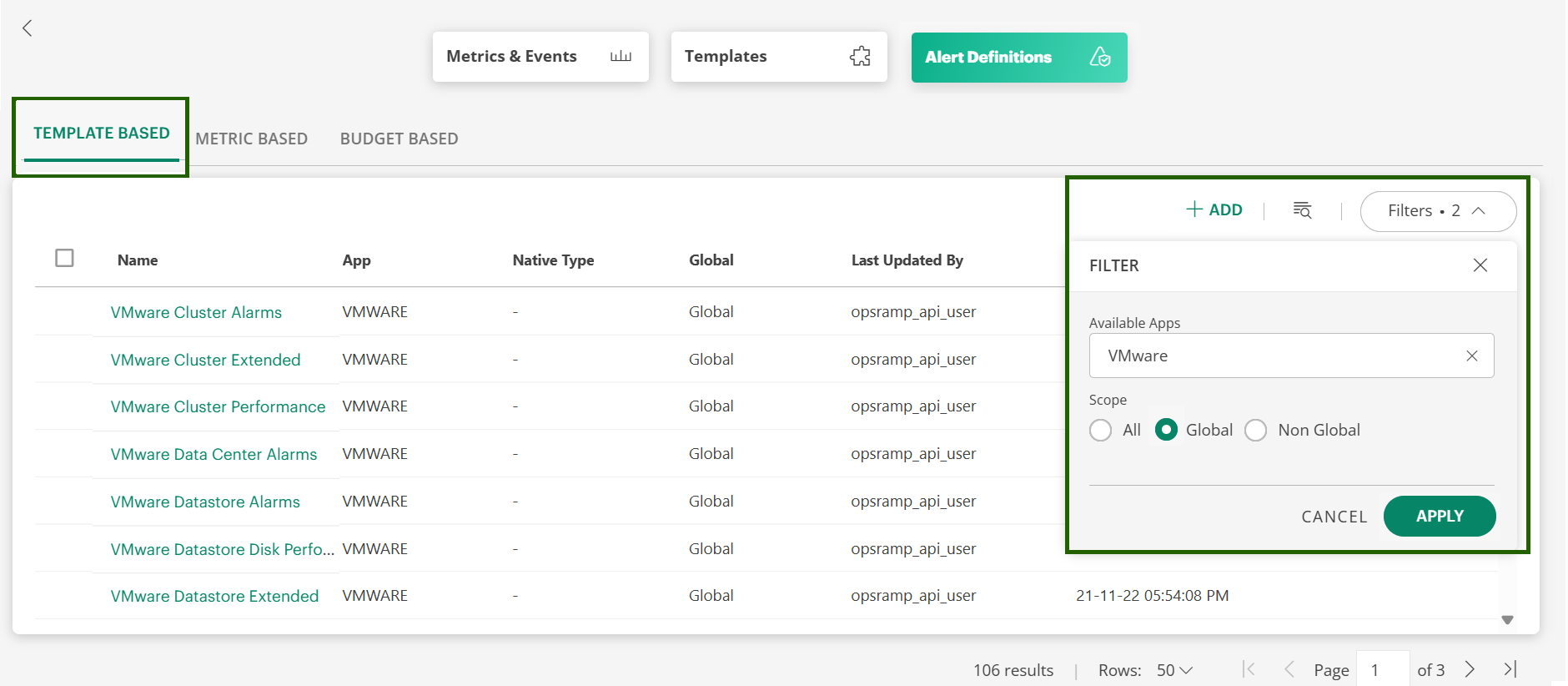
Click on the alert definition name. The alert definition page is displayed.
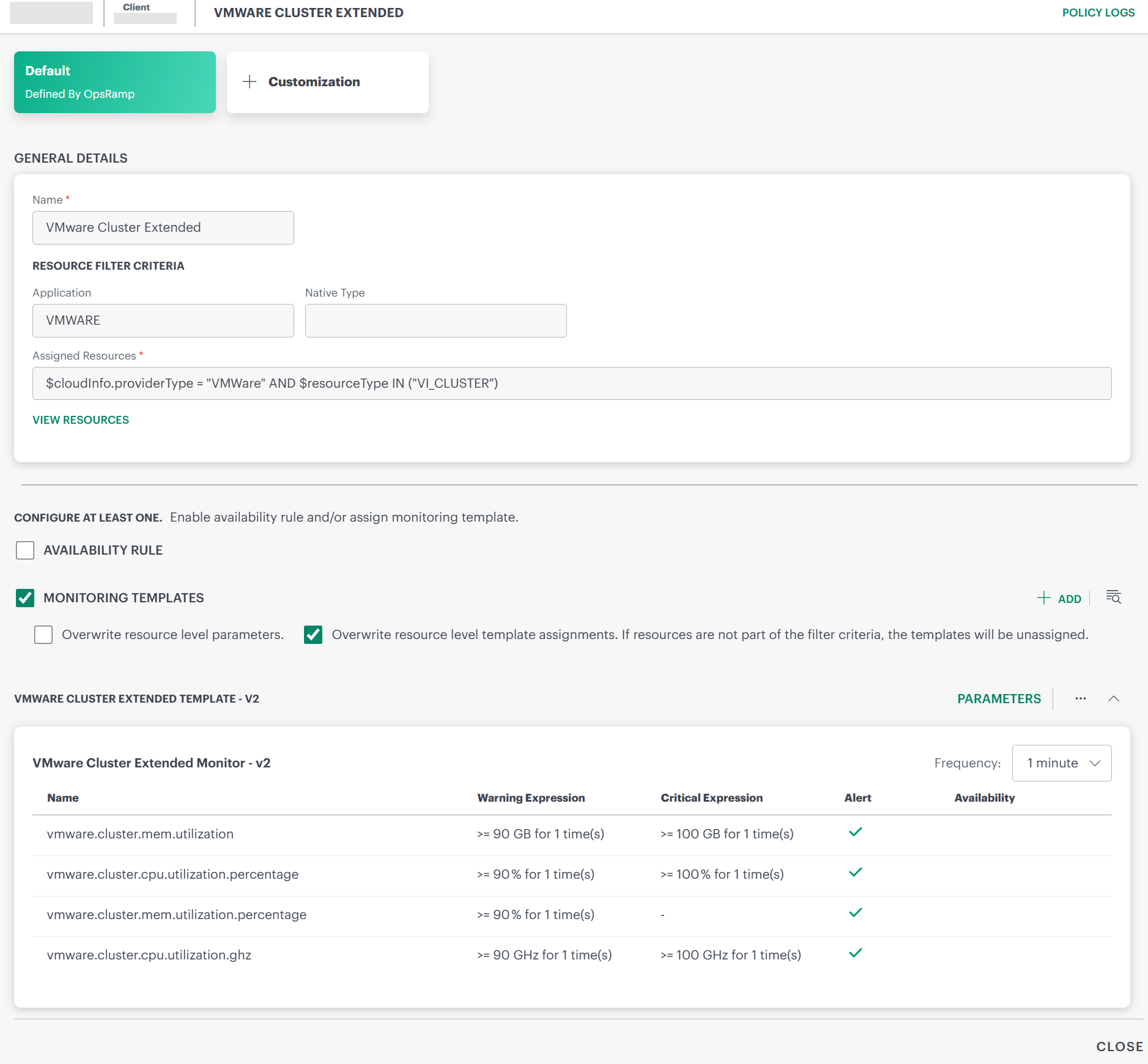
Click the + Customization card. The RESOURCE FILTER window is displayed.
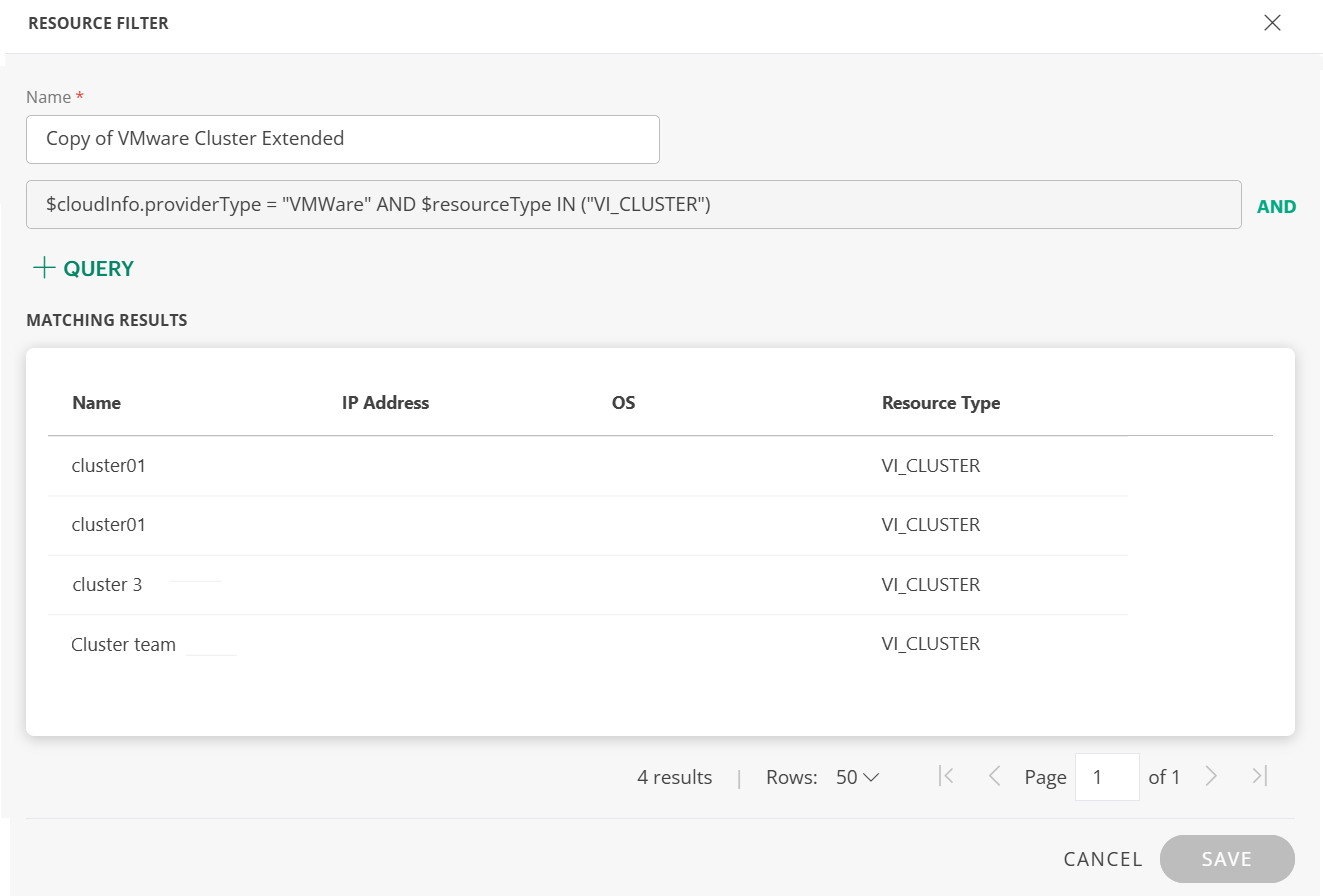
Modify the alert definition name.
Click +QUERY and build one or more OpsQL queries as per your requirements. The matching results are displayed.
Click SAVE. The updated filter criteria is displayed in the field.
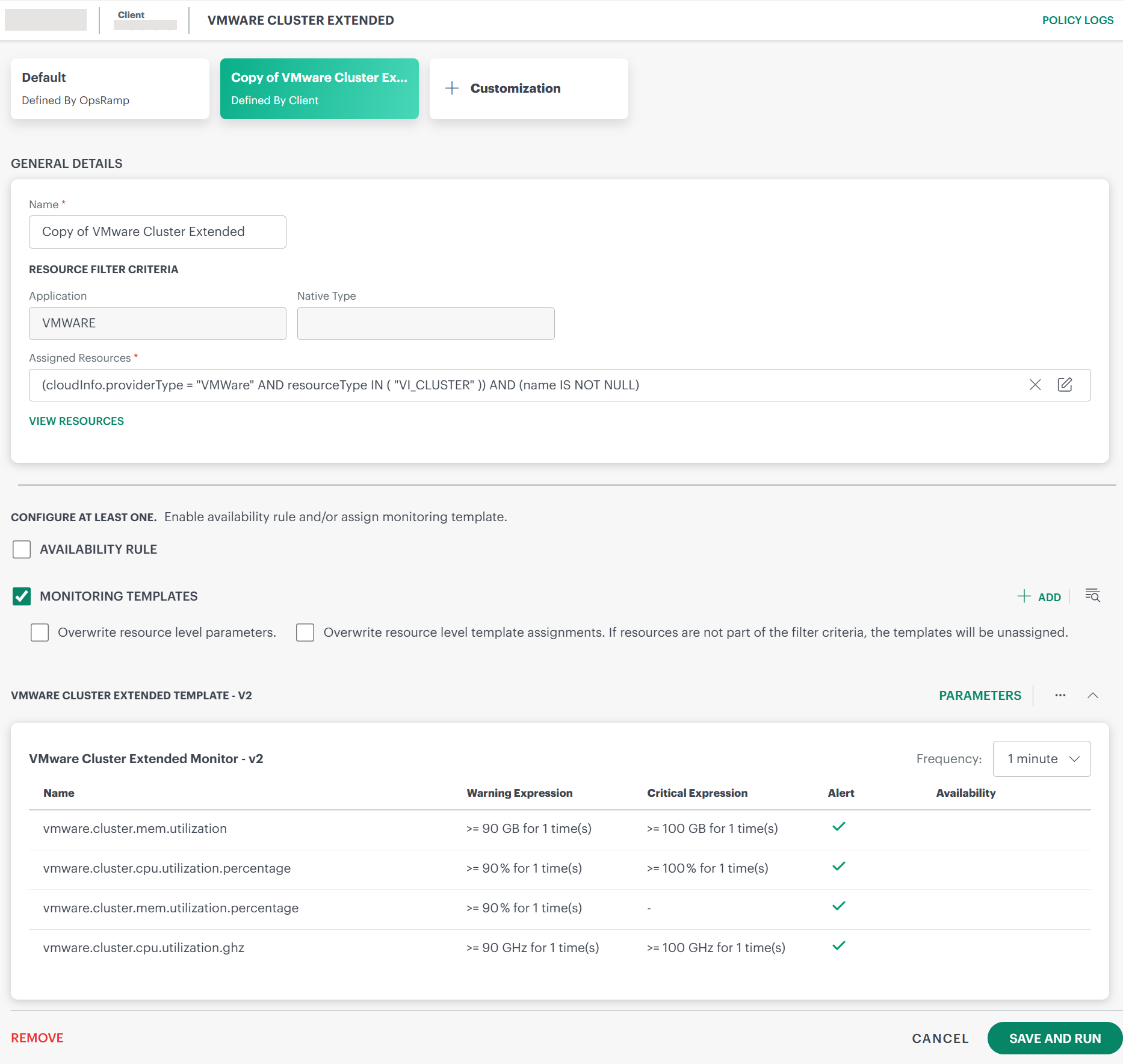
- To modify the query, click the Edit icon.
- Click VIEW RESOURCES to view the matching resources.
The Customization card displays the modified alert definition name and shows Defined By Client or Defined By Partner (for partner-specific configuration) indicating that it has been customized by you.
You can perform the following actions:
- Define Scope (for partner-specific configuration)
- Apply or remove an availability rule.
- Add one or more monitoring templates.
- Modify the metric parameters of the template(s).
See Create alert definition to perform the above operations.
Click SAVE AND RUN. The alert definition is updated.
- To remove the alert definition customization, click REMOVE at the bottom-right corner of the page.
- Repeat steps 6 through 10 to add another customization.