Use budget policies to monitor cloud spending, set budget limits, and receive alerts when expenses exceed defined thresholds. This helps you proactively manage costs and avoid unexpected overruns.
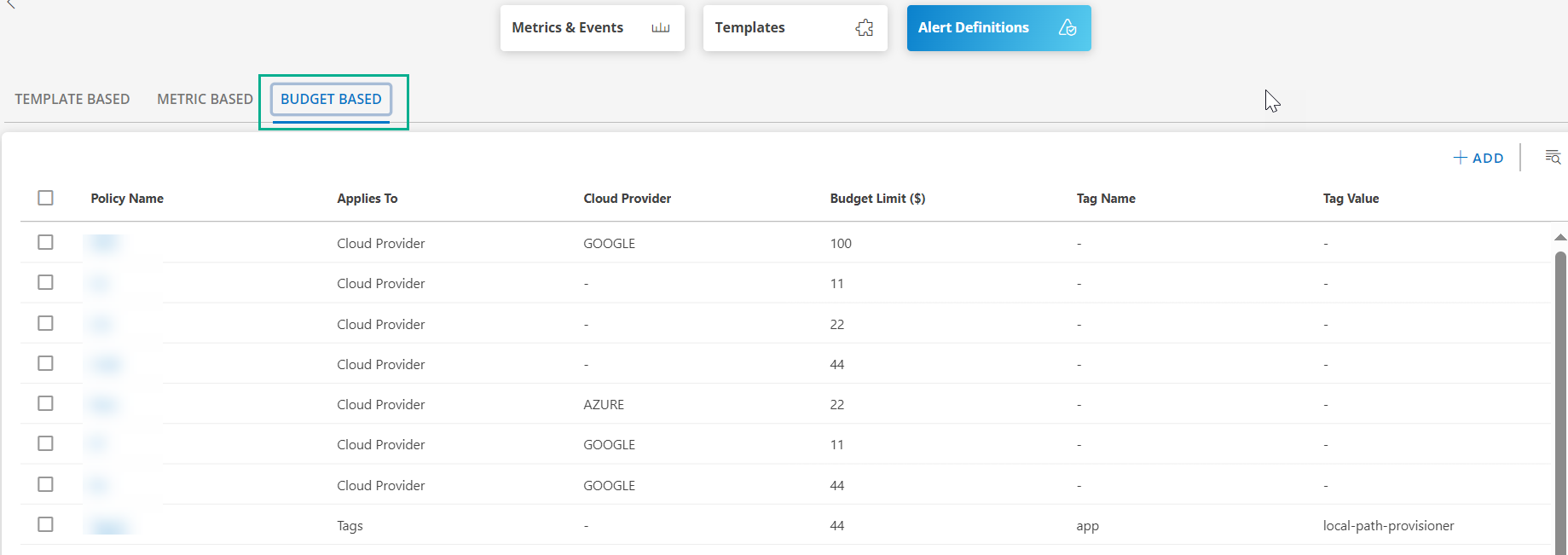
Create a Budget-based Policy
To create a budget-based policy:
Navigate to Setup > Account > Monitoring and select Alert Definitions.
Select the Budget Based tab. The Add Alert Budget Policy page is displayed.

Click +ADD to add new alert budget policy.
On the Add Alert Budget Policy page, enter the following details:
| Field Name | Description |
|---|---|
| Name | Enter a name for the budget policy |
| Applies To | Select to what element the budget policy needs to be applied. Choose on what element the Policy needs to be created
|
| Cloud Provider | Select the cloud provider - AWS, Azure or Google Cloud Account |
| Budget Scope | Monthly or Annually |
| Budget limit | Enter the value for the budget limit |
| Warning | Set the warning limit. When the limit crosses the warning value, an alert is triggered by the budget policy. Default warning limit is 80% of the budget limit. |
| Critical | Set the critical limit. Set the Critical warning limit. When the limit crosses critical value, an alert is triggered by the budget policy. Default warning limit is when the budget limit reaches 100%. |
| Budget Owner | The user to whom the alert needs to be sent. After the budget policy is created, an Escalation Alert Policy is automatically gets created, through which the budget owner gets alerts if the warning or critical threshold limits are breached. |
- Click ADD POLICY to add a new policy. The new budget-based policy is added.
×![]()