Events are generated on monitored resources and may be converted into alerts based on defined criteria. OpsRamp supports event generation for the following resource types:
- VMware
- Cisco HyperFlex
- Cisco UCS
- Citrix Cloud VDA Server
- EMC CLARiiON
- EMC VNX
- Microsoft Hyper-V
- Viptela
Create an Event
You can create events at the Service Provider, Partner and Client scopes. Follow these steps to create an event:
Navigate to Setup > Account > Monitoring.
Select the Metrics & Events tab.
In the Events tab, click +ADD. The ADD EVENT page is displayed.
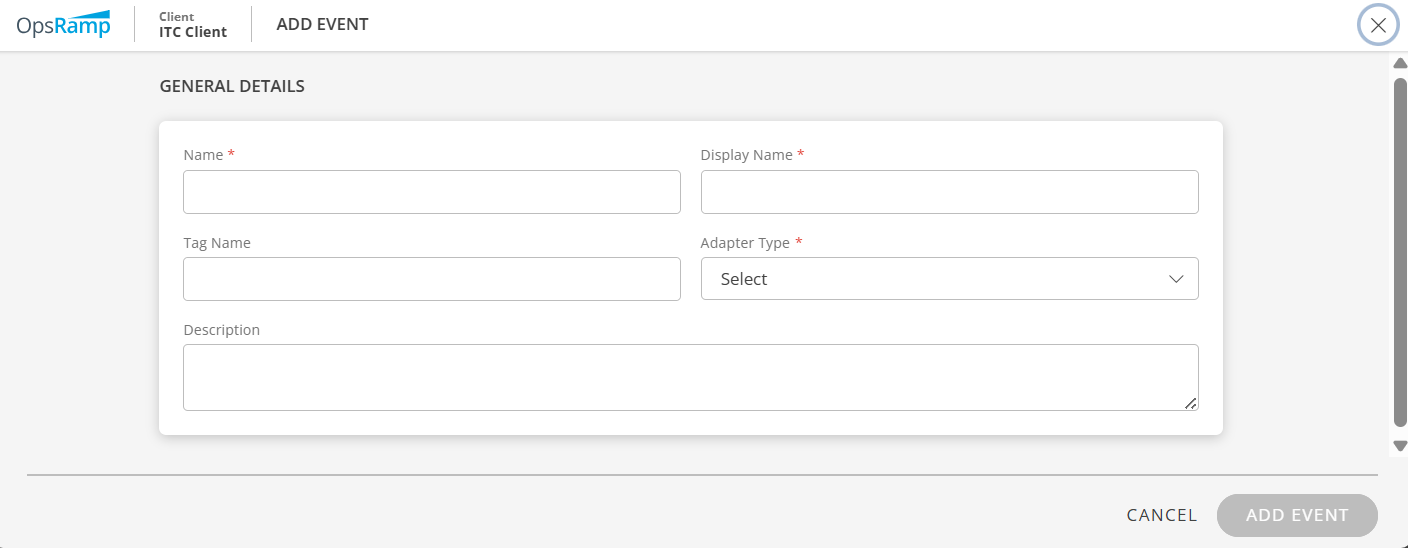
Enter the following field details:
Field Description Name Unique name for the event. For details, see the Event name format section. Display Name Unique display name. Tag Name User-defined name for filtering. Adapter Type Select from VMware, Cisco UCS, EMC VNX, etc Description Event description. Click ADD EVENT.
The event will be available in the list under Events.
Apply the event monitoring template on the resources. Based on the monitoring frequency, OpsRamp converts the events into alerts and shows the alerts in the alert browser.Sample alert:

Event name format
The following are acceptable formats for an event name:
- Event names should not contain a dot (.), instead use an underscore (_) between the words.
hyperflex.cluster.event.ClusterPolicyComplianceFailedEventis not validhyperflex_cluster_event_ClusterPolicyComplianceFailedEventis valid - An event name can have a maximum of ten underscores “_”. An event name cannot start or end with an underscore.
- An event name can contain numeric values (0-9), but cannot start with a numeric value.
- An event name should be case-insensitive.
- The length of the event name should be less than or equal to 255, including underscores.
View Events
You can view the list of all events in the Events page.
The following table provides details of each field.
| Attributes | Description |
|---|---|
| Name | Event name. |
| Display Name | Display name for the event. |
| Adapter Type | Adapter Type |
| Application Type | Technology associated with the event. |
| Description | Event description. |
Update an Event
To update event details:
- Search for the event using the search icon and click the event name. The event details are displayed.
- Make the necessary changes and click Save. The event is updated.
Export an Event
The Export functionality allows you to save an event in CSV or JSON format.
Follow these steps to export an event:
- Search for the event(s) you want to export.
- Select the event(s) and click Export.
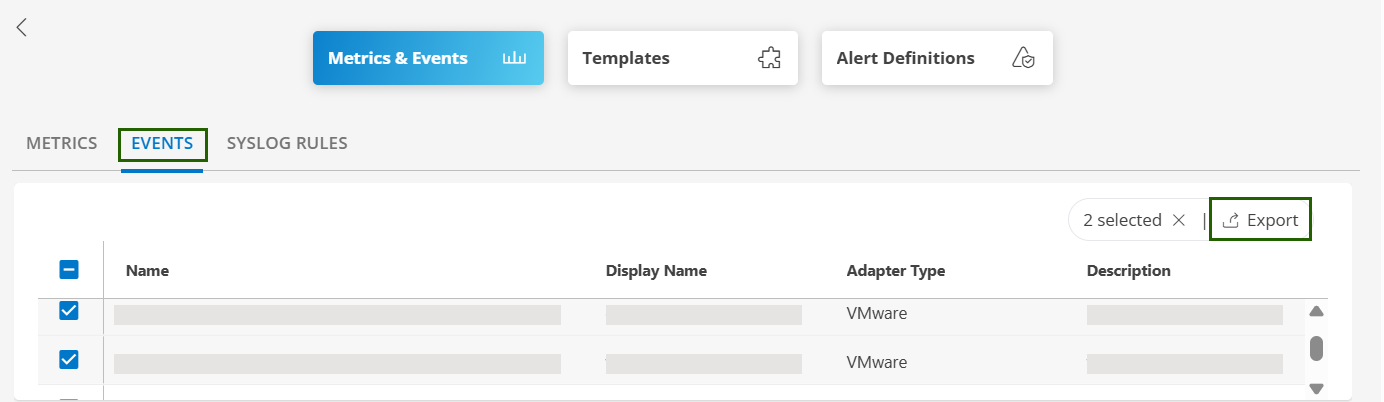
- Select the required format: JSON or CSV. The event is exported in the selected format.
Note
If no specific event(s) are selected before exporting, all the available events in the scope will be exported, by default.
Import an Event
The Import functionality allows you to import a CSV or JSON formatted event file as an event. Follow these steps to import an event:
- In the Events tab, click the Import icon and then click Upload.
- Select a file to upload. Supported file formats are JSON or CSV.
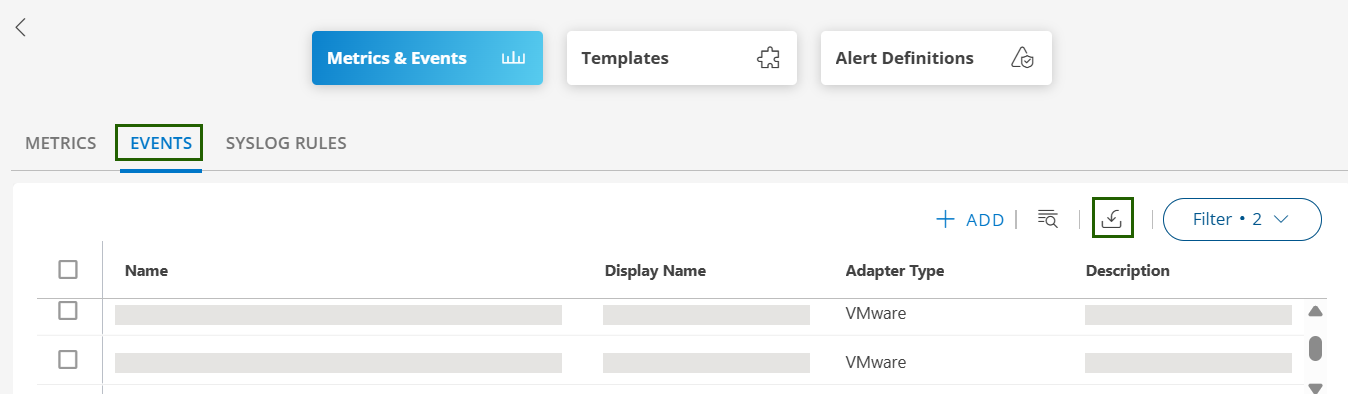
- Click Import. The event is imported and the details are shown on the Import Results page.
If the import fails, a message is displayed with the reason for the failure.
Info
The events are exported or imported based on the scope. If you export events at the partner scope, the partner specific events are only exported. The client specific events are not exported.Delete an Event
Permissions
- You must have permission to manage events.
Note
The event must be the one that you created. Global events cannot be deleted.Follow these steps to delete a custom event:
Navigate to Setup > Account.
Navigate to Monitoring > Metrics & Events card.
Click the Events tab.
On the Events listing page, search for the event you want to delete.
Move hover over the row and click the ellipsis (…) icon.
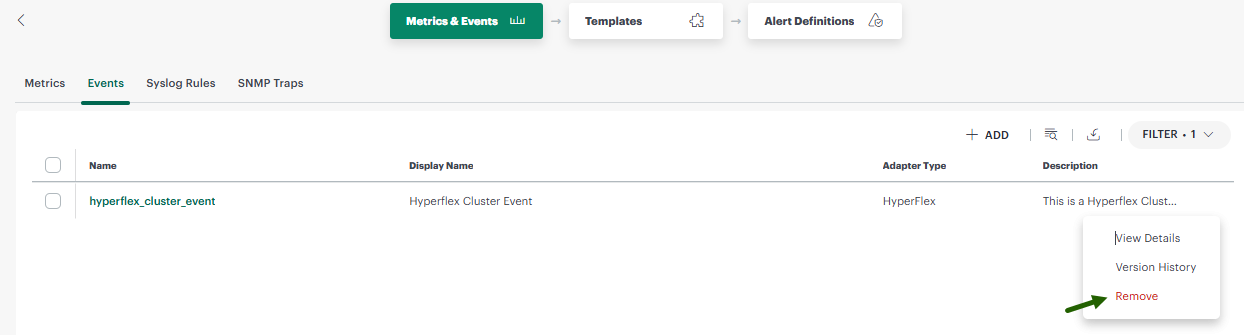
Select Remove.
Before deletion, OpsRamp checks for dependencies to avoid disrupting existing monitoring configurations.
See Delete a Metric for more information.- If there are no dependencies, the event is deleted and a confirmation message appears.
Version History
Configuration version history provides a record of changes made to an event. You can use it to review the current configuration, compare it with an earlier version, and restore a previous version.
Version history is enabled by default for events. A version is created when an event is created or updated.
Permissions
Your access to version history is based on your permissions for the event:
- To view version history, you must have permission to view the event.
- To restore a version, you must have permission to modify or update the event.
Why use version history?
Updating an event, including its display name, tag name, or description, can change how the event is identified and processed. For example, an unintended change to an event’s configuration can cause events to be matched or processed incorrectly, resulting in excessive notifications or false alarms, or can cause genuine issues to go undetected.
Use version history to:
- View snapshots of an event configuration.
- Identify values that changed between versions.
- Compare the current version with an earlier version.
- Compare two older versions.
- Restore a suitable earlier version.
View version history
View the version history of an event to review its current configuration and previously saved versions.
Follow these steps to view an event’s version history:
- In the Events tab, search for the event whose version history you want to view.
- Mouse hover over the row and click the ellipsis (…) icon.
- Select Version History. The Version History page appears with the current event configuration, by default. The dropdown lists the versions with timestamp.
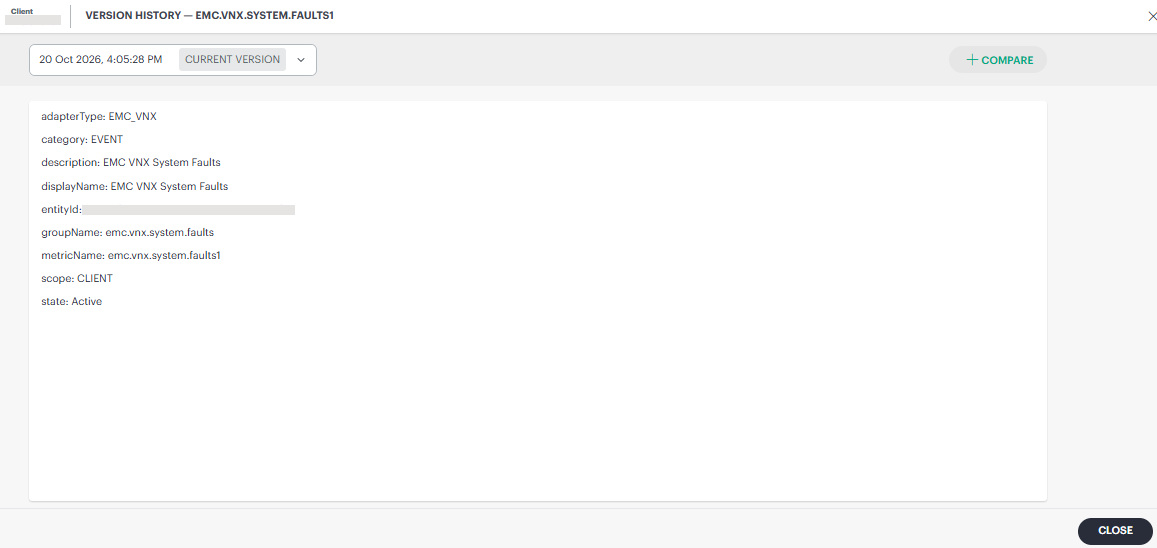
- Clicking the dropdown lists the available earlier versions.
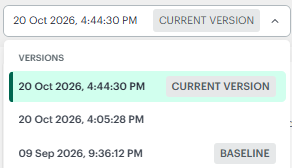
The dropdown labels the following versions:
- Current Version: The event configuration that is currently active.
- Baseline: The first saved version of the event, created when the event was originally created. It is the starting point of the version history and the oldest version available for comparison or restore.
You can click the versions in the dropdown to review the changes. The selected version displays the event configuration, allowing you to compare it with the current version and identify any values that changed.
Compare versions
Compare event versions to see how configuration changes affect the way events are processed and the alerts they generate. This comparison helps you find what caused unexpected alerts and decide whether to restore an earlier version.
Follow these steps to compare versions:
- In the Events tab, search for the event whose version you want to compare.
- Mouse hover over the row and click the ellipsis (…) icon.
- Select Version History. The Version History page appears with the current event configuration, by default.
- Click +Compare at the top right corner of the page.
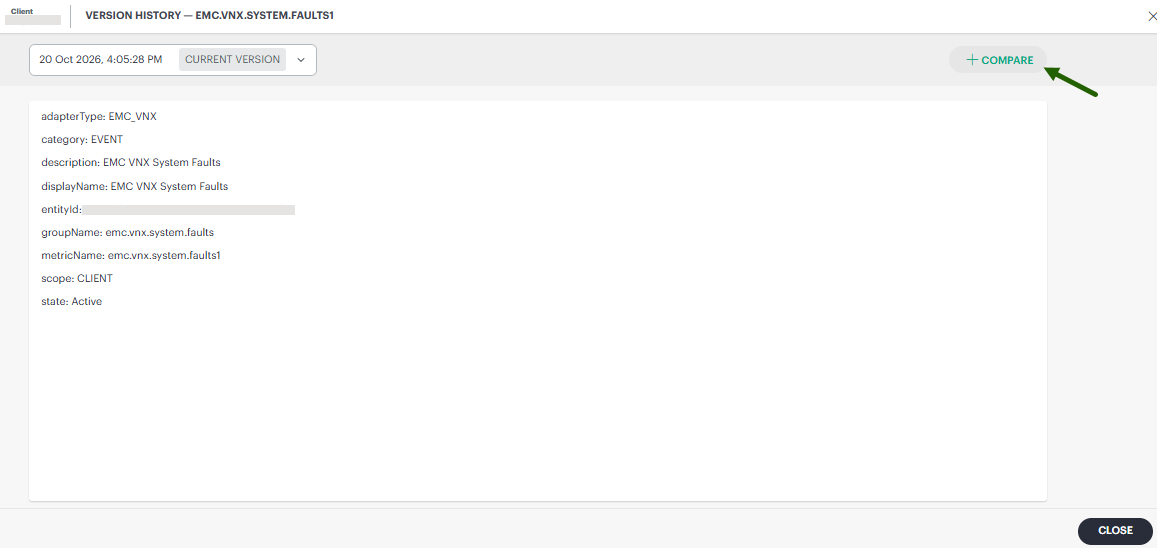
By default, the system compares the current version with the version immediately preceding it.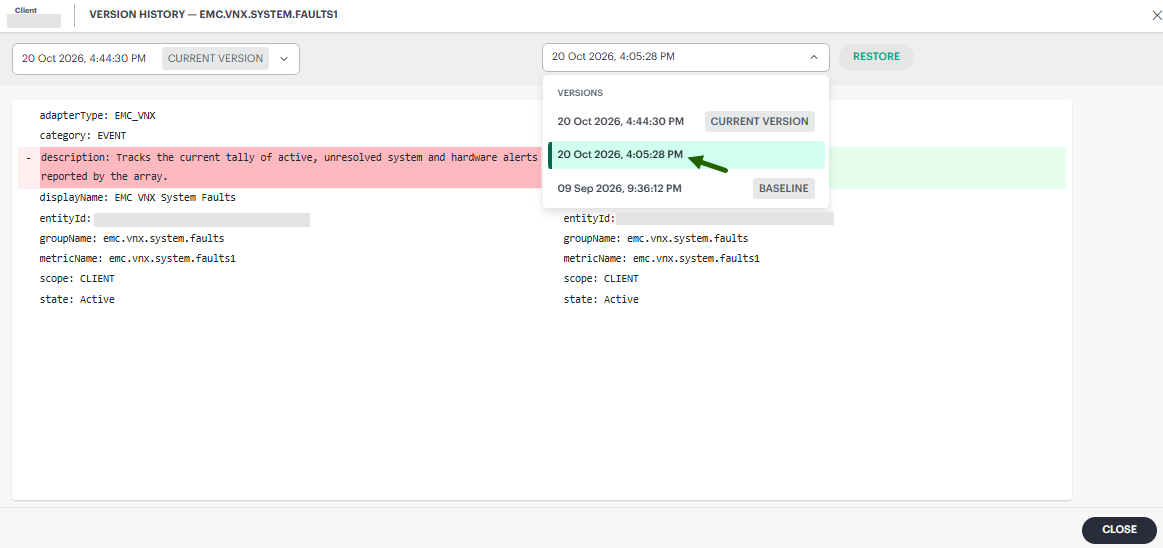
The comparison highlights the changes made. Review the differences between the configuration values.
- You can select another older version to compare with the current version, or compare two older versions.
Comparison helps you determine which event configuration change might have caused unexpected alerts or changed how events are processed.
Restore a version
Restore an earlier version of an event when you need to revert recent configuration changes. The restored configuration becomes the current version while preserving the existing version history.
Follow these steps to restore a version:
- In the Events tab, search for the event.
- Mouse hover over the row and click the ellipsis (…) icon.
- Select Version History. The Version History page appears with the current event configuration, by default.
- Click +Compare at the top right corner of the page.
By default, the system compares the current version with the version immediately preceding it. - From the dropdown on the right, select the version you want to restore.
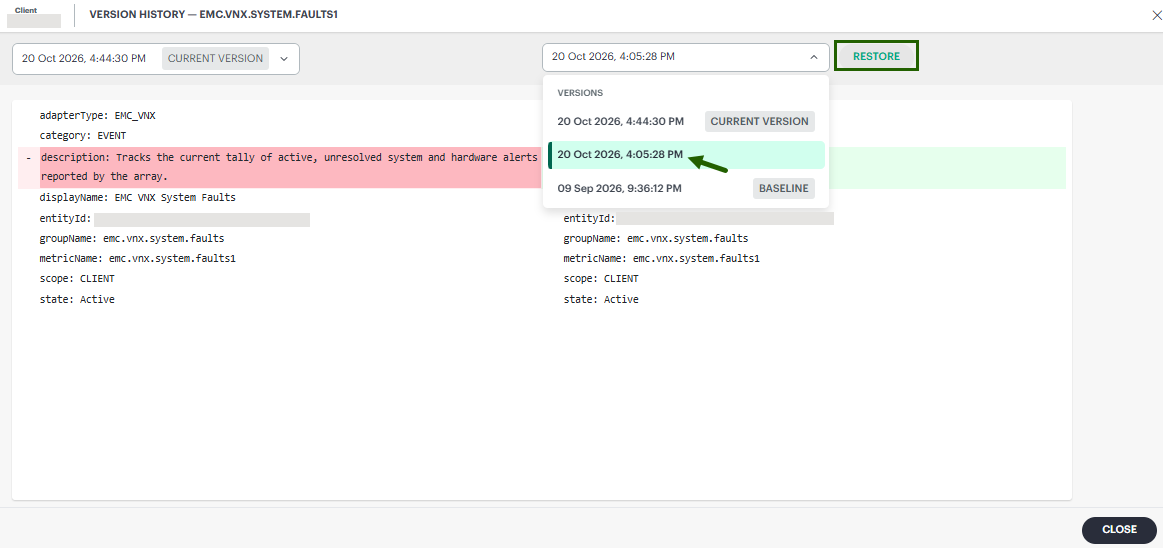
- Click Restore. A confirmation message appears.
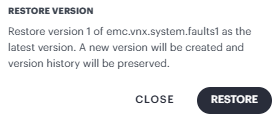
- Review the message and click Restore.
Restoring a version creates a new version. Existing versions remain in the version history. After the operation is complete, the restored values become the current configuration.
Note
The time required to apply a restored configuration can vary. A configuration that must be applied to a device might take longer to complete.Version retention and deleted events
Version history is retained only while the event exists.
Important
Deleting an event also removes its version history. You cannot view or restore versions of a deleted event. Version history is not a backup or recovery mechanism for deleted configurations.
Existing audit logs remain available through the applicable audit or logging features, but deleted configuration snapshots are not available through Version history.