Configuration version history provides a record of changes made to a template-based alert definition. You can use it to review the current configuration, compare it with an earlier version.
Version history is enabled by default for template-based alert definitions. A version is created when an alert definition is created or updated.
Permissions
Your access to version history is based on your permissions for the alert definition:
- To view version history, you must have permission to view the alert definition.
Why use version history?
Changes to an alert definition can affect when warning and critical alerts are triggered. For example, an unintended change to a threshold can cause excessive notifications or false alarms.
Use version history to:
- View snapshots of an alert definition configuration.
- Identify values that changed between versions.
- Compare the current version with an earlier version.
- Compare two older versions.
View version history
View the version history of an alert definition to review its current configuration and previously saved versions.
Follow these steps to view an alert definition’s version history:
- On the Template-based alert definitions listing page, search for the alert definition whose version history you want to view.
- Mouse hover over the row and click the ellipsis (…) icon.
- Select Version History. The Version History page appears with the current policy configuration, by default. The dropdown lists the versions with timestamp.
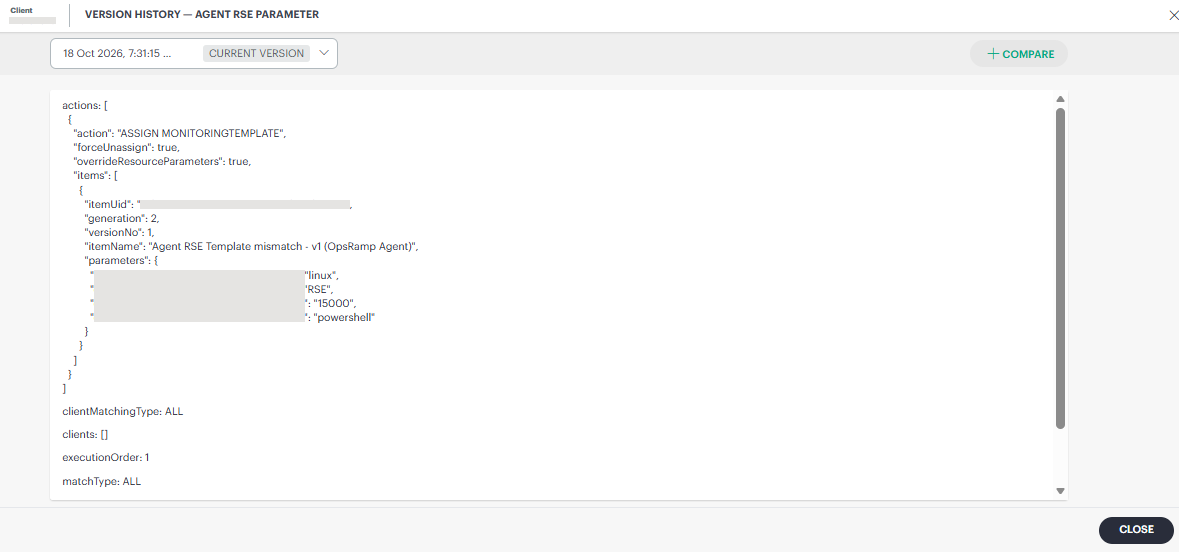
- Clicking the dropdown lists the available earlier versions.
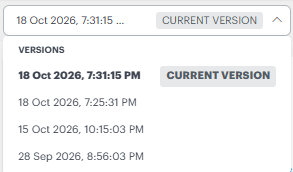
You can click the versions in the dropdown to review the changes. The selected version displays the alert definition configuration, allowing you to compare it with the current version and identify any values that changed.
Compare versions
Compare alert definition versions to see how changes affect warning and critical alerts. This comparison helps you find what caused unexpected alerts.
Follow these steps to compare versions:
- On the Template-based alert definitions listing page, search for the alert definition whose version you want to compare.
- Mouse hover over the row and click the ellipsis (…) icon.
- Select Version History. The Version History page appears with the current alert definition configuration, by default.
- Click +Compare at the top right corner of the page.
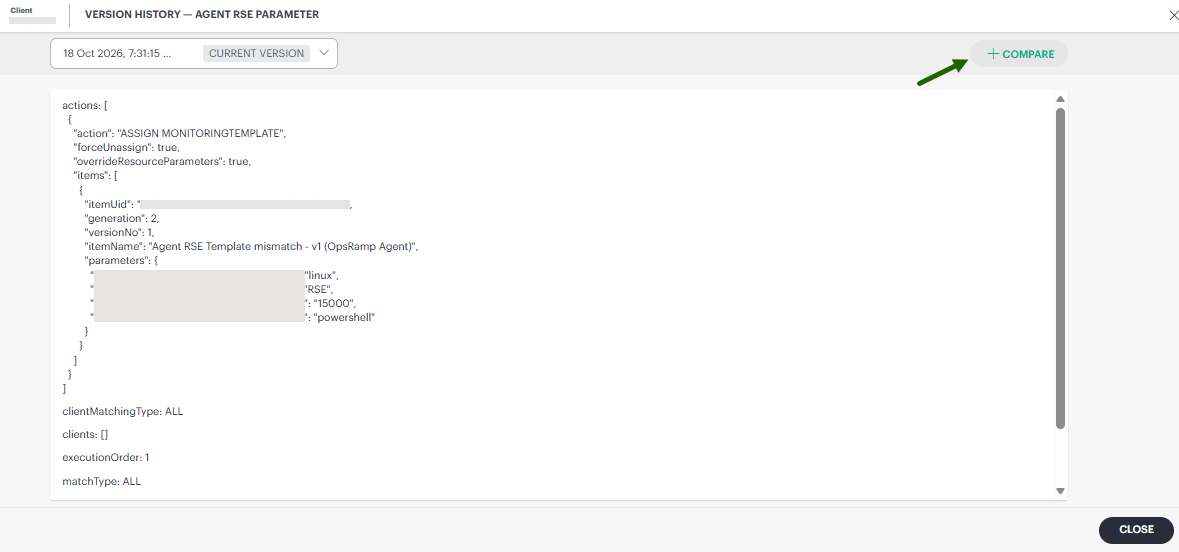
By default, the system compares the current version with the version immediately preceding it.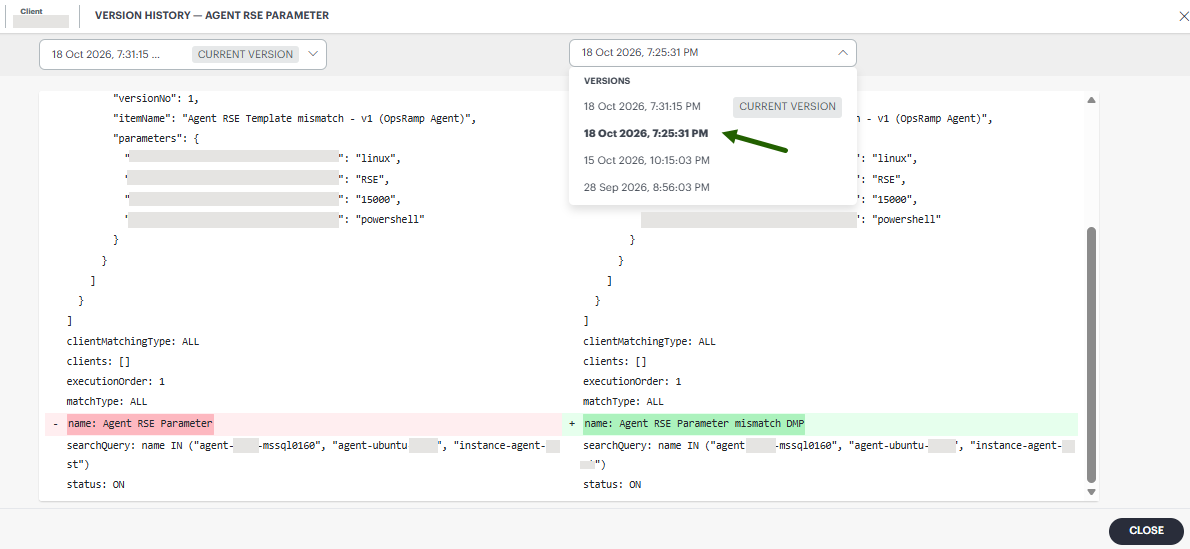
The comparison highlights the changes made. Review the differences between the configuration values.
- You can select another older version to compare with the current version, or compare two older versions.
Comparison helps you determine which change might have caused unexpected alerts.