This section describes how to view the details of a Budget-based Alert Policy, including the budget scope, thresholds, and the owner responsible for receiving alerts. This includes reviewing the cloud provider or account the policy applies to, the monthly or annual budget scope, the configured budget limit, the warning and critical threshold percentages that trigger alerts, and the designated budget owner who receives notifications when thresholds are breached.
Reviewing these details regularly helps ensure that budget policies remain aligned with your organization’s cost management goals and that the right stakeholders are notified in a timely manner.
View Budget-based Policy
Follow these steps to view policy details:
- Navigate to Setup > Account > Monitoring and select Alert Definitions. A list of all Template-Based Alert definitions** appears.
- Select the Budget Based tab. A list of all budget-based policies appear.
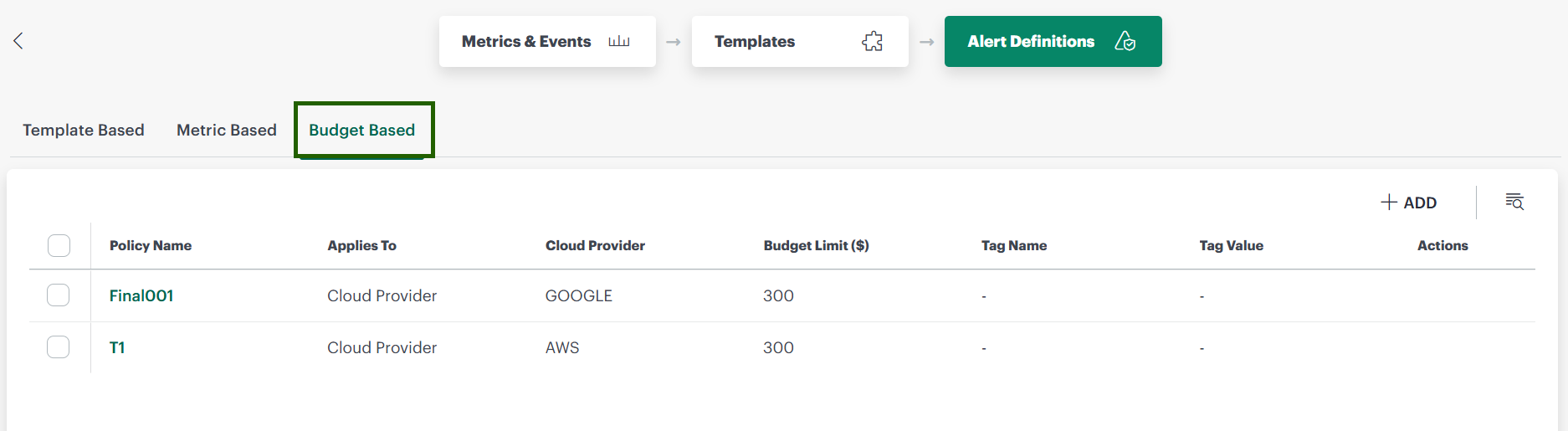
- Click the policy name. Alternatively, mouse hover over the row, click the ellipsis (…) icon, and select View Details. The policy details page appears.
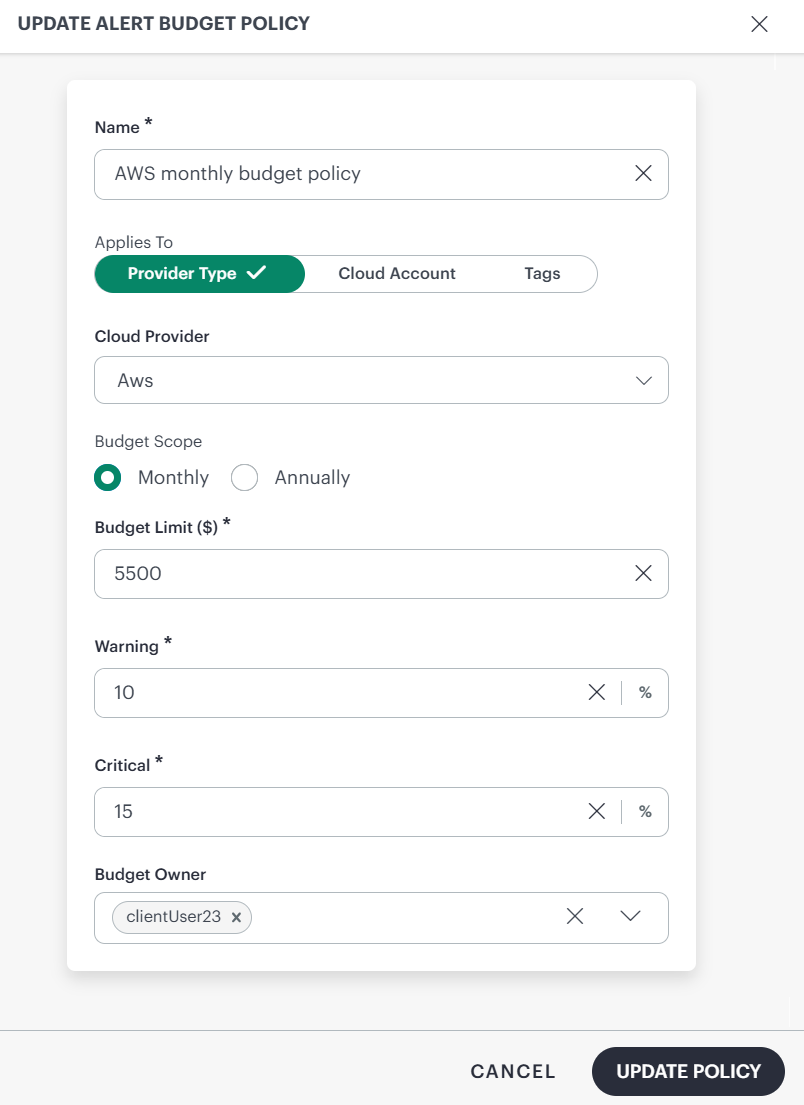
- Make the necessary modifications and click Update Policy. A confirmation message appears.
×![]()