Use budget policies to track cloud spending, establish spending limits, and receive alerts when costs reach defined thresholds. This enables proactive cost management and helps prevent unexpected overruns.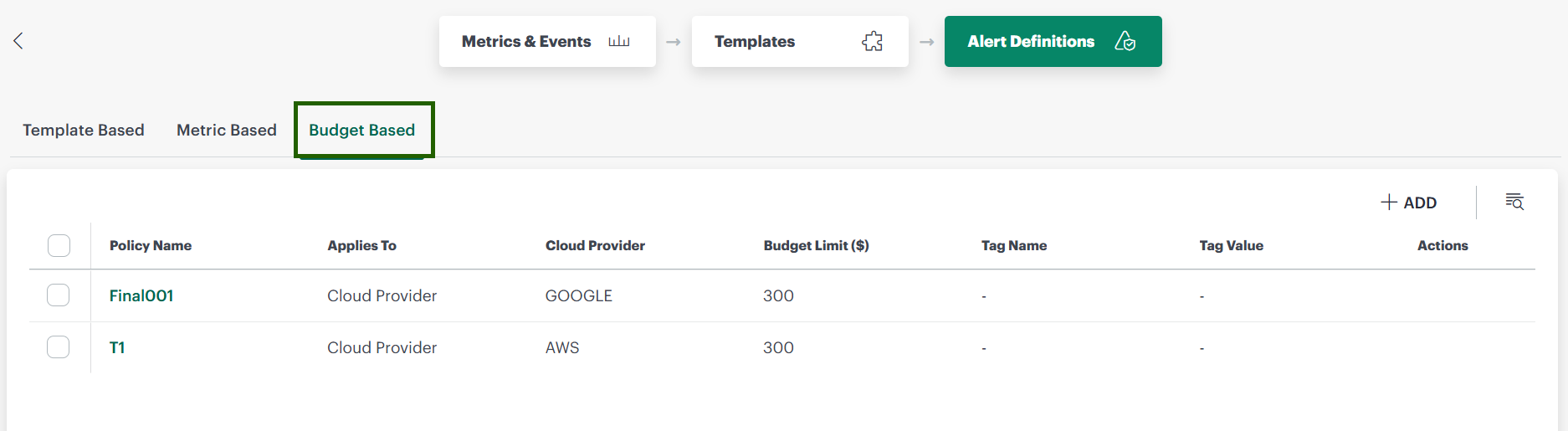
Create Budget-based Policy
Follow these steps to create a budget-based policy:
- Navigate to Setup > Account > Monitoring and select Alert Definitions. A list of all Template-Based Alert definitions** appears.
- Select the Budget Based tab and click +Add.
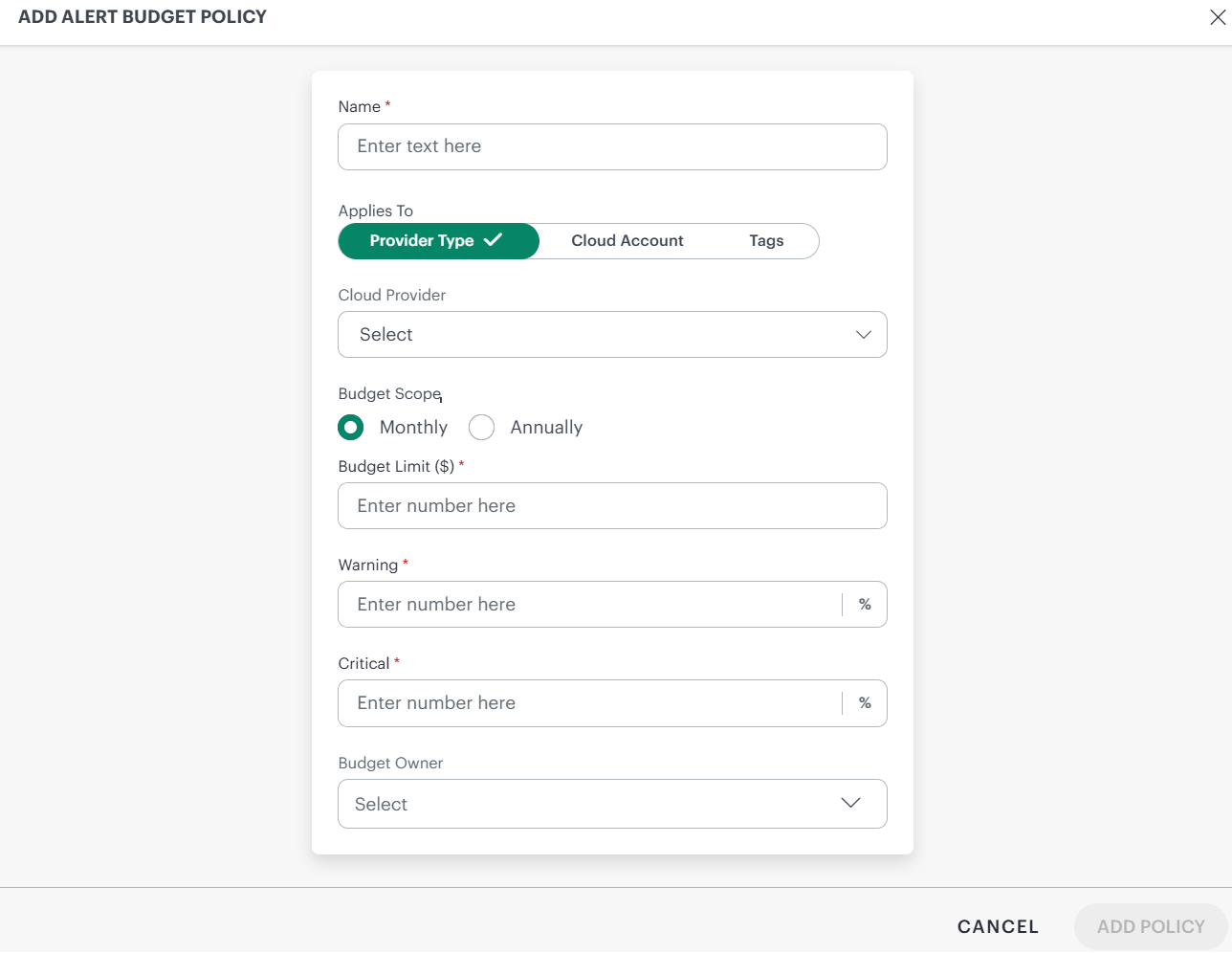
- On the Add Alert Budget Policy page, provide the following details:
Field Name Description Name Enter a name for the budget policy. Applies To Select Provider Type, Cloud Account, or Tags. Cloud Provider Select AWS, Azure, or Google Cloud. Budget Scope Select Monthly or Annually. Budget limit ($) Enter the budget limit in dollars. Warning Set the warning limit. When the limit crosses the warning value, an alert is triggered by the budget policy. Default warning limit is 80% of the budget limit. Critical Set the critical limit. Set the Critical warning limit. When the limit crosses critical value, an alert is triggered by the budget policy. Default warning limit is when the budget limit reaches 100%. Budget Owner The user to whom the alert needs to be sent. After the budget policy is created, an Escalation Alert Policy is automatically gets created, through which the budget owner gets alerts if the warning or critical threshold limits are breached. - Click Add Policy. A confirmation message appears.
Related Topics
×![]()