Predefined templates provide ready-to-use workflow automation patterns in Process Automation 2.0. They help you create a Process Definition faster, reduce manual design effort, and improve consistency across teams.
Use predefined templates when you want to:
- Start from a proven workflow pattern instead of building from scratch.
- Standardize repeated automation tasks across Accounts.
- Accelerate implementation for common alert handling and operational scenarios.
How predefined templates work
A predefined template includes the basic configuration and workflow logic for a specific use case. When you use a template, OpsRamp creates a new Process Definition draft based on that template. You can then review and adjust the details before saving and enabling the Process Definition.
Typical flow:
- Select a template from the Templates tab.
- Use the template to create a Process Definition.
- Update required fields and workflow steps.
- Save and enable the Process Definition.
Available out-of-the-box templates
OpsRamp provides the following predefined templates:
- Alert-to-Incident Escalation with Auto-Remediation
- CICD Pipeline
- Ansible Playbook Execution
- OS Based Script Execution
- Outbound Integration
- Script Execution with Approval
- Event Based Bulk Alert Cleanup
- Schedule Based Alert Cleanup
- Escalate Warning Alert to Critical
- Auto Close Healed Alert
- Scheduled Patch Installation
Each template includes a predefined workflow structure that you can reuse and modify for your operational needs.
Create a template
To create a predefined template in Process Automation 2.0, follow these steps:
Step 1: Open the Process Definition page
- Log in to the OpsRamp portal.
- Navigate to Automation > Process Automation 2.0.
- The Process Automation Overview page is displayed.
- Click the menu icon and select Process Definition.
- The Process Definition page is displayed.
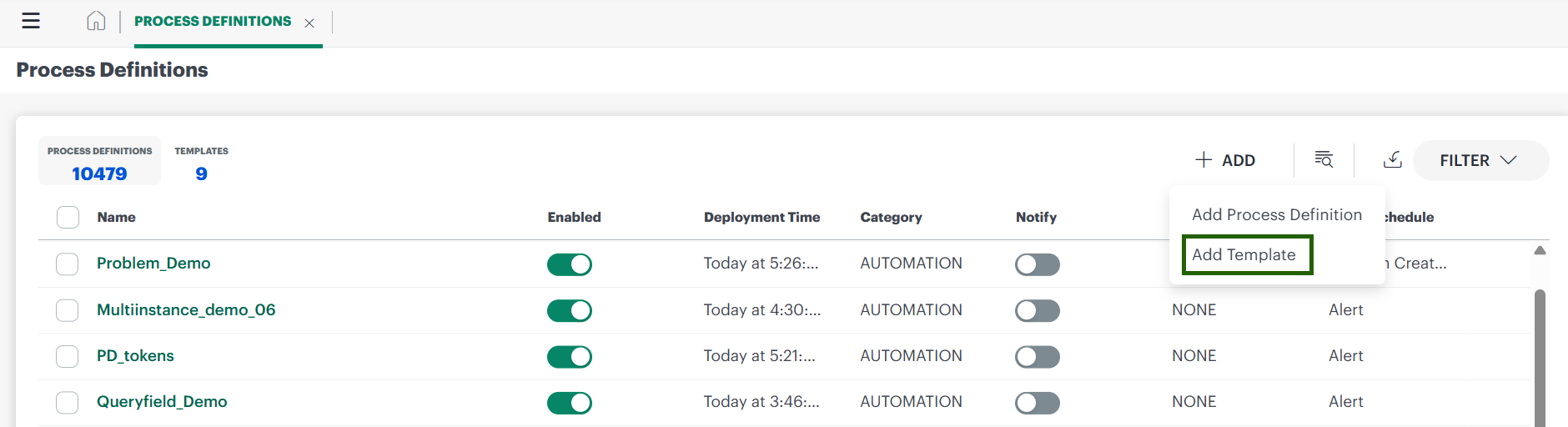
- Click + Add > Add Template.
- The Add Template page appears.
Step 2: Configure basic details
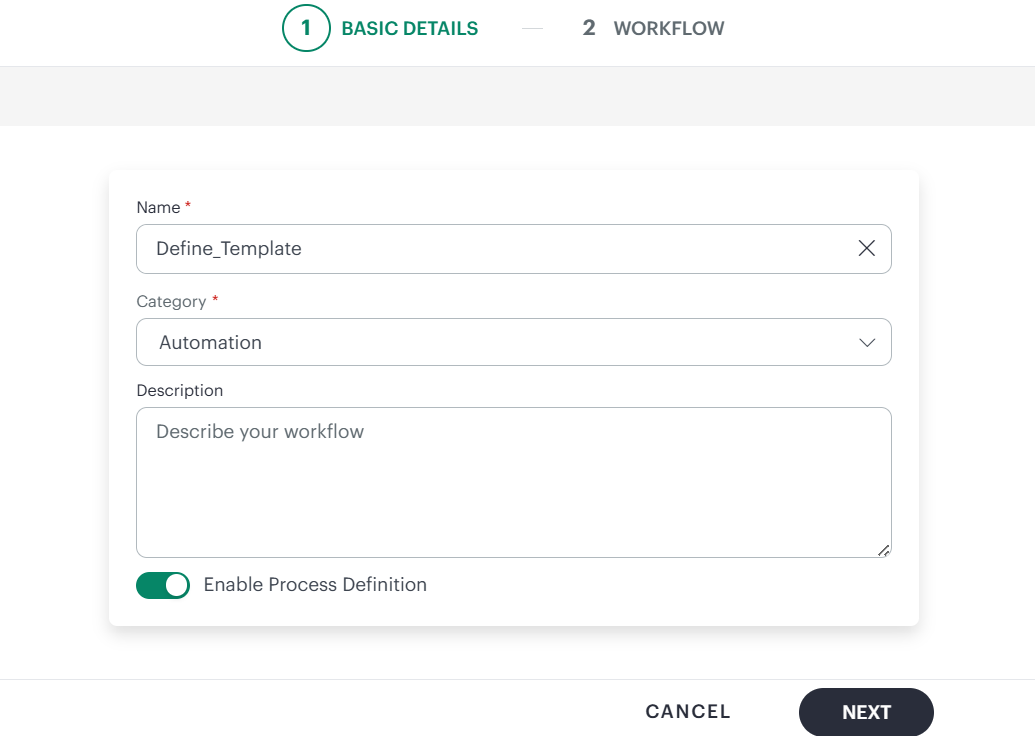
To provide the template metadata and status, complete the Basic details tab:
- In Name, enter a unique template name.
- In Category, select one of the following:
- Automation
- Patch Management
- Network Configuration
- In Description, enter a brief summary of the template purpose.
- Turn on Enable Process Definition if you want to enable it after creation.
- Click Next.
- The Workflow tab is displayed.
Step 3: Build and save the workflow
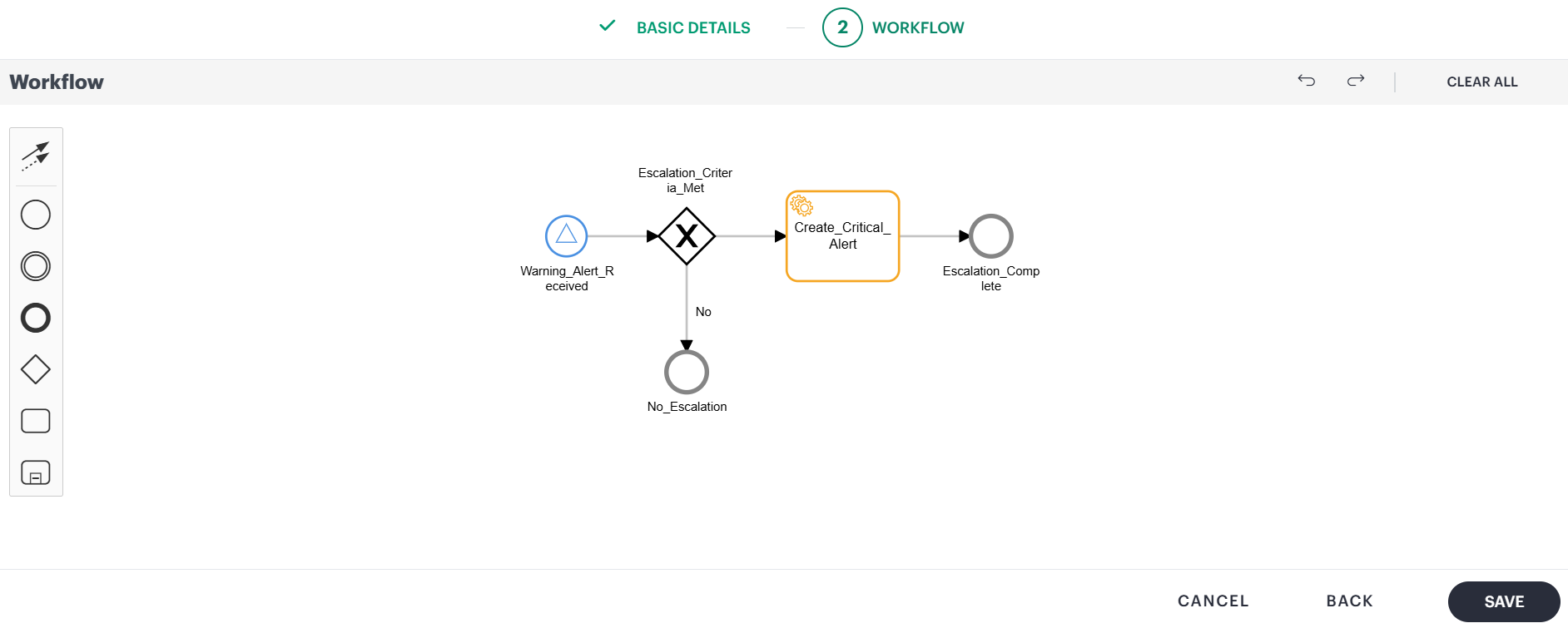
To define the execution logic for the template, complete the Workflow tab:
- Add and connect the required workflow steps.
- Configure conditions, actions, and approvals as needed.
- Validate the workflow logic.
- Click Save to create the template.
Use a template to create a Process Definition
To create a Process Definition from an existing template, follow these steps:
- Go to Automation > Process Automation 2.0 > Process Definition.
- Open the Templates tab.
- Select the required template.
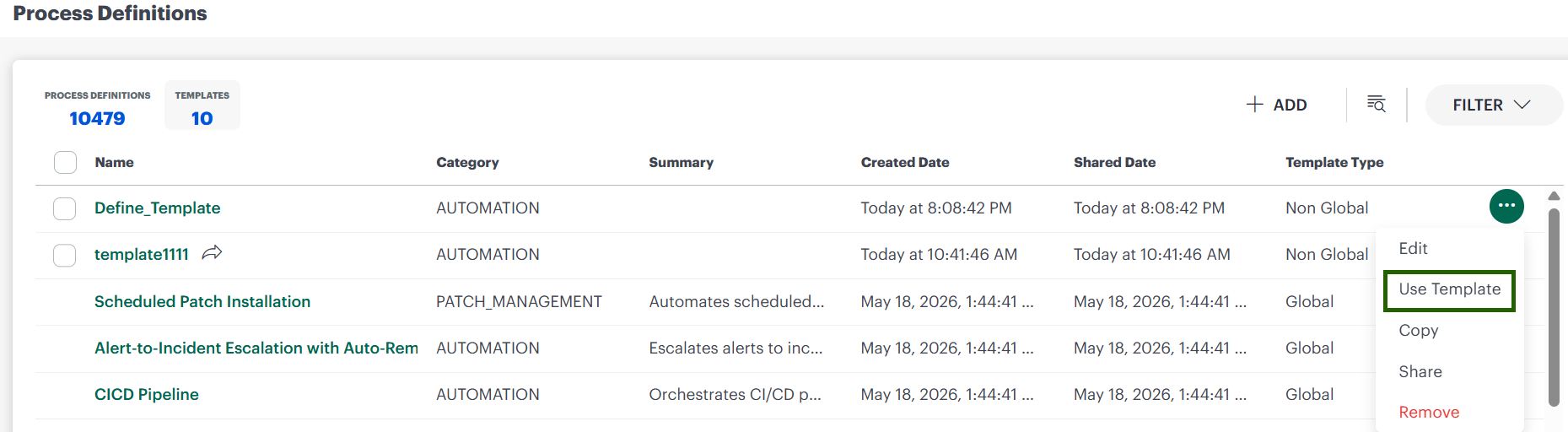
- Click Use Template.
- A new Process Definition draft is created from the selected template.
- Update the configuration based on your use case.
- Save and enable the Process Definition.
Manage templates
To manage templates from the Templates tab, use the following actions:
- Edit: Update the template name, category, description, or workflow logic. Use this option when you need to refine an existing template for future reuse.
- Use Template: Create a new Process Definition from the selected template. Use this option when you want to apply the same workflow pattern to a new automation scenario without redesigning the flow.
- Copy: Create a duplicate of an existing template. Use this option when you want to preserve the original template and create a variation for a different team, environment, or use case.
- Share: Grant visibility of a template to users in the Partner or Client hierarchy. Use this option to standardize automation practices across multiple Accounts while maintaining controlled access.
- Remove: Delete a template that is no longer required. Remove only obsolete templates to keep the template library clean and easy to maintain.
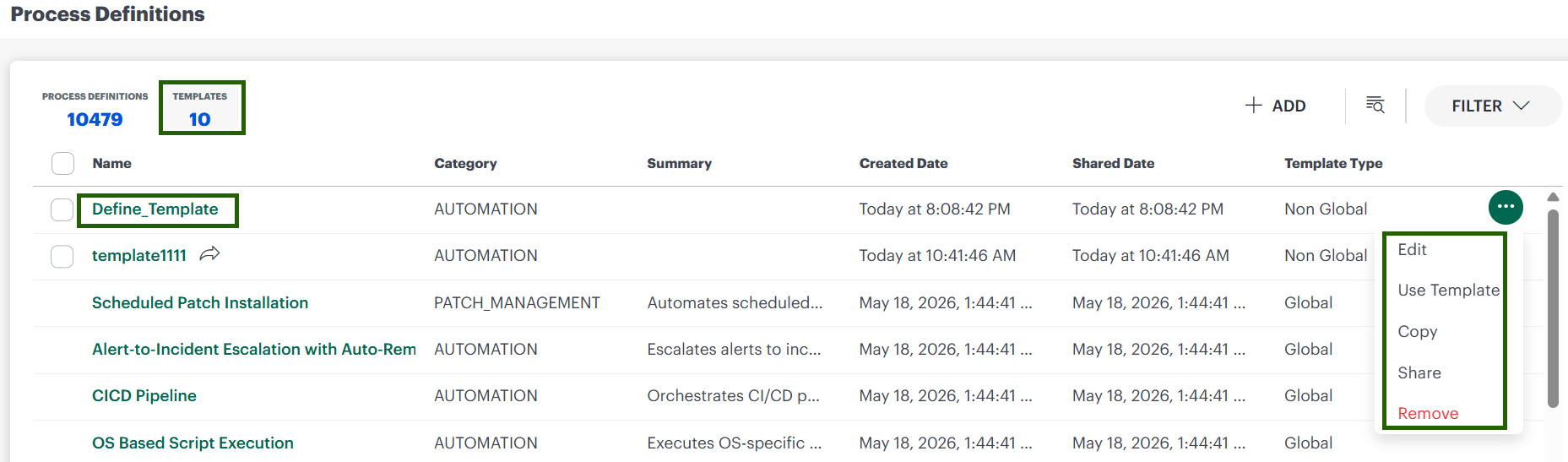
Template types and visibility
OpsRamp supports two template types: Global templates and Non Global templates.
Global templates
Global templates are system-provided templates that are available by default.
- Created by: OpsRamp by default
- Visibility: Available to all users globally
- Primary use: Start quickly with standard workflow automation patterns
- Edit permission: Not editable by standard users
Non Global (Custom) templates
Custom templates are user-created templates for specific operational needs.
- Created by: User
- Visibility: Private by default and visible only to the creator
- Sharing: Can be shared with users in the Partner or Client hierarchy
- Edit permission: Only the template owner can modify the template
- Access for shared users: Shared users can view and use the template based on sharing permissions
Use Global templates when you need a ready-to-use standard workflow. Use Custom templates when you need a team-specific or account-specific workflow pattern.