You can establish SSH access to NextGen Gateways running on Kubernetes using the following options:
Access via Kubernetes Nodes:
Since the NextGen Gateway application runs within a Kubernetes Pod, it is not possible to take remote SSH consoles directly to the gateway resource. Instead, SSH access must be established through the underlying Kubernetes nodes.
Node Discovery in OpsRamp
To enable SSH access from OpsRamp, the Kubernetes cluster nodes must be available as resources in the platform. If you are using an OpsRamp-provided ISO/OVA
- The OpsRamp agent automatically discovers the Kubernetes cluster nodes.
- You can directly initiate SSH sessions to the discovered node resources.
If you are not using an OpsRamp-provided ISO/OVA
You can use one of the following approaches:
- Install the OpsRamp Host Agent on each Kubernetes node to enable automatic discovery.
- Manually add the Kubernetes cluster node resources in OpsRamp.
Alternative Configuration:
If you do not wish to add new Kubernetes nodes to OpsRamp, you can use the following alternative approach:
- Update Gateway IP Address: Update the IP address in the existing gateway resource console configuration from 127.0.0.1 to the actual IP address of the Kubernetes node.
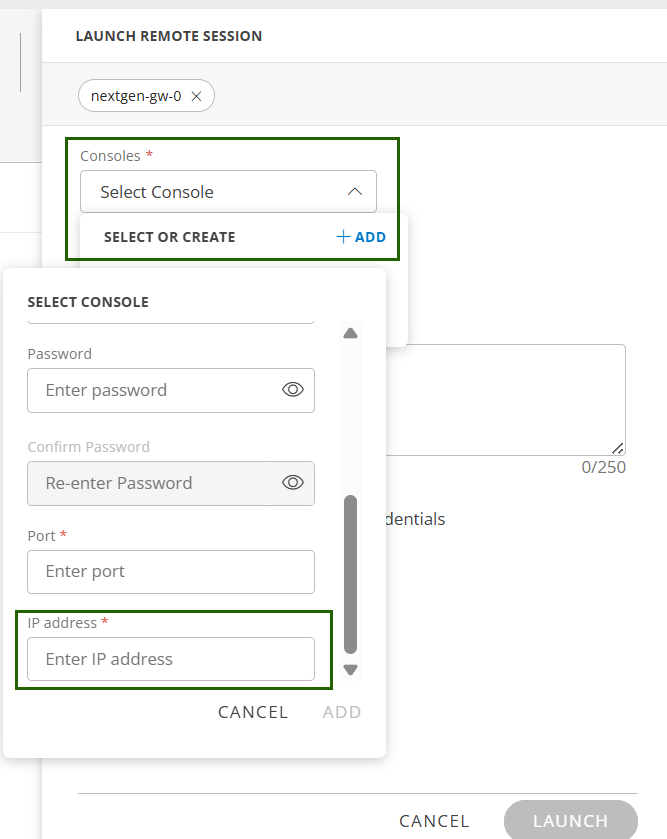
- Add Node Credentials: Add the corresponding node (gateway) credentials to the gateway resource.
This configuration allows OpsRamp to successfully launch the SSH console for the node, enabling remote access without directly onboarding new Kubernetes nodes.
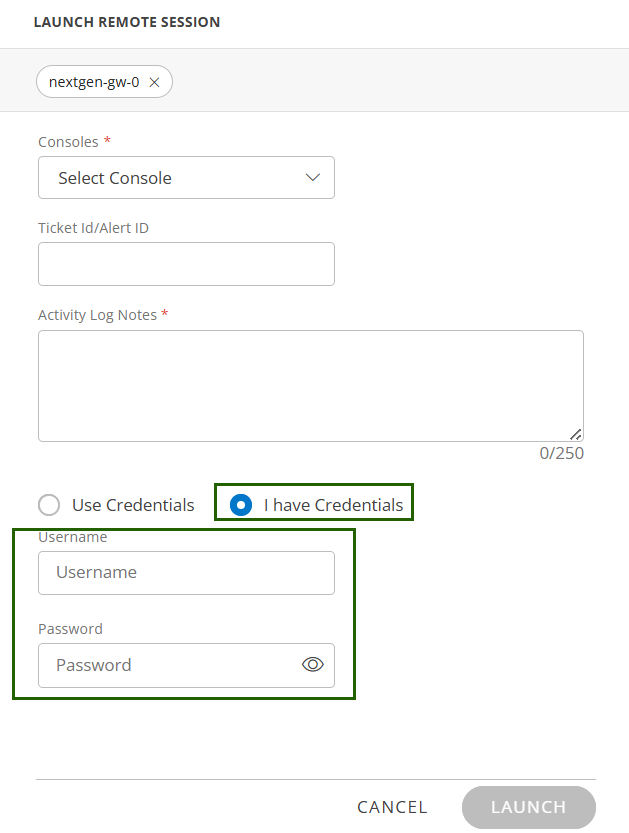
To configure the same, follow the steps below:
Login to Opsramp portal using valid credentials.
Select the Partner/Client user.
Navigate to Setup > Account > Collector Profiles. The Collector Profiles screen displays the gateways available for the client.
Click the gateway resource name. The Overview page of the gateway is displayed.
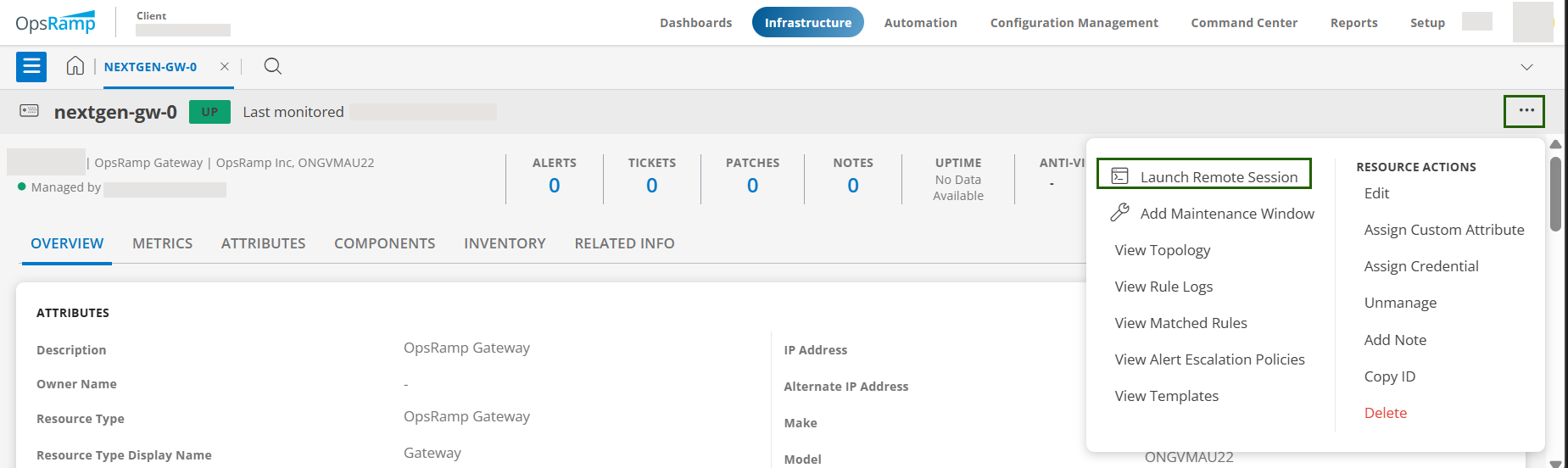
Click the ellipses icon (three dots) in the top right, then select Launch Remote Session. The Launch Remote Session slide-out screen appears.
In the Console field, select an existing console or click +ADD to create a new one.
Enter the required console configuration details. For detailed information about configuring remote consoles, see the Remote Consoles document.
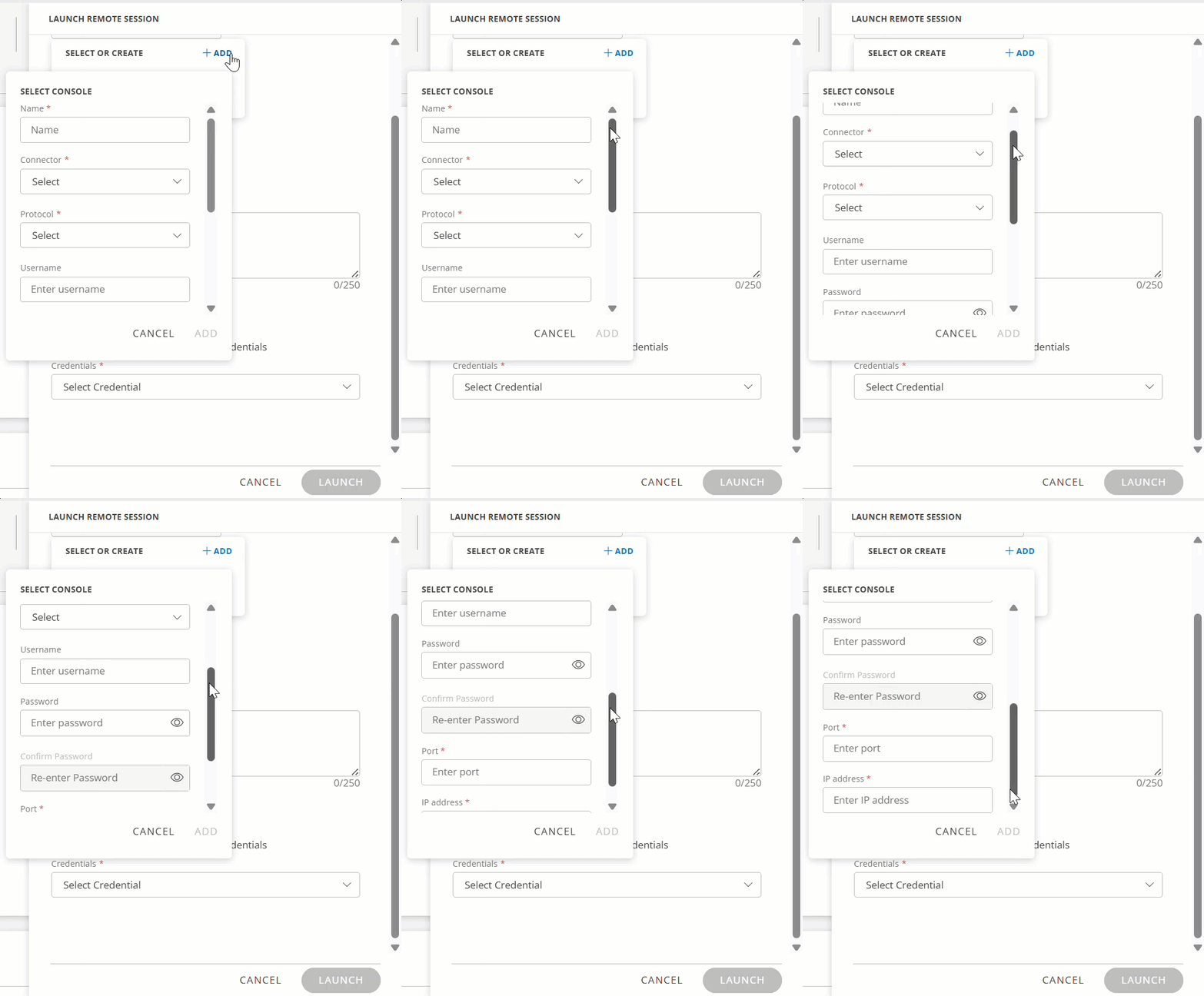
For next steps, refer to step 6 in the Launch Browser Consoles from Infrastructure Page document.