This page explains how to identify and recover from the OpsRamp Gateway Read‑Only Mode alert. The issue can occur on Classic Gateway deployment and requires manual intervention.
Problem
You may receive the following alert:
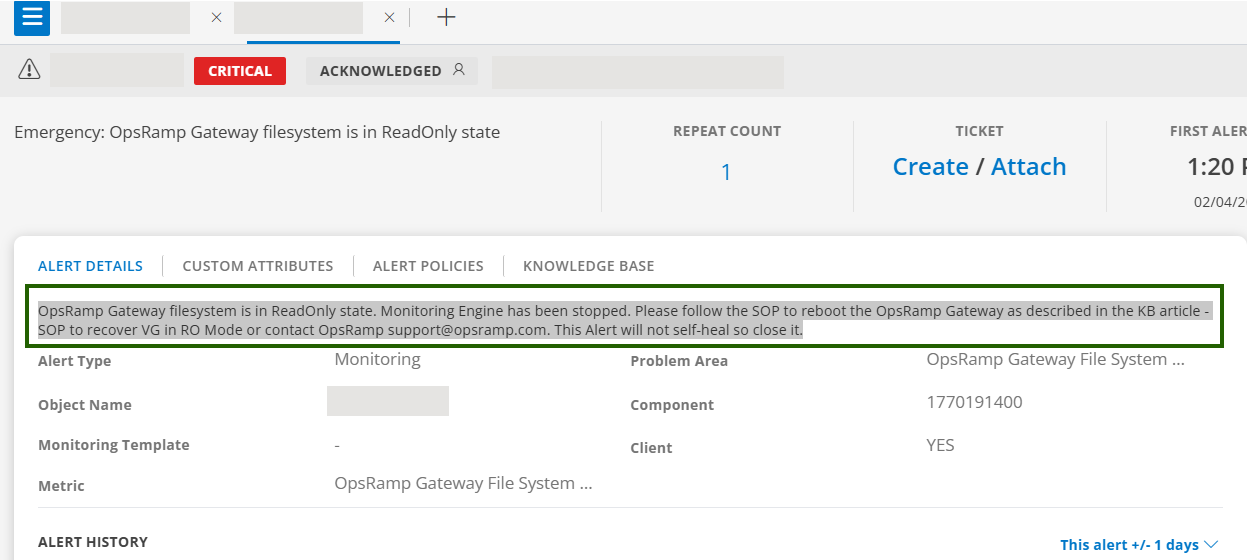
This alert is triggered when:
- Insufficient disk space (or inodes) on root/app volume.
- Filesystem remounted read‑only due to disk/I/O errors.
As a result,
- Monitoring data collection is interrupted.
- Gateway services that require filesystem write access may stop functioning.
- Manual recovery and alert closure are required.
Procedure
Verify the Read‑Only State
Run the following command on the gateway host or inside the gateway pod to check if the read-only condition exists:
touch /var/log/app/tmp/ro-test.$RANDOMRemediation – Classic Gateway
Check disk usage
df -hCheck system messages
dmesg | tail -n 200Free up disk space
- Rotate or truncate large log files under
/var/logand/var/log/app. - Remove unused temporary files as per standard cleanup practices.
- Recover the gateway
- Follow the document to recover VG in RO Mode.
- Reboot the gateway if required to remount the filesystem in read‑write mode.
- Validate:
Ensure the following command succeeds:
Confirm that the monitoring engine is running.touch /var/log/app/tmp/test
Best Practices
- Configure log rotation for
/var/logand/var/log/app. - Monitor disk space and inode usage on Classic Gateways.
- Ensure CSI/Longhorn is healthy (replicas, node disk pressure, controller pods).
Handling Filesystem Corruption (fsck) in Classic Gateway
If dmesg or console output displays filesystem corruption messages, such as:
/dev/sda2: UNEXPECTED INCONSISTENCY: RUN fsck MANUALLYThe root or app disk requires a filesystem check and repair.
Procedure
1. Access single-user or rescue mode
Access the gateway console (IPMI, ILO, or VM console) and boot into rescue or single-user mode according to your environment standards.
2. Run filesystem check
Execute the following command from the console:
fsck /dev/sda2Follow the on-screen prompts to repair errors. Answer “y” (yes) to repair prompts unless directed otherwise by your OS support team.
3. Reboot the gateway
After fsck completes successfully, run:
reboot4. Validate post-recovery
After the system restarts, verify the following:
- Filesystem is mounted in read-write mode (no RO errors in
dmesgormountoutput) - The command
touch /var/log/app/tmp/testexecutes successfully - Monitoring engine and vprobe services are running without new RO alerts
FAQ
- Does the Read‑Only Mode alert clear automatically?
No. The alert does not self‑heal and must be closed manually after the issue is resolved. - Is a reboot required for Classic Gateway recovery?
In most cases, yes. If the filesystem is mounted as read‑only, a controlled reboot is required after freeing disk space and allow fsck if requested.