Client Groups let Partner Administrators organize multiple clients into named, logical groups so related clients can be managed and referenced together. Instead of selecting clients individually each time, you can use a group to keep a set of clients organized for common operations, reporting, or access management.
- Create, view, and edit client groups as your needs change, or remove groups that are no longer needed.
- Add or remove clients from the client group(s) as per your organizational requirements.
Partner Administrators can also simplify role-based access management with client groups by applying policies to related clients together.
Client groups are scoped to your partner account. Users can access only the client groups of their own partner, and client-level users cannot see or modify client groups.
Common use cases
- Region-based grouping: Group clients by geography, for example, EMEA Clients.
- Service tier grouping: Group clients by support or subscription level, for example, Premium Clients.
- Industry grouping: Group clients by vertical, for example, Healthcare Clients.
Prerequisites
- You must be a Partner (MSP) Administrator with these Permissions.
- The clients you want to group must already exist. See Create a Client.
Permissions
The following permissions are required to perform various tasks.
| Type of user | Category | Permission Type | Permission Value | User action |
|---|---|---|---|---|
| MSP user | Account Administration | Clients | View | To view Clients card in Setup > Account > Account Details page. You can also click on the Clients card and view the client details. Also required to list, search, and view client groups and their member clients. |
| MSP user | Account Administration | Clients | Create and Access to All Clients. | To create new clients. |
| MSP user | Account Administration | Clients | Manage | To edit client details. Also required to create, edit, and remove client groups and to add or remove their clients. |
Additionally, the following roles are required:
| Category | Permission Type | Permission Value |
|---|---|---|
| Role Details | Tenant scope | Partner |
| Role Details | Access to | All Clients |
Add a Client Group
Create a client group to manage multiple clients together.
Navigate to Setup > Account. The ACCOUNT DETAILS page appears.
Click Clients tile. The CLIENTS page appears.
Click Client Groups card. The Client Groups listing page appears.
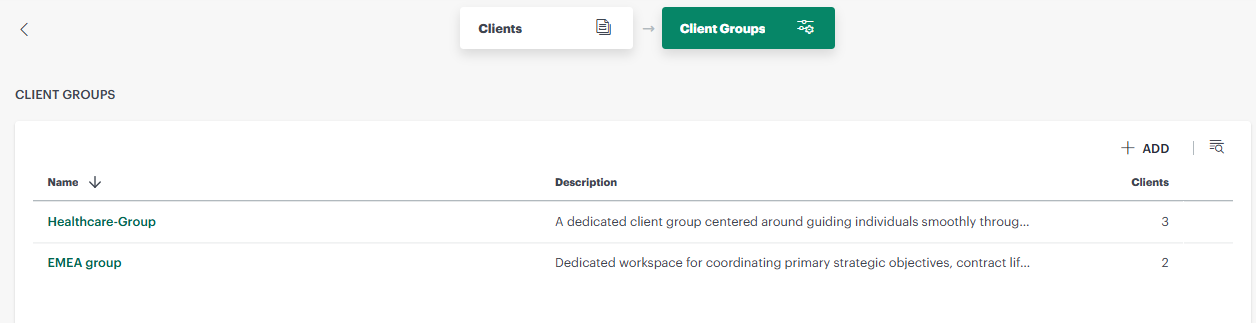
Click +ADD. The Add Client Group page appears.
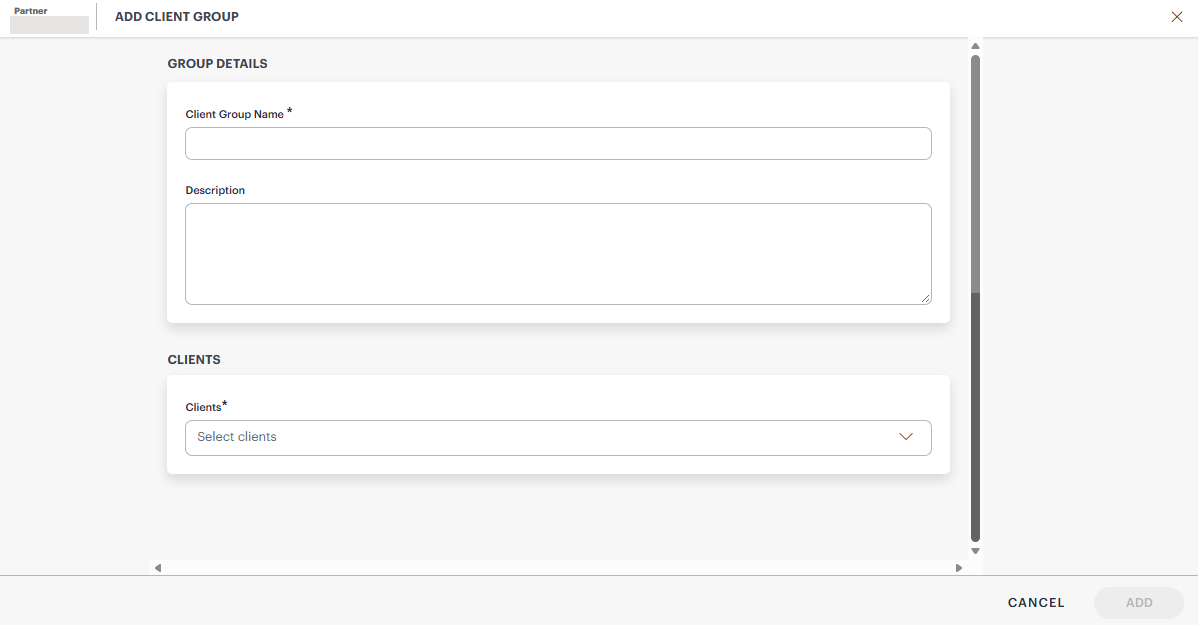
Enter the following information.

GROUP DETAILSField Name Field Type Description Client Group Name String Name of the client group. Use a meaningful name that reflects the grouping criteria. The name must be 1-255 characters long (leading and trailing spaces are removed) and must be unique within your partner account. Description String Brief description of the client group, such as its purpose or criteria. CLIENTS
Field Name Field Type Description Clients Dropdown Clients to include in the client group. Select at least one client. Only active clients can be added to a group. Click ADD. The client group is created and displayed in the Client Group listing page.
If the request is invalid, for example, a duplicate group name, a duplicate client, an inactive client, or no client selected, the client group is not created, and an error message is displayed.
Use Client Groups in Roles
You can use client groups when you define the client access of a role. Instead of selecting clients one by one, select a client group so that the role applies to all clients in the group. See Roles for more information.
Manage Client Groups
After creating one or more client groups, you can perform the following actions:
- View and edit client group details.
- Copy the client group ID.
- Remove client groups that are no longer needed.
View and Edit Client Groups
Update the name or description of a client group, and add or remove the clients in the group.
- Navigate to Setup > Account > Clients tile.
- Click Client Groups card. The CLIENT GROUPS listing page appears.
- Search for the client group you want to view details.
- Click the client group name, or move the mouse pointer over the row and click the ellipsis (…) icon and select View.
- The client group details page appears.
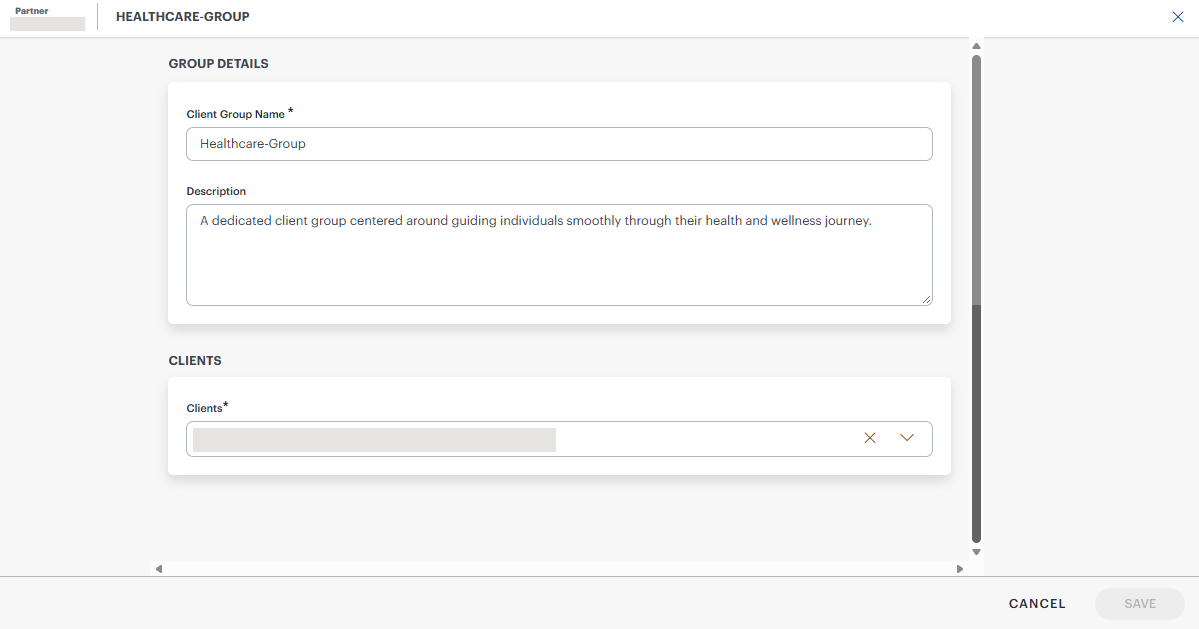
- Make the necessary changes.
- Click Save.
- The same validations as for Add a Client Group apply. If any validation fails, no changes are saved.
- A client group must always contain at least one client.
- Only active clients can be added to a group.
Copy a client group ID
Each client group has a unique ID. Copy the ID to reference the group in API calls or when contacting support.
- Navigate to Setup > Account > Clients tile.
- Click Client Groups card. The CLIENT GROUPS listing page appears.
- Search for the client group you want to copy group ID.
- Click the client group name, or move the mouse pointer over the row and click the ellipsis (…) icon and select Copy Id. The client group ID is copied to the clipboard. Use it to reference the group.
Remove a client group
Remove a client group that is no longer needed. Only the group and its memberships are deleted; the clients are not affected.
Note: Removing a client group is permanent and cannot be undone. To restore a removed group, create it again.
- Navigate to Setup > Account > Clients tile.
- Click Client Groups card. The CLIENT GROUPS listing page appears.
- Search for the client group you want to remove.
- Click the client group name, or move the mouse pointer over the row and click the ellipsis (…) icon and select Remove. A confirmation message appears.
- Confirm the deletion. The client group is removed.
Limitations
The following limitations apply to client groups:
- Client groups are available only to Partner (MSP) Administrator users with access to all clients.
- A client group must always contain at least one client, both when it is created and after it is edited.
- Only active clients can be added to a client group.
- Removing a client group cannot be undone. You must create the group again if needed.
FAQs
Can a client belong to more than one client group?
Yes. A client can be a member of multiple client groups.
Does deleting a client group delete the clients in it?
No. Only the group is removed. The clients remain unaffected.
Can I add a suspended client to a client group?
No. Only active clients can be added.
Troubleshooting
| Issue | Possible cause | Resolution |
|---|---|---|
| Client Groups option is not visible | Missing permissions or role. | Verify that you have the permissions and roles listed in Permissions. Contact your administrator if needed. |
| Client group cannot be saved | The name is a duplicate, a client is inactive, or no client is selected. | Enter a unique client group name, select active clients. |
| Cannot add, edit, or remove client groups | You have view-only permission. | Contact your administrator to get Manage permission. |
Next Steps
- See Create a Client to learn how to create a client.