Voice notification templates allow you to configure automated voice call messages that are triggered based on specific events, such as alerts, incidents, or service requests. These templates help ensure that critical notifications reach the right stakeholders promptly through voice calls, enabling faster response times for time-sensitive issues.
Create Voice Notification Template
As a Client Administrator
Follow these steps to create an SMS notification template:
- Navigate to Setup > Account.
- Click the Notification Templates tile. The Notification Template listing page appears, with the Alert card selected by default.
- Click + ADD. The Edit Notification Template - Alert page appears. This template is inherited from the parent organization. In this case, it is Partner.
- In the Content section, click the Voice card.
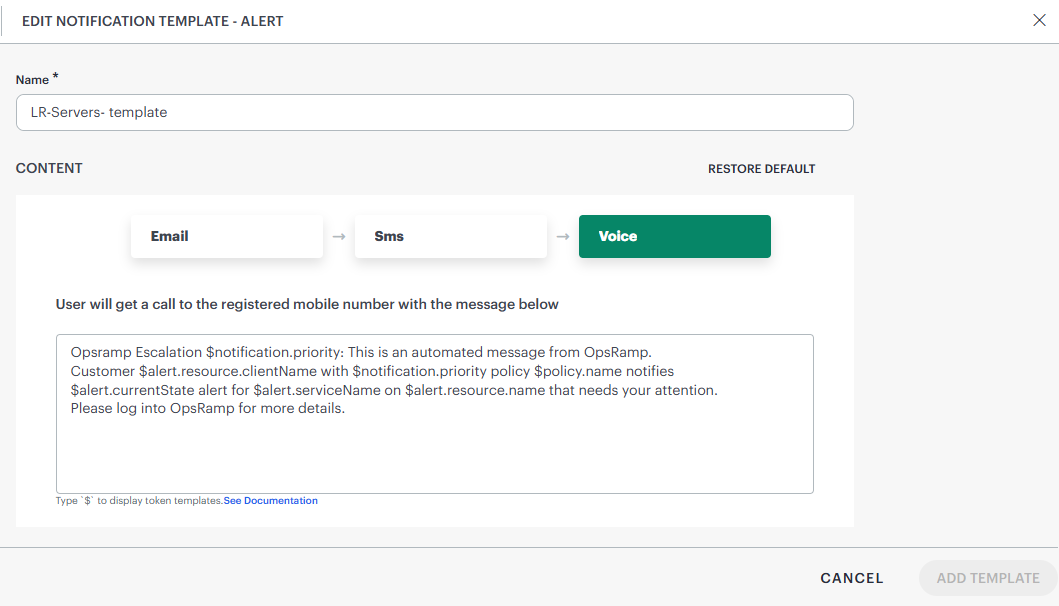
- Modify the template name as needed.
- Type $ to open a dropdown that has a list of notification tokens, alert tokens, alert custom attributes, policy tokens, and resource tokens. On mouse hover over a token, its value is displayed.
Customize the voice message body as per your requirements. Multiple tokens can be added by separating each token with a comma.
For example, if the subject must contain the alert escalation policy name and the device group name, enter the$policy.nameand$alert.resource.deviceGroupstokens in the subject.
See Alert Utility Tokens for more information. - Click Add Template. The Voice notification template is created and available on the listing page.
As a Partner Administrator
To create an SMS notification template at the partner scope:
- Follow steps 1 through 7 listed under the As a Client Administrator procedure above, to complete the template creation.
To create an SMS notification template at the client scope:
- To select your client, click the Partner/Client dropdown menu.
Type your client’s name in the search bar or select your client from the list. - Follow steps 1 through 7 listed under the As a Client Administrator procedure above, to complete the template creation.
As an SP Administrator
To create an SMS notification template at the SP scope:
- Navigate to Setup > Account.
- Click the Notification Templates tile. The Notification Template listing page appears, with the Alert card selected by default.
- Click + ADD. The Platform-level template appears.
- Follow steps 4 through 7 listed under the As a Client Administrator procedure above, to complete the template creation.
Template Precedence
See Template Precedence for more information.
Template Inheritance
See Template Inheritance for more information.
Default Template
See Default Template for more information.
Restore Default
See Restore Default for more information.
Note
- The SMS and Voice features are enabled by default if you are subscribed to the SMS/Voice add-on package.
- To auto acknowledge the alert, follow the menu. Press 1 to acknowledge the alert and Press 2 to suppress the alert.
- Once an alert is acknowledged, subsequent voice calls will not be routed to the next configured user within that escalation level, and the next escalation level will not be triggered.
- If a voice alert is not acknowledged, the next user configured to receive voice notifications will receive a voice call.
- If none of the users in an escalation level answer the voice call, the next escalation level will be triggered.