An SMS notification template allows you to define and customize the content of text messages sent to users for alerts, incidents, resources, and other events. By configuring a notification template, you can ensure that recipients receive concise, relevant, and timely information via SMS, using dynamic tokens to personalize the message content.
Create SMS Notification Template
As a Client Administrator
Follow these steps to create an SMS notification template:
- Navigate to Setup > Account.
- Click the Notification Templates tile. The Notification Template listing page appears, with the Alert card selected by default.
- Click + ADD. The Edit Notification Template - Alert page appears. This template is inherited from the parent organization. In this case, it is Partner.
- In the Content section, click the Sms card.
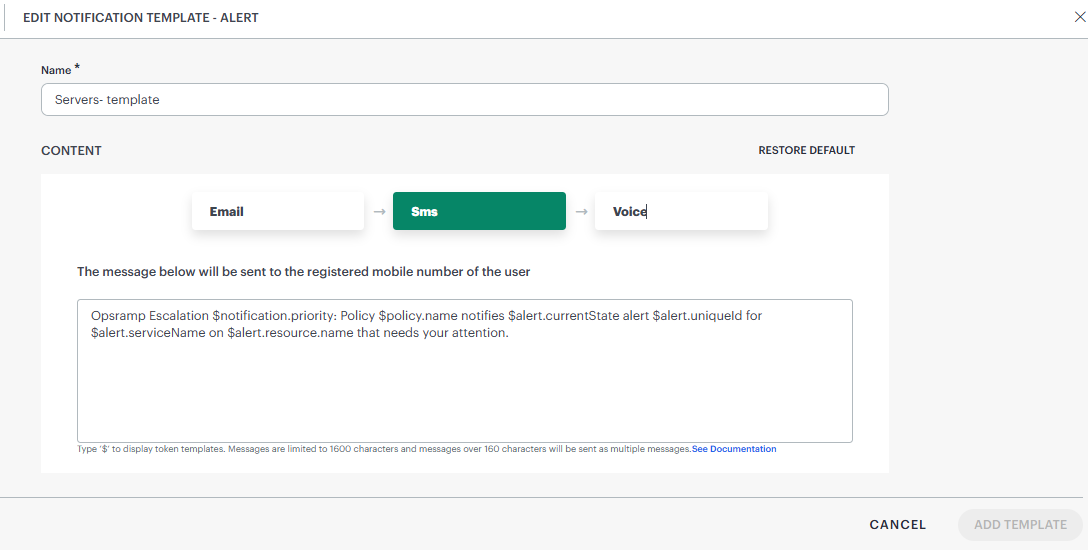
- Modify the template name as needed.
- Type $ to open a dropdown that has a list of notification tokens, alert tokens, alert custom attributes, policy tokens, and resource tokens. On mouse hover over a token, its value is displayed.
Multiple tokens can be added by separating each token with a comma.
For example, if the subject must contain the alert escalation policy name and the device group name, enter the$policy.nameand$alert.resource.deviceGroupstokens in the subject.
See Alert Utility Tokens for more information.
Note: The message body can be up to 1600 characters. Messages longer than 160 characters will be split into segments of 160 characters each and sent as multiple messages. - Click Add Template. The SMS notification template is created and available on the listing page.
As a Partner Administrator
To create an SMS notification template at the partner scope:
- Follow steps 1 through 7 listed under the As a Client Administrator procedure above, to complete the template creation.
To create an SMS notification template at the client scope:
- To select your client, click the Partner/Client dropdown menu.
Type your client’s name in the search bar or select your client from the list. - Follow steps 1 through 7 listed under the As a Client Administrator procedure above, to complete the template creation.
As an SP Administrator
To create an SMS notification template at the SP scope:
- Navigate to Setup > Account.
- Click the Notification Templates tile. The Notification Template listing page appears, with the Alert card selected by default.
- Click + ADD. The Platform-level template appears.
- Follow steps 4 through 7 listed under the As a Client Administrator procedure above, to complete the template creation.
Template Precedence
See Template Precedence for more information.
Template Inheritance
See Template Inheritance for more information.
Default Template
See Default Template for more information.
Restore Default
See Restore Default for more information.
Supported countries for SMS notifications
Following is the list of supported countries for SMS notifications:
| Region | Country name | Country code |
|---|---|---|
| North America | Canada | +1 |
| United States | +1 | |
| Mexico | +52 | |
| Puerto Rico | +1787 | |
| Asia | India | +91 |
| Israel | +972 | |
| Japan | +81 | |
| Philippines | +63 | |
| Singapore | +65 | |
| Europe | Austria | +43 |
| Belgium | +32 | |
| Czech Republic | +420 | |
| Finland / Aland Islands | +358 | |
| Germany | +49 | |
| Italy | +39 | |
| Netherlands | +31 | |
| Poland | +48 | |
| Spain | +34 | |
| Sweden | +46 | |
| United Kingdom | +44 | |
| Hungary | +36 | |
| South America | Argentina | +54 |
| Brazil | +55 | |
| Uruguay | +598 | |
| Africa | South Africa | +27 |
| Oceania | New Zealand | +64 |
| Australia / Cocos / Christmas Island | +61 | |
| Guam | +1671 |