Email notification templates allow you to design and standardize the format of email alerts and notifications sent to users. These templates support dynamic tokens, enabling you to include contextual information such as alert details, resource names directly in the Email content.
Platform-level template
OpsRamp provides a default, platform-level Email notification template. This template is available at the Service Provider (SP) scope. This ensures that every alert notification sent out, regardless of scope, always follows a consistent, pre-defined structure containing essential alert information such as alert subject, severity, resource details, and a summary of the issue.
SP Administrators can customize this platform-level template as per their requirements.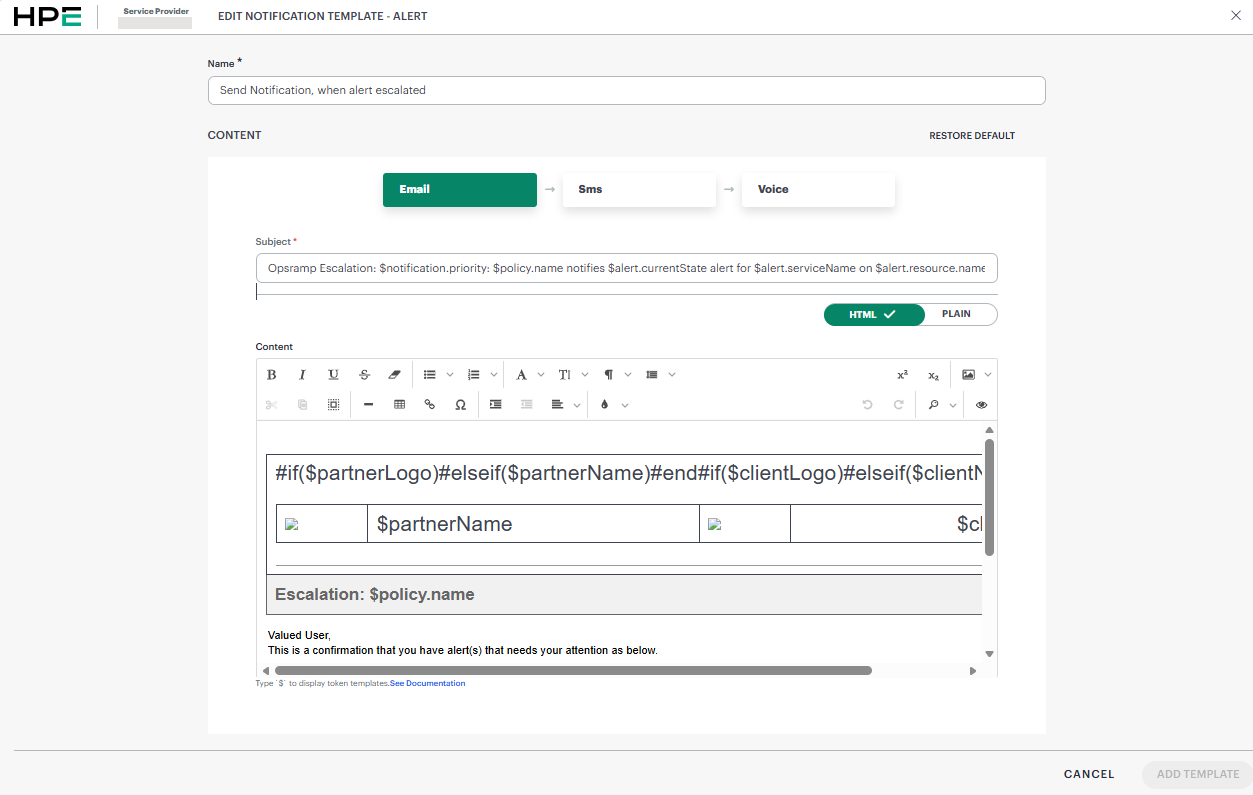
Create Email Notification Template
As a Client Administrator
Follow these steps to create an Email notification template:
- Navigate to Setup > Account.
- Click the Notification Templates tile. The Notification Template listing page appears, with the Alert card selected by default.
- Click + ADD. The Edit Notification Template - Alert page appears. This template is inherited from the parent organization. In this case, it is Partner.
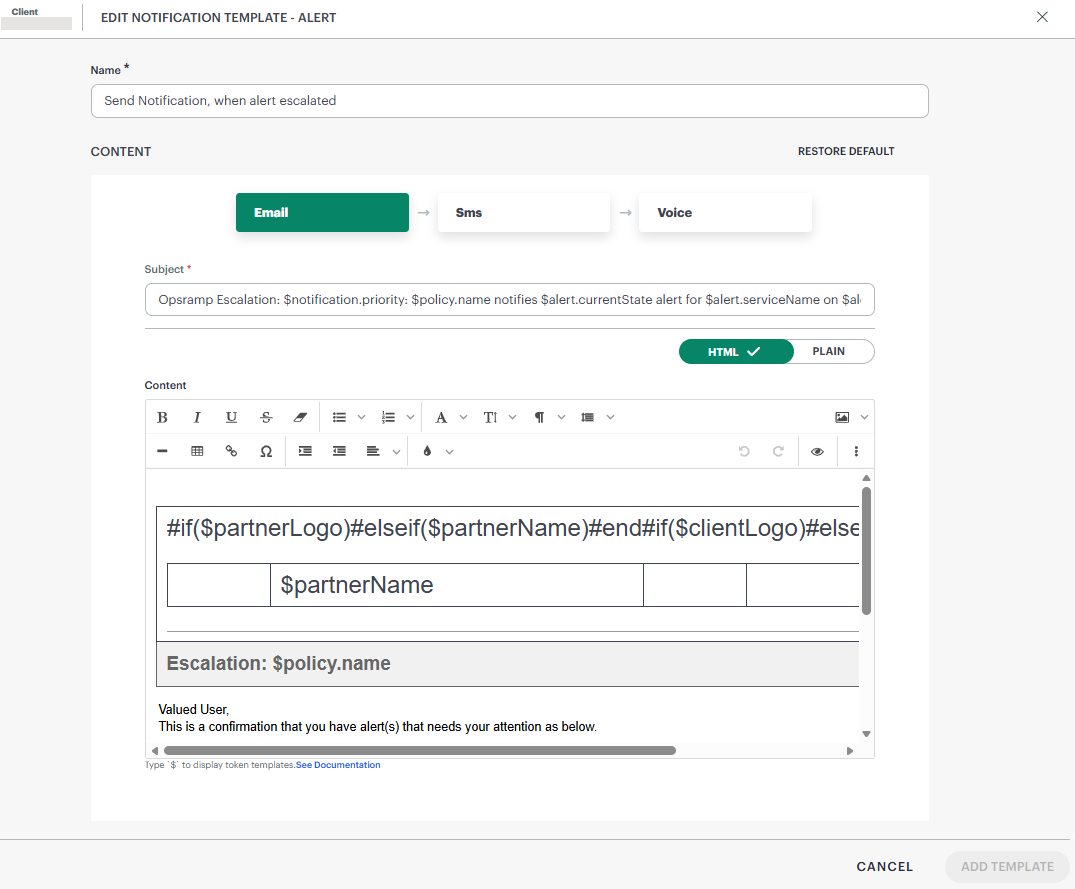
- Modify the template name as needed.
- A default subject is provided. Use Tokens to add alert notification details in addition to the default values.
Type $ to open a dropdown that has a list of all tokens, notification tokens, alert custom attributes, and resource custom attributes. On mouse hover over a token, its value is displayed. Multiple tokens can be added by separating each token with a comma.
For example, if the subject must contain the alert escalation policy name and the device group name, enter the$policy.nameand$alert.resource.deviceGroupstokens in the subject.
See Alert Utility Tokens for more information. - Customize the Email content using the rich-text editor and tokens. For example, if the details of all correlated alerts of an inference must be visible in the email body, use the Correlated Alerts token:

- Click Add Template. The template is created and a confirmation message appears.
As a Partner Administrator
To create an Email notification template at the partner scope:
- Follow steps 1 through 7 listed under the As a Client Administrator procedure above, to complete the template creation.
To create an Email notification template at the client scope:
- To select your client, click the Partner/Client dropdown menu.
Type your client’s name in the search bar or select your client from the list. - Follow steps 1 through 7 listed under the As a Client Administrator procedure above, to complete the template creation.
As an SP Administrator
To create an Email notification template at the SP scope:
- Navigate to Setup > Account.
- Click the Notification Templates tile. The Notification Template listing page appears, with the Alert card selected by default.
- Click + ADD. The Platform-level template appears.
- Follow steps 4 through 7 listed under the As a Client Administrator procedure above, to complete the template creation.
Template Precedence
Note
- By default, notification template exists at the Service Provider (SP) scope and is applied automatically if no template is configured at Partner or Client scope.
- If notification template does not exist at the Partner scope the SP template is applied.
- If notification template does not exist at the Client scope the Partner template is applied.
Notification Template priority scope
| Scope | Priority |
|---|---|
| Client-Level Template | 1 |
| Partner-Level Template | 2 |
| SP-level Template | 3 |
Template Inheritance
When a notification template is created at a lower scope, the template (including name, subject, content) is inherited by default from the template at the immediate higher scope:
- When a notification template is created at the Client scope, the template is by default inherited from the Partner.
- When a notification template is created at the Partner scope, the template is by default inherited from the SP.
- When a notification template is created at the SP scope, the template is by default inherited from the Platform.
Default Template
Alert escalation policies use the default notification template at the current scope to send alert notifications (Email, SMS, Voice) to users.
How to set a template as Default?
When a new notification template is created for the first time, it is set as Default.
Note
- This functionality is available and works similar in all scopes (Service Provider, Partner, Client).
- Go to Setup > Account > Notification Templates > Alert. The Alert Alert Notification Template listing page appears.
- Mouse hover over the template row that you want to set as Default and click the ellipsis (…) icon.
- Select Set Default Template. The template is set to default and a tag appears next to the template name. A confirmation message appears.
This default template is used for alert notifications.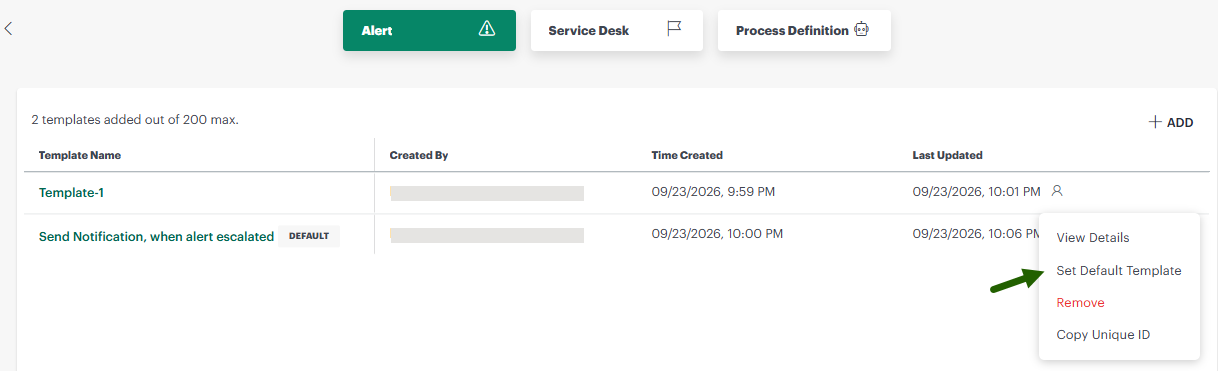
Restore Default
You can restore a template to default. This is useful when you want to discard any custom changes made to a notification template and revert it to the parent template. In the absence of a parent template, it will revert to Platform default. Note that the template name will not be reverted.
Note
- This functionality is available and works similar in all scopes (Service Provider, Partner, Client).
To restore template as default:
- Go to Setup > Account > Notification Templates > Alert. The Alert Alert Notification Template listing page appears.
- Search for the template you want to restore default.
- Click the template name. From the Edit Notification template page, click Restore Default.
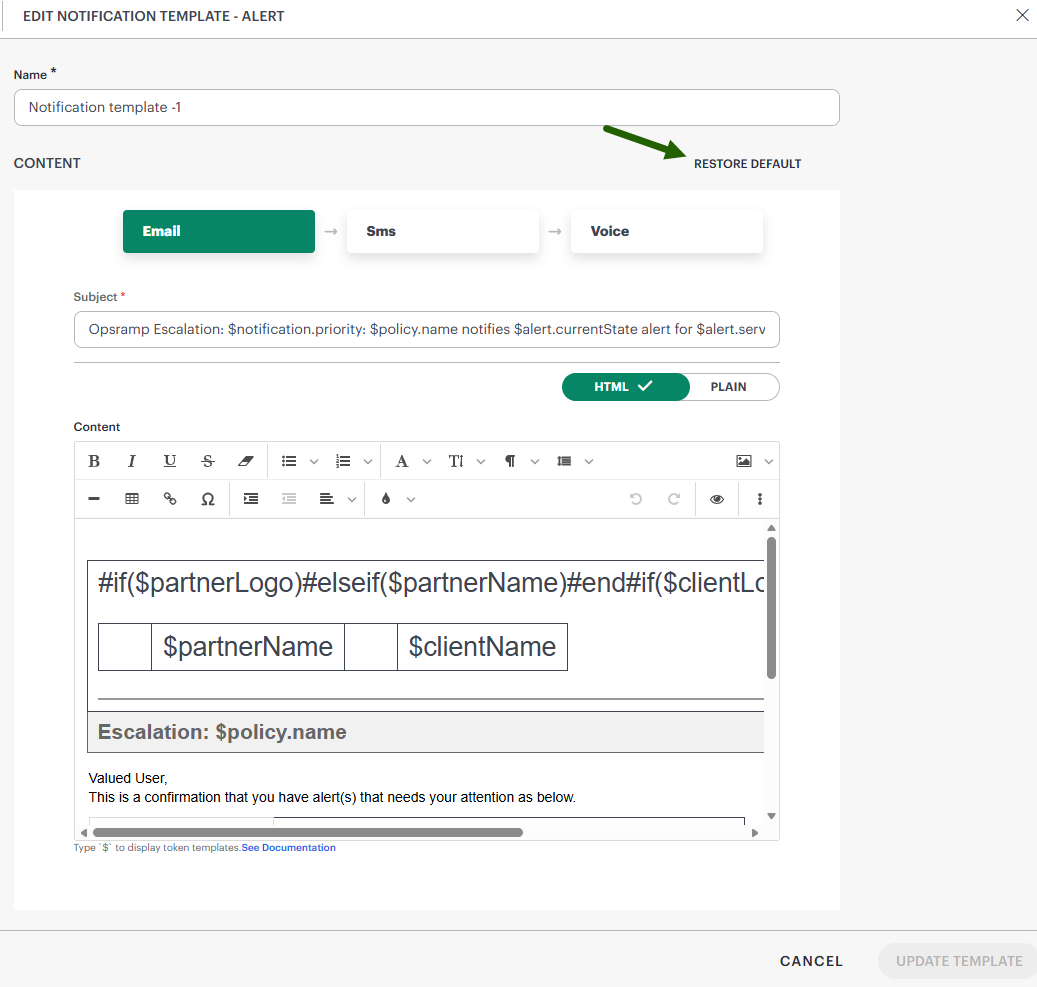
- Click Update Template.
- The template is restored to default.