Introduction
The Netflows Configurations page allows you to configure and manage flow data settings for network monitoring and analysis. It provides centralized controls to define data retention policies, customize metrics, and map network ports for accurate traffic classification.
The page is organized into the following tabs:
- Settings – Configure retention period and data volume limits for flow records.
- Custom Metrics – Define and manage user-specific metrics for advanced traffic analysis.
- Port Mapping – Allows you to assign custom labels to port numbers for easier identification of network services.
- Grouping – Define reusable criteria and combine them into business groups to analyze NetFlow traffic by department, location, application, and other dimensions.
Settings
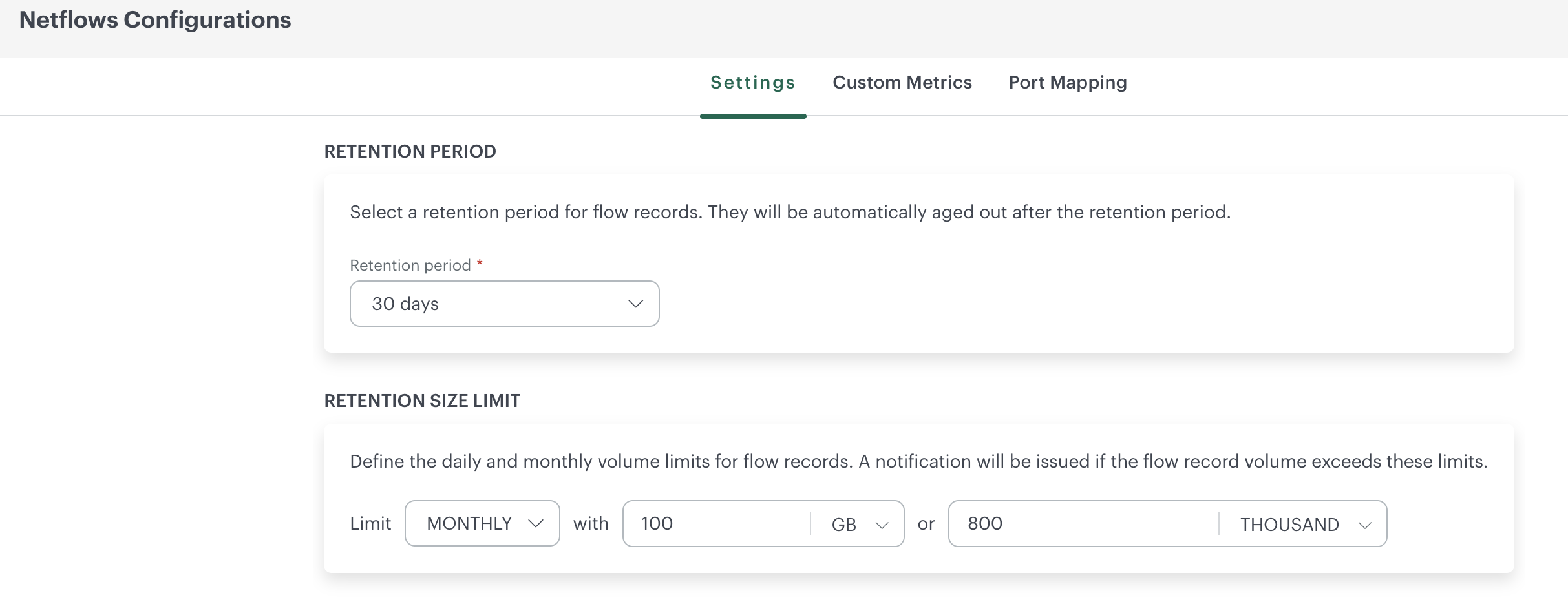
The Settings tab allows you to configure retention policies and storage limits for NetFlow data. These settings help control how long flow records are retained and manage the volume of data collected, ensuring efficient storage utilization and system performance.
You can define:
- Retention Period – Specifies how long flow records are stored before they are automatically aged out.
- Retention Size Limit – Defines daily or monthly volume thresholds for flow data. Notifications are triggered when the configured limits are exceeded.
Retention Period
The retention period specifies how long the flow records are retained in the system before being automatically deleted. The maximum data retention period is 30 days.
You can configure the retention period by selecting the number of days from the drop-down list.
Retention Size Limit
The size or count limit sets a threshold on the amount of storage allocated for storing flow records. You will receive warning/critical notifications when the storage size approaches the specified limit.
OpsRamp will continue to collect data even if the configured data size limit is exceeded. You can monitor data usage by navigating to Dashboard -> NPM Usage/Health Statistics.
For instance, a warning notification is triggered when the size or count reaches 80% of the specified limit, while a critical notification is generated at 90% of the specified limit.
Note
In case both the size and count are configured, an alert will be issued if either of them crosses the threshold.Custom Metrics
Custom metrics in NPM allow you to track specific network conditions by defining unique metrics tailored to your needs. These metrics provide flexibility in monitoring, letting you define custom names, set frequency intervals, and apply filters for targeted data insights.
Once configured, custom metrics can be integrated into dashboards, allowing for real-time visualization and more granular insights across different network layers, application flows, or resource groups.

To add a custom metrics:
- Click the Custom Metrics tab.
- On the Custom Metrics screen, click the +Add button to create a new custom metric.
- Provide below metric details:
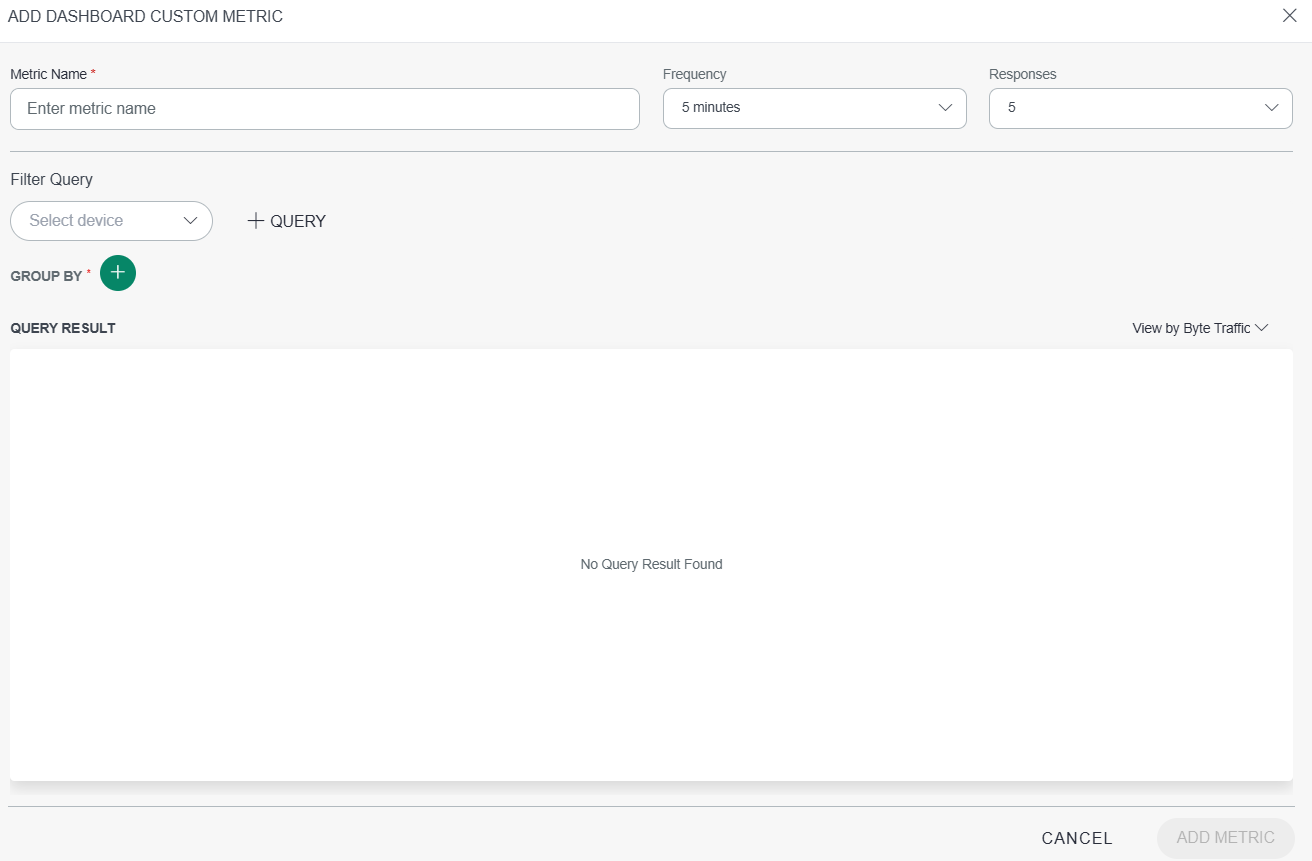
- Metric Name: Enter a unique name for the metric.
- Frequency: Set the frequency for data collection. By default, this is set to 5 minutes.
- Responses: The number of requests that received a response during the specified time period.
- Filter Query: Specify the criteria for devices you want to include in this metric by selecting the appropriate filters.
- Group By: Choose attributes by which the data should be grouped, providing a focused view of the metrics data.
- Query Result: Review the results based on your filter criteria to ensure they meet your monitoring requirements.
- Click ADD METRIC to complete the setup, adding the custom metric to your dashboard for tracking and alerts.The new custom metric will be available in the dashboard, allowing for real-time monitoring based on your specifications.
Note
If you have configured NetFlows Grouping, you can select group fields such as Source Department in Filter Query and Group By. This lets you create metrics and alerts on those metrics for traffic associated with specific groups.Grouping
The Grouping feature in NetFlows Configurations provides a centralized interface for defining criteria and organizing them into logical groups. Criteria can be based on network attributes such as IP address, interface, DSCP, exporter, port, and ASN, and then used when creating groups.
Note
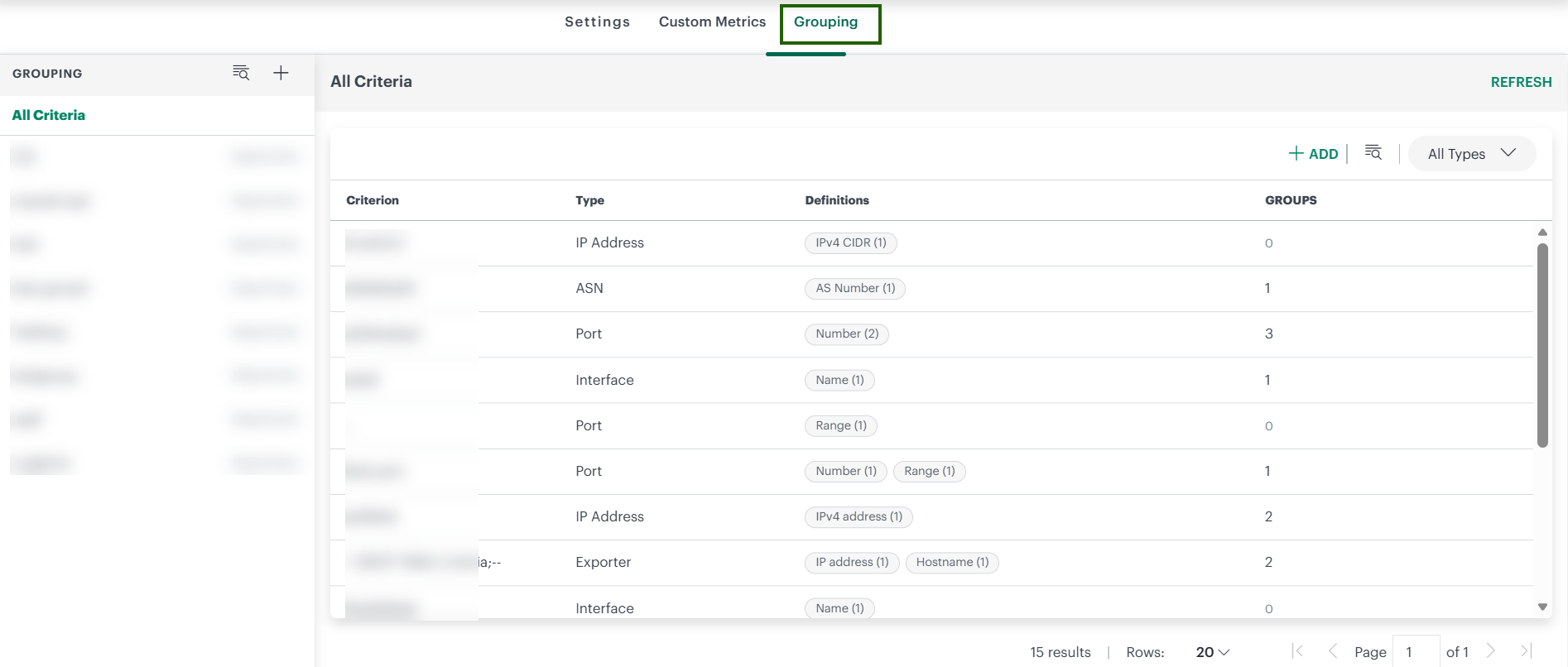
Grouping requires NPM Collector version 4.0.0 or later.The Grouping page displays existing groups in the left pane and configured criteria in the All Criteria view.
View and Manage Criteria
The All Criteria view lists configured criteria and provides the following information:
| Field | Description |
|---|---|
| Criterion | Name assigned to the criterion. |
| Type | Network attribute associated with the criterion, such as IP Address, Interface, DSCP, Exporter, Port, or ASN. |
| Definitions | Definition types configured for the criterion. The number in parentheses indicates the number of definitions of that type. |
| Groups | Number of groups associated with the criterion. |
From this page, you can:
- Select ADD to create a criterion.
- Search for a criterion.
- Use All Types to filter criteria by type. Available types shown in the interface include IP Address, Interface, DSCP, Exporter, Port, and ASN.
- Select REFRESH to refresh the displayed criteria.
- Change the number of rows displayed and use the pagination controls to navigate through the results.
Add a Criterion
To create a criterion:
From Configurations, select the Grouping tab.
In the All Criteria view, select ADD.
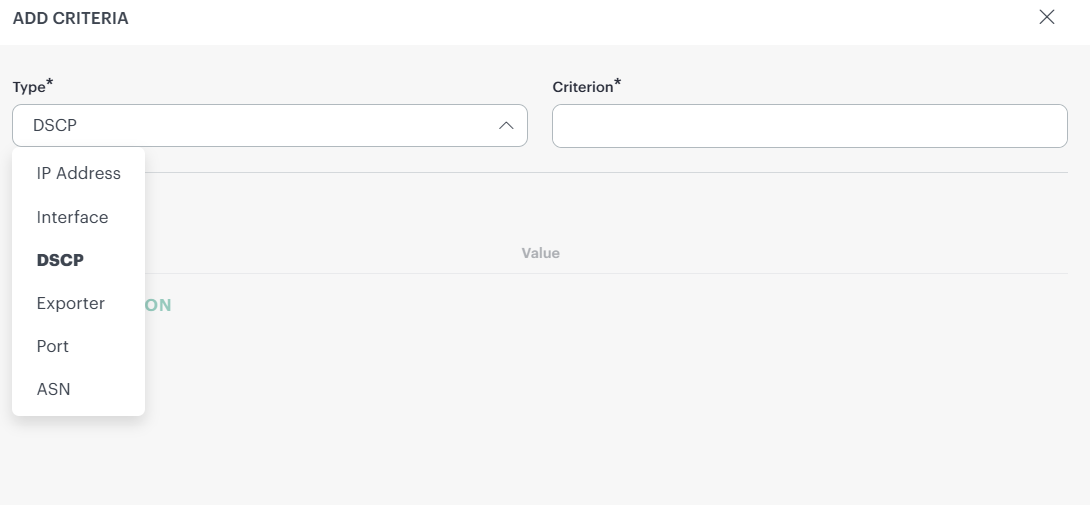
From Type, select the criterion type.
In Criterion, specify a name for the criterion.
Under DEFINITIONS, select + DEFINITION.
Select the applicable definition type and specify its value.
Add additional definitions as required.
Complete the configuration using the available action on the ADD CRITERIA page.
The available definition types vary based on the selected criterion type:
| Criterion Type | Definition Types |
|---|---|
| IP Address | IPv4 address, IPv4 CIDR, IPv4 range, IPv4 Regex |
| Interface | Name, Regex |
| DSCP | Named Value, Numeric |
| Exporter | IP address, Hostname |
| Port | Number, Range |
| ASN | Value |
When configuring criteria from within the group workflow, the Criterion field also allows you to select an existing criterion or select + ADD to create one.
Create a Group
Groups associate configured criteria with a named group type.
To create a group:
From Configurations, select the Grouping tab.
Select the + icon next to GROUPING.
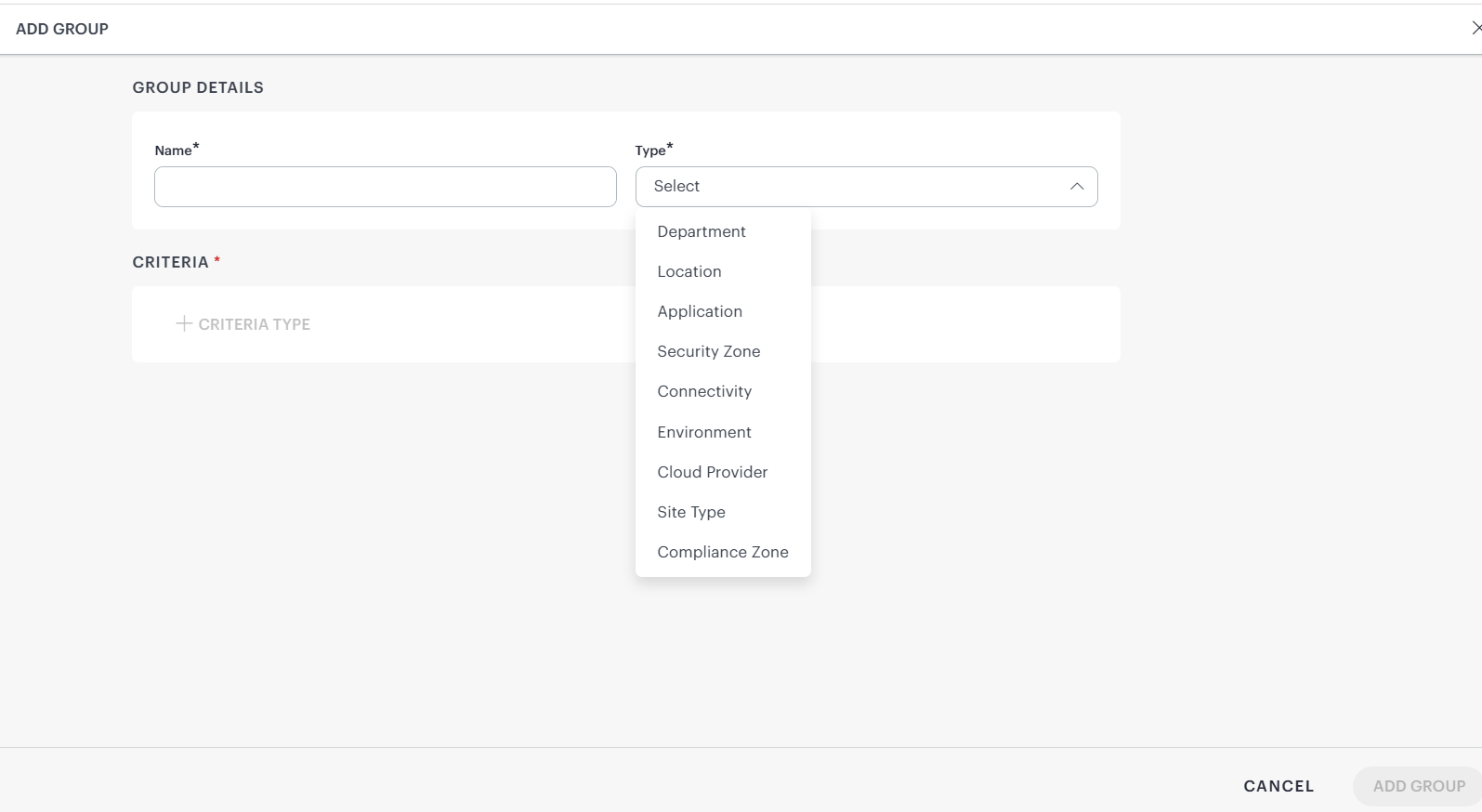
In Name, enter a name for the group.
From Type, select a group type.
Under CRITERIA, select + CRITERIA TYPE.
Select a criterion type.
Select an existing criterion from the Criterion list.
Configure the required definitions for the criterion.
Select ADD GROUP to complete the configuration.
The available group types are:
- Department
- Location
- Application
- Security Zone
- Connectivity
- Environment
- Cloud Provider
- Site Type
- Compliance Zone
If the required criterion is not available, select + ADD, enter the criterion name, and select ADD CRITERIA.
Manage Existing Groups
Existing groups are displayed in the left pane of the Grouping page. The group type, such as Department, is displayed next to applicable groups. Use the search option to locate a group.
For groups with an options menu, the available actions are:
- View details: Opens the group configuration for viewing.
- Rename: Changes the group name.
- Remove: Removes the group.
Port Mapping
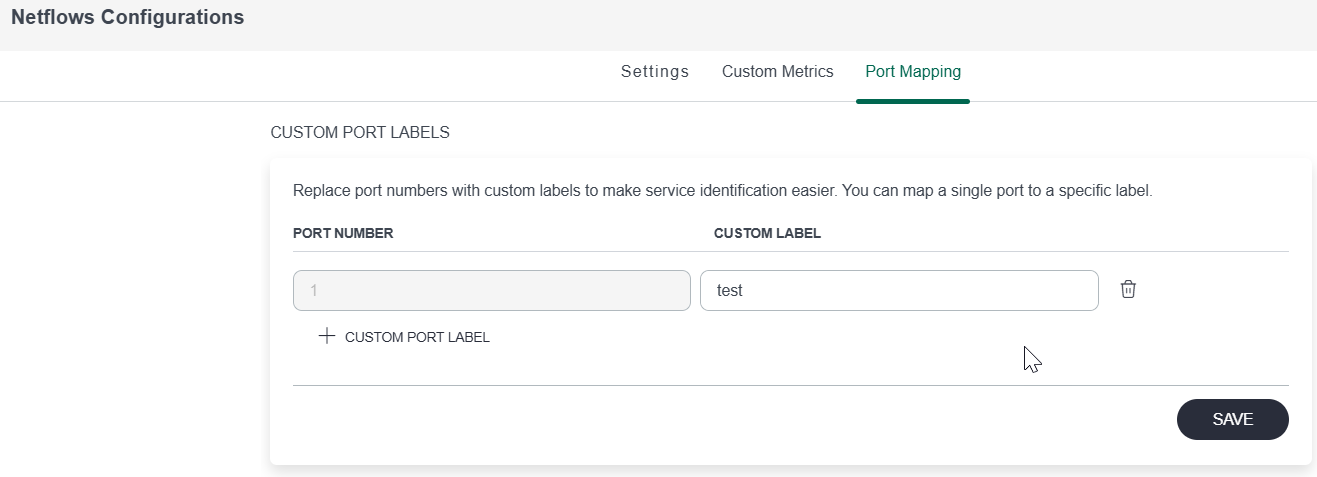
Custom Port Mapping allows users to assign labels to specific port numbers, simplifying the identification and monitoring of services. By mapping a single port to a custom label, you can quickly recognize and track specific applications or services on the network. This feature enhances clarity on the NPM dashboard by replacing standard port numbers with easily identifiable names, helping to streamline troubleshooting and performance analysis.
Grouping Guide
Use NetFlows Grouping to label traffic with business names such as Finance (Department) or London (Location). You can then use those labels in Group By and Query on the NPM dashboard, in Custom Metrics, in Dashboard 2.0 NetFlows tiles, and in Netflow Insights reports.
For instructions on creating criteria and groups, how traffic is matched, and example use cases, see NetFlows Grouping.