Log retention refers to keeping the logs collected in the OpsRamp cloud for a specific amount of time, which identifies the duration of time for which the information should be maintained or retained. By keeping these records, users can gain critical insight into the activities happening on their network.
When configuring log retention settings, users can choose different retention periods: 7, 15, 30, 60, 90, 180, and 365 days (15 days is the default retention period) with Max. time range selection window is any 31 days to filter logs.
To retain the logs:
- Navigate to Infrastructure > Logs.
- On the left side of this page, click the Menu icon.
- From the MY LOGS VIEWS page, under QUICK LINKS, select Logs Configuration.The configuration page is displayed.
- From the configurations page, select the SETTINGS tab.
- Select RETENTION. The RETENTION PERIOD details page is displayed.
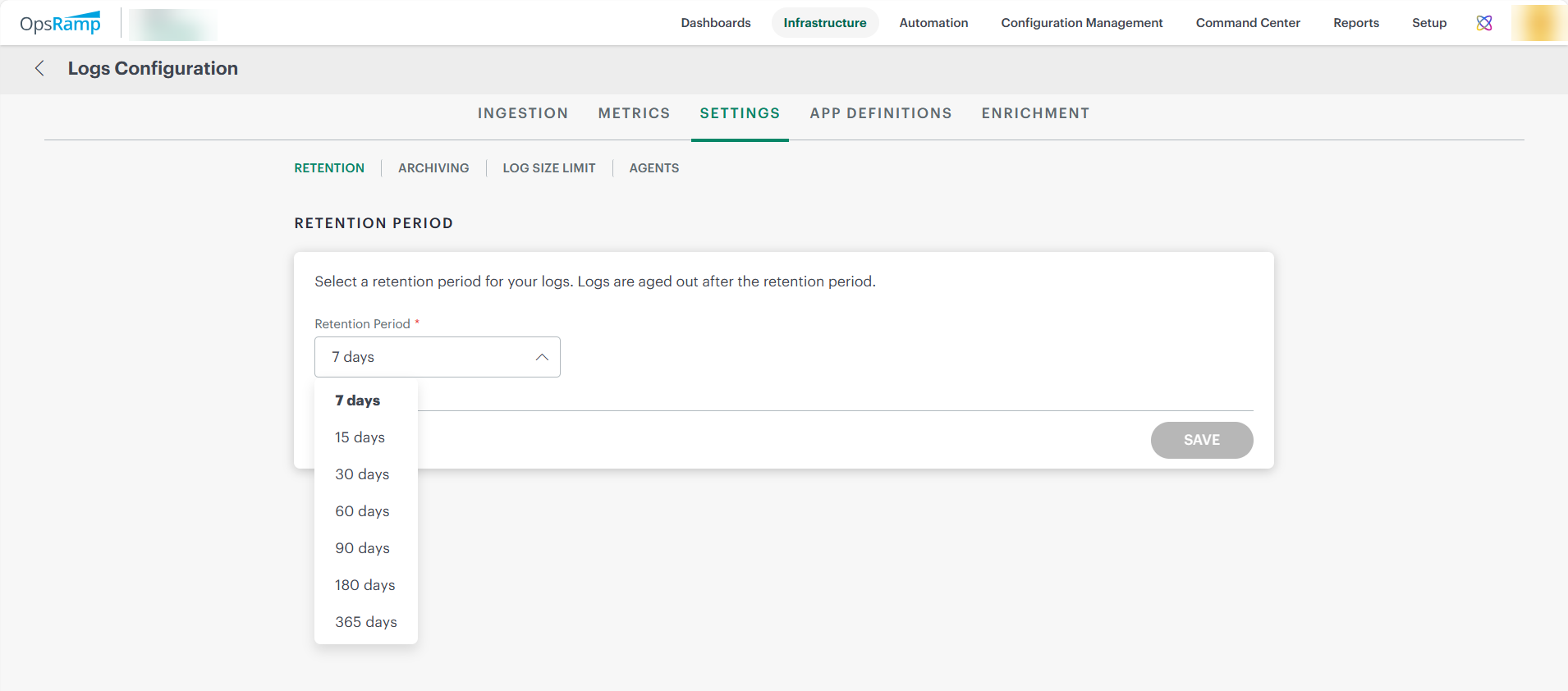
- You can select the retention period from the Retention Period drop-down list.
- Click Save.The data is saved and the logs will be retained for a selected period.
Note
Users with the “All” AuthZ tag can perform add, update, and delete actions with full administrative control.Log Retention Policies
Selective Log Retention Policies allow administrators to configure multiple retention policies within a tenant based on resource attributes such as country, region, location, resource group, environment, tags, application, and custom attributes. This capability enables organizations to apply different retention periods to different categories of logs instead of relying on a single tenant-wide retention policy.
By defining targeted retention policies, organizations can satisfy regional compliance requirements, optimize storage utilization, and retain business-critical logs for longer periods while reducing retention periods for less critical workloads.
How Selective Log Retention Works
When logs are ingested into Log Management, the system automatically evaluates all enabled retention policies and assigns the appropriate retention period based on the configured policy criteria.The policy evaluation process occurs during log ingestion and follows these rules:
- The system evaluates all enabled retention policies.
- If a log matches a single policy, the configured retention period is assigned.
- If a log matches multiple policies, the highest-priority policy is applied.
- If a log does not match any custom retention policy, the default tenant retention policy is applied.
- Logs are automatically deleted when the assigned retention period expires. No manual intervention is required after a retention policy is configured.
Retention Policy Configuration
To add a retention policy:
- Navigate to Infrastructure > Logs.
- On the left side of the page, click the Menu icon.
- From the MY LOGS VIEWS page, under QUICK LINKS, select Logs Configuration. The configuration page is displayed.
- From the configuration page, select the SETTINGS tab.
- Select RETENTION. The RETENTION PERIOD details page is displayed.
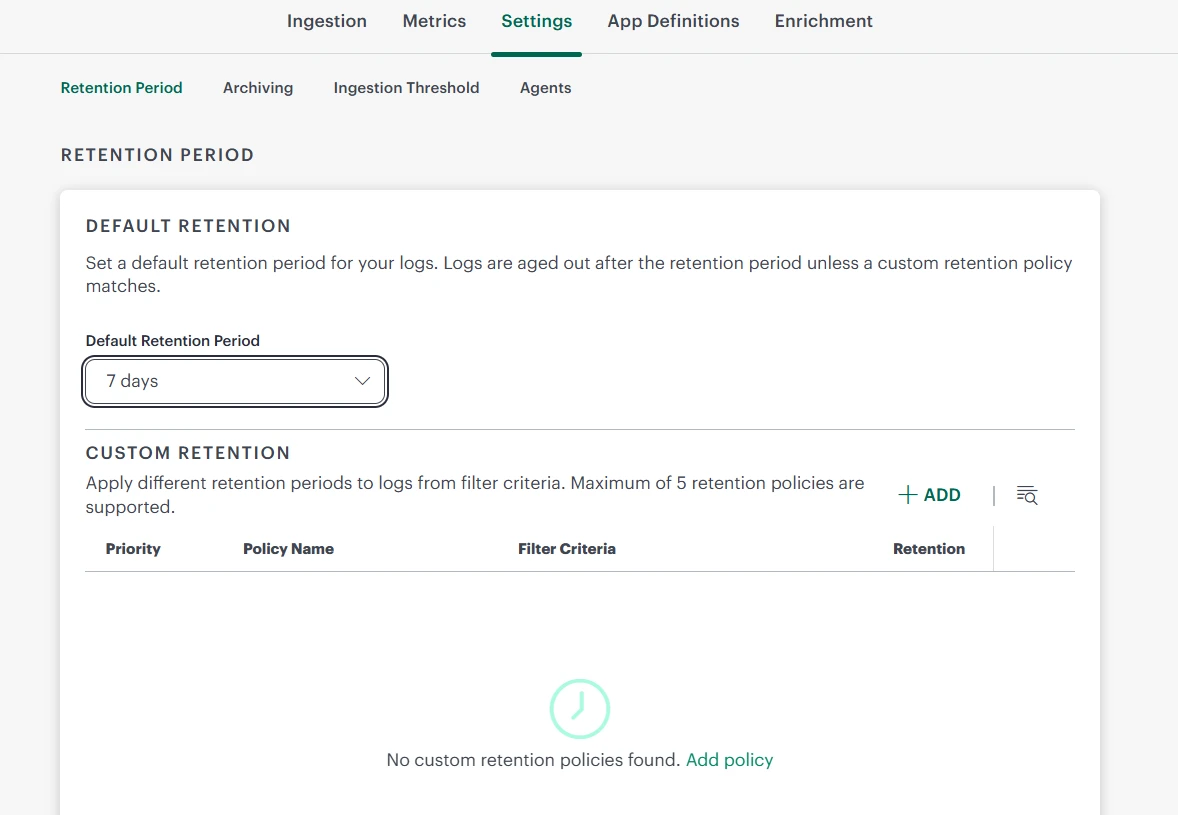
- On the RETENTION PERIOD screen, click + ADD in CUSTOM RETENTION. The ADD RETENTION POLICY screen appears.
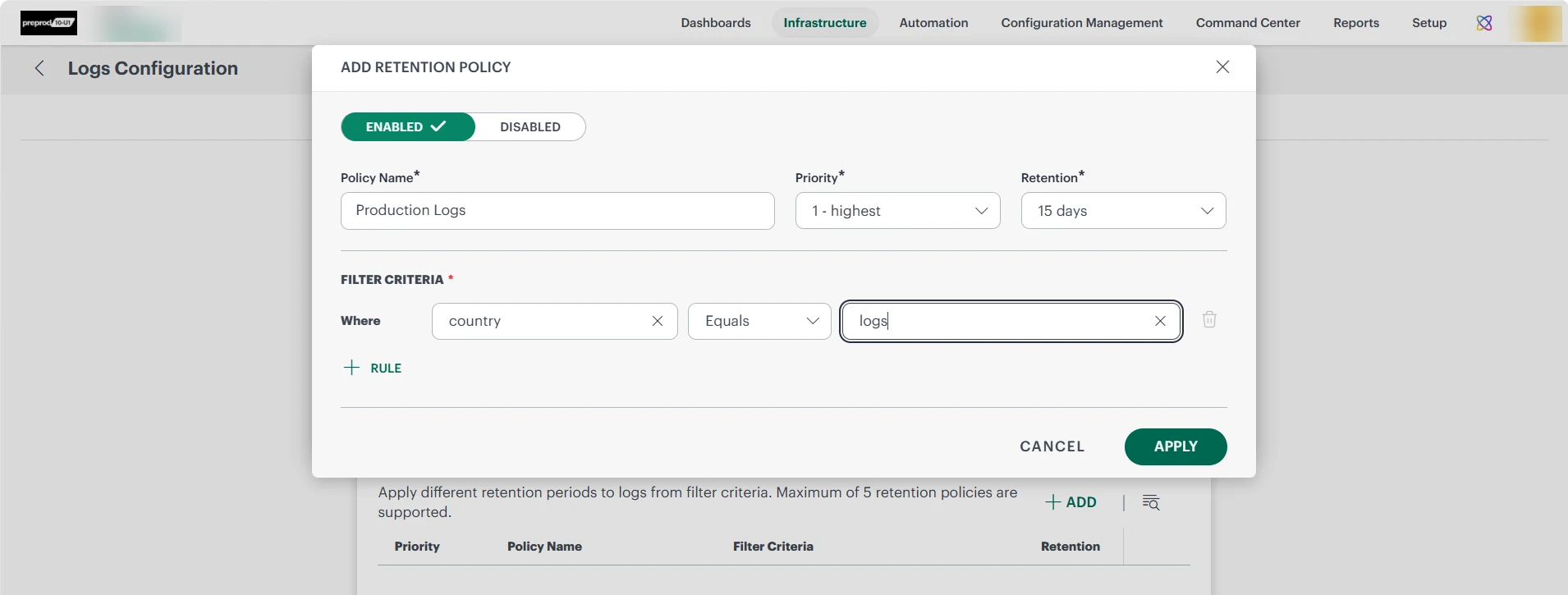
- Enter the following information:
| Field Name | Description | Field Type |
|---|---|---|
| Policy Name | Enter a unique name to identify the retention policy. | String |
| Priority | Specify the policy priority to determine which policy is applied when a log matches multiple policies. Policies with a higher priority take precedence over lower-priority policies. | Integer / Priority Value |
| Retention | Select how long matching logs are retained before being automatically deleted. Available options: 7 Days, 15 Days, 30 Days, 60 Days, 90 Days, 180 Days, 365 Days. | Dropdown |
| Policy Status | Enable or disable the retention policy. Enabled policies are evaluated and applied during log ingestion. Disabled policies are excluded from evaluation and are not applied to ingested logs. | Toggle |
| Filter Criteria | Define conditions to identify the logs that the policy applies to. Multiple conditions can be combined to create granular retention rules. Supported attributes include country, region, location, resource group, environment, application, tags, and custom attributes. | — |
Use Cases
Selective Log Retention Policies support a variety of business and compliance requirements.
Examples include:
- Retaining logs from servers located in China for 180 days while retaining logs from servers in Europe for 30 days.
- Retaining Production environment logs for 365 days while retaining Development and Test environment logs for 15 days.
- Applying different retention periods based on resource groups, applications, business units, tags, or custom attributes.
Policy Priority
Policy priority determines which retention policy is applied when a log matches multiple policies. In such cases, the policy with the highest configured priority is applied.
Example
| Policy Name | Matching Criteria | Retention Period | Priority |
|---|---|---|---|
| Production Servers | Environment = Production | 365 Days | High |
| China Servers | Country = China | 180 Days | Medium |
In this example, a production server located in China matches both policies. The Production Servers policy is applied because it has the higher priority. As a result, the logs are retained for 365 days.
Default Retention Policy
A default tenant-wide retention policy remains available and acts as a fallback when logs do not match any custom retention policy.
This ensures that all ingested logs are assigned a retention period and managed according to a defined retention lifecycle.
Retention Policy Limits
A tenant can have a maximum of five retention policies.
If an administrator attempts to create or clone a policy after the limit has been reached, the operation is blocked and the following message is displayed:
Maximum of 5 retention policies are supported per client/tenant. Delete an existing policy before adding a new one.
Additional Information
Retention policy assignment occurs automatically during log ingestion. Once a retention period is assigned, logs remain available for the configured duration.
For more information, refer to Retention Period.