Introduction
Follow the steps below to find out the details about available integrations:
- Log in to OpsRamp Portal.
- Navigate to Infrastructure > Logs.
- On the left side of this page, click the hamburger Menu icon.
- From the MY LOGS VIEWS page, select Logs Configuration.
- You can find available integrations under INGESTION tab.
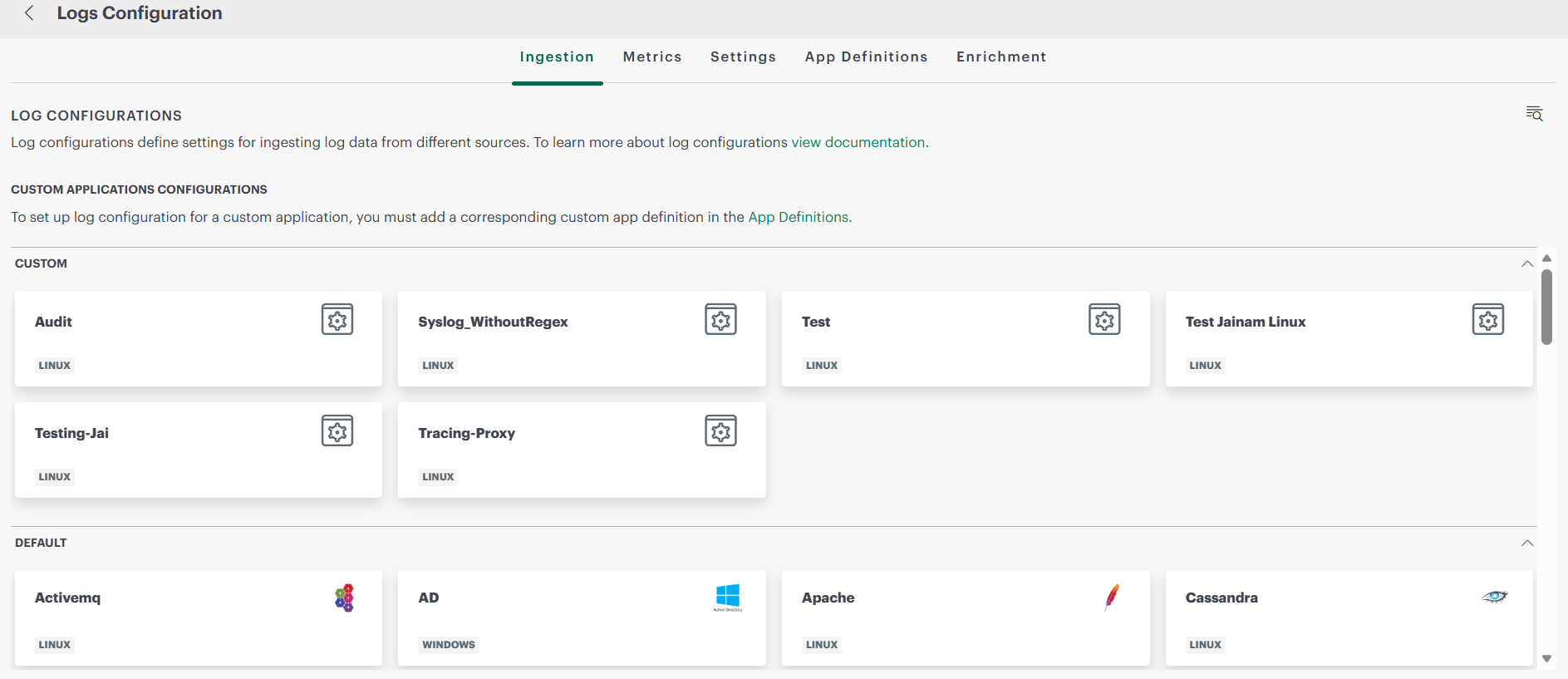
Manage Log Configurations
Log configurations define how logs are collected, filtered, and processed for a specific integration. The Log Configurations page allows you to manage configurations individually or perform bulk operations on multiple configurations.
Access Log Configurations
- Log in to the OpsRamp portal.
- Navigate to Infrastructure > Logs.
- Click the Menu (hamburger) icon on the Logs page.
- From My Log Views, select Logs Configuration.
- On the Ingestion tab, select the required integration.
The Log Configurations page displays all configurations available for the selected integration.
View Log Configurations
The Log Configurations table displays the following information:
| Column | Description |
|---|---|
| Name | Name of the log configuration. |
| Priority | Processing priority assigned to the configuration. |
| Status | Indicates whether the configuration is enabled or disabled. |
| Created Date | Date and time when the configuration was created. |
| Last Modified Date | Date and time when the configuration was last modified. |
You can sort configurations by any column in the table.
Perform Bulk Actions
Select one or more configurations using the checkboxes in the first column.
When one or more configurations are selected, the Actions menu becomes available. The selected configurations can then be managed collectively.
The following bulk actions are supported:
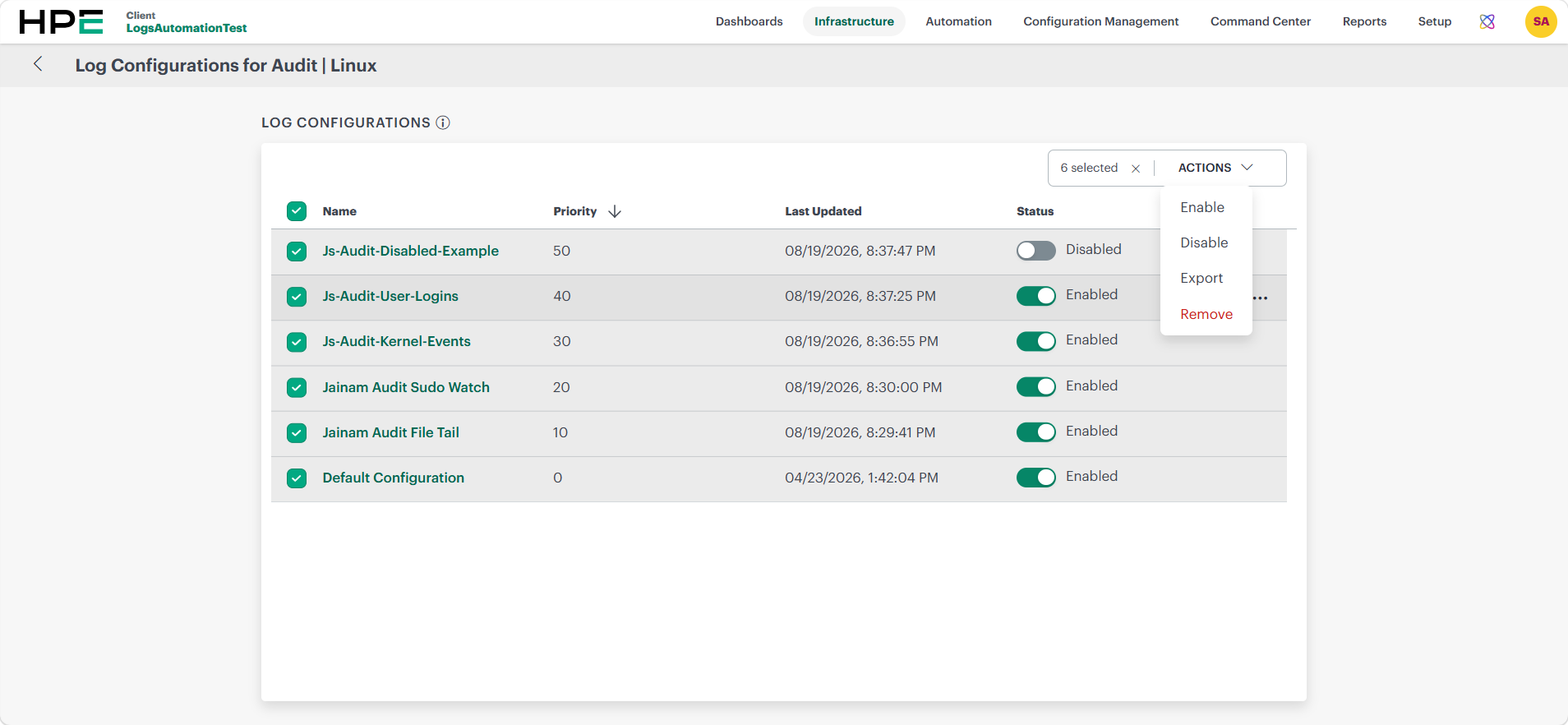
| Action | Description |
|---|---|
| Enable | Enables all selected configurations. |
| Disable | Disables all selected configurations. |
| Export | Exports selected configurations to a YAML file. |
| Import | Imports configurations from a YAML file. |
| Delete | Deletes selected configurations. |
Export Configurations
Use Export to download one or more log configurations for backup, migration, or reuse.
Key Features
- Multiple configurations can be exported in a single operation.
- Exported files are downloaded in YAML format.
- Exported configuration files can be shared with other users.
- Imported configurations retain the same log collection settings, allowing configurations to be reused across environments.
Example Use Case
A user can export log configurations from one user, share the YAML file with another user, and import the configurations into another user to quickly replicate the same log collection setup.
Import Configurations
Use Import to create log configurations from an exported YAML file.
The import process follows a guided workflow:
- Upload the YAML file.
- Validate the configuration content.
- Preview the configurations to be imported.
- Apply the configurations.
During import, OpsRamp validates all configuration data before applying changes.
Validation Rules
- All required configuration fields must be present.
- Invalid configuration data is rejected.
- Configuration names must be unique within the selected application.
- Duplicate configuration names are not allowed.
- Import processing stops until validation errors are resolved.
Note
Default configurations exported from another environment cannot be imported.Delete Configurations
You can delete individual configurations or multiple configurations using the bulk delete action.
Note
The Default Configuration cannot be deleted.Related Topics
Browse the list of available integrations provided below for more information:
Custom
Default
- Activemq
- AD
- Apache
- Cassandra
- Cockroachdb
- Consul
- Couchdb
- Docker
- Elasticsearch
- Eventstore
- Exchange
- Haproxy
- Hbase
- Hdfs-Datanode
- Hdfs-Namenode
- IIS
- Journald
- Kafka
- Lighttpd
- Mongodb
- MSSQL
- Mysql
- Nginx
- Redis
- Spark
- Squid
- Syslog
- Tomcat
- Windowsevents
- Zookeeper