Use this setup to connect OpsPilot to your own LLM provider and enable AI-powered capabilities in OpsRamp.
This enables you to use your own enterprise-managed LLMs while still benefiting from OpsPilot’s conversational and analytical capabilities.
You can connect through two access types:
DIRECT_API- Direct API access (OpenAI only)CLOUD_BASED- Cloud provider access (Vertex AI, AWS Bedrock, Azure Foundry)
Note
This release supports Google Cloud Platform (GCP) Vertex AI, AWS Bedrock, Azure Foundry, and OpenAI provider configurations.Recommendation
It is recommended to use the Claude Sonnet 4.6 model for optimal performance.Default State
- OpsPilot is disabled by default until an administrator configures valid LLM credentials.
- Once configured and saved, OpsPilot is automatically enabled for your account.
Prerequisites
Before configuring OpsPilot with your own LLM, ensure the following:
- OpsRamp platform access with appropriate permissions to manage credentials
- Valid credentials for your chosen LLM provider
- Models enabled or deployed in your cloud account
Google Cloud Platform Requirements
- A valid GCP project with billing enabled
- Vertex AI API enabled in the project
- Enable the
gemini-2.5-flash-litemodel in Google Vertex AI, as this model is used for OpsPilot guardrails - Appropriate IAM permissions to create/manage service accounts
Service Account Requirements
Create a service account and ensure it has the following minimum roles:
| Required Role | Purpose |
|---|---|
| Vertex AI User | Allows invoking LLM models |
| Service Account Token Creator | Enables key-based authentication |
| Storage Object Viewer | Needed for models referencing GCS-backed assets |
You must download the JSON key for this service account. This key is pasted into OpsRamp.
AWS Bedrock Requirements
- A valid AWS account with Bedrock access enabled in the target region
- IAM credentials (access key and secret key) with permissions to invoke Bedrock models
- The required model IDs enabled for your account in Bedrock
Azure Foundry Requirements
- An Azure AI/OpenAI resource endpoint
- A valid API key for that resource
- Supported model deployments available in your subscription
OpenAI Requirements
- A valid OpenAI API key
- Access to the required model IDs for the selected tier(s)
Supported LLM Providers
| Provider | Access Type | Supported Models |
|---|---|---|
| Vertex AI | CLOUD_BASED | claude-sonnet-4-6, gemini-2.5-flash |
| AWS Bedrock | CLOUD_BASED | us.anthropic.claude-sonnet-4-6 |
| Azure Foundry | CLOUD_BASED | claude-sonnet-4-6, gpt-5.4, gpt-5.5 |
| OpenAI | DIRECT_API | gpt-5.4, gpt-5.5 |
These models are typically used in the following tiers:
- Standard Tier: Commonly mapped to Flash Lite or Flash, suited for cost-effective, general-purpose workloads.
- Advanced Tier: Commonly mapped to Flash and Pro (or another higher-capability configuration) and designed for:
- Complex reasoning scenarios
- Use cases requiring large context windows
- Deep analysis across extensive infrastructure and observability data
To ensure OpsPilot can effectively support OpsRamp use cases, at least one configured model must meet the minimum requirements for advanced reasoning and large-context analysis.
OpsPilot Model Tiers: Standard vs Advanced
OpsPilot supports separate Standard and Advanced model tiers to ensure the right balance between performance, cost efficiency, and analytical depth. Each tier is optimized for different investigation scenarios.
OpsPilot automatically selects which tier to use for each request. Based on the complexity of the plan the agent builds (for example, whether it needs multi-step reasoning, broader context, or deeper correlation across alerts/tickets/metrics), OpsPilot will route the request to either the Standard or Advanced model tier.
How to Enable OpsPilot Using Your Own LLM
To create a new LLM credential:
Navigate to Setup → Account → Credentials.
Click +ADD.The ADD CREDENTIAL page is displayed.
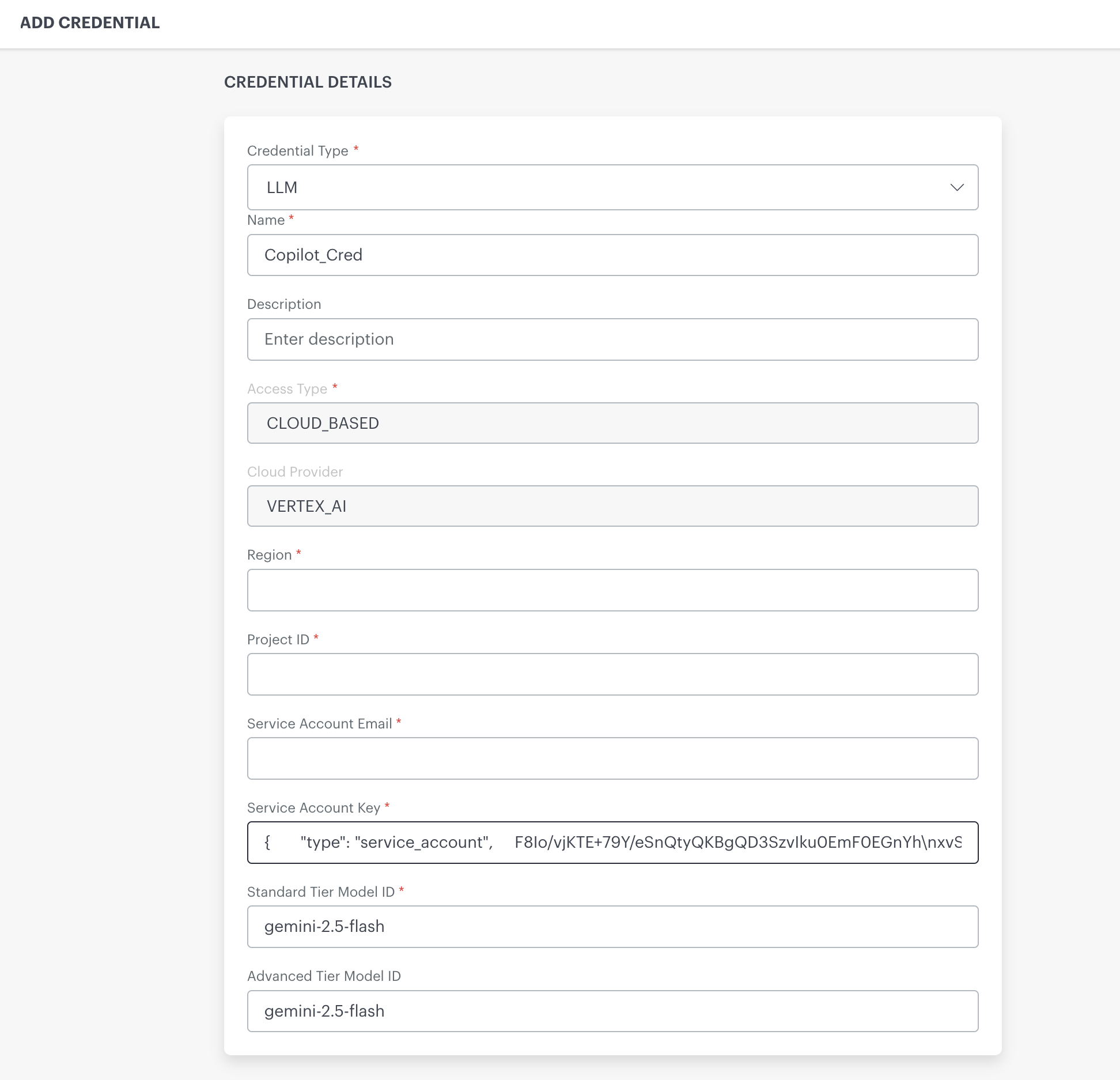
In the Credential Details form, set Credential Type to LLM.
Enter a Name and optional Description.
Select your Access Type (
CLOUD_BASEDorDIRECT_API).Complete the provider-specific fields as described in the following sections.
Select the Standard Tier Model ID (required) and optionally the Advanced Tier Model ID.
Click Save.
Credential Details
The following table summarizes the common credential fields:
| Field Name | Required | Description | Example |
|---|---|---|---|
| Credential Type | Yes | Must be set to LLM to indicate this credential is for OpsPilot. Note: When you select Credential Type as LLM, the acceptance/consent box is displayed. This is a one-time activity. | LLM |
| Name | Yes | A name for this credential. Appears in the credentials list. | OpsPilot_Cred |
| Description | Optional | Optional notes about the credential. | OpsPilot LLM credential for tenant |
| Access Type | Yes | Specifies where the model is hosted. | CLOUD_BASED |
| Cloud Provider | Yes | The cloud platform supplying the LLM when Access Type is CLOUD_BASED. | VERTEX_AI |
| Standard Tier Model ID | Yes | Model ID for standard tier inference. | claude-sonnet-4-6 |
| Advanced Tier Model ID | Optional | Model ID for advanced tier workloads. | gpt-5.5 |
Configure Vertex AI (Cloud-Based)
To configure a Vertex AI credential, select Access Type as CLOUD_BASED and Cloud Provider as VERTEX_AI.
Required Fields
| Field | Description | Example |
|---|---|---|
| Region | GCP region where the model is available | us-east5 |
| Project ID | Your Google Cloud project ID | ai-test |
| Service Account Email | Service account with Vertex AI permissions | vertex-ai@ai.iam.gserviceaccount.com |
| Service Account Key | Full JSON key file content for the service account | {"type": "service_account", ...} |
| Standard Tier Model ID | Select from dropdown | claude-sonnet-4-6 or gemini-2.5-flash |
Optional Fields
- Advanced Tier Model ID - Select from dropdown for advanced queries
Configure AWS Bedrock (Cloud-Based)
To configure an AWS Bedrock credential, select Access Type as CLOUD_BASED and Cloud Provider as AWS_BEDROCK.
Required Fields
| Field | Description | Example |
|---|---|---|
| Region | AWS region where Bedrock is enabled | us-east-2 |
| AWS Access Key | Your IAM access key ID | AFFSCKUGFXSSDS |
| AWS Secret Key | Your IAM secret access key | •••• |
| Confirm AWS Secret Key | Re-enter the secret key for confirmation | •••• |
| Standard Tier Model ID | Enter model ID (text input) | us.anthropic.claude-sonnet-4-6 |
Optional Fields
- Advanced Tier Model ID - Enter model ID for advanced queries
Note: For AWS Bedrock, the Standard Tier Model ID and Advanced Tier Model ID are text input fields, not dropdowns. You must manually enter the full model identifier.
Configure Azure Foundry (Cloud-Based)
To configure an Azure Foundry credential, select Access Type as CLOUD_BASED and Cloud Provider as AZURE_FOUNDRY.
Required Fields
| Field | Description | Example |
|---|---|---|
| Resource Endpoint | Your Azure OpenAI resource endpoint | https://ml-team-us-east2-resource.openai.azure.com/openai/v1 |
| API Key | Your Azure API key | •••• |
| Confirm API Key | Re-enter the API key for confirmation | •••• |
| Standard Tier Model ID | Select from dropdown | claude-sonnet-4-6, gpt-5.4, or gpt-5.5 |
Optional Fields
| Field | Description | Example |
|---|---|---|
| Region | Azure region | eastus |
| Deployment Name | Your model deployment name | - |
| API Version | API version string | 2024-02-01 |
| Organization ID | Optional organization identifier | - |
Configure OpenAI (Direct API)
To configure an OpenAI credential, select Access Type as DIRECT_API and Provider as OPENAI.
Required Fields
| Field | Description | Example |
|---|---|---|
| API Key | Your OpenAI API key | •••• |
| Confirm API Key | Re-enter the API key for confirmation | •••• |
| Standard Tier Model ID | Select from dropdown | gpt-5.4 or gpt-5.5 |
Optional Fields
| Field | Description | Example |
|---|---|---|
| API URL | Custom endpoint URL | https://api.openai.com/v1 |
| Organization ID | OpenAI organization ID | - |
| Advanced Tier Model ID | Select from dropdown for advanced queries | - |
Validate LLM Credentials
OpsRamp validates BYOLLM credentials before allowing them to be saved. This validation helps prevent invalid or expired credentials from being configured and reduces runtime failures caused by authentication or connectivity issues.
Credential validation is supported for:
- Vertex AI
- OpenAI
- Azure OpenAI
- Amazon Bedrock
How It Works
After entering provider credentials, click VALIDATE CREDENTIALS to verify the configuration with the selected provider.
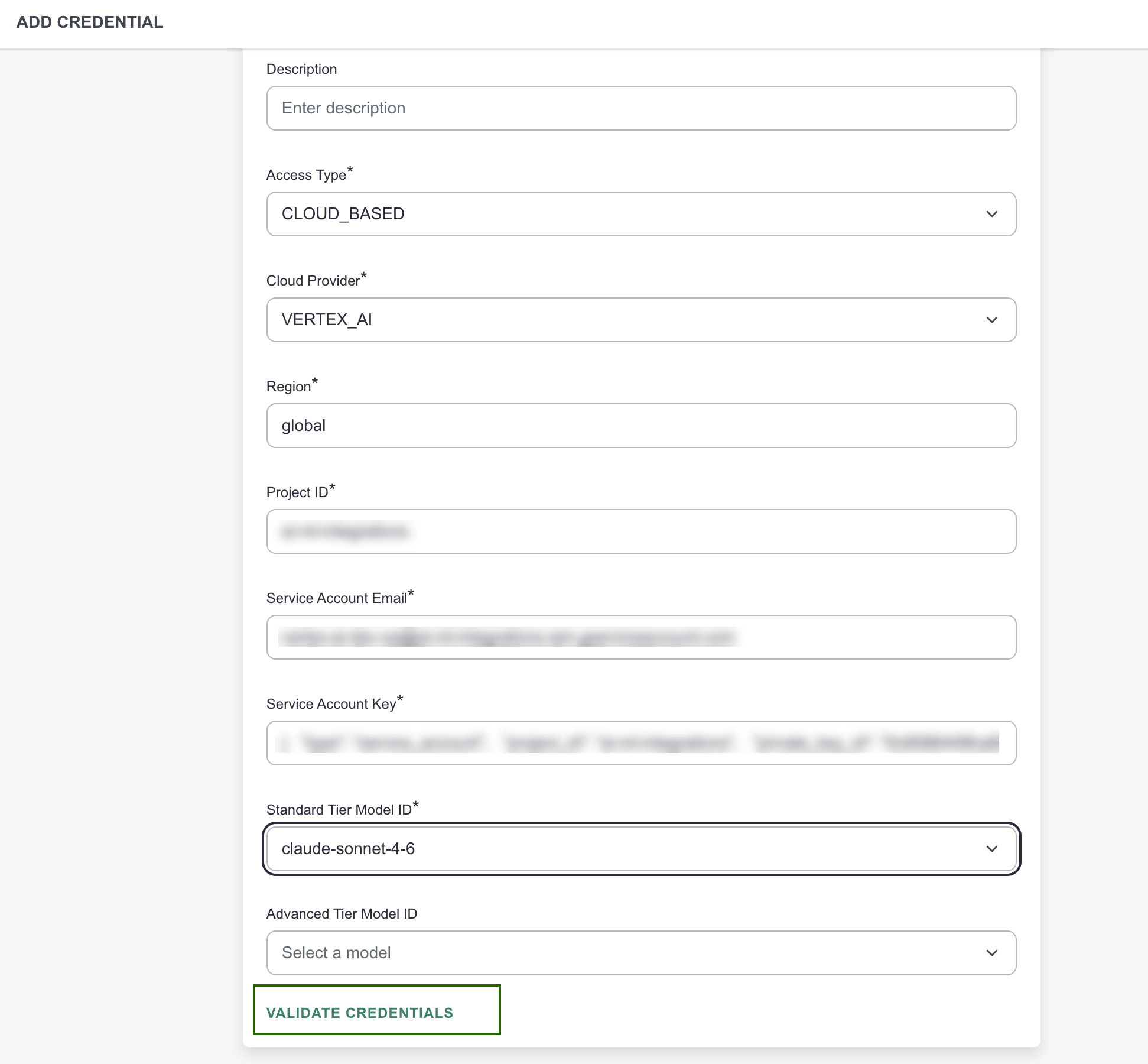
- If validation succeeds, a green checkmark is displayed and the Save button is enabled.
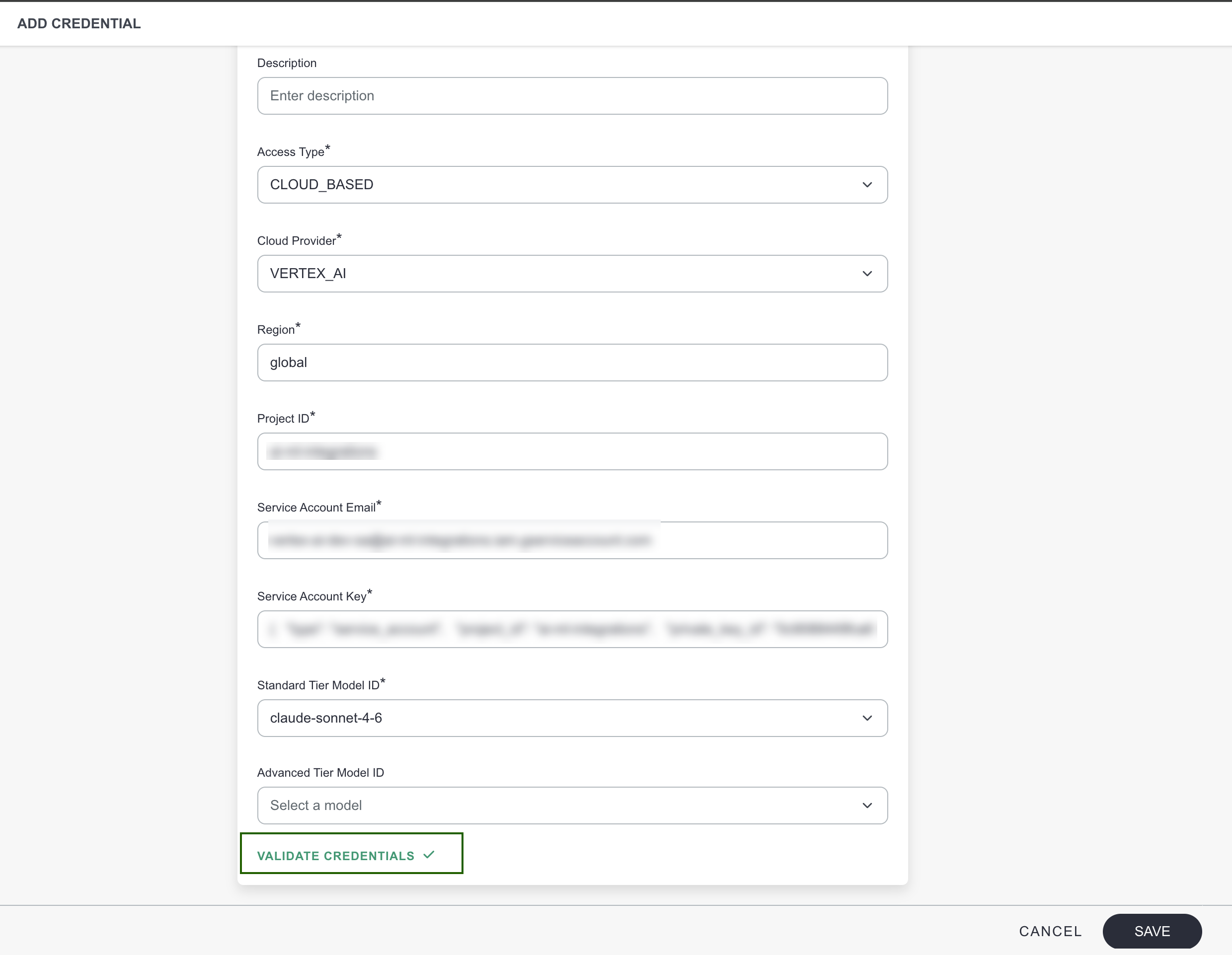
If validation fails, the following error is displayed and the Save button remains disabled:
Validation failed. Please check the details entered are correct and try again.
Validation Requirements by Provider
| Provider | Validation Requirements |
|---|---|
| Vertex AI | Valid service account JSON containing the required GCP service account fields. |
| OpenAI | Valid API key and successful provider validation. |
| Azure OpenAI | Valid endpoint URL, API key, and deployment name. |
| Amazon Bedrock | Valid AWS access key, secret key, and region. |
Important Notes
- The Save button is disabled until credential validation succeeds.
- If any credential field is modified after successful validation, the validation status is cleared and credentials must be validated again.
- Switching to a different provider resets the validation state and requires re-validation before saving.
Model Tier Selection
Each credential requires a Standard Tier Model ID and optionally supports an Advanced Tier Model ID:
- Standard Tier Model ID (Required) - Default model used for all OpsPilot interactions.
- Advanced Tier Model ID (Optional) - Separate model for complex or advanced queries.
Important: For all providers except AWS Bedrock, the model ID fields are dropdowns showing available models. For AWS Bedrock, you must manually enter the full model identifier.
Once saved, OpsPilot will switch from disabled to enabled.
Completing the Setup
After saving your credentials:
- OpsPilot becomes enabled.
- Search, Command Center, and PRC start using this LLM.
- No additional activation, restart, or configuration is required.