This section guides you through setting up, configuring, and managing the Oracle Linux Virtualization Manager integration in OpsRamp.
Prerequisites
- Classic gateway version should be 14.0.0 and above is required.
- Nextgen gateway version should be 14.0.0 and above is required.
- Customer must provide End Device API user credentials with read permissions on all required datacenters, clusters, hosts, VMs, networks, storage domains, disks, network interfaces, and event objects and statistics endpoints.
Configure Oracle Linux Virtualization Manager Integration
Click here to Configure and Install the Oracle Linux Virtualization Manager Integration
- To select your client, navigate to All Clients, and click the Client/Partner dropdown menu.
Note: You may either type your client’s name in the search bar or select your client from the list. - Navigate to Setup > Account. The Account Details screen is displayed.
- Click Integrations. The Installed Integrations screen is displayed with all the installed applications.
Note
If you do not have any installed applications, you will be navigated to the Available Integrations and Apps page with all the available applications along with the newly created application with the version. - Click + ADD on the Installed Integrations page.
Note: Search for the integration either by entering the name of the integration in the search bar or by selecting the category of the integration from the All Categories dropdown list. - Click ADD in the Oracle Linux Virtualization Manager application.
- In the Configuration screen, click + ADD. The Add Configuration screen appears.
- Enter the following BASIC INFORMATION:

| Field Name | Description | Field Type | |
|---|---|---|---|
| Name | Enter the name for the configuration. | String | |
| OLVM IPAddress / FQDN | IP Address / FQDN for the Oracle Linux Virtualization Manager. | String | |
| isSecure | Indicates whether the connection uses a secure protocol. Enable this option to use HTTPS; disable it to use HTTP. | Checkbox | |
| Port | Specify the API Port number that OpsRamp uses to connect to the Oracle Linux Virtualization Manager (OLVM) Note: By default API Port is 443 | String | |
| Credentials | Select the credentials required to authenticate OpsRamp with the Oracle Linux Virtualization Manager (OLVM). You can either select the credentials from the dropdown menu or add a new credential. (Optional): Click + Add to create a credential. The ADD CREDENTIAL window is displayed. Enter the following information. Name: Credential name. Description: Brief description of the credential. User Name: User name. Password: Password. Confirm Password: Confirm password | Dropdown | |
| App Failure Notifications | When selected, you will be notified in case of an application failure such as Connectivity Exception, Authentication Exception. | Checkbox | |
| Event Polling | When enabled, the integration polls events from Oracle Linux Virtualization Manager and ingests them as alerts in OpsRamp.Note: Event Polling Alerts created through this integration do not support auto-healing; each event will generate a separate alert.Alert Severity & MappingsAllows users to select the OLVM event severity levels (ERROR, ALERT, and WARNING) that should be ingested and converted into OpsRamp alerts. By default, only ERROR and ALERT are selected. Users can choose one or more severity levels, and only events with the selected severities will be processed and generate alerts.Users can define how each selected OLVM event severity maps to an OpsRamp alert severity. The following mappings are configurable for each OLVM severity level:
| Checkbox |
- CUSTOM ATTRIBUTES: Custom attributes are the user-defined data fields or properties that can be added to the preexisting attributes to configure the integration.
| Field Name | Description | Field Type |
|---|---|---|
| Custom Attribute | Select the custom attribute from the dropdown. You can add attributes by clicking the Add icon (+). | Dropdown |
| Value | Select the value from the dropdown. | Dropdown |
Note: The custom attribute that you add here will be assigned to all the resources that are created by the integration. You can add a maximum of five custom attributes (key and value pair).
- In the RESOURCE TYPE section, select:
- ALL: All the existing and future resources will be discovered.
- SELECT: You can select one or multiple resources to be discovered.
- In the DISCOVERY SCHEDULE section, select recurrence pattern to add one of the following patterns:
- Minutes
- Hourly
- Daily
- Weekly
- Monthly
- Click ADD.
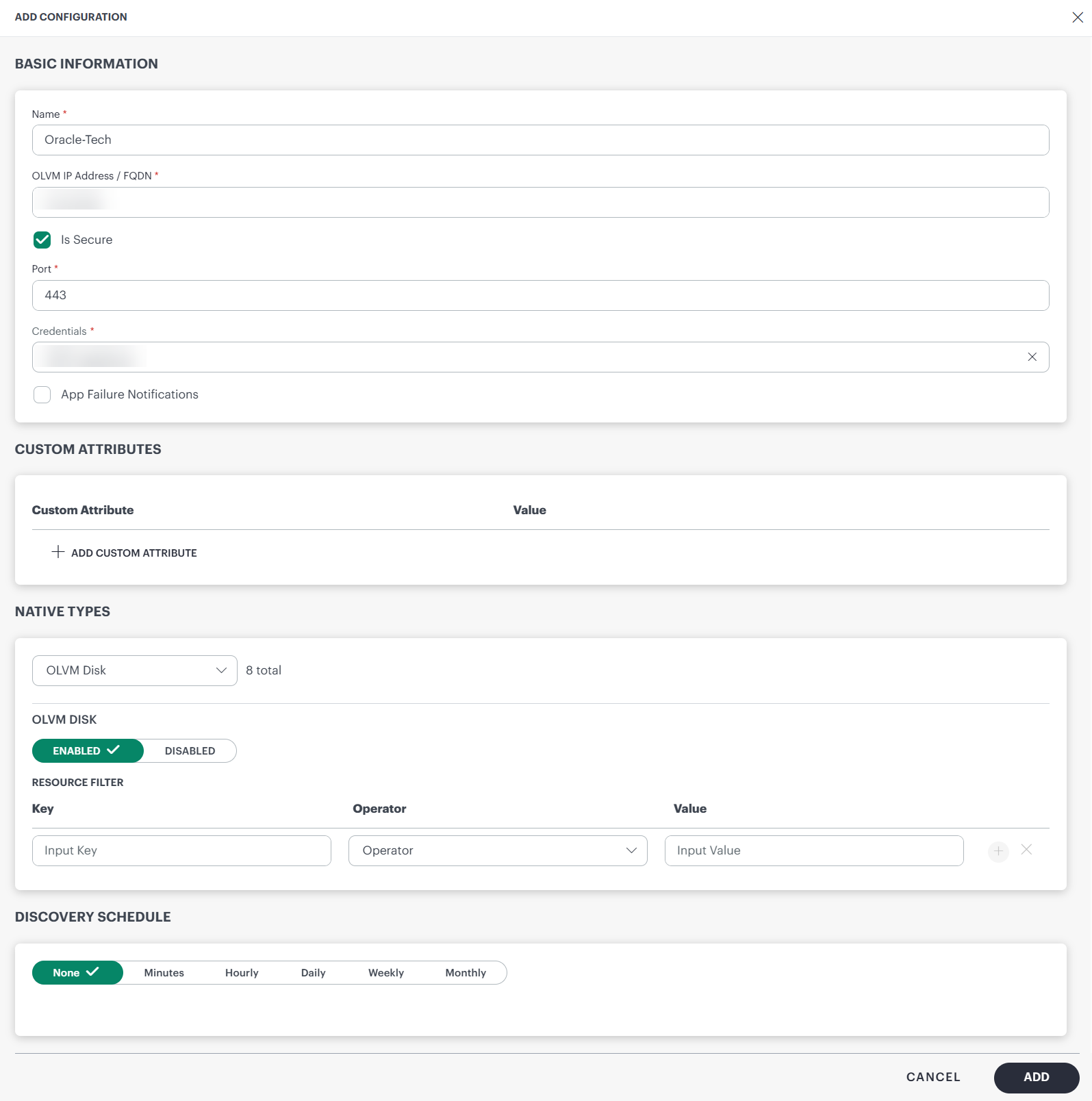
Now the configuration is saved and displayed on the configurations page after you save it.
Note
From the same page, you may Edit and Remove the created configuration.12. Under the ADVANCED SETTINGS, Select the Bypass Resource Reconciliation option, if you wish to bypass resource reconciliation when encountering the same resources discovered by multiple applications.
Note
If two different applications provide identical discovery attributes, two separate resources will be generated with those respective attributes from the individual discoveries.14. (Optional) Click +ADD to create a new collector. You can either use the pre-populated name or give the name to your collector.
15. Select an existing registered profile. 16. Click FINISH.
The integration is installed and displayed on the INSTALLED INTEGRATION page. Use the search field to find the installed integration.
Modify Oracle Linux Virtualization Manager Integration
Click here to Modify the Configuration
- See Modify an Installed Integration or Application article.
Note
Select Oracle Linux Virtualization Manager.Discover Resources in Oracle Linux Virtualization Manager Integration
Click here to View the Oracle Linux Virtualization Manager
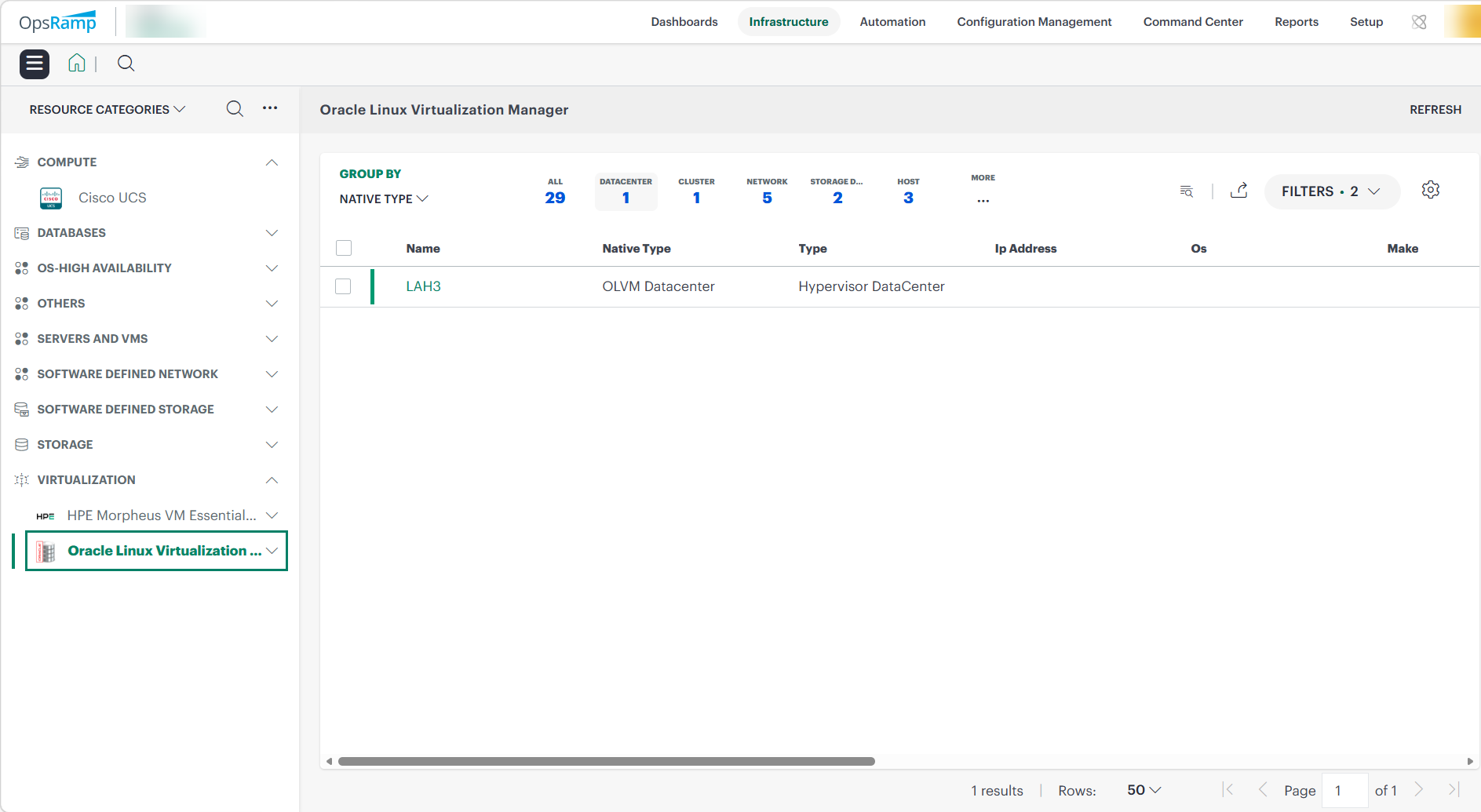
- Navigate to Infrastructure > Search > VIRTUALIZATION > Oracle Linux Virtualization Manager. The Oracle Linux Virtualization Manager page is displayed.
- Select the application on the Oracle Linux Virtualization Manager page
- The RESOURCE page appears from the right.
- Click the ellipsis (…) on the top right and select View Details.
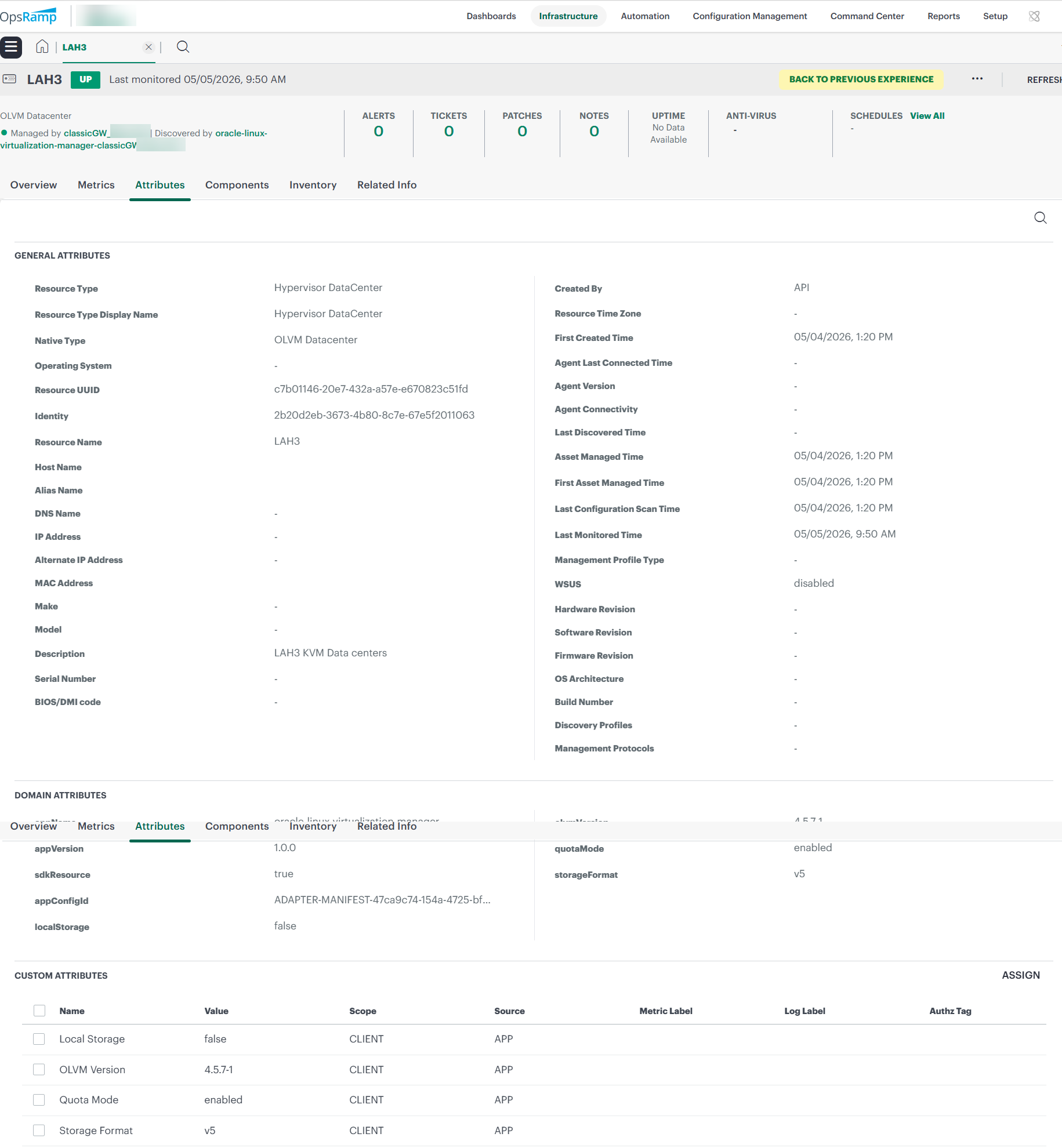
- Navigate to the Attributes tab to view the discovery details.
View resource metrics
To confirm Oracle Linux Virtualization Manager monitoring, review the following:
- Metric graphs: A graph is plotted for each metric that is enabled in the configuration.
- Alerts: Alerts are generated for metrics that are configured as defined for integration.
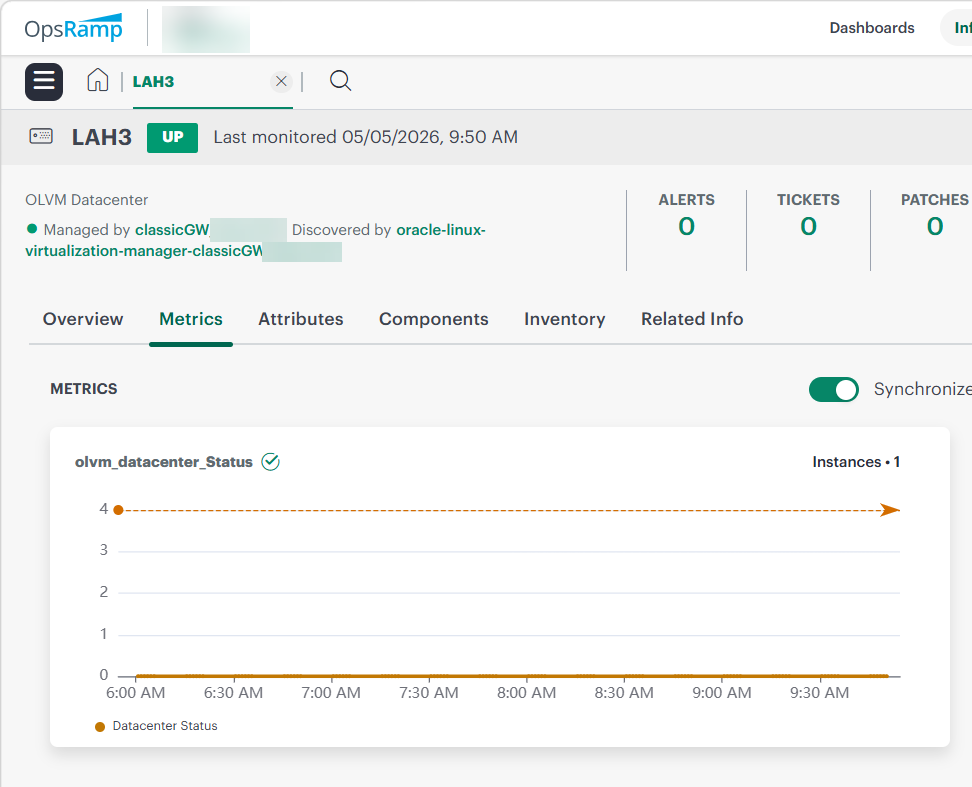
- Click the Metrics tab to view the metric details for Oracle Linux Virtualization Manager.