VMware SD-WAN (VeloCloud) Installation and Configuration
Updated Jan 21, 2026
Introduction
VMware SD-WAN (Software-defined Wide Area Network) by VeloCloud is a cloud-delivered solution for network operators and application owners who want to ensure high application performance and availability for their end users while lowering networking costs.
VMware SD-WAN ensures a reliable and resilient wide area network (WAN), with a choice of connection types, including Multiprotocol Label Switching (MPLS), LTE, Wi-Fi and broadband. VMware SD-WAN combines multiple links and uses traffic steering technology to select the best path for each application to ensure consistent performance and overcome quality issues and outages.
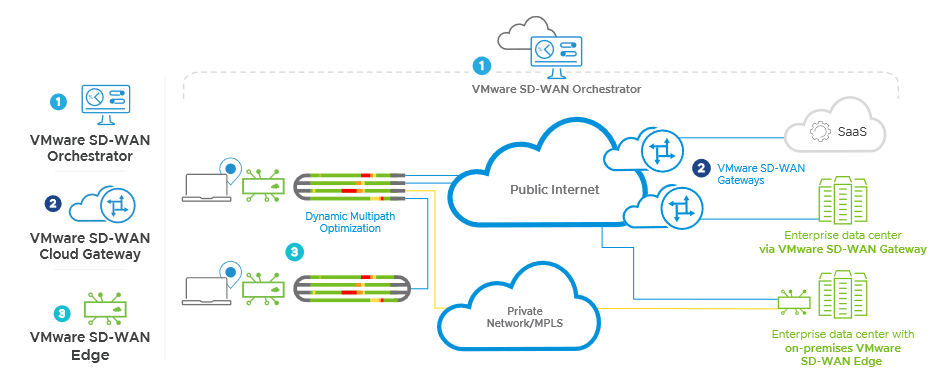
VMware SD-WAN Architecture diagram:
Available resources under VMware SD-WAN are as follows:
Orchestrator: A web-based central management platform that simplifies configuration, provisioning, monitoring, fault management, logging, and reporting across the SD-WAN environment.
Edges: Edges are zero-touch, enterprise-grade appliances that deliver secure and optimized connectivity to applications hosted in private data centers, public clouds, or hybrid environments.
Links: Represents the network connections between an Edge device and other endpoints, enabling reliable communication across the SD-WAN fabric.
Gateway: VMware’s SD-WAN architecture includes multiple service Gateways deployed in top-tier networks and cloud data centers. These SD-WAN Gateways enable cloud-delivered services and provide optimized paths to applications, branches, and data centers. Service providers can also deploy Partner Gateways within their own cloud environments.
Interfaces: VeloCloud interfaces are network interfaces on VMware SD-WAN Edge devices used to connect to WAN, LAN, and private or public cloud networks, enabling secure and optimized SD-WAN connectivity.
Note
OpsRamp identifies the uniqueness of Edges, Edge Links, and Gateways using a combination of Logical ID and Numeric ID. If the Logical ID of a resource changes, this uniqueness mapping is updated, and OpsRamp treats the resource as a new entity deleting the existing resource and creating a new one.
Configure the integration
From All Clients, select a client.
Navigate to Setup > Account.
Select the Integrations and Apps tab.
The Installed Integrations page, where all the installed applications are displayed. Note: If there are no installed applications, it will navigate to the Available Integrations and Apps page.
Click + ADD on the Installed Integrations page. The Available Integrations and Apps page displays all the available applications along with the newly created application with the version. Note: You can even search for the application using the search option available. Also you can use the All Categories option to search.
Click ADD in the VMware SD-WAN(VeloCloud) application.
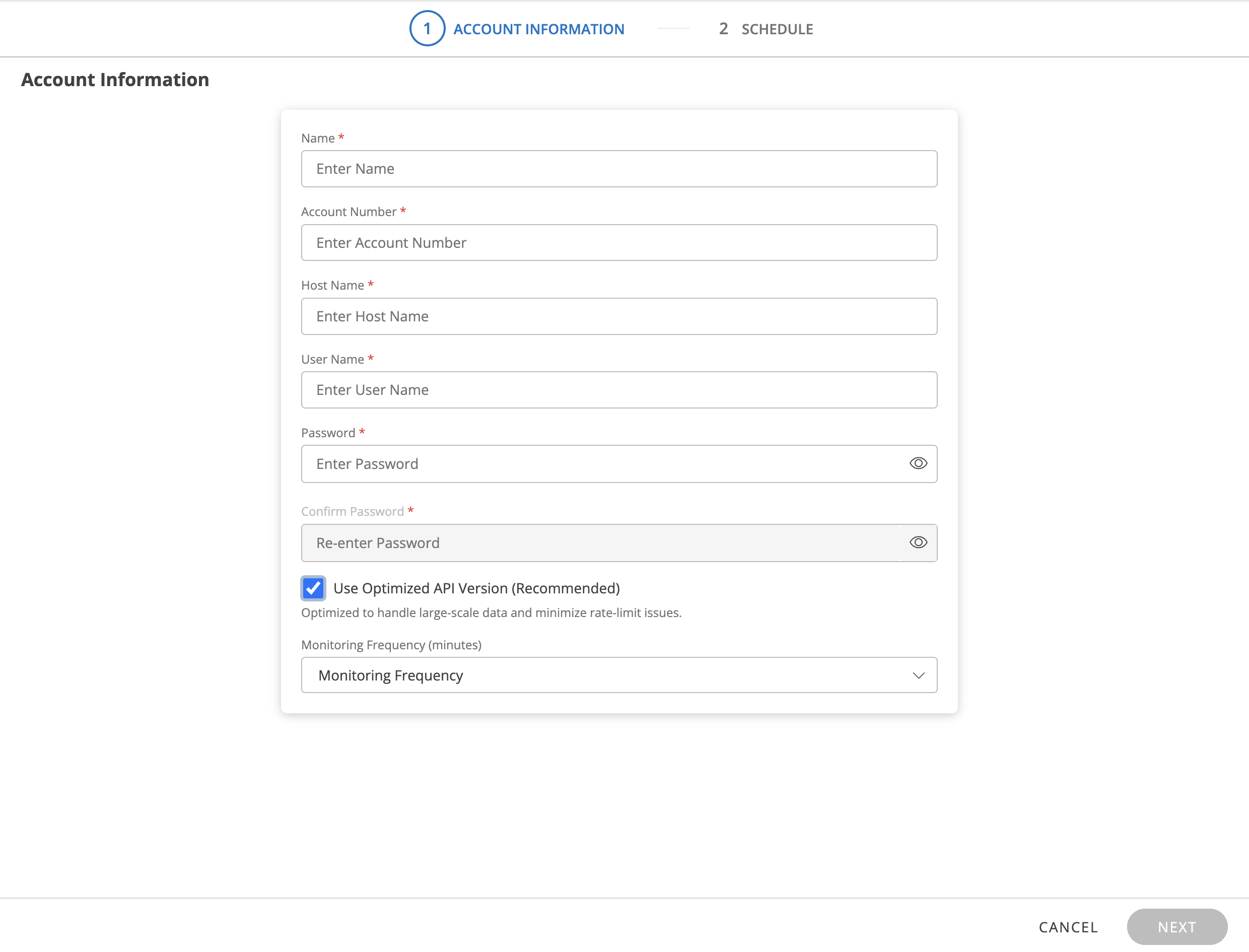
In ADD VMWARE SD-WAN(VELOCLOUD) page, enter account information:
Property
Description
Name
(required) Enter integration name.
Account Number
(required) Enter the VeloCloud account number.
Host Name
(required) Enter the hostname.
User Name
(required) Enter the username.
Password
(required) Enter the password.
Confirm Password
(required) Re-enter the password.
Use Optimized API Version (Recommended)
Collects key metrics using a more efficient method to reduce API calls and avoid VeloCloud rate-limit issues. Requires selecting a monitoring frequency.
See Configure - Use Optimized API Version for more details.
Click Next.
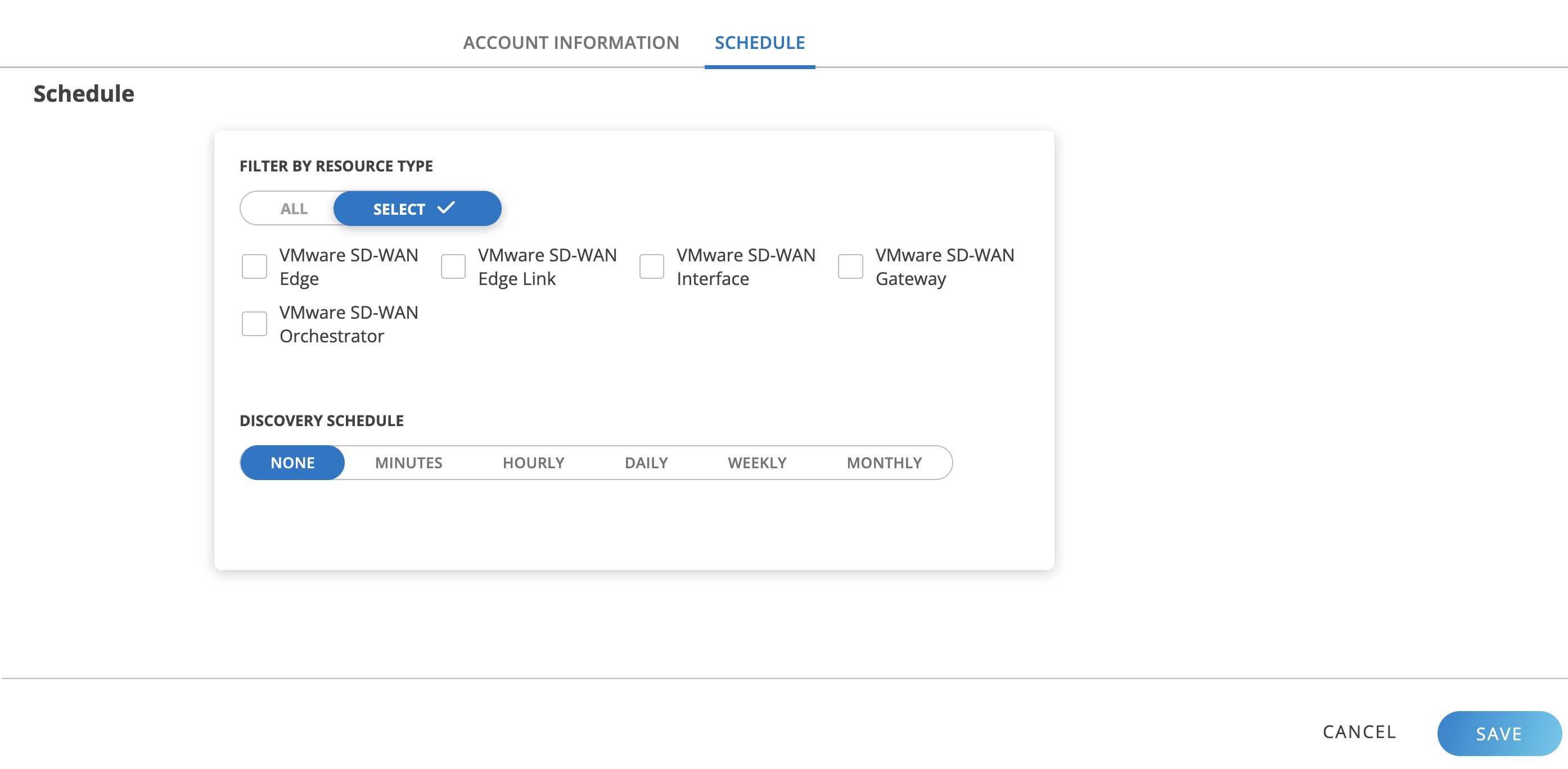
In the RESOURCE TYPE section, select:
ALL: All the existing and future resources will be discovered.
SELECT: You can select one or multiple resources to be discovered.
In the DISCOVERY SCHEDULE section, select Recurrence Pattern to add one of the following patterns:
Minutes
Hourly
Daily
Weekly
Monthly
Click FINISH.
The application is now installed and displayed on the Installed Integration page. Use the search field to find the installed application.
You can either create a copy of global templates or use existing global templates for metric collection. But you cannot edit the global templates.Below is the list of global templates G1 and G2 for VeloCloud.
G1 templates:
VMware SD-WAN (VeloCloud) VMware SD-WAN Edge - for VeloCloud Edges.
VMware SD-WAN (VeloCloud) VMware SD-WAN Edge Link - For VeloCloud edge links.
VMware SD-WAN (VeloCloud) VMware SD-WAN Gateway - For VeloCloud gateways.
Use DMP (Device Management Policies) to assign a template against a resource. You can create a new DMP or copy the existing DMP. See Device Management Policies for more details.
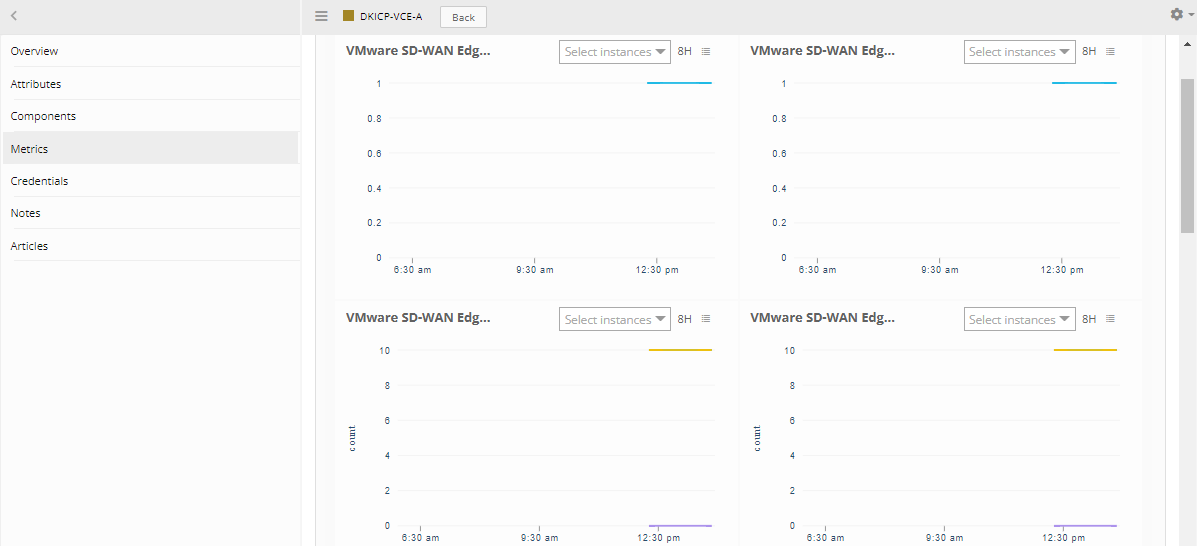
After configuring the integration, VMware SD-WAN metrics can be viewed from the Infrastructure page.
Shows the HA status of the Edge. Possible values 0-Unconfigured, 1-Ready, 2-Pending Init, 3-Pending Dissociation, 4-Pending Confirmed, and 5-Failed.
vmware_sdwan_Edge_Memory_Utilization
VMware SD-WAN Edge Memory Utilization
Percentage
Shows the edge memory utilization.
vmware_sdwan_Edge_Neighbor_BGP_State
VMware SD-WAN Edge Neighbor BGP State
Shows the edge neighbor BGP state. Possible values 0-Idle 1-Connect 2-Active 3-Established 4-Removed 5-Unconfigured.
vmware_sdwan_Edge_Status
VMware SD-WAN Edge Status
Shows the status of the VMware SD-WAN edge. Possible values 0-Down 1-Connected 2-Degraded 3-Never Activated 4-offline 5-online.
vmware_sdwan_Edge_Transactional_QOE_Score
VMware SD-WAN Edge Transactional QOE Score
Count
Shows the transactional QOE scores.
vmware_sdwan_Edge_TunnelCount
VMware SD-WAN Edge Tunnel Count
Count
Shows the edge tunnel count.
vmware_sdwan_Edge_Video_QOE_Score
VMware SD-WAN Edge Video QOE Score
Count
Shows the video QOE scores.
vmware_sdwan_Edge_Voice_QOE_Score
VMware SD-WAN Edge Voice QOE Score
Count
Shows the voice QOE scores.
VMware SD-WAN Edge Link
vmware_sdwan_Link_Bandwidth
VMware SD-WAN Link Bandwidth
BPS
Shows the Link bandwidth.
vmware_sdwan_Link_Bytes_Received
VMware SD-WAN Link Bytes Received
Bytes
Shows the bytes count received by a link.
vmware_sdwan_Link_Bytes_Sent
VMware SD-WAN Link Bytes Sent
Bytes
Shows the bytes count sent by a link.
vmware_sdwan_Link_Effective_State
VMware SD-WAN Link Effective State
Shows the link effective state. Possible values 0-Disconnected, 0-Initial, 0-Quiet, 0-Unknown, 1-Stable, 2-Standby, and 3-Unstable.
vmware_sdwan_Link_Jitter
VMware SD-WAN Link Jitter
MS
Shows the link jitter.
vmware_sdwan_Link_Latency
VMware SD-WAN Link Latency
MS
Shows the link latency.
vmware_sdwan_Link_Packets_Received
VMware SD-WAN Link Packets Received
Count
Shows the count of link packets.
vmware_sdwan_Link_Packets_Sent
VMware SD-WAN Link Packets Sent
Count
Shows the count of link packet sent.
vmware_sdwan_Link_Packet_Loss
VMware SD-WAN Link Packet Loss
Percentage
Shows the link packet loss.
vmware_sdwan_Link_SignalStrength
VMware SD-WAN Link Signal Strength
dBm
Shows the link signal strength.
vmware_sdwan_Link_Status
VMware SD-WAN Link Status
Shows the link status. Possible values 0-Disconnected, 0-Initial, 0-Quiet, 0-Unknown, 1-Stable, 2-Standby, and 3-Unstable.
vmware_sdwan_Link_VPN_State
VMware SD-WAN Link VPN State
Shows the link VPN state. Possible Values 0-StatusEmpty, 1-Stable, 2-Other, and 3-Dead.
vmware_sdwan_Link_BandwidthPercentage
VMware SD-WAN Link Bandwidth Percentage
Percentage
Shows the link bandwidth percentage based on the amount of bytes received and bytes sent.
vmware_sdwan_Link_Throughput
VMware SD-WAN Link Throughput
Mbps
Shows the link speed based on the amount of bytes received and bytes sent.
VMwaVMware SD-WAN Gateway
vmware_sdwan_Gateway_CPU_Utilization
VMware SD-WAN Gateway CPU Utilization
Percentage
Shows the gateway CPU utilization.
vmware_sdwan_Gateway_FlowCount
VMware SD-WAN Gateway Flow Count
Count
Shows the gateway flow count.
vmware_sdwan_Gateway_HandOff_QueueDrops
VMware SD-WAN Gateway HandOff QueueDrops
Count
Show the gateway handOff queue drops.
vmware_sdwan_Gateway_Memory_Utilization
VMware SD-WAN Gateway Memory Utilization
Percentage
Shows the gateway memory utilization.
vmware_sdwan_Gateway_TunnelCount
VMware SD-WAN Gateway Tunnel Count
Count
Shows the gateway tunnel count.
vmware_sdwan_Gateway_Status
VMware SD-WAN Gateway Status
Shows the status of the VMware SD-WAN gateway. Possible values 0-Offline 1-Connected 2-Never Activated.
VeloCloud Rate Limits
ENTERPRISE_USER Limit: Each user in an enterprise can make up to 500 API calls within a 5-second window. If this limit is exceeded, the user will receive HTTP 429 (Rate Limit) errors, regardless of how many calls other users are making.
ENTERPRISE Limit: At the enterprise level, the total combined API usage across all users is also capped at 500 API calls per 5 seconds. If the collective API usage exceeds this threshold, all users may experience rate limiting, even if individual users have not exceeded their personal limits.
Note
For VMware SD-WAN (VeloCloud) metrics, all metrics except the following display a 10-minute delay in the polling graph. This delay is expected because the VeloCloud APIs inherently return data that is approximately 10 minutes old:
vmware_sdwan_Edge_Status
vmware_sdwan_Edge_HA_Status
vmware_sdwan_Edge_Neighbor_BGP_State
vmware_sdwan_Gateway_Status
When the Use Optimized API Version (Recommended) setting is enabled, the following metrics also return real-time data without the 10-minute delay, in addition to the metrics listed above: