This section guides you through setting up, configuring, and managing the VMware NSX-V integration in OpsRamp.
Prerequisites
- To configure the integration, ensure that your environment meets the following requirements related to gateway versions, credentials, and connectivity.
- OpsRamp Classic Gateway (Linux) version 14.0.0 or later is required.
- OpsRamp NextGen Gateway version 14.0.0 or later is required.
- OpsRamp recommends using the latest Gateway version for full coverage of recent bug fixes and enhancements.
- Provide VMware NSX-V Rest API credentials with minimum read-only privileges to fetch data from end device.
- Ensure that the provided IP address/host name, port, and credentials are valid and accessible for successful integration.
- Verify network connectivity from the gateway using:
ping <IP Address/Host Name> - Check port accessibility using:
telnet <IP Address/Host Name> <Port>
- Verify network connectivity from the gateway using:
Configure VMware NSX-V Integration
Click here to Configure and Install the VMware NXS-V integration
- To select your client, navigate to All Clients, and click the Client/Partner dropdown menu.
Note: You may either type your client’s name in the search bar or select your client from the list. - Navigate to Setup > Account. The Account Details screen is displayed.
- Click Integrations. The Installed Integrations screen is displayed with all the installed applications.
Note: If you do not have any installed applications, you will be navigated to the Available Integrations and Apps page with all the available applications along with the newly created application with the version. - Click + ADD on the Installed Integrations page.
Note: Search for the integration either by entering the name of the integration in the search bar or by selecting the category of the integration from the All Categories dropdown list. - Click ADD in the VMware NXS-V application.
- In the Configuration screen, click + ADD. The Add Configuration screen appears.
- Enter the following BASIC INFORMATION:

| Field Name | Description | Field Type |
|---|---|---|
| Name | A user-defined display name for the integration instance | String |
| NSX-V Manager IP Address/Host Name | Enter IP address or hostname of the NSX V Manager. You must be able to connect to this node using HTTPS. | String |
| Port | Provide the API Port details. The port must be open and accessible for API communication from the gateway. Note:By default API Port is 443 | String |
| Is Secure | Select this checkbox if you want the communication between your system and the specified endpoint to be secured using protocols such as HTTPS (HTTP over SSL/TLS). Default Selection: When selected, it signifies that the connection is encrypted, providing an added layer of security to the data being transmitted. | Checkbox |
| Credential | Select the API credentials to authenticate with the VMware NSX-V. When selected, it signifies that the connection is encrypted, providing an added layer of security to the data being transmitted. You must have read-only API access, including permissions for system information, disk, pools, and alerts. | dropdown |
| App Failure Notifications | When selected, you will be notified in case of an application failure such as Connectivity Exception, Authentication Exception. | Checkbox |
- CUSTOM ATTRIBUTES: Custom attributes are the user-defined data fields or properties that can be added to the preexisting attributes to configure the integration.
| Field Name | Description | Field Type |
|---|---|---|
| Custom Attribute | Select the custom attribute from the dropdown. You can add attributes by clicking the Add icon (+). | Dropdown |
| Value | Select the value from the dropdown. | Dropdown |
Note
The custom attribute that you add here will be assigned to all the resources that are created by the integration. You can add a maximum of five custom attributes (key and value pair).- In the Native Types section, select the native types to be discovered.
- In the DISCOVERY SCHEDULE section, select recurrence pattern to add one of the following patterns:
- Minutes
- Hourly
- Daily
- Weekly
- Monthly
- Click ADD.
Note
Sample values shown in the configuration fields are for illustration purposes only. Use your actual integration details when configuring.The configuration is saved and displayed on the configurations page after you save it.
Note
From the same page, you may Edit and Remove the created configuration.- Under the ADVANCED SETTINGS, Select the Bypass Resource Reconciliation option, if you wish to bypass resource reconciliation when encountering the same resources discovered by multiple applications.
Note: If two different applications provide identical discovery attributes, two separate resources will be generated with those respective attributes from the individual discoveries. - Click NEXT.
- (Optional) Click +ADD to create a new collector. You can either use the pre-populated name or give the name to your collector.
- Select an existing registered profile.

- Click FINISH.
The integration is installed and displayed on the INSTALLED INTEGRATION page. Use the search field to find the installed integration.
Modify VMware NXS-V Integration
See Modify an Installed Integration or Application article.
Note: Select the VMware NXS-V application.
Discover Resources in VMware NXS-V Integration
Click here to View the VMware NXS-V Details
To discover resources for VMware NXS-V:
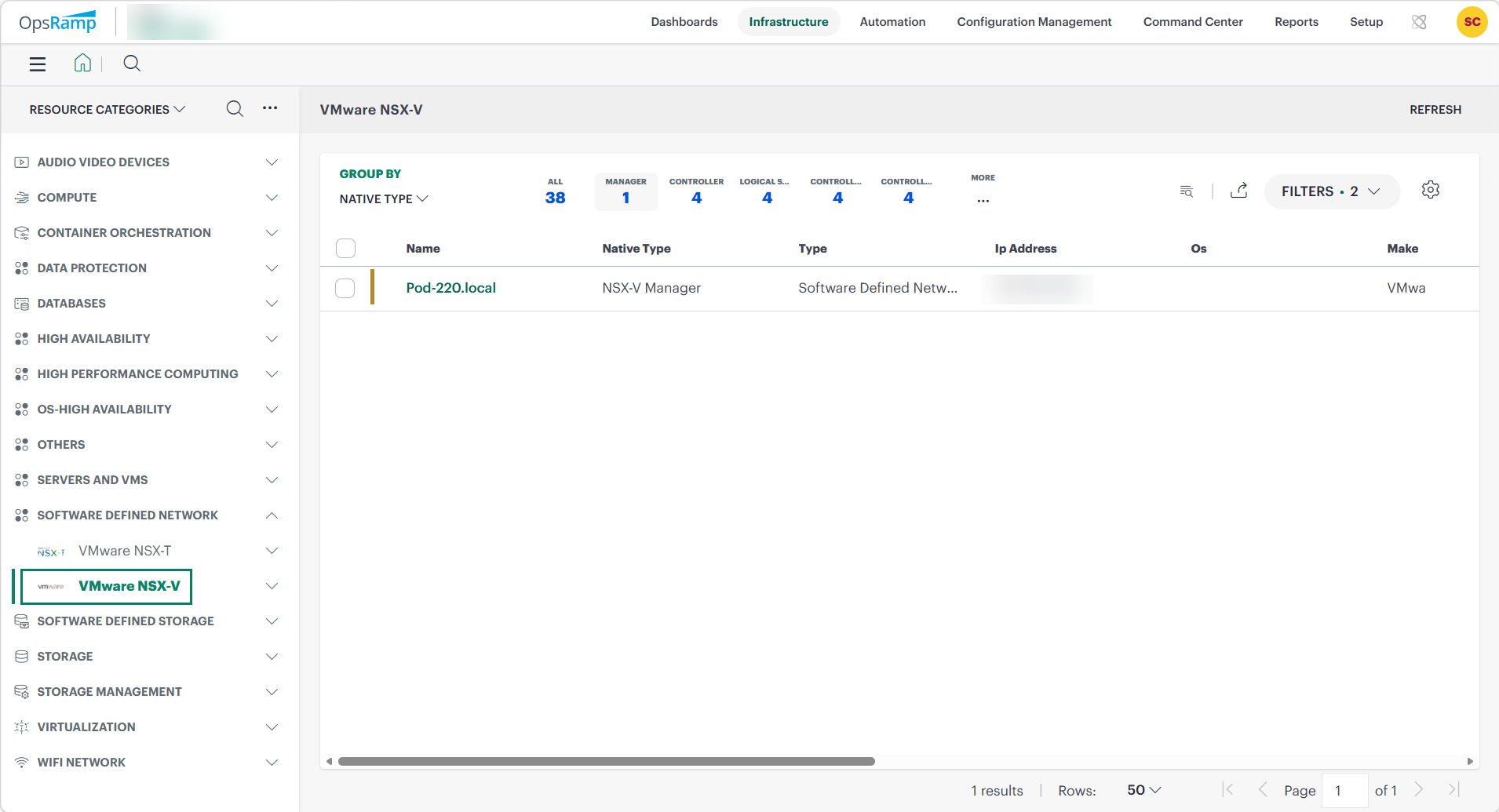
- Navigate to Infrastructure > Search > Software Defined Network > VMware NXS-V.
- The SOLARIS OS SERVER page is displayed, select the application name.
- The RESOURCE DETAILS page appears from the right.
- Click the ellipsis (…) on the top right and select View details.
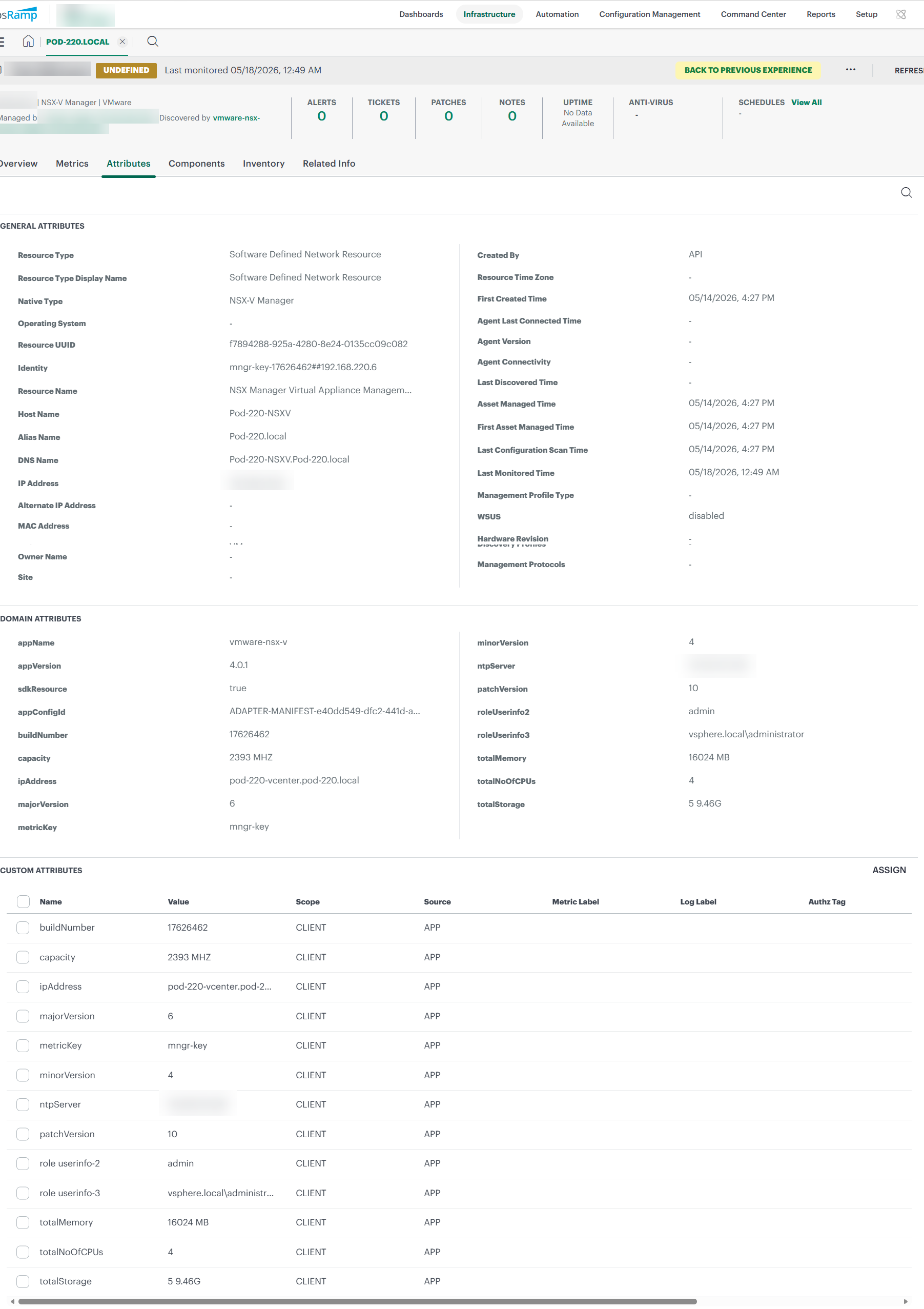
- Navigate to the Attributes tab to view the discovery details.
View resource metrics
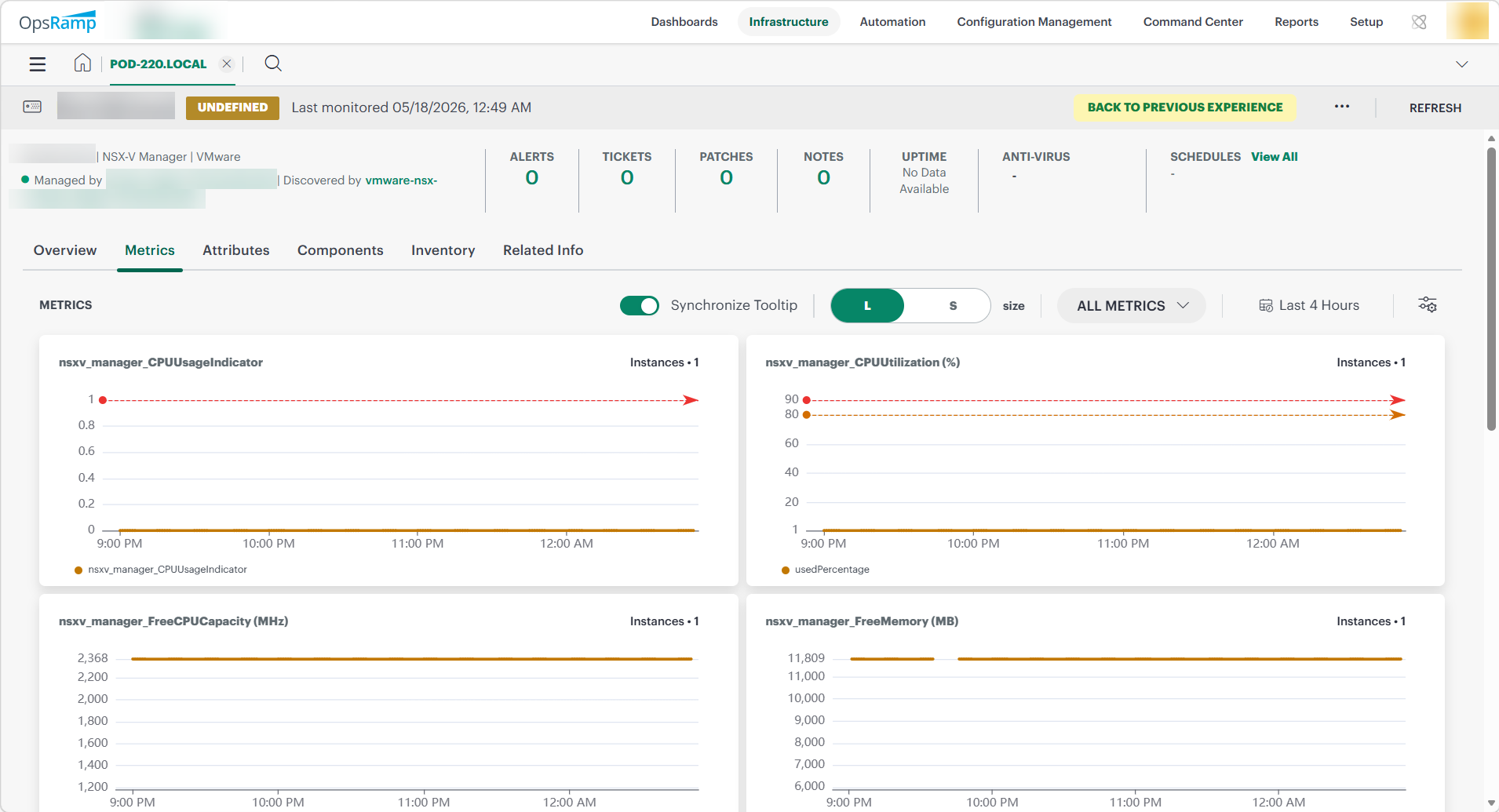
To confirm VMware NXS-V monitoring, review the following:
- Metric graphs: A graph is plotted for each metric that is enabled in the configuration.
- Alerts: Alerts are generated for metrics that are configured as defined for integration.
- Click the Metrics tab to view the metric details for VMware NXS-V.
×![]()