Introduction
When OpsRamp discovers resources from a SaaS application integration, you can control which resources are added to the platform by configuring a discovery filter. OpsRamp supports two filtering methods:
- Smart Filter to discover resources based on native resource types.
- Resource Filter to discover resources based on resource attribute queries.
Use these filters to limit discovery to only the resources that are relevant to your monitoring and management requirements.
Example
If a SaaS application contains hundreds of resources but only production resources are required, configure the following Resource Filter:
name CONTAINS "prod"
Only resources matching this condition are discovered.
Note
Only one filtering mode can be active at a time. Selecting SMART deactivates RESOURCE, and selecting RESOURCE deactivates SMART.Configure a Resource Filter
To configure Resource Filter mode:
Navigate to Setup > Account > Integrations.
Perform one of the following actions:
- For a new integration, click + ADD and select the SaaS application.
- For an existing integration, click Edit.
Enter the Account Information.
Click NEXT to view the Schedule tab.
Click RESOURCE.The FILTER BY QUERY section appears.
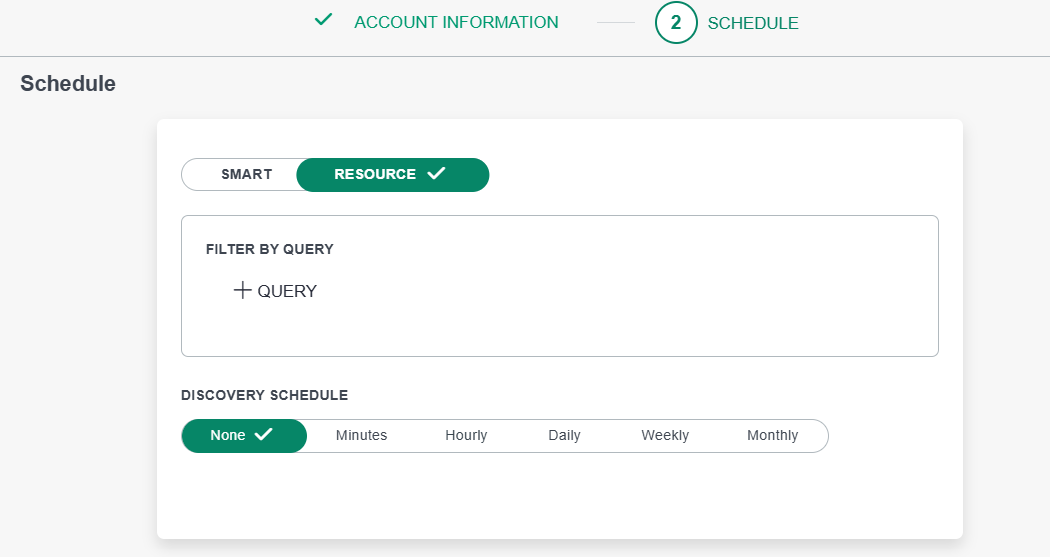
Click + QUERY.
Configure a condition by selecting:
A field (for example,
name)An operator (for example,
CONTAINS)A value (for example,
test)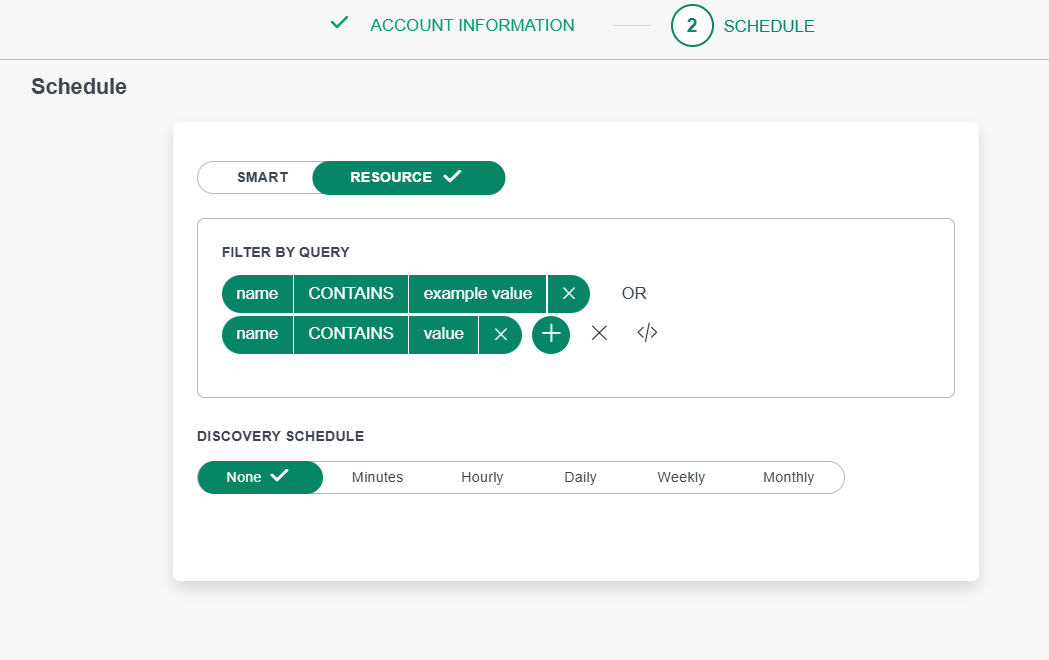
To add additional conditions, click +.Conditions can be combined using:
- AND: All conditions must match.
- OR: Any condition can match.
Configure the DISCOVERY SCHEDULE:
- None
- Minutes
- Hourly
- Daily
- Weekly
- Monthly
Click SAVE.
Query Builder Controls
| Control | Description |
|---|---|
| + | Add another condition. |
| × (on a pill) | Remove a condition. |
| × (grey, after +) | Clear all conditions. |
| </> | Switch to text mode and enter the query manually. |
Available Fields
You can build filter conditions using the following resource attributes:
| Field | Description |
|---|---|
name | Display name of the resource. |
dnsName | DNS name. |
identity | Unique identifier. |
ip | IP address. |
macAddress | MAC address. |
make | Manufacturer (for example, Dell or Cisco). |
model | Model name or number. |
nativeType | Native type defined by the SaaS application. |
resourceType | Resource type classified by OpsRamp. |
serialNumber | Serial number. |
Supported Operators
| Operator | Description | Example |
|---|---|---|
= | Equals. | name = "prod-server-01" |
!= | Does not equal. | nativeType != "Type C" |
CONTAINS | Contains text. | name CONTAINS "prod" |
NOT CONTAINS | Does not contain text. | name NOT CONTAINS "test" |
STARTS WITH | Starts with text. | name STARTS WITH "US-" |
NOT STARTS WITH | Does not start with text. | name NOT STARTS WITH "temp-" |
ENDS WITH | Ends with text. | dnsName ENDS WITH ".internal" |
NOT ENDS WITH | Does not end with text. | dnsName NOT ENDS WITH ".dev" |
IN | Matches any value in a list. | nativeType IN ("Type A", "Type B") |
NOT IN | Does not match values in a list. | nativeType NOT IN ("Type C") |
IS | Field has no value. | serialNumber IS |
IS NOT | Field contains a value. | ip IS NOT |
REGEX | Matches a regular expression pattern. | name REGEX "^prod-[0-9]+" |
REGEX NOT | Does not match a regular expression pattern. | name REGEX NOT "^test-.*" |
Building Complex Queries
Multiple conditions can be combined using:
- AND: All conditions must evaluate to true.
- OR: Any condition can evaluate to true.
Use the </> control to switch to text mode and manually create complex expressions.
Example:
name CONTAINS "prod" AND (nativeType = "Type A" OR nativeType = "Type B")
Note
All comparisons are case-insensitive. For example, name CONTAINS "PROD" matches:
- Production-Server
- prod-web-01
- PROD-DB
Query Examples
| Requirement | Query |
|---|---|
| Discover only production resources. | name CONTAINS "prod" |
| Discover specific native types. | nativeType IN ("Type A", "Type B") |
| Exclude test and deprecated resources. | name NOT CONTAINS "test" AND name NOT CONTAINS "deprecated" |
| Discover resources from a specific region. | name STARTS WITH "US-" |
| Discover resources from a specific hardware batch. | serialNumber STARTS WITH "SN-2024" |
| Discover only resources with an IP address. | ip IS NOT |
| Match a naming convention. | name REGEX "^(us|eu)-prod-[a-z]+-[0-9]+" |
| Discover resources from multiple regions. | identity CONTAINS "us-east" OR identity CONTAINS "us-west" |
Impact of Filter Changes
When a filter is modified on an integration that already contains discovered resources, some existing resources may no longer match the new filter criteria. The resulting behavior depends on the active filtering mode.
Smart Filter
When selected native types are modified:
- Changes take effect during the next discovery scan.
- Resources associated with deselected native types are removed after the scan completes.
Resource Filter
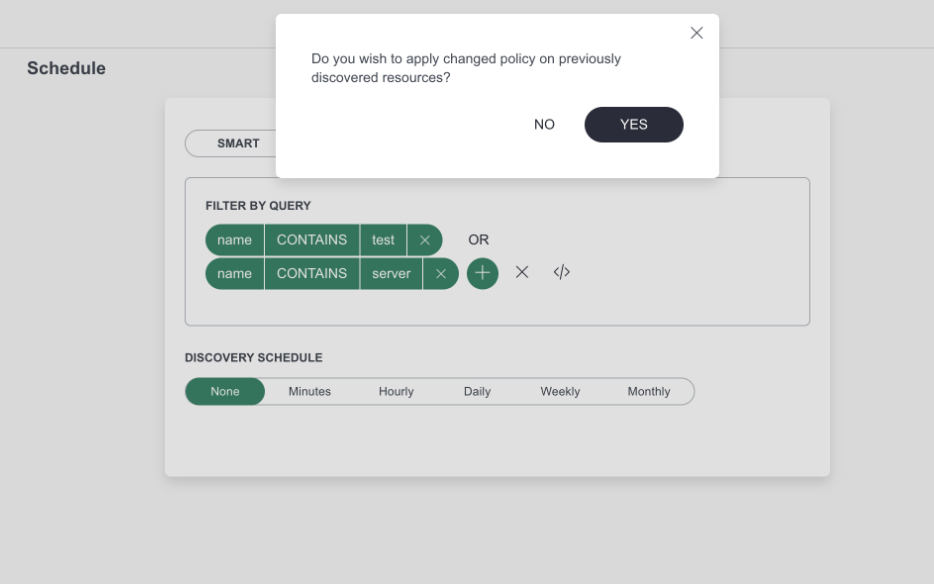
When the query is modified and SAVE is clicked, the following confirmation message appears:
Do you wish to apply changed policy on previously discovered resources?
Available Actions
| Selection | Behavior |
|---|---|
| YES | Resources that do not match the new query are removed immediately. Only matching resources remain. |
| NO | The query is saved and applies only to future discovery scans. Existing resources remain unchanged. |
| × (Close) | Same behavior as NO. Existing resources are not modified. |
When Does the Confirmation Popup Appear?
| Scenario | Popup Appears? | Reason |
|---|---|---|
| Install a new integration using Resource Filter. | No | No existing resources are available for removal. |
| Modify the Resource Filter query on an existing integration. | Yes | Existing resources may no longer satisfy the new query. |
| Switch from Smart Filter to Resource Filter. | Yes | Existing resources may not satisfy the Resource Filter query. |
| Switch from Resource Filter to Smart Filter. | No | Smart Filter processes changes during the next discovery scan. |
| Save without changing the query. | No | No resources are affected. |
Important
- If a resource is removed because of a filter change and later becomes eligible again, it is rediscovered during the next discovery scan.
- When YES is selected, resource removal occurs as a background operation and may require additional time for integrations containing large numbers of resources.