This section guides you through setting up, configuring, and managing the HPE Serviceguard integration in OpsRamp.
Prerequisites
Before configuring the integration, ensure that your environment meets the following requirements related to gateway versions, credentials, and connectivity.
- OpsRamp Classic Gateway (Linux) 15.0.0 and above.
- OpsRamp Nextgen Gateway 15.0.0 and above.Note: OpsRamp recommends using the latest Gateway version for full coverage of recent bug fixes, enhancements, etc.
- All Serviceguard nodes must use the same credentials.
Jetty-Sgmgr.Servicemust enabled on all the Serviceguard nodes.- To monitor the HPE Serviceguard we are using the Serviceguard Rest API (SGRAPI).
- To utilize the Serviceguard Rest API (SGRAPI) for monitoring HPE Serviceguard, the following conditions must be met: Installation of Serviceguard for Linux A.15.XX.XX is required.
- Ports 5511, https port (default port is 5522, if not configured during installation or upgrade), and 5301 must be available for SGRAPI usage.
- If the primary node is down, Jetty-Sgmgr.Service must be enabled on the secondary nodes in order to perform API calls to it.
- Ensure that the provided IP address/host name, port, and credentials are valid and accessible for successful integration.
- Verify network connectivity from the gateway using:
ping <IP Address/Host Name> - Check port accessibility using:
telnet <IP Address/Host Name> <Port> - Validate SSH access using the provided credentials:
ssh -p <Port> <username>@<IP Address/Host Name>
- Verify network connectivity from the gateway using:
- Configuration for non-root users: Update the following lines in “etc/sudoers” file to provide access for non-root user to execute the ServiceGuard Node Serial Number, Product Name and System UUID commands.
- Update the following lines in “etc/sudoers” file to provide access for non-root user to execute the ServiceGuard Node Serial Number , Product Name and System UUID commands.
Cmnd_Alias DMIDECODE_CMDS = /bin/cat /sys/class/dmi/id/product_serial, /bin/cat /sys/class/dmi/id/product_name, /usr/sbin/dmidecode -s system-uuid{username} ALL=(ALL) NOPASSWD: DMIDECODE_CMDS- Example for a user named opsramp:
opsramp ALL=(ALL) NOPASSWD: DMIDECODE_CMDS
- Update the following lines in “etc/sudoers” file to provide access for non-root user to execute the ServiceGuard Node Serial Number , Product Name and System UUID commands.
- Ensure that the user is added with the Monitor role under Clusters > Cluster Overview > Access Control Policy in the Serviceguard Manager UI to grant read-only access to cluster information.
Configure HPE Serviceguard Integration
Click here to Configure and Install the HPE Serviceguard Integration
- To select your client, navigate to All Clients, and click the Client/Partner dropdown menu.
Note: You may either type your client’s name in the search bar or select your client from the list. - Navigate to Setup > Account. The Account Details screen is displayed.
- Click Integrations. The Installed Integrations screen is displayed with all the installed applications.
Note
If you do not have any installed applications, you will be navigated to the Available Integrations and Apps page with all the available applications along with the newly created application with the version. - Click + ADD on the Installed Integrations page.
Note: Search for the integration either by entering the name of the integration in the search bar or by selecting the category of the integration from the All Categories dropdown list. - Click ADD in the HPE Serviceguard application.
- In the Configuration screen, click + ADD. The Add Configuration screen appears.
- Enter the following BASIC INFORMATION:

| Field Name | Description | Field Type |
|---|---|---|
| Name | Enter the name for the configuration. | String |
| Serviceguard Node IP Address/Host Name | IP Address/Host Name for the Serviceguard. | String |
| API Port | Specify the API Port number that OpsRamp uses to connect to the HPE Serviceguard . Note: By default API Port is 5522. | String |
| API Credentials | Select the credentials required to authenticate OpsRamp with the HPE Serviceguard Target API . You can either select the credentials from the dropdown menu or add a new credential. (Optional): Click + Add to create a credential. The ADD CREDENTIAL window is displayed. Enter the following information. Name: Credential name. Description: Brief description of the credential. User Name: User name. Password: Password. Confirm Password: Confirm password | Dropdown |
| SSH Port | Specify the SSH Port Number that Opsramp uses to connect to the HPE Serviceguard by RemoteShell Connection. Note: By default SSH Port is 22. | String |
| SSH Credentials | Select the credentials required to authenticate OpsRamp with the HPE Serviceguard target by Remote Shell Connection (SSH) . You can either select the credentials from the dropdown menu or add a new credential. Name: Credential name. Description: Brief description of the credential. User Name: User name. Password: Password. Confirm Password: Confirm password | Dropdown |
| App Failure Notifications | When selected, you will be notified in case of an application failure such as Connectivity Exception, Authentication Exception. | String |
| Alert Configuration | When selected, HPE Serviceguard alerts are raised as alerts in the OpsRamp. Below are the configurable fields in the Event Polling. - Alert On Root Resource : When this option is enabled, alerts will be triggered on the root resource rather than the individual device. - Alert Severity Filter : Filter alerts based on the specified severity levels. By default, only HPE Serviceguard alerts with the below severities ["CRITICAL","ERROR","WARNING","DEGRADED"] are processed.- Alert Severity Mapping : Maps HPE Serviceguard alert severities to OpsRamp alert levels. Default mappings are : {"DEGRADED":"Critical","CRITICAL":"Critical","ERROR":"Warning","WARNING":"Warning"} | Checkbox |
- CUSTOM ATTRIBUTES: Custom attributes are the user-defined data fields or properties that can be added to the preexisting attributes to configure the integration.
| Field Name | Description | Field Type |
|---|---|---|
| Custom Attribute | Select the custom attribute from the dropdown. You can add attributes by clicking the Add icon (+). | Dropdown |
| Value | Select the value from the dropdown. | Dropdown |
Note
The custom attribute that you add here will be assigned to all the resources that are created by the integration. You can add a maximum of five custom attributes (key and value pair).- In the RESOURCE TYPE section, select:
- ALL: All the existing and future resources will be discovered.
- SELECT: You can select one or multiple resources to be discovered.
- In the DISCOVERY SCHEDULE section, select recurrence pattern to add one of the following patterns:
- Minutes
- Hourly
- Daily
- Weekly
- Monthly
- Click ADD.
Now the configuration is saved and displayed on the configurations page after you save it.
Note
From the same page, you may Edit and Remove the created configuration.12. Under the ADVANCED SETTINGS, Select the Bypass Resource Reconciliation option, if you wish to bypass resource reconciliation when encountering the same resources discovered by multiple applications.
Note
If two different applications provide identical discovery attributes, two separate resources will be generated with those respective attributes from the individual discoveries.14. (Optional) Click +ADD to create a new collector. You can either use the pre-populated name or give the name to your collector.
15. Select an existing registered profile.16. Click FINISH.
The integration is installed and displayed on the INSTALLED INTEGRATION page. Use the search field to find the installed integration.
Modify HPE Serviceguard Integration
Click here to Modify the Configuration
- See Modify an Installed Integration or Application article.
Note
Select HPE Serviceguard.Discover Resources in HPE Serviceguard Integration
Click here to View the HPE Serviceguard
- Navigate to Infrastructure > Search > HIGH AVAILABILITY > HPE Serviceguard. The HPE Serviceguard page is displayed.
- Select the application on the HPE Serviceguard page
- The RESOURCE page appears from the right.
- Click the ellipsis (…) on the top right and select View Details.
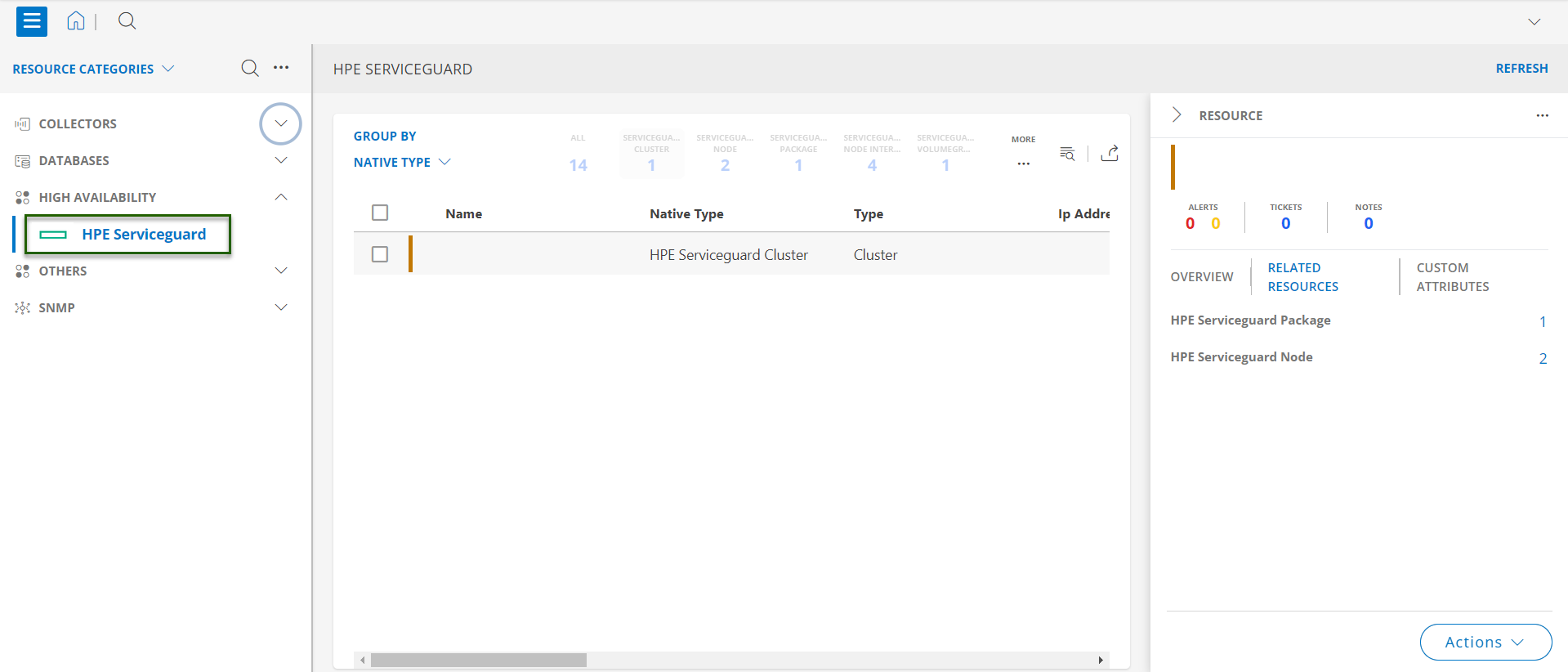
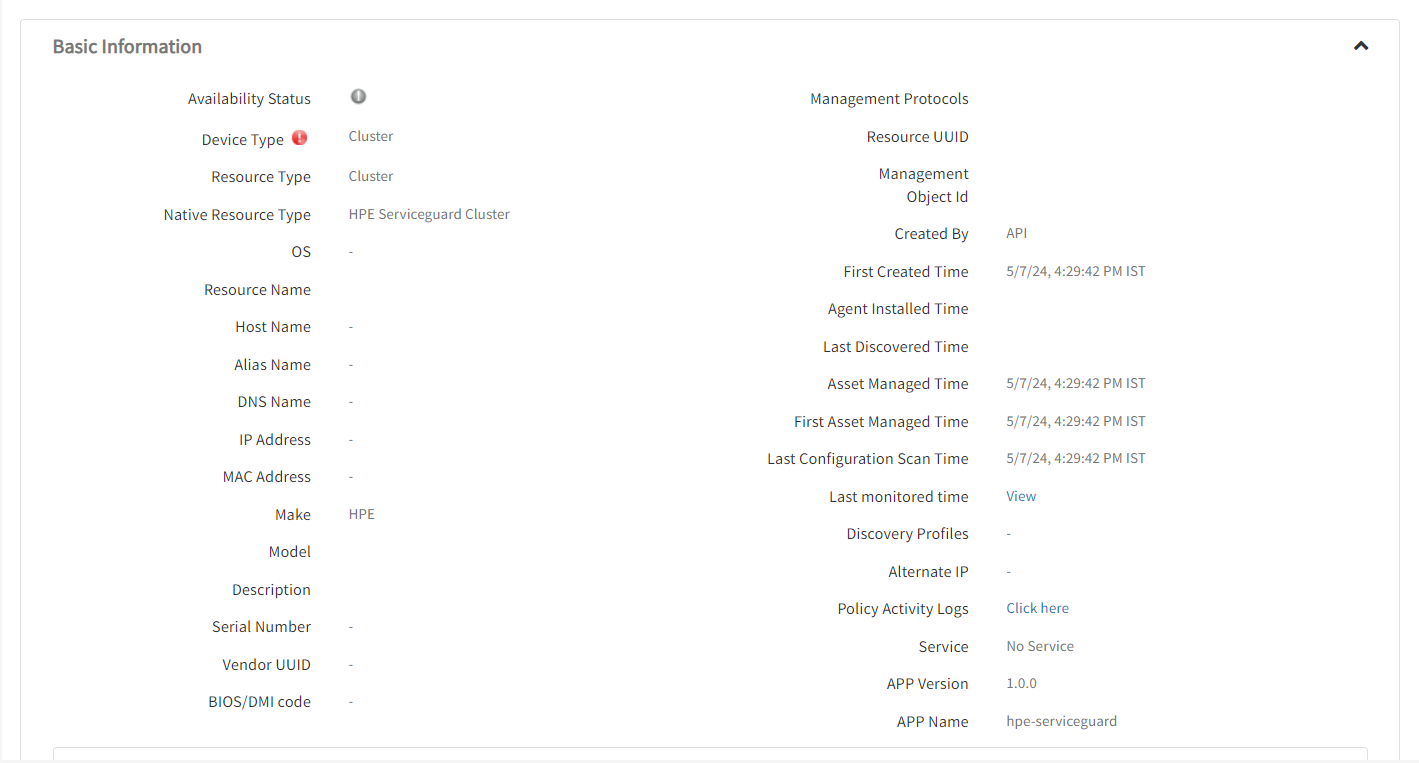
- Navigate to the Attributes tab to view the discovery details.
View resource metrics
To confirm HPE Serviceguard monitoring, review the following:
- Metric graphs: A graph is plotted for each metric that is enabled in the configuration.
- Alerts: Alerts are generated for metrics that are configured as defined for integration.
- Click the Metrics tab to view the metric details for HPE Serviceguard.
