The multi-tenancy feature refers to the ability of a single gateway instance to securely serve multiple SaaS client tenants simultaneously, with strict logical isolation of data, configurations, and access controls. This requires tenant-aware routing, client-scoped configurations, and enforcement of data segregation within the same runtime.
A single gateway instance at the partner level can register with multiple client tenants and route data securely to their respective tenant SaaS endpoints. Integrations, credentials, and discovery configurations remain scoped to individual clients, and inventory, metrics, logs, traces, and events are strictly segregated per tenant, ensuring no cross-tenant visibility or data leakage. Gateway sharing does not affect SaaS-level user access controls, and clients continue to operate in isolation with RBAC aligned to SaaS tenancy. Gateway-level administrative operations remain centrally controlled at the partner level and are not exposed at the individual client tenant scope, governed by permission sets that manage gateways for all or specific clients sharing the gateway.
This model reduces the number of gateway deployments required for environments with many small client tenants. It also maintains separation of client configurations, credentials, telemetry, and access controls.
Note
The Primary Client should be restricted in scope — it should only be allowed to perform gateway management actions and gateway registration, and should not be onboarded onto any other customer infrastructure or services.Permissions
Following are the permissions required to perform various tasks.
| Category | Permission Type | Permission Value | Task |
|---|---|---|---|
| Collectors | Manage Management Profile | View | To view the collector profile listing page. |
| Manage Management Profile | Manage | To perform actions such as removing the primary collector profile. | |
| Account Administration | Clients | Create | To create a client |
| Clients | Manage | Create, update and remove a client. |
Multi-Tenant Gateway model
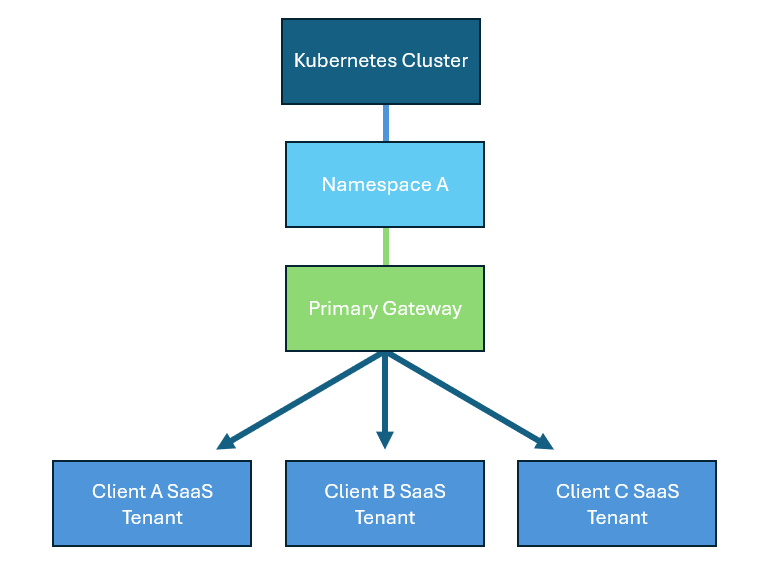
How Multi-Tenant Gateway Works
The Multi-Tenant Gateway model uses the following objects:
- Primary client: The client designated to host the Primary Collector Profile for a partner. There can be only one Primary Client under a partner.
- Primary Collector Profile: The partner-controlled profile that is deployed in Primary Client that owns and administers the physical NextGen Gateway.
- Primary Gateway: The physical NextGen Gateway registered with the Primary Collector Profile. It can support multiple Shared Collector Profiles from different client tenants.
- Shared Collector Profile: A client-scoped profile that uses an existing Primary Gateway managed by the Partner Administrator.
The Primary Gateway is the physical gateway. Shared Collector Profiles represent logical client connections to that gateway and do not create additional physical gateways.
How tenant isolation works
For every client tenant associated with the Primary Gateway:
- Integrations, credentials, discovery profiles, and policies remain within the individual client scope.
- Inventory, metrics, logs, traces, events, alerts, and configurations are separated by client context.
- Each client association is authenticated and authorized independently.
- Client users cannot view another client’s data or configuration.
- SaaS role-based access control continues to apply independently to each client.
- Gateway-level administration remains under partner control.
Configure a Multi-Tenant Gateway
Process overview
Follow these steps to set up and use a Multi-Tenant Gateway:
- Configure the Primary client: Configure the client as the Primary Client that will host the Primary Collector Profile. Note that there should be, or will be, only one Primary Client under a partner.
- Create and register the Primary Gateway: Create the Primary Collector Profile for the Primary client.
- Create Shared Collector Profiles: Create one Shared Collector Profile(s) in each client tenant, mapping them to the Primary Collector Profile.
- Associate the profiles: Assign each Shared Collector Profile to the Primary Collector Profile and confirm that each profile’s status is Connected.
- Monitor and manage associations: Review connection status and gateway capacity, and move or detach Shared Collector Profiles when clients change gateways, no longer need access, or capacity requirements change.
The Primary Gateway is managed by partner administrators. Client administrators manage their client-scoped configurations and use the Shared Collector Profile without accessing gateway administration controls.
1. Configure the Primary client
Follow these steps to configure the primary client:
- Navigate to Setup > Account.
- Click Settings at the right-top corner of the page.
- Click Advanced Settings.
- Select the Enable this client as a Primary Client checkbox to enable it.
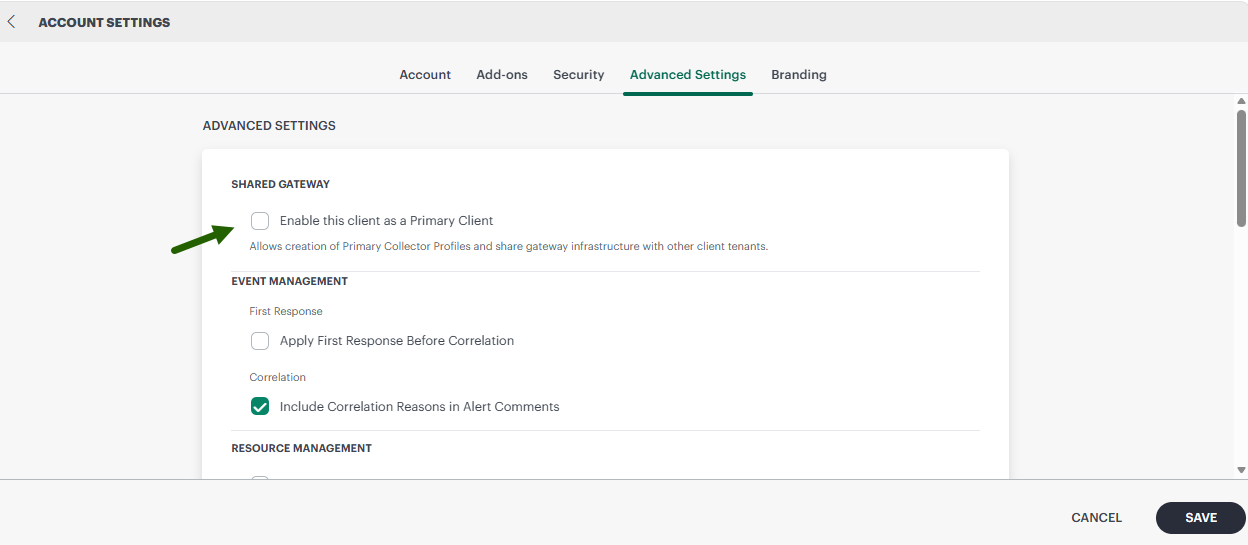
- Click Save.
Note
- Only one Primary client can be configured for the applicable partner context.
- Once a client is selected as Primary Client, it cannot be changed or removed.
2. Create Primary Collector Profile
Permissions: Manage management profile - Manage.
As a Partner Administrator, follow these steps to create Primary Collector Profile:
- Navigate to the client that you marked as Primary Client.
- Navigate to Setup > Account > Collector Profiles.
- Click +Add. The Add Gateway Collector Profile page appears.
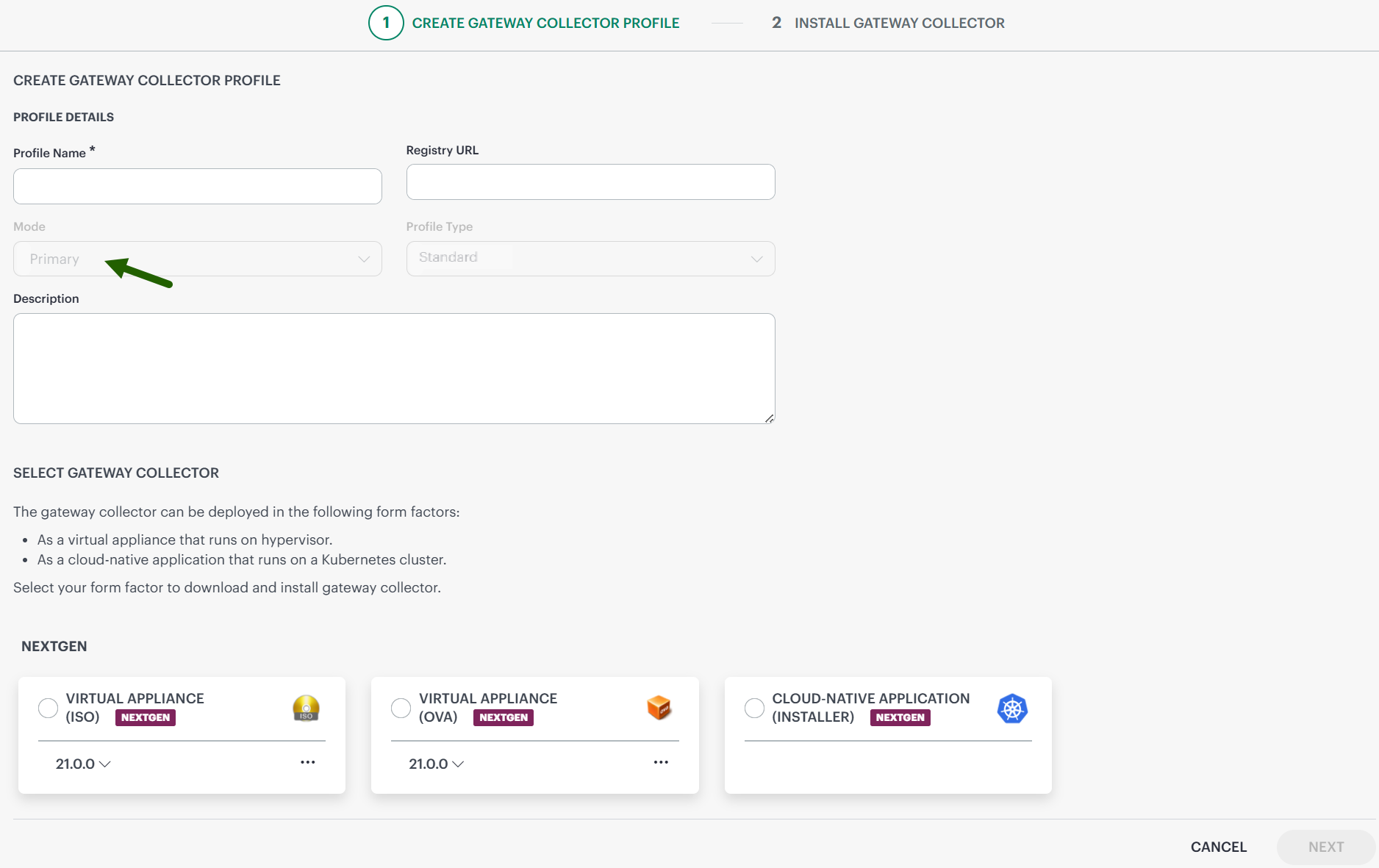
The Mode is set to Primary. - Enter the profile name and other details on the page.
- Click Next and follow the instructions to install the NextGen gateway collector.
- Click Finish.
- Verify that the gateway is connected and available for Shared Collector Profile associations.

After the gateway is registered, a Primary icon appears next to the profile name, indicating that the profile is configured as the Primary Collector Profile.
Warning
No integrations must be configured on the Primary Profile.3. Create Shared Collector Profiles
Create a Shared Collector Profile in each client tenant that must use the Primary Gateway.
- Switch to the required client scope.
- Open the Collector Profiles page.
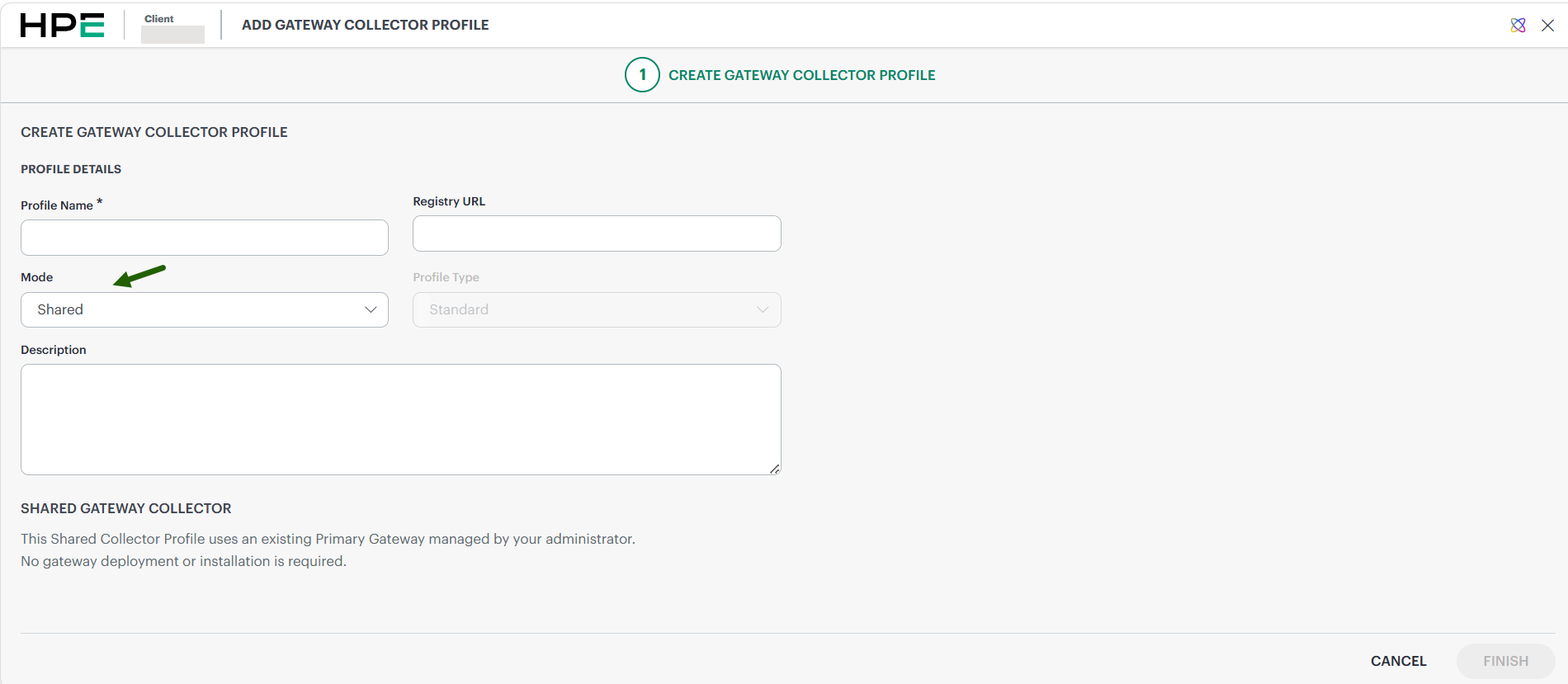
- Enter the details and select Mode as Shared.
Note: A Shared Collector Profile does not require a separate gateway installation. - Click Finish to save the profile.
- You can create as many shared collector profiles as required.
4. Map Shared Collector Profiles with the Primary Gateway
Prerequisite:
- Primary Profile exists.
- Target client tenant exists.
- Gateway capacity limits are not exceeded.
As a Partner Administrator:
- Return to the Primary client.
- Navigate to the Primary Collector Profile.
- Mouse hover over the row and click the action (…) icon.
- Select Assign Shared Profile.
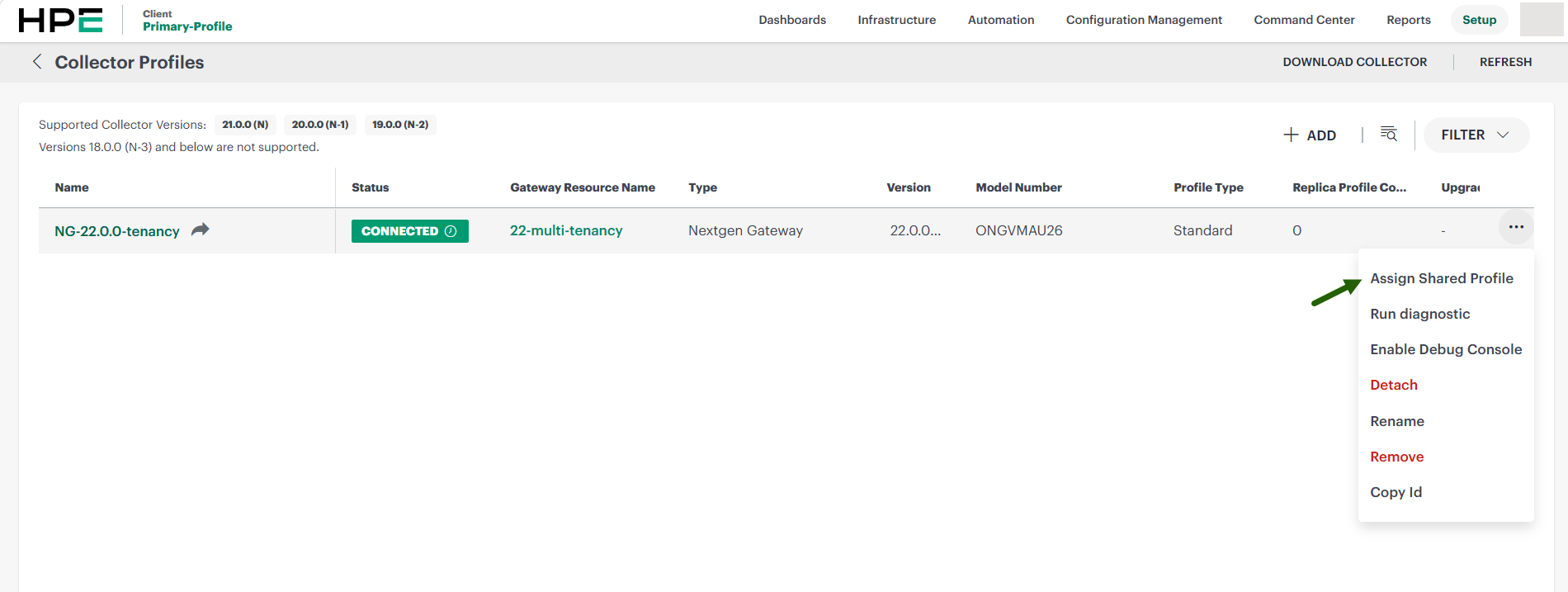
- The Assign Shared Collector Profiles window appears.
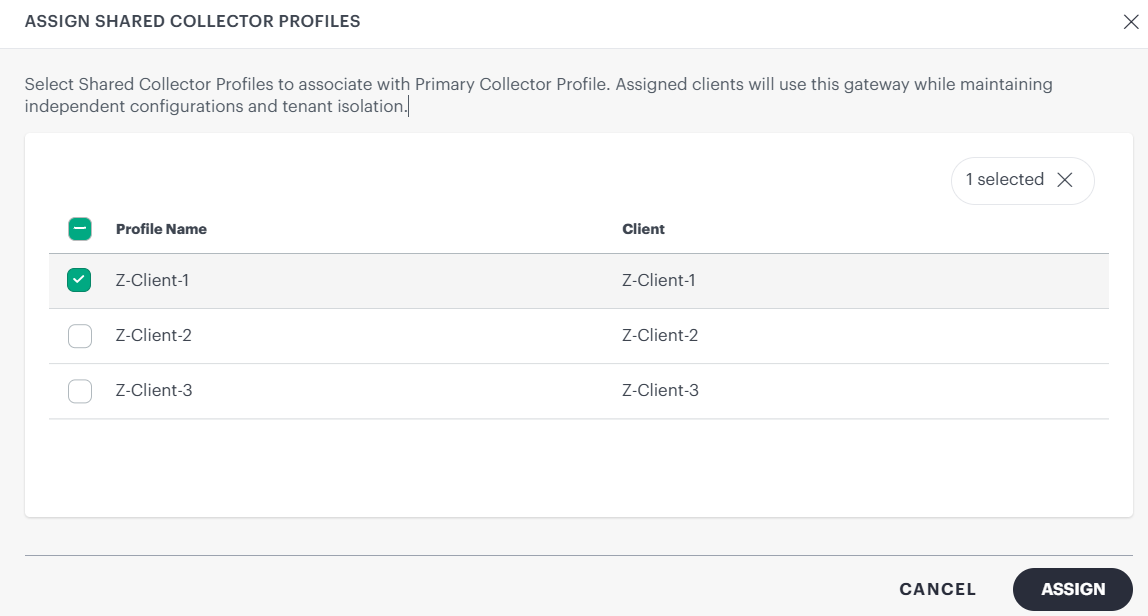
- Select one or more available Shared Collector Profiles from the list.
- Click Assign. The share profiles are assigned to the primary gateway.
Verification:
You can verify if the shared profiles are assigned to the primary gateway.
- Navigate to the client where the shared profile(s) are created.

- A reverse-arrow icon indicates that the shared profile is assigned to the primary gateway. Hovering over the icon displays Shared.
- The Status appears as Connected. Hovering over the status shows the connection time.
Enable integrations on Shared profile
- Navigate to the client where the shared profile(s) are created.
- See Integrations to learn how to enable integrations.
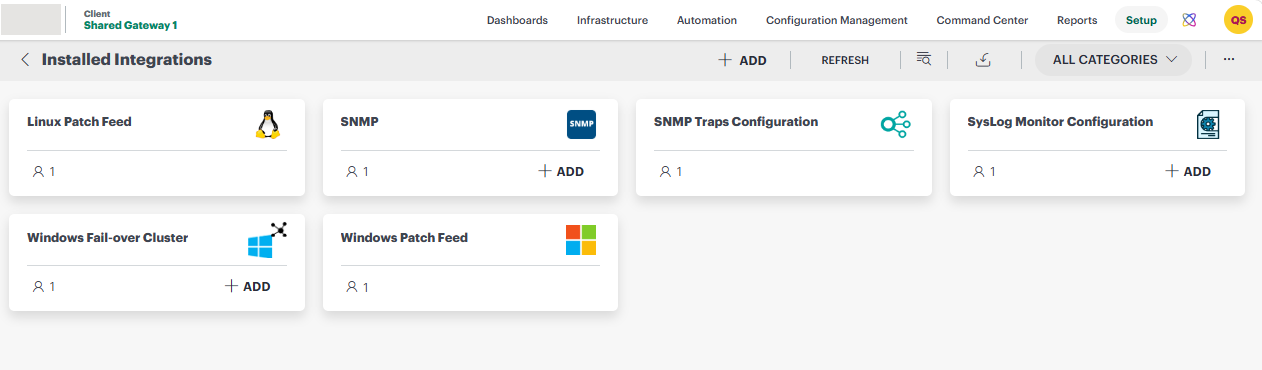
Manage Shared Collector Profiles
You can review and manage the Shared Collector Profiles assigned to the Primary Gateway. You can unassign a profile when a client no longer needs access or move it to another Primary Gateway when gateway capacity or deployment requirements change.
Unassign Shared Collector Profile
There are two ways of un-assigning a shared collector profile:
Unassign from Shared Profile
- Navigate to the client that has the shared collector profile(s).
- Search for the profile that you want to unassign.
- Mouse hover over the row and click the action (…) icon.
- Select Unassign from Primary Profile.
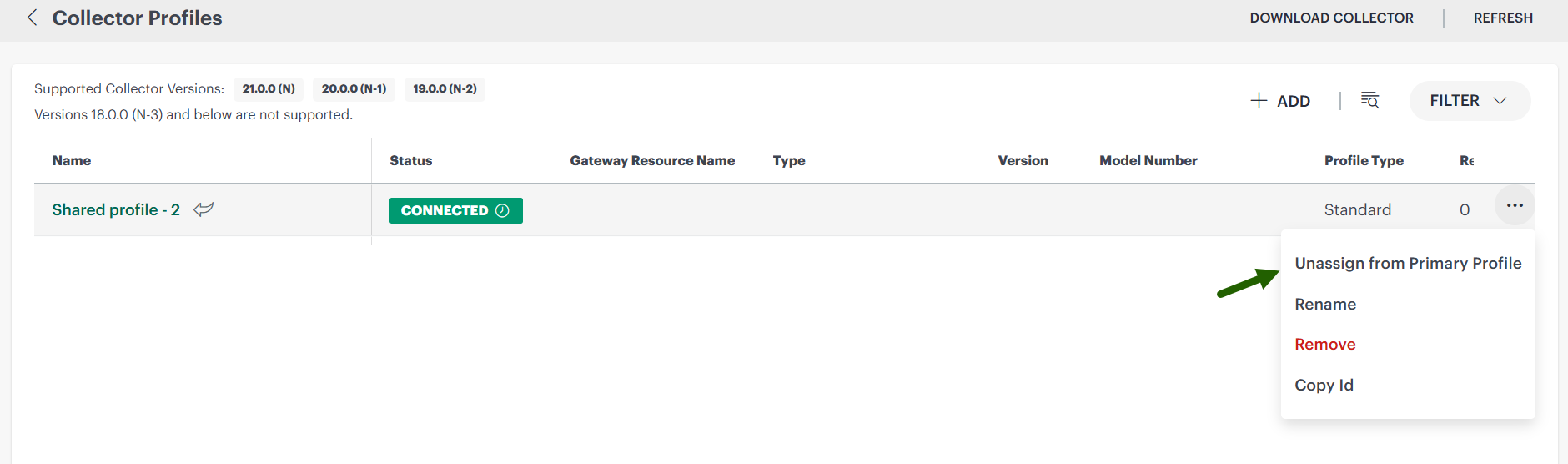
A Unassign Shared Collector Profile dialog box appears.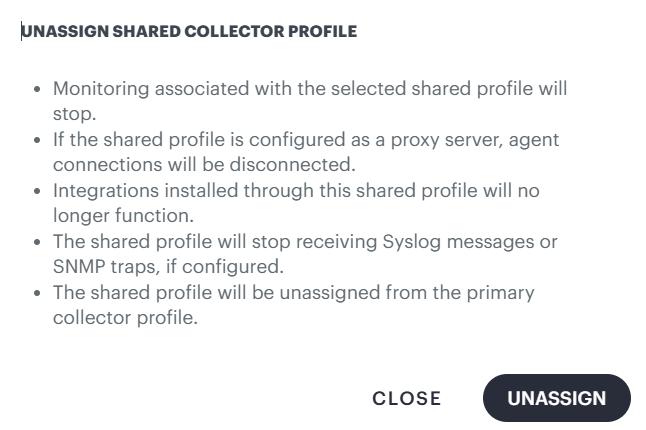
- Review the message and click Unassign. A confirmation message appears.
After you unassign the profile, the reverse-arrow icon disappears and the Status changes to Not Installed.
Unassign from Primary Profile
- Navigate to the client that has primary profile.
- Click the primary profile name. The Primary profile details page appears.
- Scroll down to Shared Collector Profiles section.
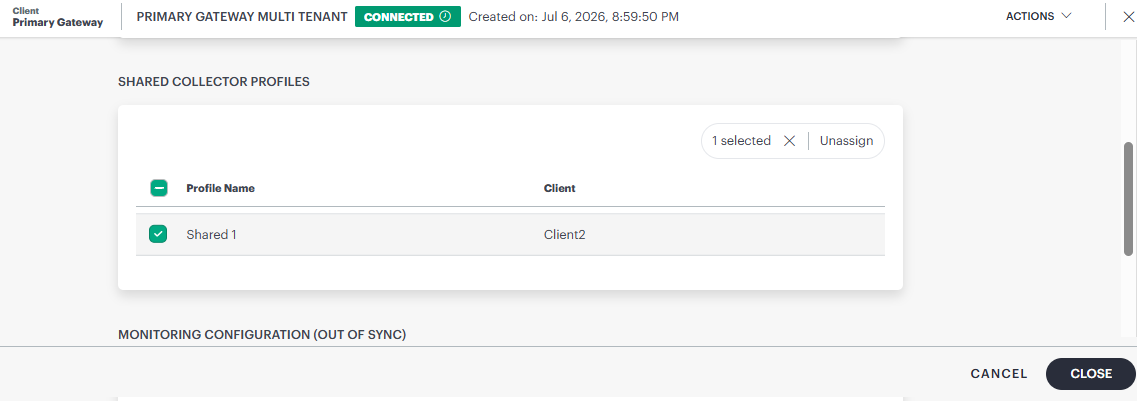
- Select the profile you want to unassign.
- Click Unassign. A confirmation message appears.
- Confirm the action to unassign the shared collector profile.
Manage the Primary Collector Profile
You can manage the Primary Collector Profile from this section. Before removing the profile, move or unassign all Shared Collector Profiles associated with it. The Primary Collector Profile cannot be removed while any Shared Collector Profiles remain assigned.
Remove the Primary Collector Profile
A Primary Collector Profile cannot be removed while active Shared Collector Profiles are associated with it.
- Unassign all Shared Collector Profiles.
- Verify that no active Shared Collector Profiles remain.
- Select the Primary Collector Profile.
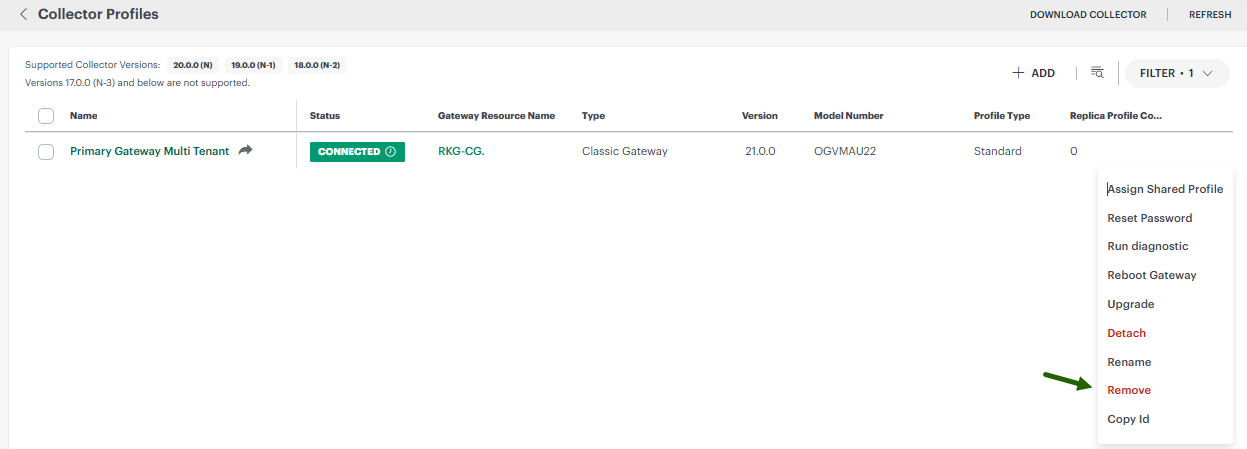
- Select Remove and confirm the action.
A Primary Collector Profile cannot be converted to another profile type because it is the control point for the Multi-Tenant Gateway.
- See Reset Password for more information.
- See Update gateway firmware for more information.
Limitations
- The following are not supported with Multi-Tenant-Gateway:
- OTEL Collector / Exporter for syslogs
- Synthetics
- NPM
- NCM
- Once a client is selected as Primary Client, it cannot be changed or removed.
Frequently Asked Questions & Troubleshooting
This section answers frequently asked questions and provides troubleshooting guidance for common issues.
FAQs
How many Shared Collector Profiles are supported by a Primary Gateway?
The number of Shared Collector Profiles supported by a Primary Gateway depends on the validated capacity and sizing guidance for your deployment.
Are existing dedicated gateway deployments automatically migrated to the Multi-Tenant Gateway model?
No. Existing dedicated gateway deployments are not automatically migrated to the Multi-Tenant Gateway model.
How is a Primary Gateway upgraded (Application and Appliance)?
The Primary Gateway is upgraded the same way as a standard gateway, at both the application level and the appliance level. Upgrading the Primary Gateway does not require any changes to the Shared Collector Profiles assigned to it, and existing client-tenant connections remain intact after the upgrade completes.
How is a Shared Gateway upgraded?
A Shared Collector Profile does not have its own gateway installation to upgrade. Because a Shared Collector Profile depends on the Primary Gateway, upgrading the Primary Gateway also applies the upgrade for all client tenants using Shared Collector Profiles assigned to it.
Can a Shared Profile be migrated from one Primary Profile to another?
Yes. Unassign the Shared Collector Profile from the current Primary Collector Profile, and then assign it to the new Primary Collector Profile. The client-scoped profile and its configuration are retained during the migration.
Can the Primary Client selection be changed or disabled?
No. The Primary Client selection cannot be changed or disabled after the Primary Collector Profile is created. To use a different Primary Client, remove the existing Primary Collector Profile after unassigning all associated Shared Collector Profiles, and then create a new Primary Collector Profile with the desired Primary Client.
Can one Primary Gateway serve multiple client tenants?
Yes. A Primary Gateway can serve multiple client tenants when each tenant has a Shared Collector Profile assigned to the Primary Collector Profile.
Does each client tenant need a separate gateway installation?
No. Create a Shared Collector Profile for each client tenant, then assign it to the Primary Gateway. A Shared Collector Profile does not require a separate gateway installation.
Can a Shared Collector Profile be assigned to more than one Primary Gateway?
No. A Shared Collector Profile can be assigned to only one Primary Gateway at a time.
How can I confirm that a Shared Collector Profile is ready to use?
The profile status must appear as Connected. The reverse-arrow icon and the Shared label confirm that the profile is assigned to a Primary Gateway.
What happens when I unassign a Shared Collector Profile?
The profile is no longer connected to the Primary Gateway. The reverse-arrow icon disappears, and the status changes to Not Installed. The client-scoped profile and its configuration remain available. The monitoring configuration linked to that shared profile would stop sending data to cloud.
Can I use a Multi-Tenant Gateway with a Cloud Native deployment?
Yes. For a Cloud Native deployment, install the Primary Gateway in your Kubernetes environment by using the Cloud Native installation instructions. Use Shared Collector Profiles in OpsRamp to provide client-tenant access to the Primary Gateway.
Troubleshooting
The standard troubleshooting process applies to the Primary Collector Profile and the Primary Gateway.
Shared Collector Profile showing “Disconnected”
Check the following:
- The Primary Gateway that the Shared Collector Profile is assigned to is online and connected.
- The tunnel between the Primary Gateway and the OpsRamp platform is active.
- The Shared Collector Profile has not been unassigned from the Primary Collector Profile.
- Network connectivity between the client tenant and the Primary Gateway is not interrupted.
- If the issue persists, unassign and reassign the Shared Collector Profile to the Primary Collector Profile.
Gateway Tunnel Disconnection
Check the following:
- The Primary Gateway has a stable network connection to the OpsRamp platform.
- Firewall or proxy settings are not blocking the tunnel connection.
- The Primary Gateway service is running and has not exceeded resource limits.
- Restart the Primary Gateway if the tunnel does not reconnect automatically.
A Shared Collector Profile cannot be assigned
Check the following:
- The Shared Collector Profile is not already associated with another Primary Collector Profile.
- The target client tenant is valid and active.
- The Primary Gateway is connected and healthy.
- The Primary Gateway has sufficient capacity.
A Primary Collector Profile cannot be removed
Confirm that all Shared Collector Profiles have been unassigned. Removal is blocked while dependent Shared Collector Profiles exist.
Security considerations
- No integrations must be configured on the Primary Collector Profile directly.
- Keep administrative access to the Primary Collector Profile restricted to authorized partner-level users.
- Apply the Gateway Administration role only to users who require gateway-level control.
- Maintain client-scoped credentials and configurations.
- Audit gateway administration and Shared Collector Profile association changes.