Introduction
Learning-Based Escalation uses machine learning to predict incident-related escalation actions based on historical alert patterns. The model learns from training data that maps alert characteristics to incident assignment, categorization, prioritization, and notification attributes.
Access the Escalation ML Policy
- Navigate to Setup > Account > Alert Policies.
- The Command Center AIOps Overview page is displayed.
- In the Policy Types section, click Escalation.
- On the Alert Policies page, click Machine Learning.
The Machine Learning - Alert Policies page is displayed with the Escalation tab selected.
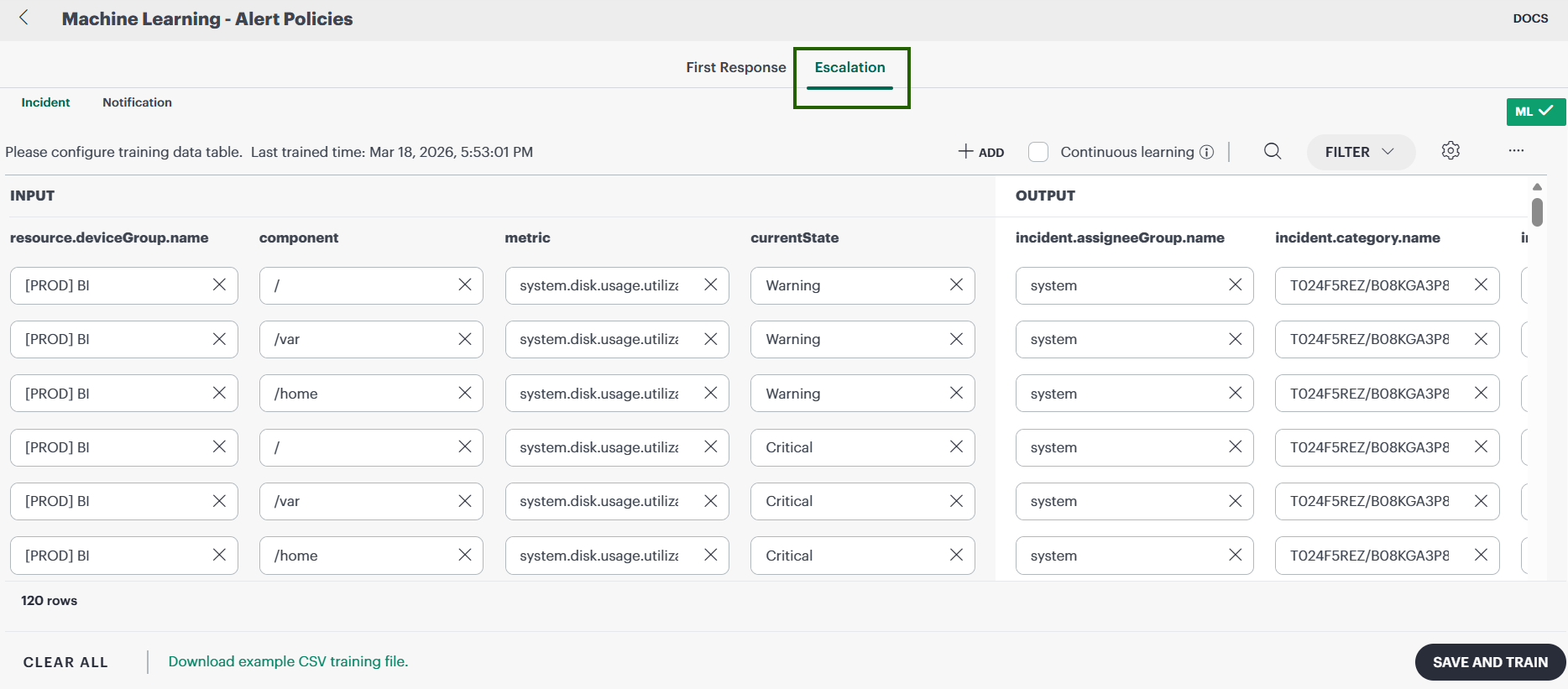
Understand the Escalation Training Dataset
The training dataset consists of Input and Output columns. Each row represents a historical alert-to-incident mapping used for training.
Input Columns
Input columns define the alert attributes used for model training.
Examples include:
resource.deviceGroup.namecomponentmetriccurrentState
Output Columns
Output columns define the incident-related attributes that the model predicts.
Examples include:
incident.assigneeGroup.nameincident.category.nameincident.subCategory.nameincident.priorityincident.businessImpact.nameincident.cc
Add Training Data
- Click Add.
- Enter values for the required Input fields.
- Specify the corresponding Output values.
- Save the record.
Search Training Data
- Click the Search icon.
- Enter a keyword.
- Matching records are displayed in the table.
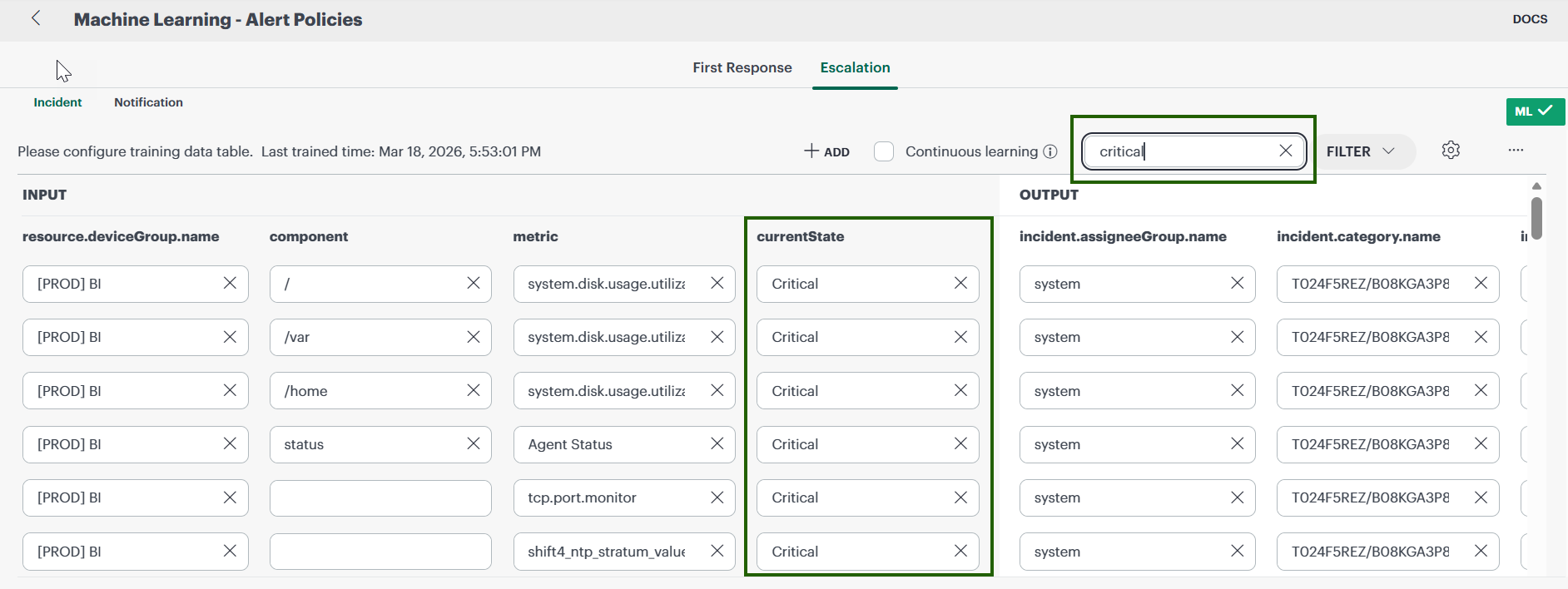
For example:
critical
The table displays records that contain the specified value.
Filter Data Within a Column
Each column supports value-based filtering.
- Click the filter icon beside a column name.
- Use the search box to locate available values.
- Select one or more values.
- The displayed records are filtered based on the selected values.
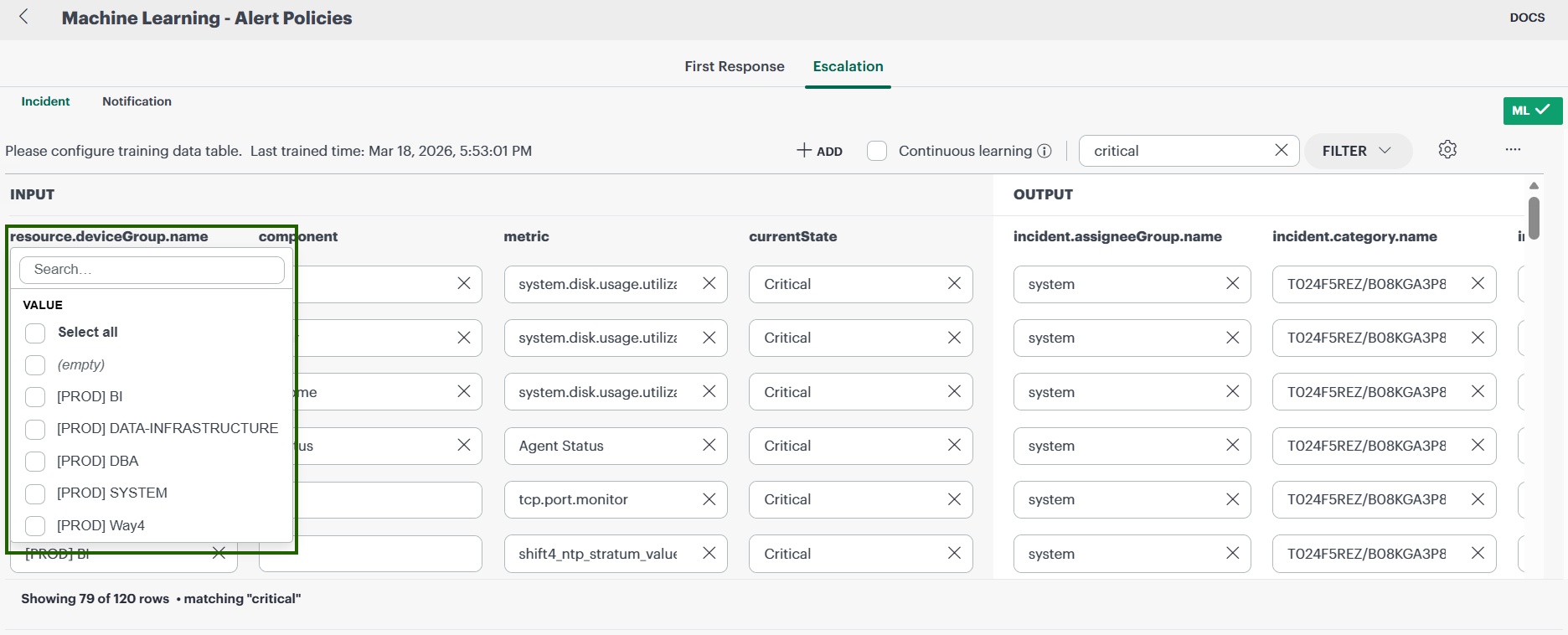
For example, the metric column can be filtered using values such as:
- Agent Status
- Disk
You can also use Select All to include all available values.
Apply Advanced Filters
- Click Filter.
- Select filter values from the Input or Output columns.
- Click Apply.
You can filter records using the following fields.
Input Fields
resource.deviceGroup.namecomponentmetriccurrentState
Output Fields
incident.assigneeGroup.nameincident.category.nameincident.subCategory.nameincident.priorityincident.businessImpact.name
Configure Input and Output Columns
- Click the Settings icon.
- Configure the columns used for model training.
You can:
- Enable or disable Input columns.
- Add additional Input columns.
- Remove existing Input columns.
- Modify Output columns.
Note
Unchecked Input columns are excluded from model training.A maximum of 15 Input columns can be configured.
Configure Continuous Learning
Enable Continuous Learning to allow OpsRamp to automatically retrain the classification model monthly and learn new classification patterns from incoming data.
Import and Export Training Data
Click the More Actions menu (…).
Available actions:
- Import CSV Training File
- Export Table as CSV
Train the Model
- Review the dataset.
- Click Save and Train.
The model is trained using the configured dataset and the Last trained time is updated.