Alert Escalation
Alert Escalation ensures that alerts receive appropriate attention by automatically escalating unresolved alerts through predefined paths, notifying the right people at the right time to maintain service levels and prevent issues from being overlooked.
What is Alert Escalation?
Alert Escalation is a time and condition-based system that:
- Automatically escalates unresolved alerts through defined hierarchies
- Ensures proper stakeholder notification at appropriate times
- Maintains SLA compliance through guaranteed response procedures
- Provides multiple escalation paths for different types of alerts
- Tracks escalation metrics for continuous improvement
Key Benefits
Guaranteed Response
- No missed alerts: Ensures all critical alerts receive attention
- Time-bound escalation: Automatic escalation when response times are exceeded
- Multiple notification methods: Email, SMS, phone calls, chat integration
- Stakeholder awareness: Keeps appropriate people informed
SLA Compliance
- Response time tracking: Monitors and enforces response time requirements
- Escalation documentation: Complete audit trail for compliance
- Performance metrics: Tracks escalation effectiveness and timing
- Reporting capabilities: Comprehensive escalation reporting
Operational Excellence
- Clear accountability: Defines who is responsible at each level
- Efficient resource utilization: Escalates only when necessary
- Improved communication: Keeps stakeholders appropriately informed
- Continuous improvement: Metrics enable process optimization
View Alert Escalation Policies
The Alert Escalation Policies page lists the escalation policies.
Navigate to Setup > Account > Alert Policies to open the Command Center AIops Overview page.
From the POLICIES dropdown, select Escalation. Alternatively, you can also navigate to the Escalation policy page by selecting Escalation from Policy Modes or Policy Types.
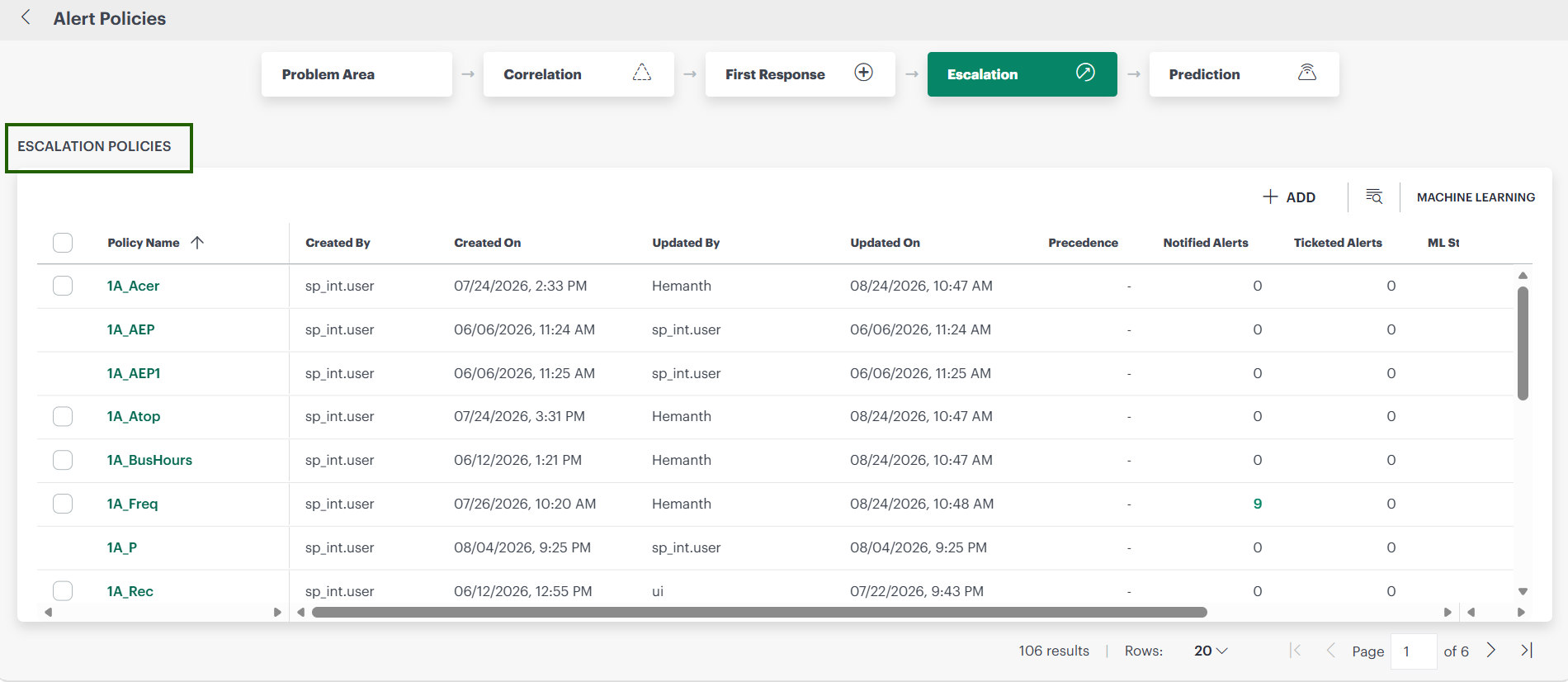
Each escalation policy contains the following information:
| Attribute | Description |
|---|---|
| Alert Escalation Policy Name | Name of the alert escalation policy. |
| Applied To | Indicates to which client the policy is applied. |
| Last Updated By | Name of the user who last modified the policy. |
| Last Updated Time | Time the policy was last modified. |
| Precedence | Determine the order in which to handle alerts according to the alert precedence value.Note: This is an optional field and accepts only integer value. |
| Count of Notified Alerts | Shows the number of notifications mapped to an escalation policy. You can click the count to view the alerts for which the notifications have been sent.Note
|
| Count of Ticketed Alerts | Displays the total number of alerts that resulted in ticket creation.Note
|
| ML Status | Shows the various stages of machine learning implementation in a policy from analyzing a sequence to correlating alerts. |
| Mode | You can select supported policy modes from the drop-down list. |
View Associated Clients for Escalation Policies
When logged in at the Partner level, the Escalation Policies page displays a Clients column that identifies the clients associated with each escalation policy.
The Clients column helps partner users quickly determine the scope of a policy and the clients to which it applies.
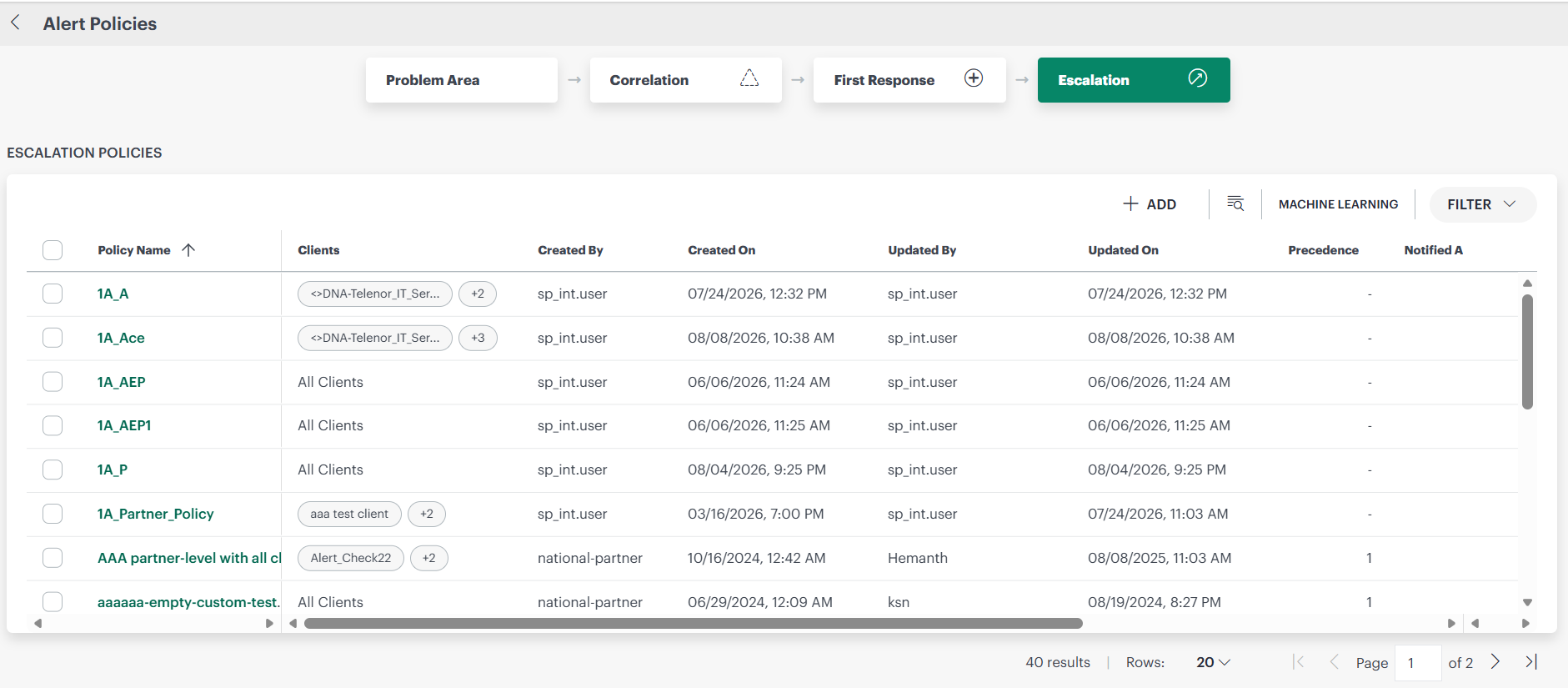
The column displays:
- All Clients when the policy is available to all clients managed by the partner.
- One or more client names when the policy is assigned to specific clients.
- A numeric indicator (for example, +2 or +3) when additional clients are associated with the policy beyond those displayed in the table.
Editing Policies Between New and Old UI
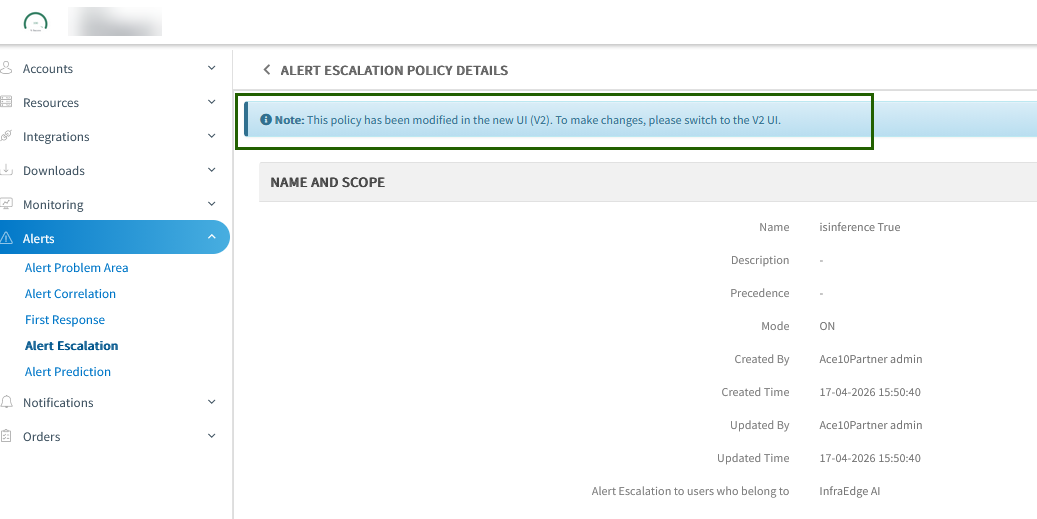
When you modify an alert escalation policy in the New UI, the policy becomes read-only in the Old UI.
This behavior ensures consistency and prevents configuration conflicts between the two interfaces.
After a policy is updated in the New UI:
- All subsequent changes must be made in the New UI.
- A banner message is displayed in the Old UI indicating that the policy is now managed in the New UI.