Introduction
Alert Correlation groups related alerts into inferences to reduce alert noise and improve triage speed. It helps operations teams understand relationships across alerts and focus on root-cause resolution instead of handling each alert individually.
What you can do
- Create correlation policies using ML-based or time-window logic.
- Define similarity rules to control grouping behavior.
- Use filters to scope which alerts are eligible.
- Review inference outcomes and tune policy behavior.
For step-by-step policy creation details, see Create an Alert Correlation Policy.
View Alert Correlation Policies
- Navigate to Setup > Account > Alert Policies to open the Command Center AIops Overview page.
- From the POLICIES dropdown, select Correlation. Alternatively, you can also navigate to the Correlation policy page by selecting Correlation from Policy Modes or Policy Types.
The Correlation Policies page is displayed.
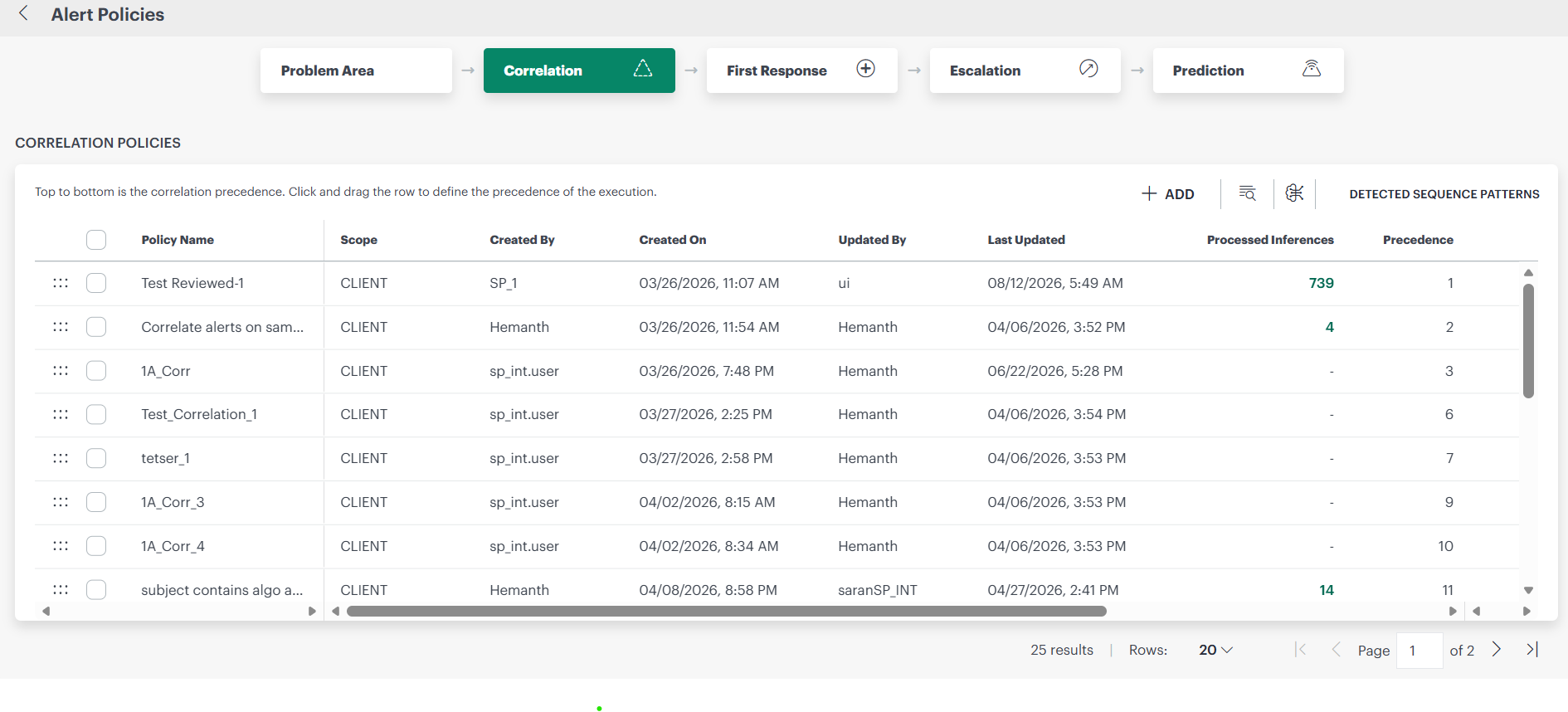
If there are one or more correletation policies enabled for the ML correlation, a new Detected Alert Sequence Patterns option is provided on the Alert Correlation Policy page.
The users can choose the client from the list of clients on the Alert Correlation Policy page to view the respective ML detected alert sequence patterns.
Each correlation policy contains the following information:
| Attribute | Description |
|---|---|
| Policy Name | Name of the alert correlation policy. |
| Created By | Name of the user who created the policy. |
| Updated By | Name of the user who last modified the policy. |
| Processed Inferences | Number of inferences processed. |
| Precedence | Indicates the priority of the policy. |
| ML Status | Indicates the Machine Learning status. |
| Mode | You can select supported policy modes from the drop-down list. |
| Review Status | Display the progress of the policy when the policy is configured with review mode. When you select the Review option under the Observed Mode, the correlation policy will run on the alerts for the last 7 days and show the results to the user. |
Policy modes
The following policy modes are supported:
| Policy Mode | Description |
|---|---|
| ON | The policy drives automated actions on alerts. |
| OFF | The policy is inactive and does not affect alerts. You can use this mode to review a newly defined policy before choosing one of the other modes. |
| Recommend | The policy creates a recommendation for actions that you should take on the alert. Recommendations are based on learned patterns in historical alerts. The recommendation includes a link to take the action. |
| Observed | This mode permits you to simulate a policy without affecting alerts. The policy creates an observed alert, which simulates the original alert. The observed alert shows the actions that would be taken on the original alert if the policy were in On mode. The observed alert includes a link to the original alert. |
| Recommend and Observed modes apply to incident actions. | |