Syslog rules enable processing and generating alerts from Syslog events received from various devices, applications, and systems. They allow you to define how OpsRamp should react to specific log messages.
Create Syslog Rules
To create syslog rules:
Navigate to Setup > Account > Monitoring.
Select the Metrics & Events tab.
Select the Syslog Rules tab.
Click +ADD. The Add Syslog Rule page is displayed.
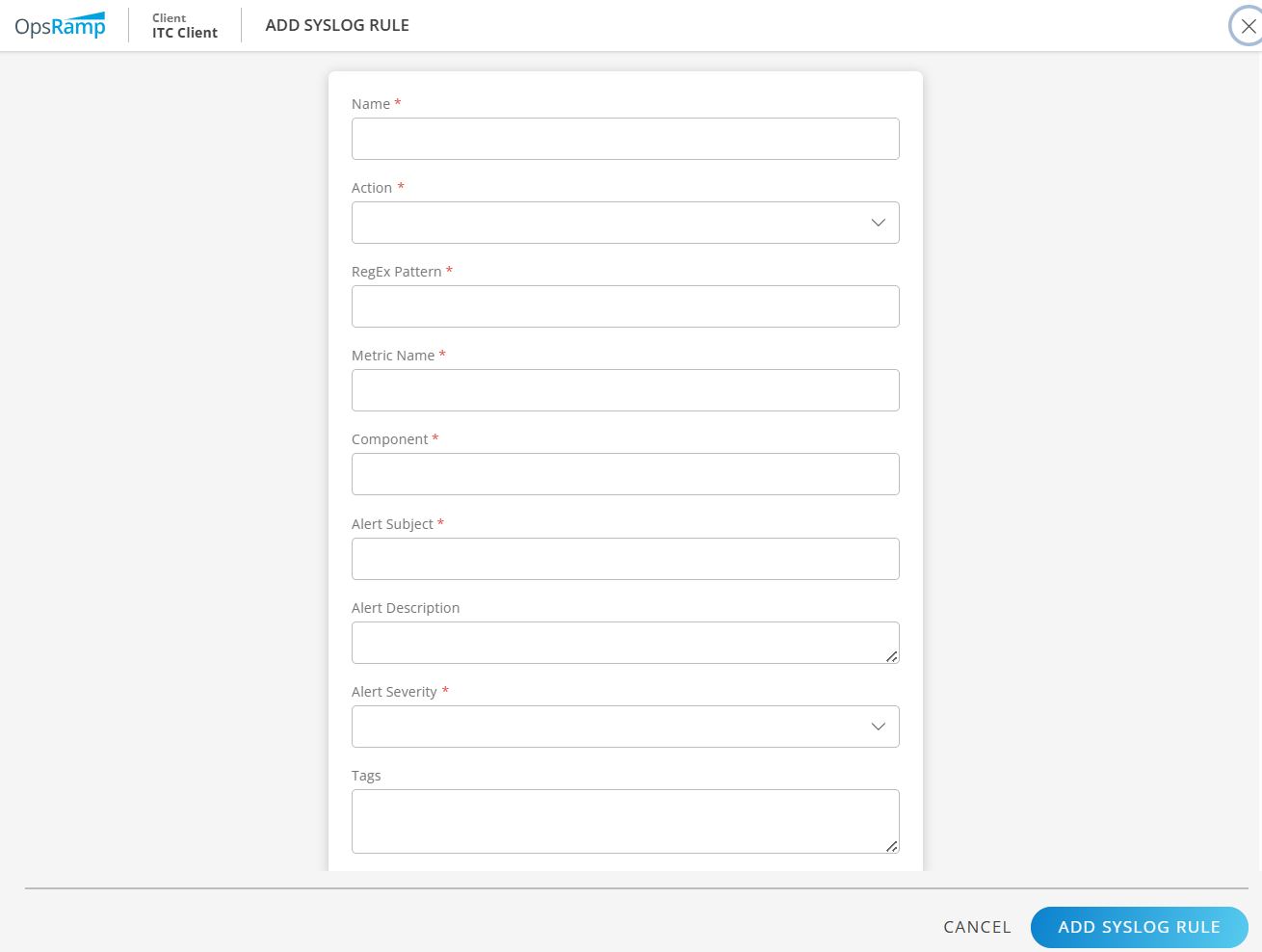
Enter values for the following fields:
Field Description Name Name of the syslog rule. Action Available options: Include and Exclude. RegEx Pattern The regular expression for search action. For example - .* Metric Name Enter the metric name. Component Name The component name to which the metric belongs. Alert Subject Short title for the alert generated when the syslog rule matches. Alert Description Detailed message for the alert, describing the matched syslog event. Alert Severity Available options: Warning, Critical, Info, or OK Tags Labels for grouping and filtering. Click Add Syslog Rule. The syslog rule is added and available in the listing page.
Filter Syslog Rules
To filter syslog rules:
Click the Filter drop-down on the top left corner of the Syslog Rules page. The filter options are displayed.
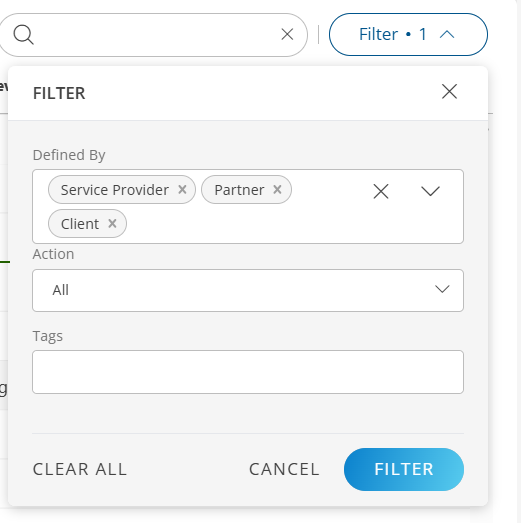
Select the items to narrow your search and then click Filter. The syslog rules that meet the filter criteria are displayed.
Version History
Configuration version history provides a record of changes made to a syslog rule. You can use it to review the current configuration, compare it with an earlier version, and restore a previous version.
Version history is enabled by default for syslog rules. A version is created when a syslog rule is created or updated.
Permissions
Your access to version history is based on your permissions for the syslog rule:
- To view version history, you must have permission to view the syslog rule.
- To restore a version, you must have permission to modify or update the syslog rule.
Why use version history?
Updating a syslog rule, including its RegEx Pattern, component, alert severity, action, or other settings, can change when alerts are triggered for incoming syslog messages. For example, an unintended change to a rule’s severity can cause alerts to trigger incorrectly, generating excessive notifications or false alarms, or can cause genuine issues to go undetected.
Use version history to:
- View snapshots of a syslog rule configuration.
- Identify values that changed between versions.
- Compare the current version with an earlier version.
- Compare two older versions.
- Restore a suitable earlier version.
View version history
View the version history of a syslog rule to review its current configuration and previously saved versions.
Follow these steps to view a syslog rule’s version history:
- On the Syslog Rules listing page, search for the syslog rule whose version history you want to view.
- Mouse hover over the row and click the ellipsis (…) icon.
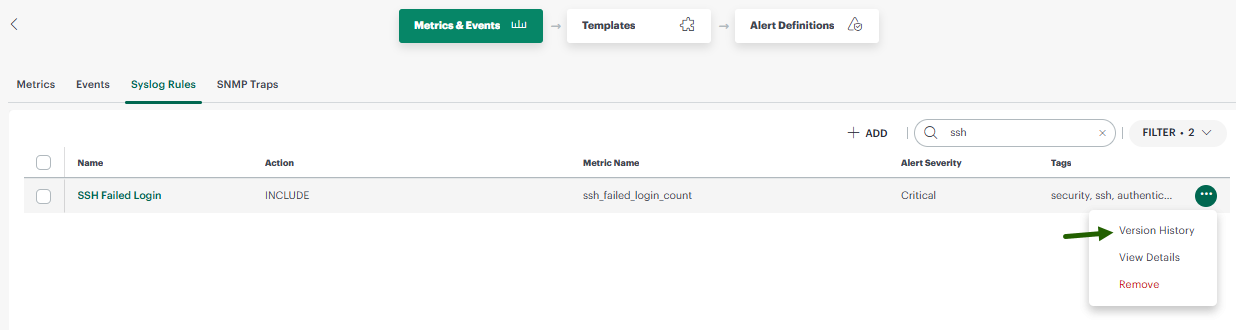
- Select Version History. The Version History page appears with the current syslog rule configuration, by default. The dropdown lists the versions with timestamp.
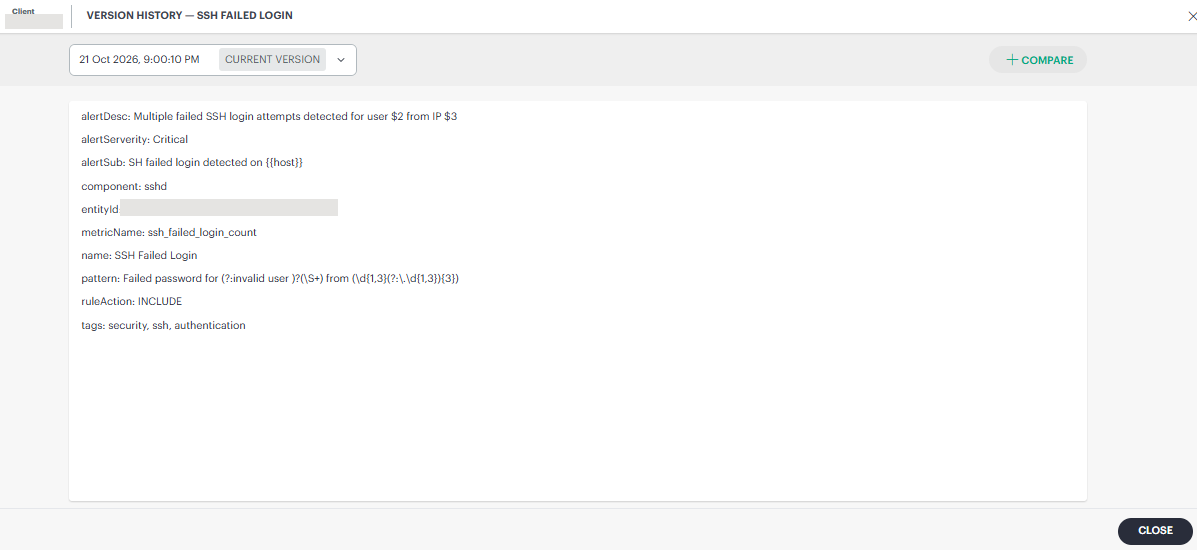
- Clicking the dropdown lists the available earlier versions.
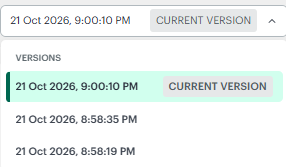
You can click the versions in the dropdown to review the changes. The selected version displays the syslog rule configuration, allowing you to compare it with the current version and identify any values that changed.
Compare versions
Compare syslog rule versions to see how changes affect alerts. This comparison helps you find what caused unexpected alerts and decide whether to restore an earlier version.
Follow these steps to compare versions:
- On the Syslog Rules listing page, search for the syslog rule whose version you want to compare.
- Mouse hover over the row and click the ellipsis (…) icon.
- Select Version History. The Version History page appears with the current syslog rule configuration, by default.
- Click +Compare at the top right corner of the page.
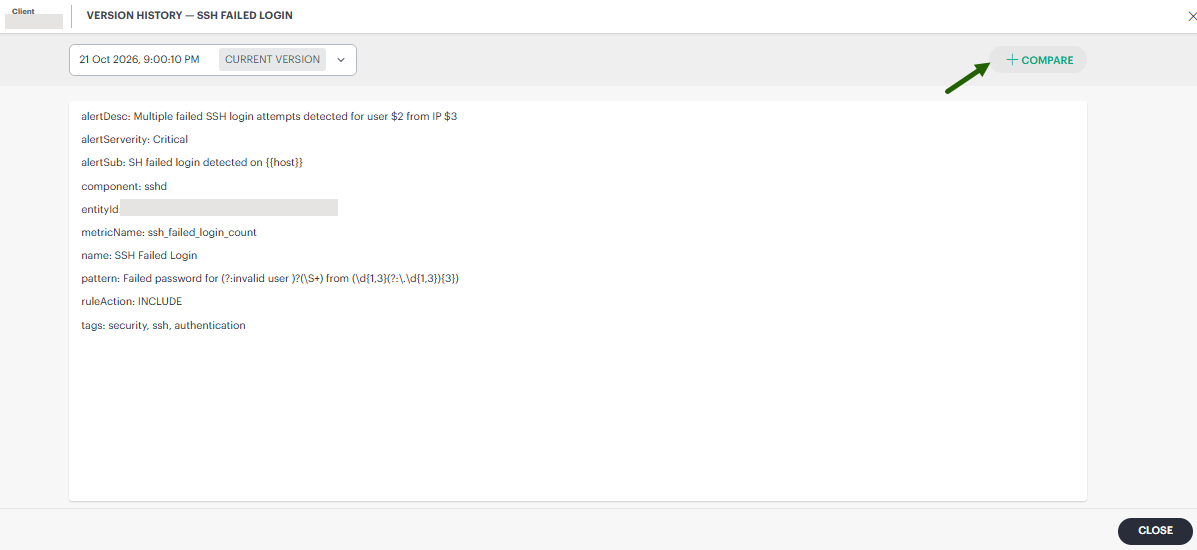
By default, the system compares the current version with the version immediately preceding it.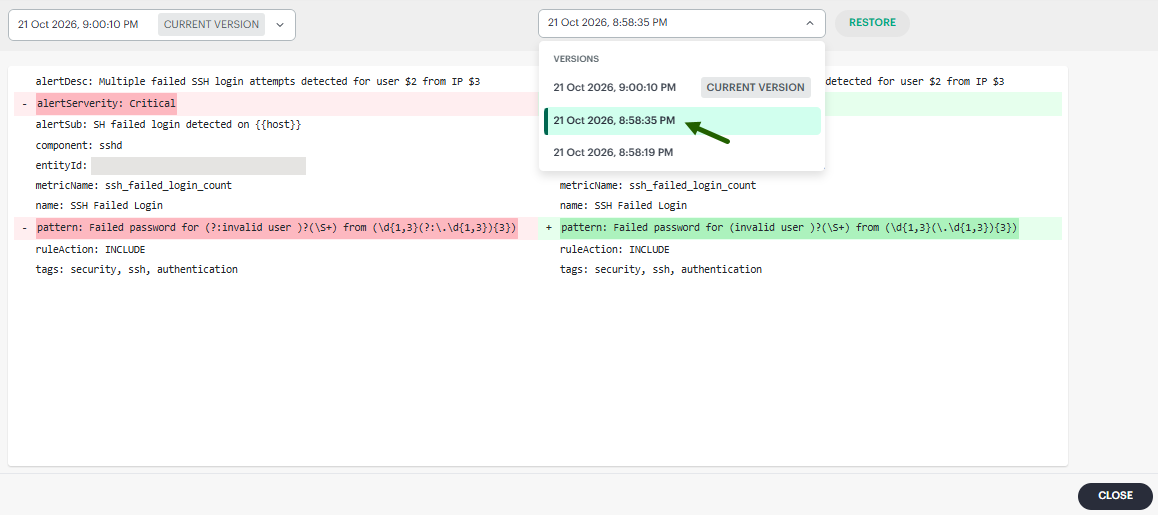
The comparison highlights the changes made. Review the differences between the configuration values.
- You can select another older version to compare with the current version, or compare two older versions.
Comparison helps you determine which change might have caused unexpected alerts.
Restore a version
Restore an earlier version of a syslog rule when you need to revert recent configuration changes. The restored configuration becomes the current version while preserving the existing version history.
Follow these steps to restore a version:
- On the Syslog Rules listing page, search for the syslog rule you want to restore version.
- Mouse hover over the row and click the ellipsis (…) icon.
- Select Version History. The Version History page appears with the current syslog rule configuration, by default.
- Click +Compare at the top right corner of the page.
By default, the system compares the current version with the version immediately preceding it. - From the dropdown on the right, select the version you want to restore.
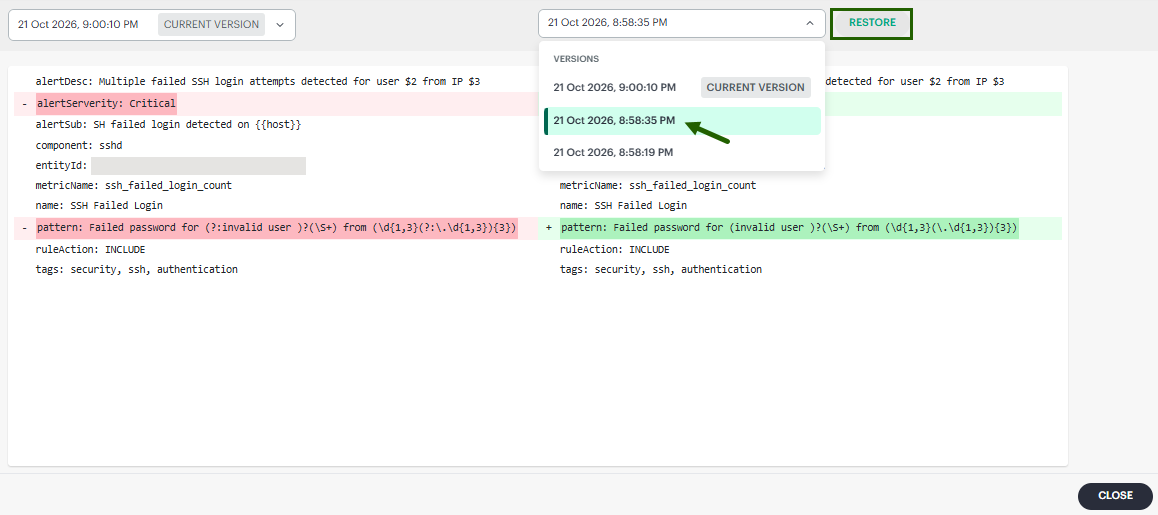
- Click Restore. A confirmation message appears.
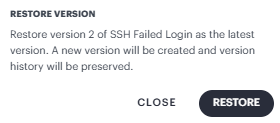
- Review the message and click Restore.
Restoring a version creates a new version. Existing versions remain in the version history. After the operation is complete, the restored values become the current configuration.
Note
The time required to apply a restored configuration can vary. A configuration that must be applied to a device might take longer to complete.Version retention and deleted syslog rules
Version history is retained only while the syslog rule exists.
Important
Deleting a syslog rule also removes its version history. You cannot view or restore versions of a deleted syslog rule. Version history is not a backup or recovery mechanism for deleted configurations.
Existing audit logs remain available through the applicable audit or logging features, but deleted configuration snapshots are not available through Version history.