Introduction
Derived Metrics allow you to create custom metrics from existing metric streams using PromQL or MetricsQL expressions. A derived metric is evaluated continuously in the background and stored as a first-class metric within OpsRamp. Once created, it can be used in dashboards, Metric Explorer, alert definitions, reports, and other monitoring workflows just like a collected metric.
You can define up to 50 derived metrics per client.
To create a derived metric, select Derived Metric from the Adapter Type list when adding a metric.
Create a Derived Metric
Navigate to Metrics and click Add Metric.
Enter the metric details.
From the Adapter Type dropdown, select Derived Metric.
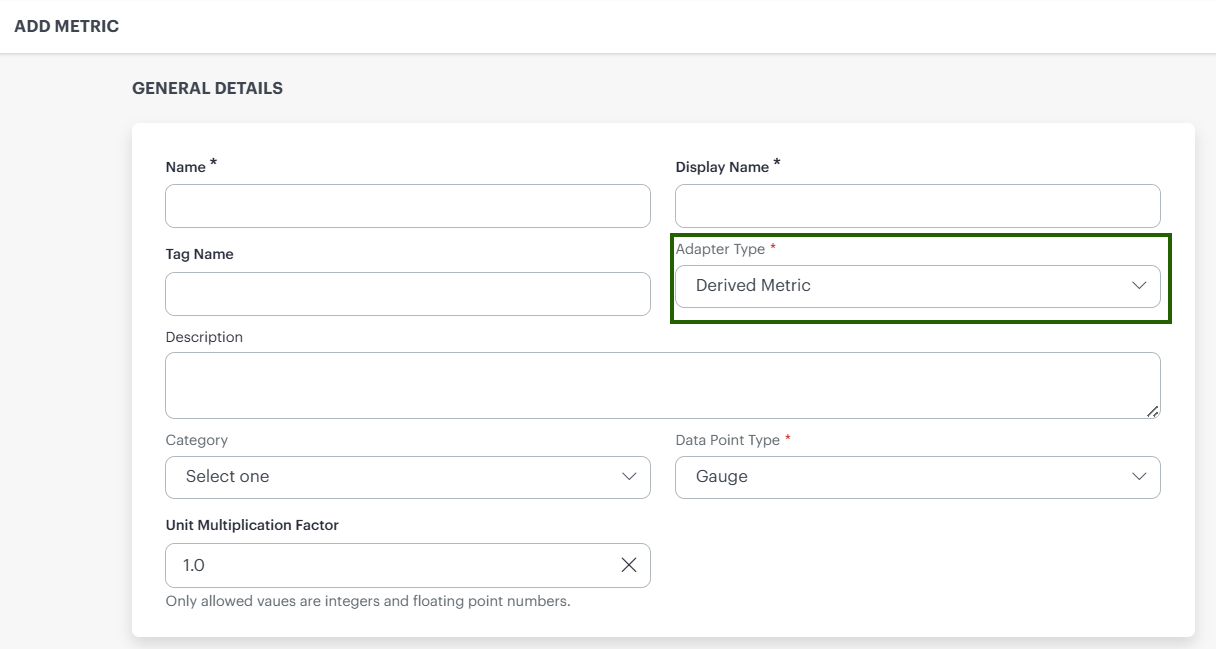
Configure the metric properties.
Build the metric expression in the Query Builder.
Configure source and static labels.
Click Add Metric.
Metric Properties
Configure the following properties for the derived metric:
| Field | Description |
|---|---|
| Name | Unique identifier used internally for the metric. |
| Display Name | User-friendly name displayed throughout the platform. |
| Tag Name | Optional tag used to classify and organize metrics. |
| Adapter Type | Select Derived Metric to create a metric from a PromQL or MetricsQL expression. |
| Description | Optional description of the metric and its calculation purpose. |
| Category | Category used for metric organization and discovery. |
| Data Point Type | Specifies the data type of the metric, such as Gauge. |
| Unit | Multiplies the calculated metric value by the specified factor before the value is stored and displayed. |
Query Builder
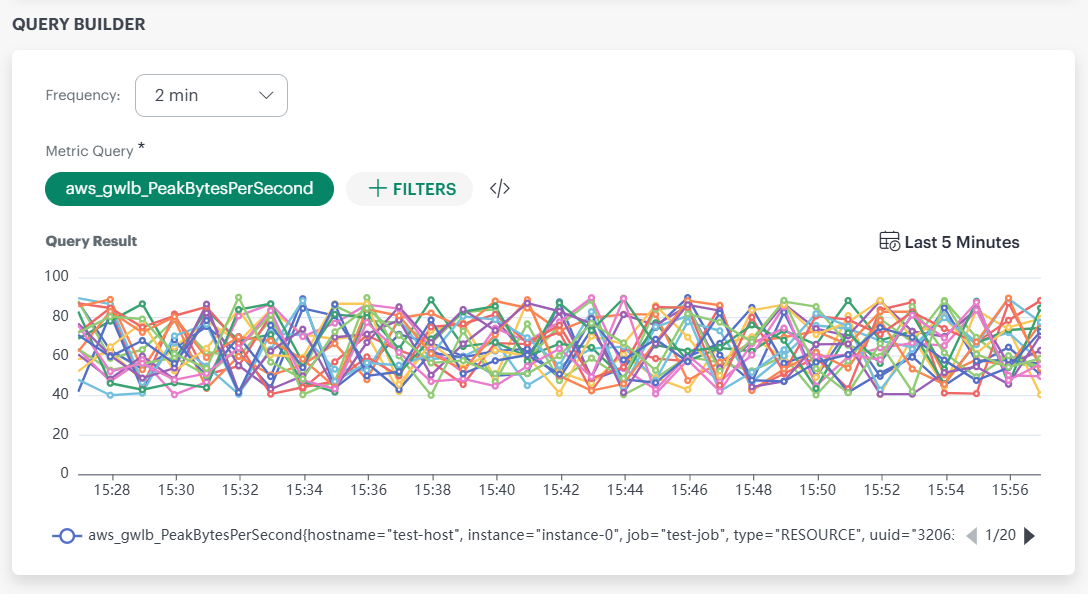
The Query Builder defines how the derived metric is calculated.
Frequency
The Frequency setting specifies how often the derived metric expression is evaluated.
Select the interval that determines how frequently OpsRamp recalculates and stores the derived metric.
Metric Query
The Metric Query field defines the PromQL or MetricsQL expression used to calculate the derived metric.
You can build the query using:
| Option | Description |
|---|---|
| Query Builder | Create the query using the visual query-building interface. |
| Expression Editor | Create or edit the query directly using PromQL or MetricsQL syntax. |
| Filters | Add filters to refine the source metric selection. |
The query can reference one or more source metrics and apply supported PromQL or MetricsQL functions, operators, and aggregations.
Query Result
The Query Result section displays a preview of the derived metric output based on the configured query.
The preview includes:
- Time-series visualization of the calculated metric.
- Metric label information.
- Selected evaluation time range (for example, Last 5 Minutes).
Review the query output to verify that the expression returns the expected results before creating the metric.
Labels
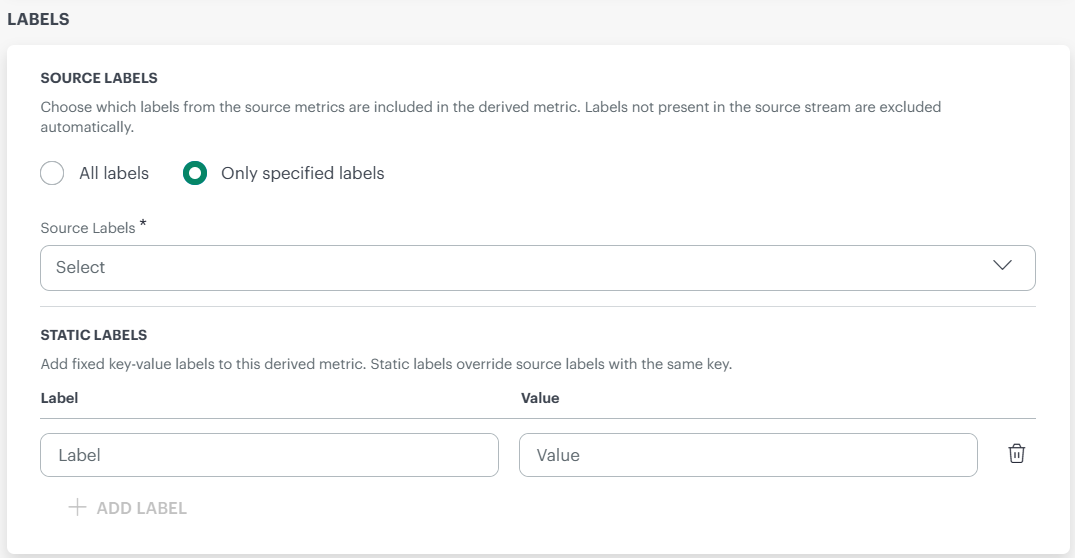
Labels determine which metadata is associated with the derived metric.
Source Labels
Source labels are inherited from the metrics referenced in the query.
Select one of the following options:
| Option | Description |
|---|---|
| All Labels | Includes all labels available from the source metrics. Labels that are not present in the source metric stream are excluded automatically. |
| Only Specified Labels | Includes only the labels selected from the source metric stream. |
When Only Specified Labels is selected, the Source Labels dropdown displays the labels available in the source metrics.
Select the labels that should be retained in the derived metric.
Use this option when you want to restrict the labels included with the derived metric and limit label cardinality.
Static Labels
Static labels add fixed key-value pairs to the derived metric.
Use static labels to add additional metadata that will be attached to every generated metric value.
To add a static label:
- Click Add Label.
- Enter a label name.
- Enter a label value.
Label Precedence
If the same label key is specified in both Source Labels and Static Labels, the value from the Source Label is retained. The corresponding static label is ignored.