Use budget-based alert policies to align cloud spending with approved monthly or annual budgets. Define the scope and thresholds that matter to your organization, then use alert context to focus cost-management reviews on the affected provider, account, subscription, or tagged resources.
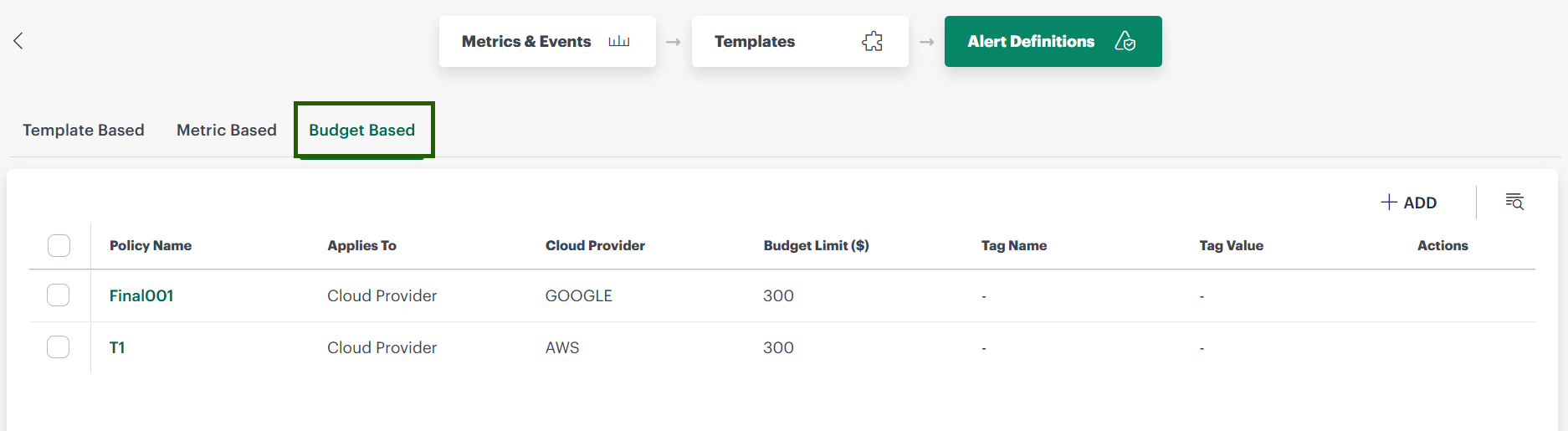
Use Case - Preventing Unexpected Cloud Cost Overruns
Objective
Monitor cloud spending against an approved budget, identify increasing costs before they become overruns, and notify the responsible budget owner when spending reaches warning or critical thresholds.
Scenario
A FinOps team at an enterprise manages cloud infrastructure across AWS and Azure for multiple product teams. During an end-of-quarter push, an engineering team deployed high-performance compute instances for testing but forgot to terminate them over the weekend, causing daily spending to spike by 300%.
Without automated budget tracking, this unexpected cost would remain undetected until the end-of-month invoice arrives. By using budget-based alert policies, the FinOps team sets a monthly budget limit with a 70% warning threshold and a 90% critical threshold. When spending accelerates over the weekend, a warning alert triggers immediately at 70%, notifying the budget owner and enabling the team to identify and terminate the orphaned instances before breaching the quarterly limit.
The budget may apply to:
- A cloud provider.
- A specific cloud account or subscription.
- Resources associated with selected cost-center or project tags.
Cost-management considerations
- Is spending tracking toward the approved monthly or annual budget?
- Which provider, account, subscription, or cost-center tags are contributing to the increase?
- Has spending reached the 70% warning threshold or the 90% critical threshold?
- Can the team identify and stop unexpected usage, such as orphaned high-performance instances?
- Did a recent budget policy change affect the alert thresholds or scope?
- If the policy was changed incorrectly, how can an earlier configuration be restored?
Recommended configuration
Configure the policy so the FinOps team can detect accelerating spend before it becomes an overrun:
- Create a budget-based policy for the required provider, cloud account, or tags.
- Select a monthly or annual budget scope.
- Enter the approved budget limit.
- Use thresholds that match your organization’s cost-management requirements.
- Assign the FinOps team or budget owner to receive alerts.
- When an alert is triggered, review the contributing provider, account, subscription, or tagged resources and take corrective action, such as terminating unused instances.
- Review the policy when unexpected alerts occur. Use Version History to compare changes and restore an earlier configuration when required.
Expected results
Using budget-based alert policies, your team can:
- Monitor cloud spending against an approved monthly or annual limit.
- Detect accelerating spend when it reaches the warning threshold, before it reaches the critical threshold.
- Identify the provider, account, subscription, or tagged resources driving unexpected costs.
- Notify budget owners so they can investigate and stop unnecessary usage, such as orphaned instances.
- Investigate policy changes that affect alert behavior and restore a previous configuration when necessary.