A Major Gateway Appliance Upgrade involves completely replacing your existing Gateway appliance with a new appliance that comes pre-installed with the latest operating system (OS), patches, and Gateway software versions. This upgrade approach is often necessary when:
- When your gateway is no longer supported by OpsRamp like below N-2 version.
- The current Gateway operating system (for example, Ubuntu) has either reached or is approaching its End of Life (EOL). As a result, it no longer receives, or will soon stop receiving security updates and vendor support.
This process is a clean-slate upgrade, meaning instead of applying patches or incremental updates on the existing appliance, you deploy a fresh Gateway environment and migrate your configuration and monitoring data to it. This approach helps maintain system stability, performance, and security over time.
This guide provides a clear, step-by-step process for updating your Gateway Appliance firmware, specifically for users leveraging OpsRamp ISO or OVA deployments. The Gateway Appliance acts as a crucial component in your infrastructure, facilitating monitoring and communication with managed resources.
Note
- Gateway Appliance Upgrade cannot be applied directly to the existing Gateway. Instead, a new Gateway appliance must be deployed with the updated firmware, and then traffic must be switched over.
- If an existing Gateway has triggered a CRITICAL or WARNING alert that resolves during migration, the new Gateway may not trigger a recovery alert immediately. This is because the new Gateway begins monitoring in an OK state while the resource remains flagged on the old Gateway. The new Gateway will send a new alert appended to the existing one.
- Gateway 22.0.0 and later no longer support PowerShell Remoting over WinRM. If you use Windows Hyper-V Cluster, Windows Failover Cluster Monitoring, Azure Stack HCI, Microsoft SCVMM, or MS SQL Cluster integrations configured with PowerShell, migrate them to OpenSSH before upgrading. For more information, see Deprecation of PowerShell Remoting Over WinRM.
Prerequisite
Before you begin the update process, please ensure the following:
Supported Gateway Model:
Confirm your current Gateway appliance model is one of the supported types, such as:- ONGVMAU20
- ONGVMAU22
Backup Configuration Details:
Document your existing Gateway’s configuration to facilitate smooth migration and redeployment. Save the following information: Before upgrading, it is critical to document your existing Gateway appliance configuration to ensure a smooth and accurate migration to the new appliance. Please save the following information carefully:- CPU Allocation: Number of CPU cores assigned to each node in your Gateway cluster.
- Memory Allocation: Amount of memory allocated to each node and each namespace (if namespaces are in use).
- Storage Details: Disk size and the datastore name currently used by the Gateway appliance.
- Network Configuration:
- IP address and hostname of each Gateway node.
- Load balancer IP addresses associated with each Gateway.
- Important: If you use a range of load balancer IPs, note that these IPs may change when migrating to the new Gateway appliance. Plan accordingly to update any relevant configurations or firewall rules.
- Proxy Configuration: Any proxy settings configured for each Gateway appliance.
Maintaining an accurate record of these settings will help you recreate the new Gateway environment to match the existing deployment closely, minimizing downtime and configuration errors.
- Access Credentials:
Ensure you have SSH credentials for your Gateway nodes. If not, contact OpsRamp Support for default credentials.
Upgrade Procedure
Step 1: Retrieve Current Gateway Configuration
- SSH into an existing gateway node and collect the cluster inventory. Then complete the applicable single-node or multi-node section below. Review host-level network settings on every node.
Common Configuration
- In the OpsRamp console, record the gateway identity and its collector profile name and ID. If the gateway is registered with multiple clients, review every registered client and record its gateway and collector profile associations. Do not rely on the details visible in only one client account.
- Run the following read-only commands with authorized Kubernetes access:
kubectl get nodes -o wide kubectl get namespaces kubectl get svc -A kubectl get pvc -A - For each gateway namespace, replace
<namespace>with the actual namespace:kubectl get pods -n <namespace> -o wide - Record optional components such as Squid proxy, webprobe, STAN or NATS, and NPM where present. Pod names help identify components but do not provide the exact installation flags. Review the original installation inputs and current configuration to capture each enabled feature, non-default flag, and value. Record custom registry endpoints, mirrors, and certificate requirements separately; keep registry credentials in secure storage.
- On each node, capture network addresses and routes:
ip addr ip route - Review the applicable files under
/etc/netplan/for persistent network settings. Record the values needed on Ubuntu 26; do not copy the old configuration unchanged without checking interface names and target compatibility. - If a proxy is configured, inspect relevant environment variables:
env | grep -i proxy - Record applicable
http_proxy,https_proxy, andno_proxysettings, including uppercase variants where used. This command shows only the current shell environment. Also check installation and service configuration. Proxy URLs may contain credentials; redact them before sharing output.
Single-Node Gateway
Before Detachment
- Complete the common configuration inventory for the node and every gateway namespace hosted on it.
- Record the node IP and persistent network configuration.
- Identify devices and agents that use the node IP for discovery and monitoring access, SNMP traps, syslog, or proxy connections.
- If a proxy is enabled, collect all proxy inputs required for the new installation.
- Record enabled optional components and non-default feature flags, including their values.
Settings to Reuse During Installation
- Reuse the existing node IP where possible, after the old node has been shut down.
- If the IP changes, update all affected end devices, proxy agents, destination configurations, allowlists, and firewall rules that refer to the old IP.
- Reapply the required routes, DNS, proxy settings, registry settings, and supported feature options.
- Attach and register the new gateway using the same collector profile recorded before detachment.
Why the Node IP Matters
In a node-IP-based deployment, discovery and monitoring traffic uses the node IP, end devices send SNMP traps and syslog messages to it, and proxy agents connect through it. Confirm the actual addresses used in your environment and preserve or update each dependency.Multi-Node Gateway
Complete the common configuration inventory for every node and every gateway namespace. Proxy, registry, feature-flag, and client-registration collection also applies to multi-node deployments.
Step 2: Download the Latest Gateway ISO/OVA
Log in to the OpsRamp portal to download the latest Gateway installation files.
- For ISO
- For OVA
Step 3: Detach the Existing Gateway
- Navigate to Setup > Account > Collector Profiles in the OpsRamp console.
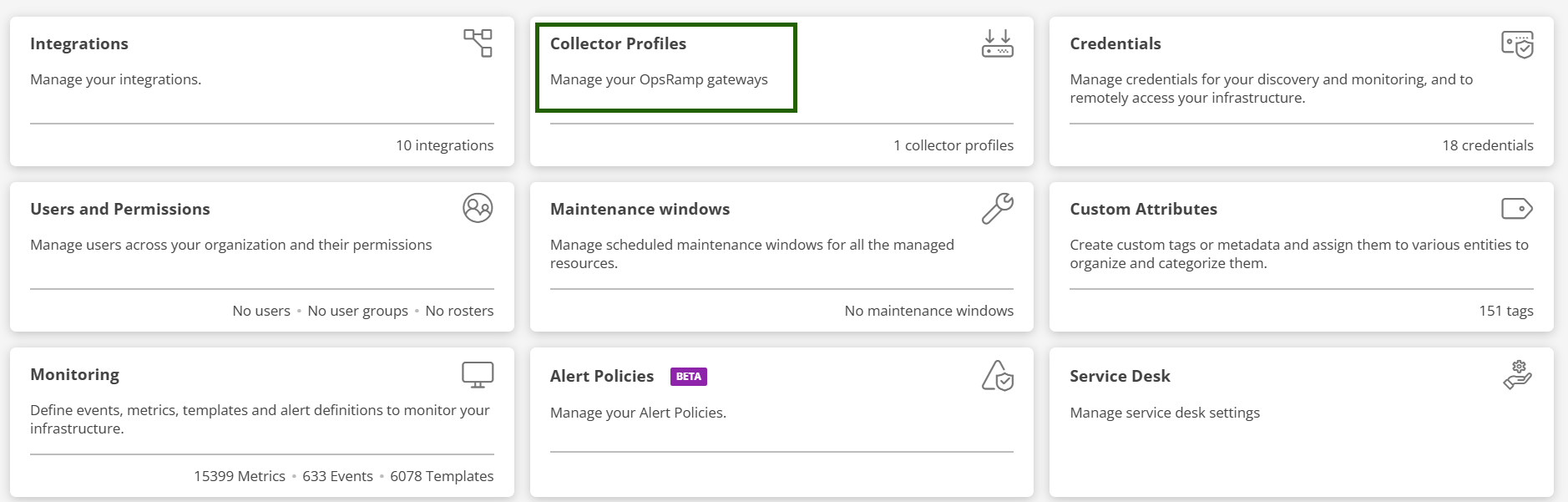
- Select the collector profile associated with the Gateway you want to replace and click Detach Gateway.
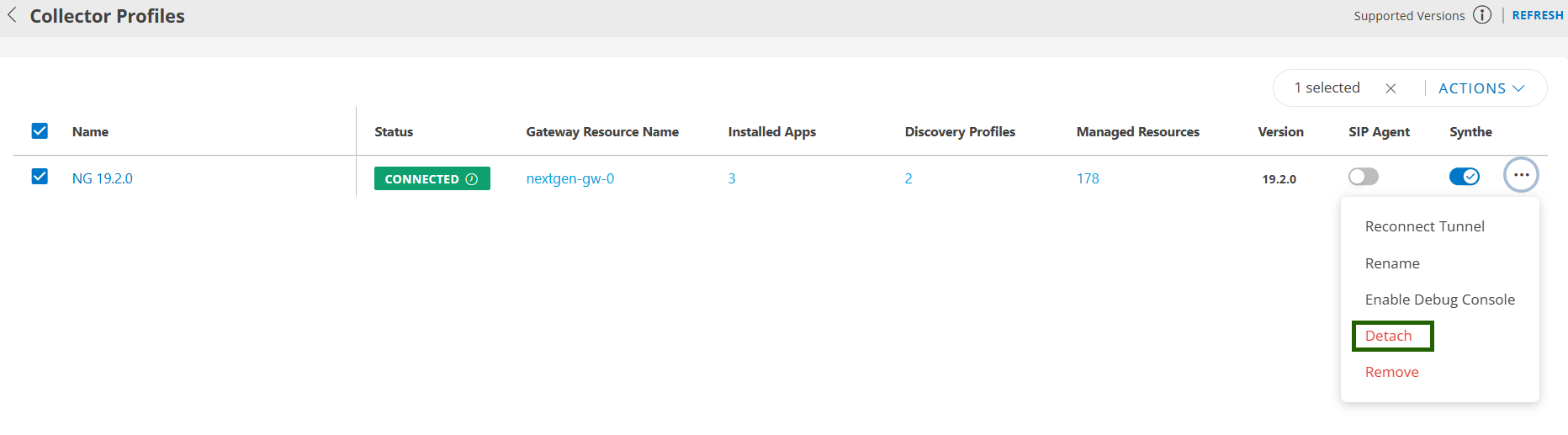
- On the Infrastructure page, ensure no device uses the same IP address as the current Gateway. Remove duplicates if found.
- Shut down all nodes in the Gateway cluster.
Step 4: Deploy the New Virtual Appliance
- Using the same resource config, deploy equal number of VMs for the gateway appliance.
- Allocate CPU, memory, disk space, and network settings identical to the previous Gateway to maintain performance and compatibility.
- Refer the VM preparation for ISO/OVA under Installation section.
Step 5: Attach the New Gateway
- In OpsRamp, navigate to Setup > Account > Collector Profiles.
- Select the Collector profile from which you detached the old Gateway.
- Click Attach Gateway and then Copy the activation code to your clipboard.
Step 6: Configure the New Gateway
- Register the new Gateway using the bootstrap tool with the copied activation code.
- Refer the Registration Document to register the new Gateway using the bootstrap tool.
Step 7: Verify the Upgrade
Confirm the new Gateway is functioning properly by checking the following:
- Gateway status shows Connected under the Collector Profile Status.
- Under Registration Details, verify the Gateway model ID begins with ONG (e.g., ONGVMAU22).
- Confirm the firmware version reflects the latest update.
- Wait
5–10minutes, then check monitoring graphs for the Gateway and managed devices. - If the Gateway acts as a proxy for Agents, ensure Agents are active and reporting data.
- For Gateways monitoring verify recent data is being collected correctly.
- For Gateway connected resource monitoring verify recent data is being collected correctly.
Recommended Pre‑ and Post‑Upgrade Actions
For major appliance upgrades and migrations, OpsRamp strongly recommends performing the following checks to ensure a smooth transition and reduce the risk of data or configuration loss.
Pre‑upgrade recommendation
Before initiating a major upgrade or migration, capture a full snapshot or backup of your existing gateway environment. This snapshot can be used to restore the environment in case of upgrade issues.
Post‑migration validation
After the migration or upgrade is complete, thoroughly validate that all options, configurations—including the external IP address for the NextGen Gateway—and integrations are properly enabled and operational after the migration is complete.