This guide explains how to identify and view all agent-installed resources that are connected to OpsRamp through a gateway (proxy agent).
Overview
In environments where agents communicate with OpsRamp console through a Gateway (proxy agent), it’s important to track which resources are routed through each gateway. OpsRamp provides multiple methods to view these agent-to-gateway associations.
This document outlines two simple ways to view the list of agent-installed resources connected through a Gateway:
- Using the Collector Profile
- Using OpsQL Search
Method 1: View via Collector Profile
- Log in to the OpsRamp portal.
- Navigate to Setup > Account > Collector Profile.
- Locate and click on the name of the relevant Collector Profile.
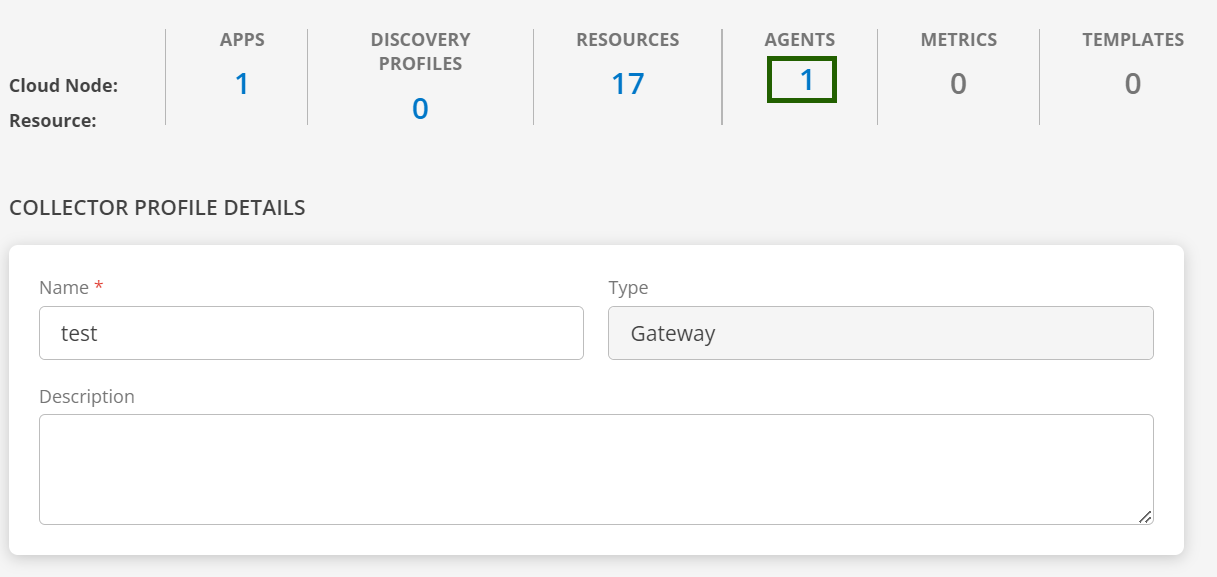
- On the Collector Profile details page, locate the Agent Count.
- Click on the Agent Count value to view a detailed list of agents connected through the selected Gateway.
Method 2: View via OpsQL Search
- Navigate to Infrastructure > Search.
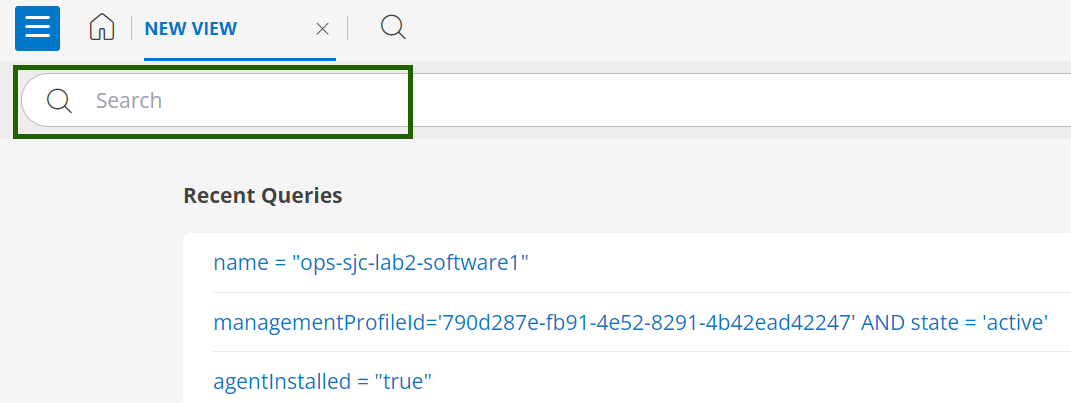
- Click on the search icon next to the home button (top-left corner of the page).
- Enter an OpsQL query to filter agent-installed resources based on gateway-specific attributes.
Example OpsQL:resource.agentType = 'AGENT' AND resource.gatewayName = '<Gateway_Name>'
Replace <Gateway_Name> with the actual name of your gateway.
- View the list of resources that meet the search criteria. You can further refine the query to suit your monitoring needs.