After deploying the NextGen Gateway as a virtual machine, it is strongly recommended to assign a unique hostname and configure the appropriate static IP address before proceeding with the Kubernetes installation. This ensures reliable identification of the Gateway within your network and avoids potential hostname conflicts - especially in environments with multiple deployed nodes.
Note
Do not change the hostname and IP Address after Kubernetes has been installed, as it may lead to issues with cluster services and communication between pods.Update the Hostname
Restrictions
Hostname updates through the terminal UI are available only before Kubernetes installation. After Kubernetes is installed, hostname updates are disabled. Update the hostname before installing Kubernetes.- Run below command to open Terminal UI:
opsramp-collector-start terminal-ui - Use Update Hostname to change the system hostname.
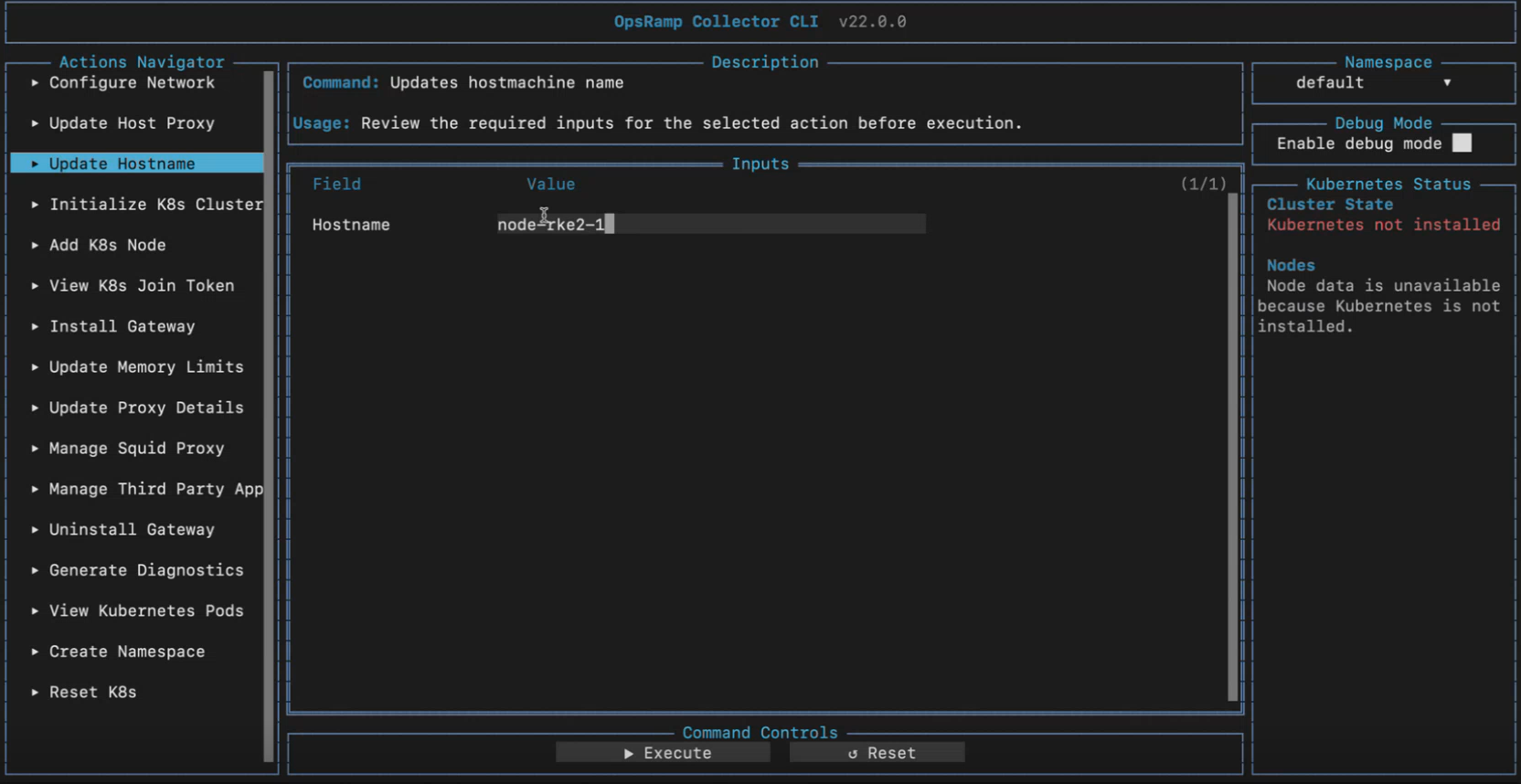
Select Execute to save the entered information.Field Description Hostname Defines the new hostname. - Press
ESCto close the Terminal UI.
opsramp-collector-start setup updatehostname --hostName <hostname>Replace <new-hostname> with your desired hostname (e.g., opsramp-gateway).
Example Output:
opsramp-collector-start setup updatehostname --hostName gateway1This command updates the hostname both at the system level and in the /etc/hosts file, ensuring consistency across network and local name resolution.
Next Steps:
- Verify the hostname change using
hostnamectlor cat/etc/hostname.
Updating the IP Address
- Run below command to open Terminal UI:
opsramp-collector-start terminal-ui - Use Configure Network to update host network settings.
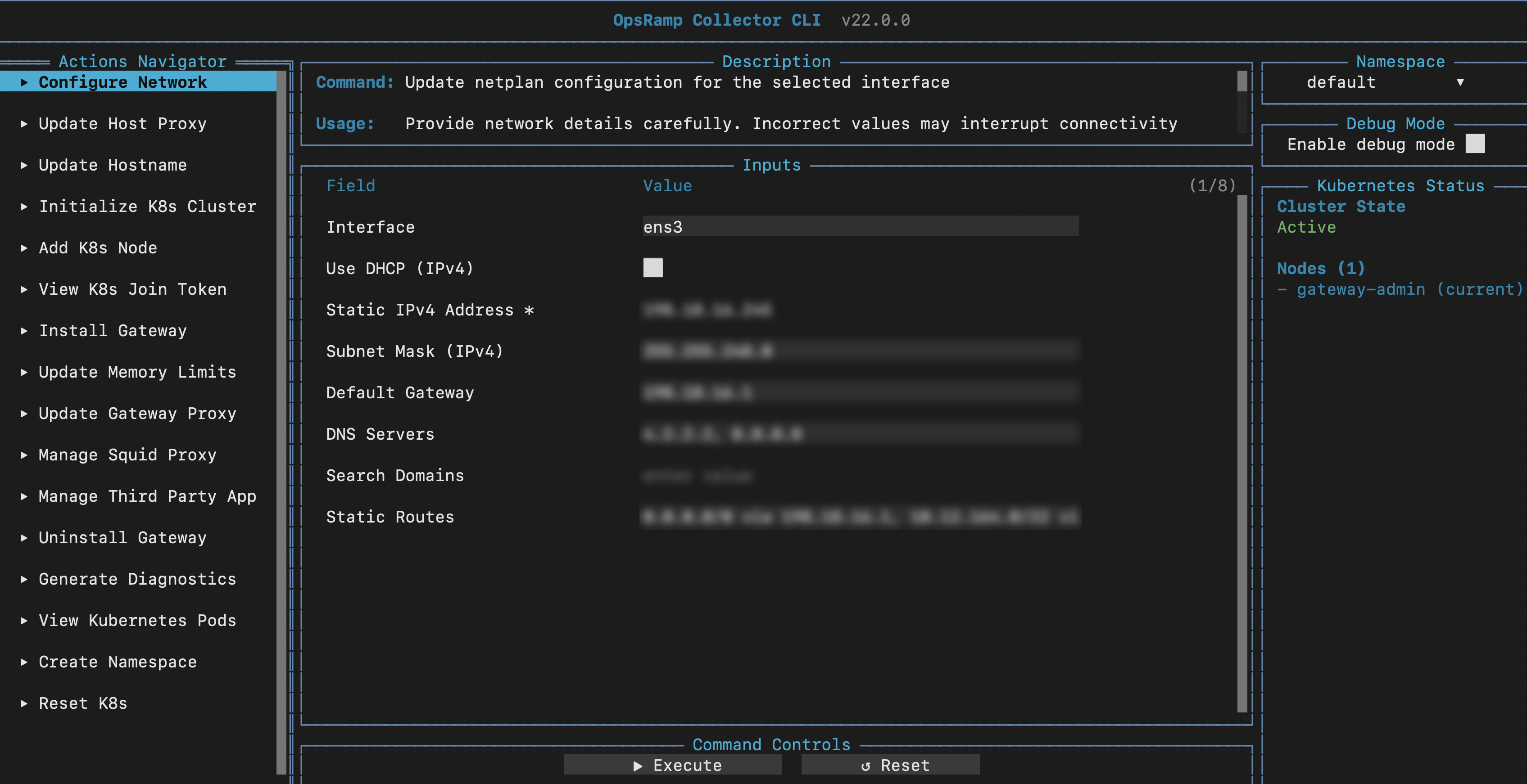
Select Execute to save the entered information.Field Description Example Interface Existing network interface name. ens160 or eth0 Use DHCP (IPv4) Checkbox: checked for DHCP, unchecked for static IP Unchecked for the static example below Static IPv4 Address IPv4 address, optionally including CIDR prefix 192.168.10.25 or 192.168.10.25/24 Subnet Mask (IPv4) Dotted-decimal subnet mask; optional when the address includes /prefix. 255.255.255.0 Default Gateway Gateway IP address. 192.168.10.1 DNS Servers Comma-separated IP addresses. 192.168.10.10, 192.168.10.11 Search Domains Comma-separated domain names. corp.example.com, example.com Static Routes Comma-separated routes: via metric ; metric is optional. 10.20.0.0/16 via 192.168.10.254 metric 100 - Press
ESCto close the Terminal UI.
Restrictions
After Kubernetes is installed, the IP address field is disabled and cannot be modified through the Terminal UI.Note
If you plan to use a pre-defined static IP address for the Gateway, allow the gateway to bootstrap using DHCP initially, and then manually update the network configuration post-deployment to the approved static IP address.To change your NextGen Gateway’s network configuration from a dynamic (DHCP) IP address to a static IP address, follow these steps:
- Log in to the Gateway
Login to the NextGen Gateway using the gateway-admin user account. - Identify Network Interface
Run the following command to list network interfaces and identify the active interface name:ip addrNote
Note the interface name (e.g.,ens160,eth0) that you want to configure with a static IP. - Modify Netplan Configuration
Navigate to the Netplan configuration directory:
Open the existing Netplan YAML file (e.g.,cd /etc/netplan50-cloud-init.yaml) with a text editor such asviornano:sudo nano 50-cloud-init.yaml - Update Configuration File
Replace the existing content with the following template, updating placeholders with your network-specific details:
Replace the placeholders as follows:network: ethernets: <InterfaceName>: addresses: - <IpAddr>/<NetMask> nameservers: addresses: - <DNSserver1> - <DNSserver2> routes: - to: 0.0.0.0/0 via: <DefaultGateway> renderer: networkd version: 2<InterfaceName>: Your network interface name (e.g.,ens160)<IpAddr>: The static IP address to assign (e.g.,172.25.249.111)<NetMask>: The subnet mask in CIDR notation (e.g., 16 for255.255.0.0)<DefaultGateway>: Your network’s default gateway IP address (e.g.,172.25.0.1)<DNSserver1>,<DNSserver2>: One or more DNS server IP addresses (e.g.,172.25.1.51,8.8.8.8)
- Example Configuration
network: ethernets: ens160: addresses: - 172.25.249.111/16 nameservers: addresses: - 172.25.1.51 - 8.8.8.8 routes: - to: 0.0.0.0/0 via: 172.25.0.1 renderer: networkd version: 2 - Apply the Configuration
Save the changes and exit the editor. Then, apply the new network settings with:sudo netplan apply - Verify the Static IP
Confirm the static IP configuration by running:ip addr show <InterfaceName>
Replace<InterfaceName>with your actual interface name.