This guide provides step-by-step instructions for updating memory limits for NextGen Gateway components deployed in a Kubernetes cluster using Helm. If you need to configure memory limits prior to deployment, refer to the Advanced configuration of Helm based deployment document.
Prerequisites
- Access to the Kubernetes cluster where the NextGen Gateway is deployed
- Helm CLI installed and configured
- Existing deployment of nextgen-gw
- Run the following command to open the Terminal UI:
opsramp-collector-start terminal-ui - Select Update Memory Limits to modify memory allocations for Gateway services.
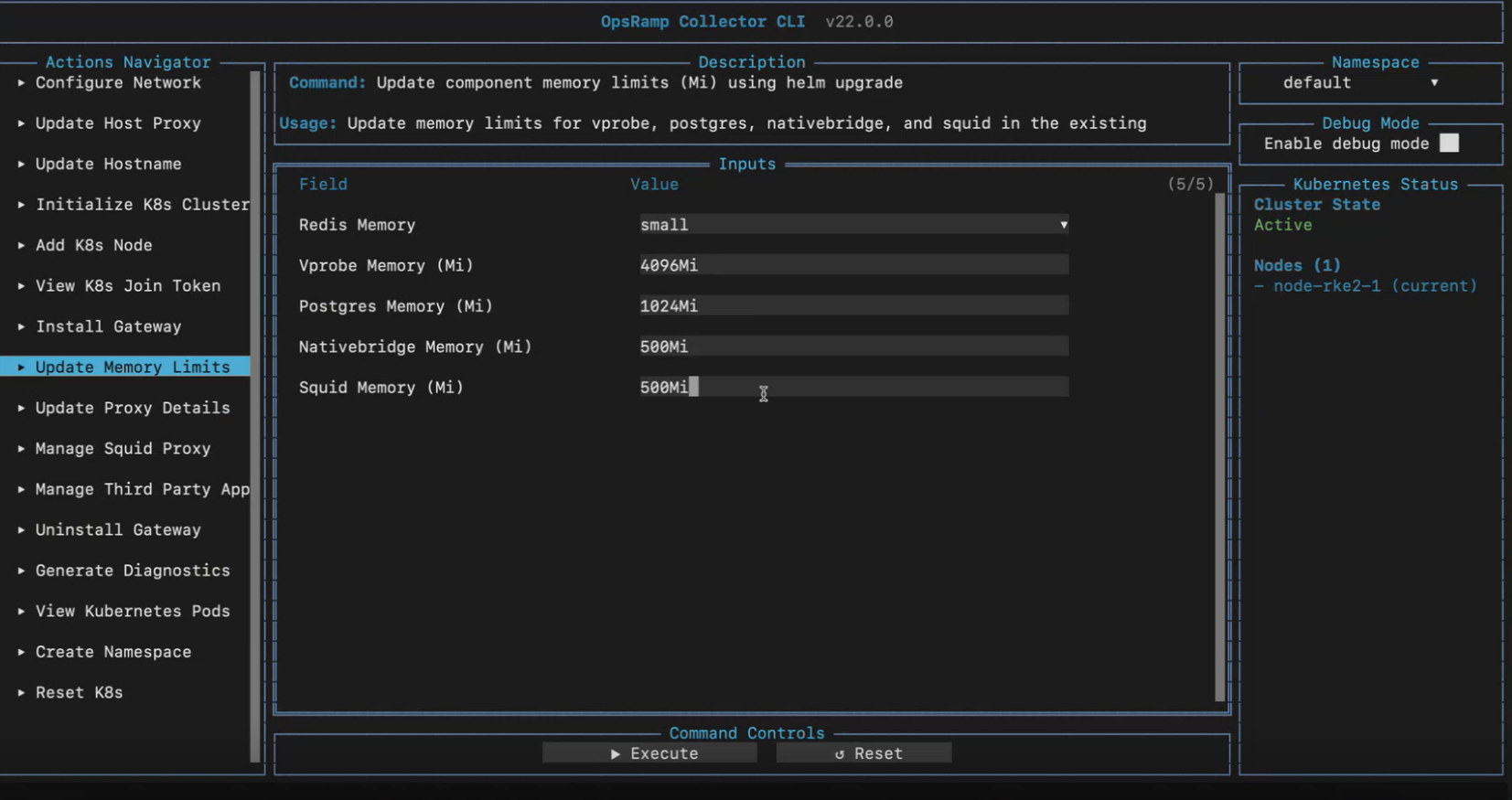
Field Description Vprobe Memory (Mi) Memory allocation for VProbe. Postgres Memory (Mi) Memory allocation for PostgreSQL. Nativebridge Memory (Mi) Memory allocation for NativeBridge. Squid Memory (Mi) Memory allocation for Squid proxy. Select Execute to save the entered information.Note
Current values are displayed automatically when the Gateway is installed. - Press
ESCto close the Terminal UI.
Step 1: Identify the Deployed Helm Chart Version
First, determine the current Helm chart version for the deployed NextGen Gateway:
helm list | grep nextgennextgen-gw 1.7.1 deployed1.7.1 is the chart version.Step 2: Export Current Helm Values
Export the current Helm values to a YAML file to make modifications:
helm get values nextgen-gw > nextgen-values.yaml Sample Response:
Step 3: Update Memory Limits
Use the following helm upgrade command to update the memory limits. Replace <chart_version> with the version retrieved in Step 1: Identify the Deployed Helm Chart Version and modify the memory values as required.
Helm upgrade <<gateway-name>> XXXXXXX helm upgrade nextgen-gw oci://us-docker.pkg.dev/opsramp-registry/gateway-cluster-charts/nextgen-gw \
--version <chart_version> \
-f nextgen-values.yaml \
--set-string vprobe.resources.limits.memory="8192Mi" \
--set-string nativebridge.resources.limits.memory="1000Mi" \
--set-string squid.resources.limits.memory="1000Mi" \
--set-string postgres.resources.limits.memory="2048Mi" Example of Memory Allocation:
| Node Size | vprobe | postgres | nativebridge | squid-proxy |
|---|---|---|---|---|
| 8 GB RAM | 4Gi | 1Gi | 500Mi | 500Mi |
| 16 GB RAM | 8Gi | 2Gi | 1Gi | 1Gi |
Adjust the memory values as needed based on available system resources.
Step 4: Verify Updated Memory Limits
After performing the upgrade, verify that the memory limits have been successfully applied by describing the pod:
kubectl describe pod nextgen-gw-0Sample Verification Output
root@gateway-admin:/home/gateway-admin# kubectl describe pod nextgen-gw-0
Name:             nextgen-gw-0
Namespace:        default
....
Containers:
  postgres:
    Limits:
      memory:  2Gi
    Requests:
      memory:   400Mi
  vprobe:
    Limits:
      memory:  8Gi
    Requests:
      memory:   3Gi
  nativebridge:
    Limits:
      memory:  1000Mi
    Requests:
      memory:     300Mi