Overview
The gateway web user interface runs on the Nginx web server and is shipped with a self-signed SSL certificate by default.
When accessing the gateway, you may receive an invalid certificate warning because the certificate is issued to gateway.opsramp.com and does not match your domain *.opsramp.com.
To ensure secure communication and eliminate certificate warnings, you can upload a valid SSL certificate for your organization’s domain.
Upload SSL certificates
If your organization has a valid SSL certificate, you can upload your valid SSL certificate. Verify that the SSL certificate file is in .pem format and contains the certificate and private key.
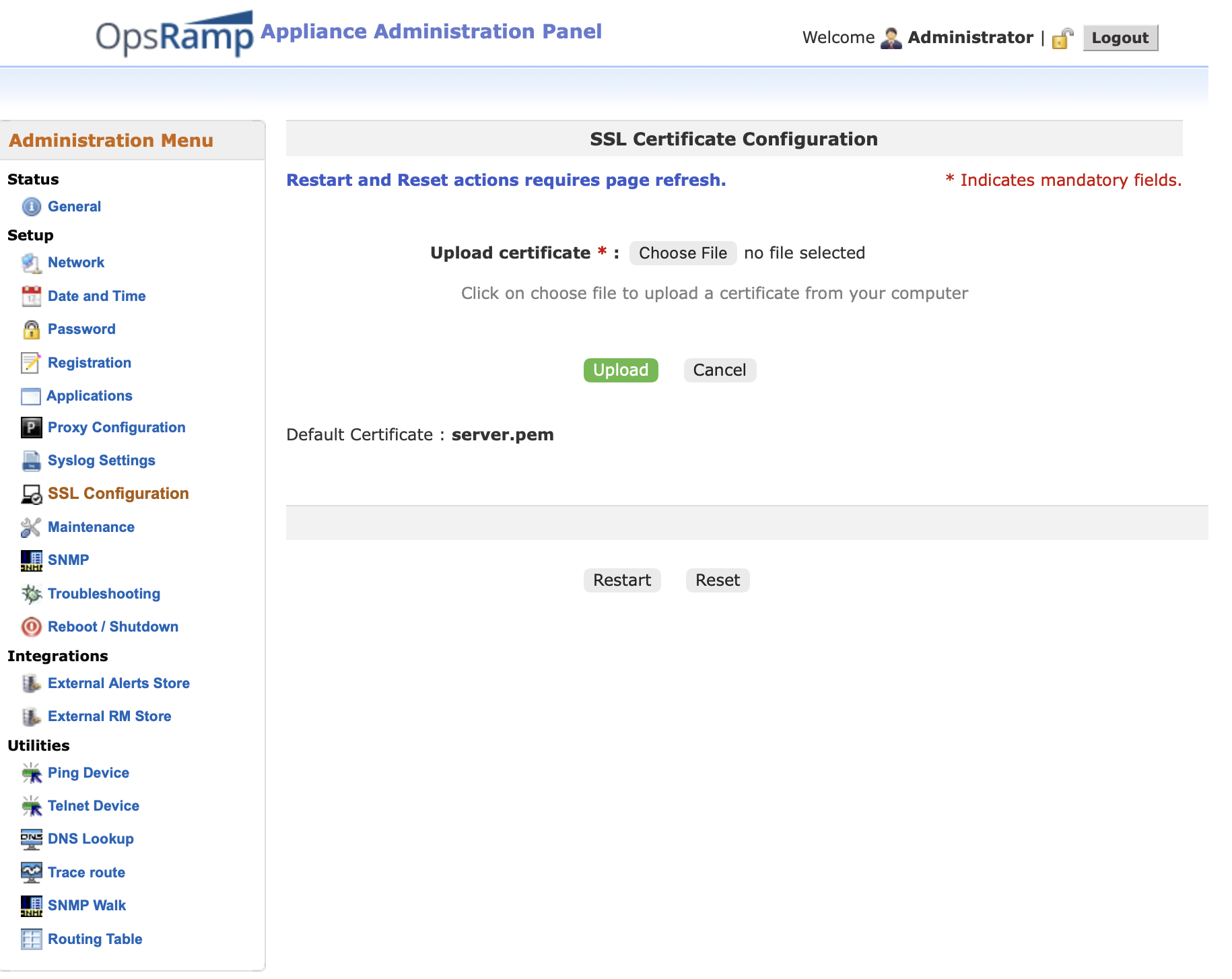
- Log in to the Gateway web UI at
https://<ipaddress>:5480. - From the left pane, click SSL Configuration.
- Upload your certificate on the SSL Certificate Configuration screen.
- Click Restart to apply the changes. If you want to use the default gateway SSL certificate, click Reset.
Access gateways with SSL certificates
If your organization has a valid certificate issued to *.yourcompany.com and your gateway is part of the domain and the hostname of the gateway is host1, then you can access the gateway directly without using the IP address.
For example: Use https://host1.yourcompany.com:5480 to access the gateway.
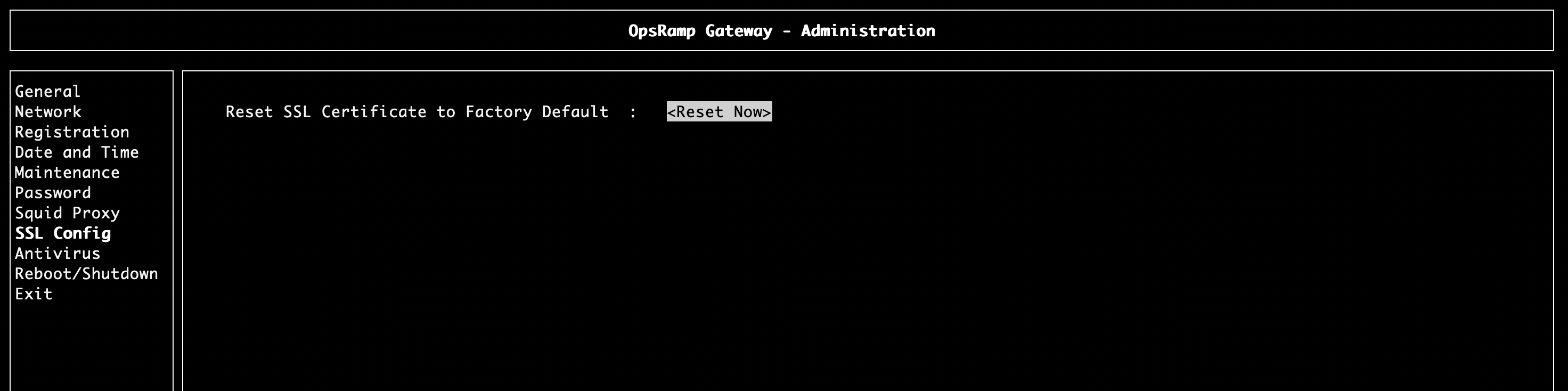
Reset SSL Certificate to Default
If the uploaded SSL certificate causes access issues (such as certificate errors or UI unavailability), you can reset the SSL configuration to the default certificate as mentioned below:
- Log in to the gateway using SSH or Serial UI.
- Navigate to SSL Configuration.
- Select Reset SSL Certificate to Factory Default.
- Confirm the action by selecting Yes.