Key‑based authentication allows secure SSH access to the OpsRamp Gateway using an SSH key instead of a password. This authentication method is supported only for the gateway system user (ruser). Access is authenticated using a public and private key pair, reducing reliance on password‑based login.
When key‑based authentication is enabled, password‑based login for the system user is disabled. Passwords can be reset to the default settings.
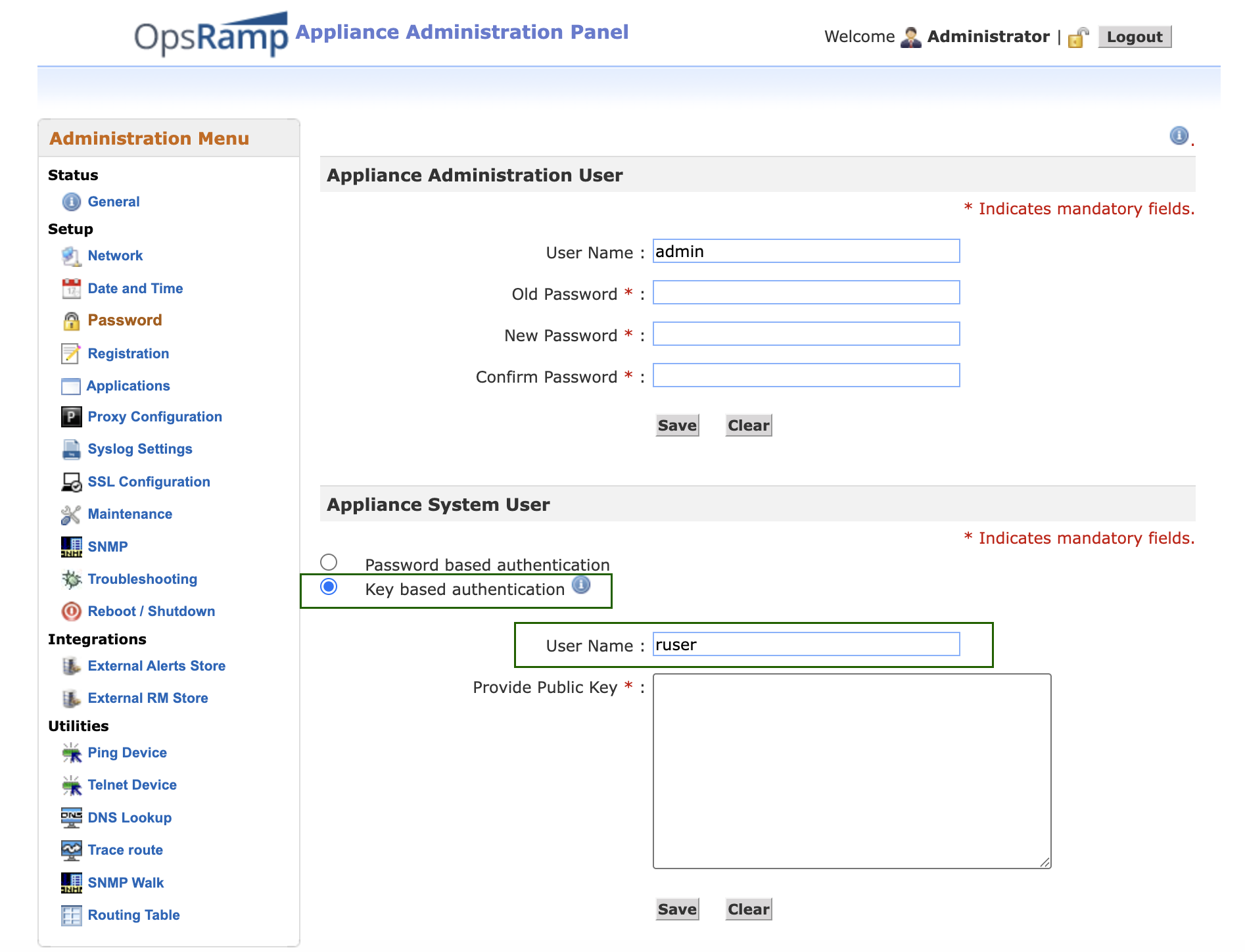
Generate an SSH Key Pair
- Log into your Linux computer and open a terminal.
- Run the following command:
ssh-keygen -t rsa. - When prompted for the file location, press Enter to accept the default path.
- Optionally, enter a passphrase to protect the private key. Press Enter to skip setting a passphrase.
Example Output
    Enter file in which to save the key (/Users/user1/.ssh/id_rsa):
    Created directory '/Users/user1/.ssh'.
    Enter passphrase (empty for no passphrase):
    Enter the same passphrase, again:
    Your identification is saved in /Users/user1/.ssh/id_rsa.
    Your public key is saved in /Users/user1/.ssh/id_rsa.pub.
Upload the Public Key to the Gateway
- Open the generated public key file:
id_rsa.pubfile. - Copy the entire contents of the file. Make sure to copy the public key properly without any space at the beginning or end.
- Log in to the Gateway Web User Interface.
- Navigate to the Password page.
- Paste the copied public key into the Provide Public Key field for the Appliance System User.
- Click Save.
The gateway is now configured to allow key‑based SSH login for the system user.
SSH Login Restriction After Failed Attempts
If a user attempts five consecutive logins with invalid credentials, the gateway restricts SSH login for ruser and admin users. The restriction persists for 30 minutes and the gateway user account is locked. During the 30-minute interval, even valid login credentials are not accepted.