The node details screen provides an in-depth view of a selected service node within a Service Map. It helps users monitor and manage the health, availability, and performance of a node and its associated resources. This screen consolidates all relevant data, enabling faster troubleshooting and decision-making.
What is a Service Map and a node?
A Service Map is a visual representation of a service or application and the resources it depends on. It shows how the components are related and the health of each one, so you can see how an issue in one component might affect others.
A node is a single element in a Service Map. There are two types of nodes:
- Service node: Represents a service or application. It is typically the parent node in the hierarchy.
- Resource node: Represents a resource, such as a device or component, that the service depends on. It appears as a child of the service node.
Each node displays a health status (UP, Down, or Degraded).
Access View Details
To navigate to this screen:
- Go to Infrastructure > Service Maps.
- Select a Service Map from the listing page.
- In the slide-out panel, click the View Details button for a specific service node.
The detailed view screen opens, displaying information about the node, its dependencies, and its associated resources.
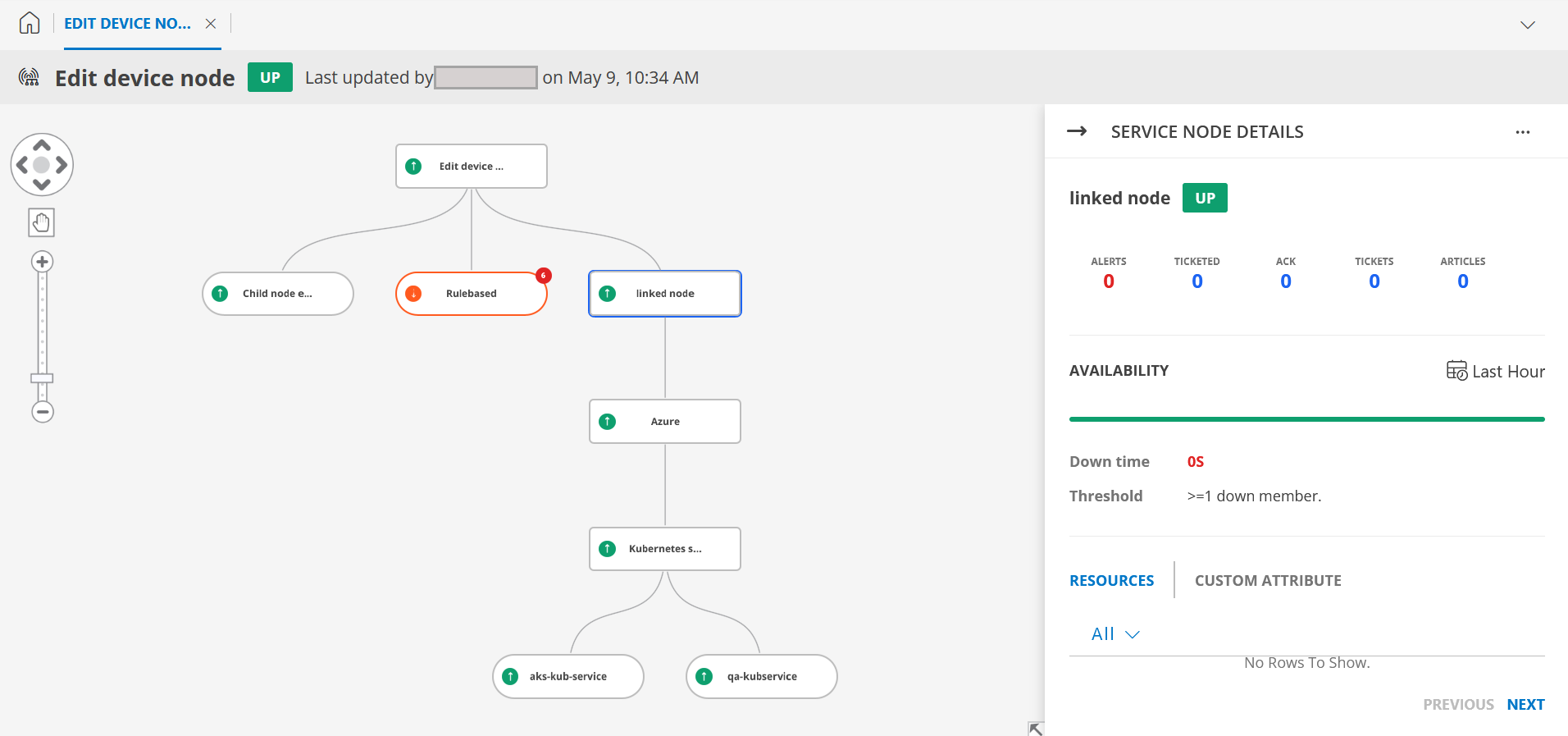
Elements of View Details
| Element | Description |
|---|---|
| Node Name and Status | Displays the name of the selected service node and its current health status (e.g., UP, Down, or Degraded). |
| Hierarchical Visualization | Provides a hierarchical view of the parent node and its dependent child nodes, representing relationships and dependencies:
|
| Details slide-out | Displays real-time availability information for the node:
|
| Resources | A list of resources linked to the selected node. For each resource:
|
| Custom Attributes | Displays any custom attributes configured for the node, offering additional metadata for resource categorization and analysis. |
Version History
Configuration version history provides a record of changes made to a node; a service node or a resource node. You can use it to review the current configuration, compare it with an earlier version, and restore a previous version.
Version history is enabled by default for nodes. A version is created when a node is created or updated.
Permissions
Your access to version history is based on your permissions for the node:
- To view version history, you must have permission to view the node.
- To restore a version, you must have permission to modify or update the node.
Why use version history?
Updating a node, including changing its name, assigning resources, assigning custom attributes, or any other setting can change how the node is identified and monitored in the Service Map. For example, an unintended change to a node’s configuration, such as removing a resource from the node or modifying its availability threshold, can cause the node to display an incorrect status (UP, Down, or Degraded), affect how the health of dependent nodes is represented in the hierarchy, or cause genuine availability issues to go undetected.
Use version history to:
- View snapshots of a node configuration.
- Identify values that changed between versions.
- Compare the current version with an earlier version.
- Compare two older versions.
- Restore a suitable earlier version.
View version history
View the version history of a node to review its current configuration and previously saved versions.
Follow these steps to view a node’s version history:
- On the Service Maps listing page, locate the service map whose node you want to view version history of.

- Click on the service map name. The service map appears.
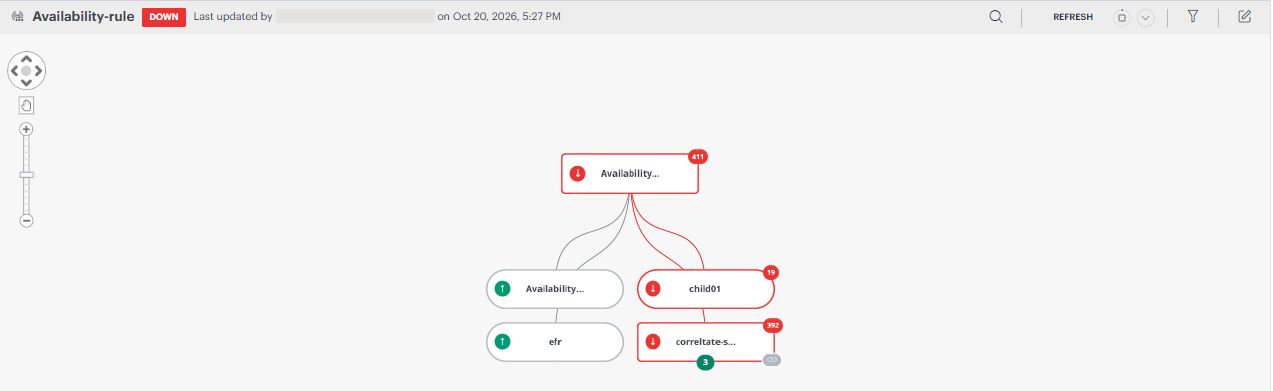
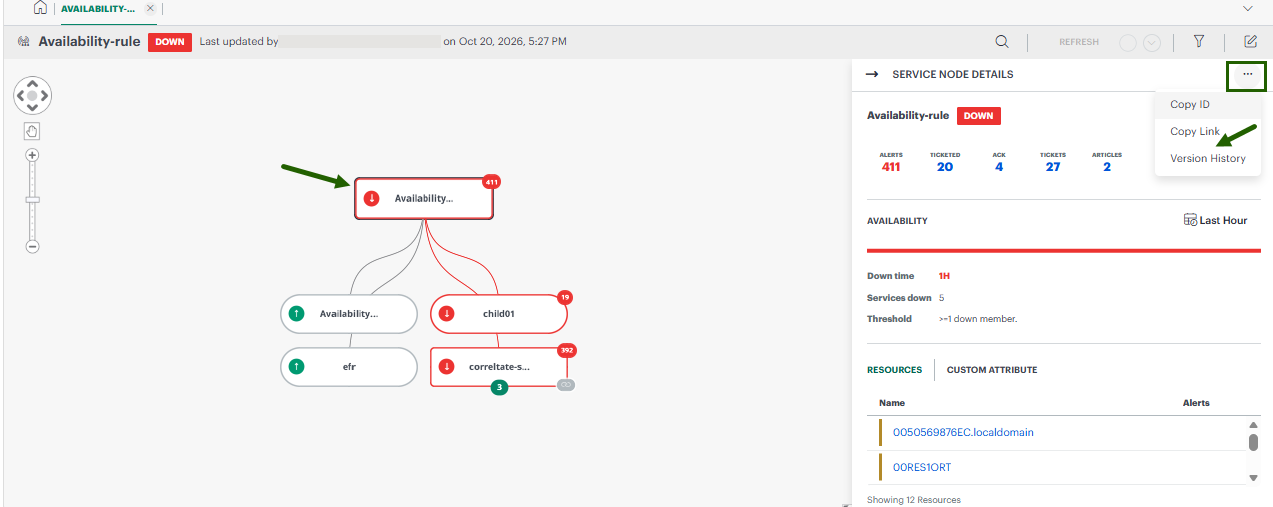
- Click on the service node. The service node slide-out appears.
- Click the ellipsis (…) icon on the top right corner of the slide-out and select Version History.
The Version History page appears with the current node configuration, by default. The dropdown lists the versions with timestamp.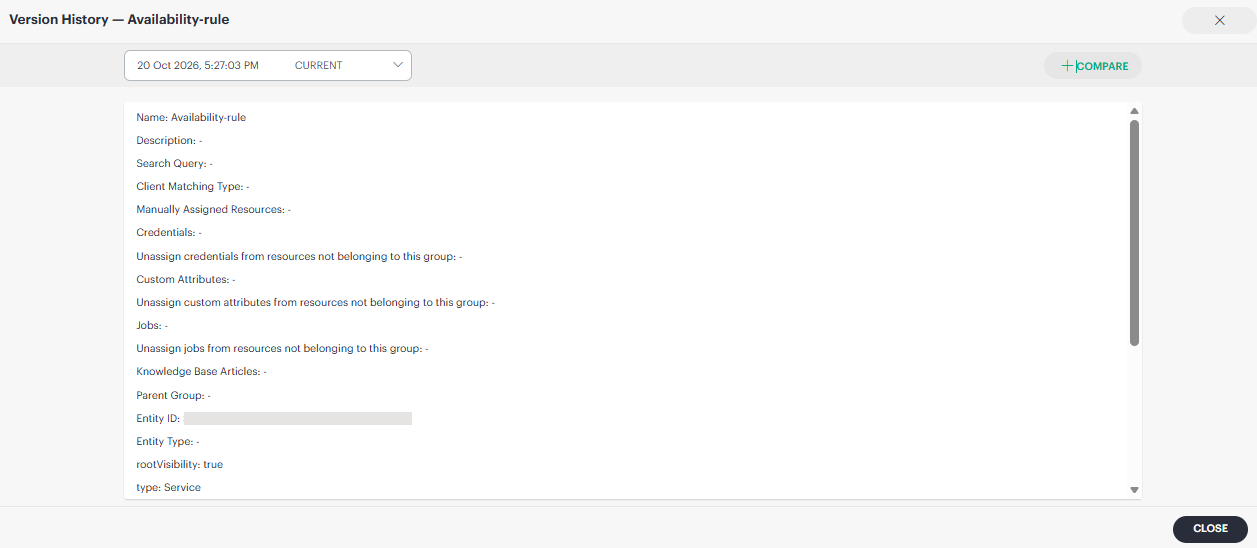
- Clicking the dropdown lists the available earlier versions.
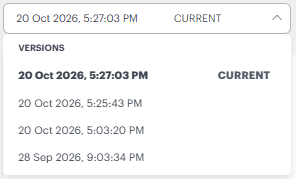
You can click the versions in the dropdown to review the changes. The selected version displays the node configuration, allowing you to compare it with the current version and identify any values that changed.
Compare versions
Compare node versions to see how configuration changes affect the node’s status and the alerts it generates. This comparison helps you find what caused unexpected alerts and decide whether to restore an earlier version.
Follow these steps to compare versions:
- On the Service Maps listing page, locate the service map whose nodes you want to compare versions.
- Click on the service map name. The service map appears.
- Click on the service node. The service node slide-out appears.
- Click the ellipsis (…) icon on the top right corner of the slide-out and select Version History.
The Version History page appears with the current node configuration, by default. - Click +Compare at the top right corner of the page.
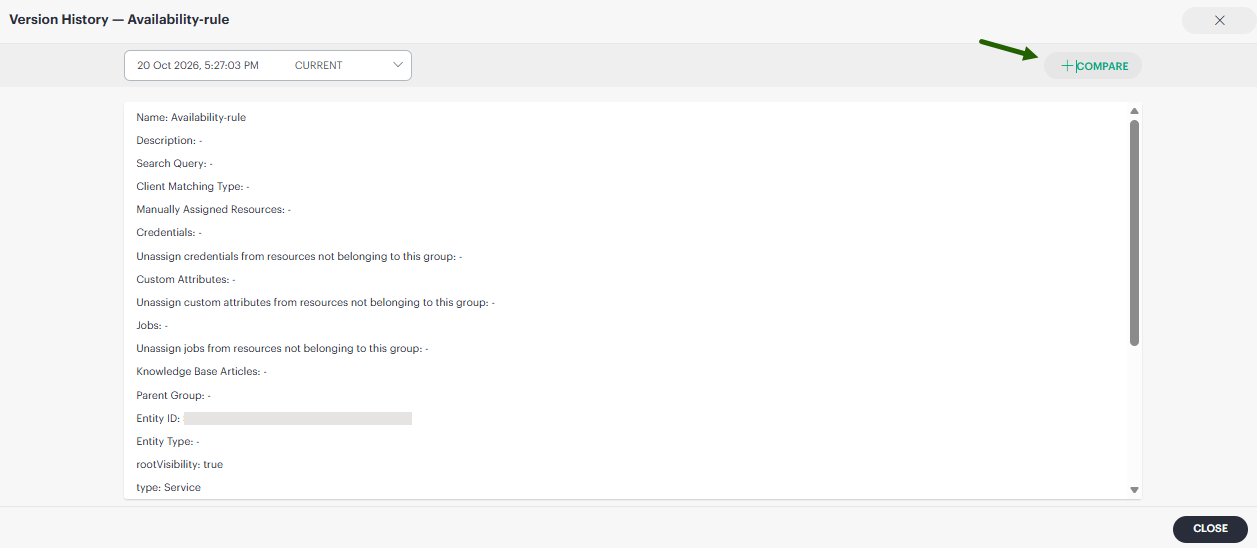
By default, the system compares the current version with the version immediately preceding it.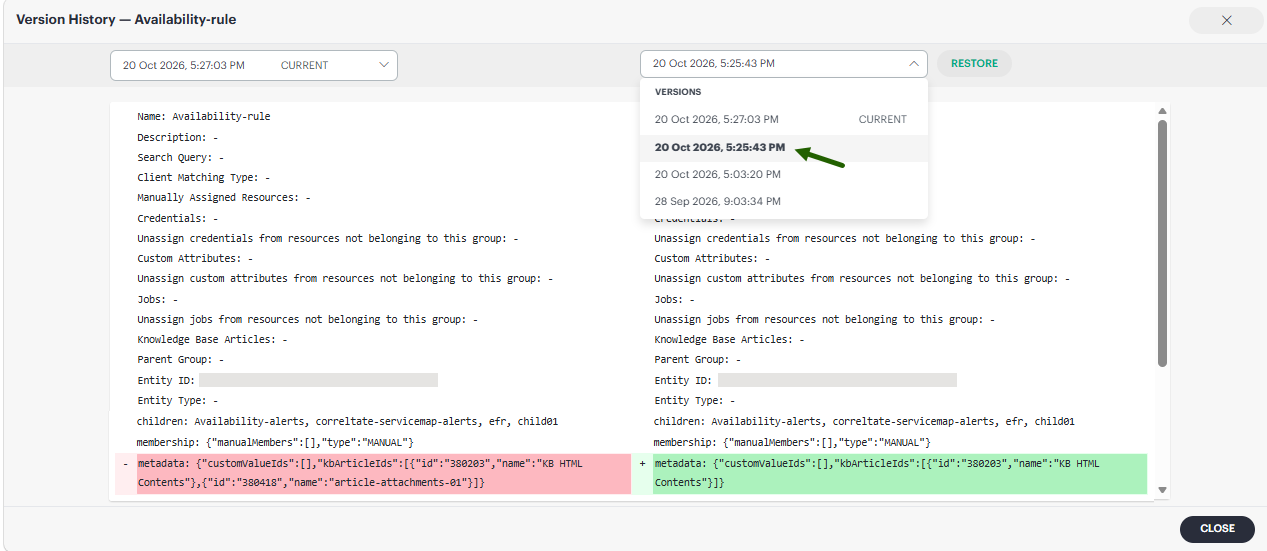
The comparison highlights the changes made. Review the differences between the configuration values.
- You can select another older version to compare with the current version, or compare two older versions.
Comparison helps you determine which node configuration change might have caused unexpected alerts or changed the node’s status.
Restore a version
Restore an earlier version of a node when you need to revert recent configuration changes. The restored configuration becomes the current version while preserving the existing version history.
Follow these steps to restore a version:
- On the Service Maps listing page, locate the service map that contains the node whose version you want to restore.
- Click on the service map name. The service map appears.
- Click on the service node. The service node slide-out appears.
- Click the ellipsis (…) icon on the top right corner of the slide-out and select Version History.
The Version History page appears with the current node configuration, by default. - Click +Compare at the top right corner of the page.
By default, the system compares the current version with the version immediately preceding it. - From the dropdown on the right, select the version you want to restore.
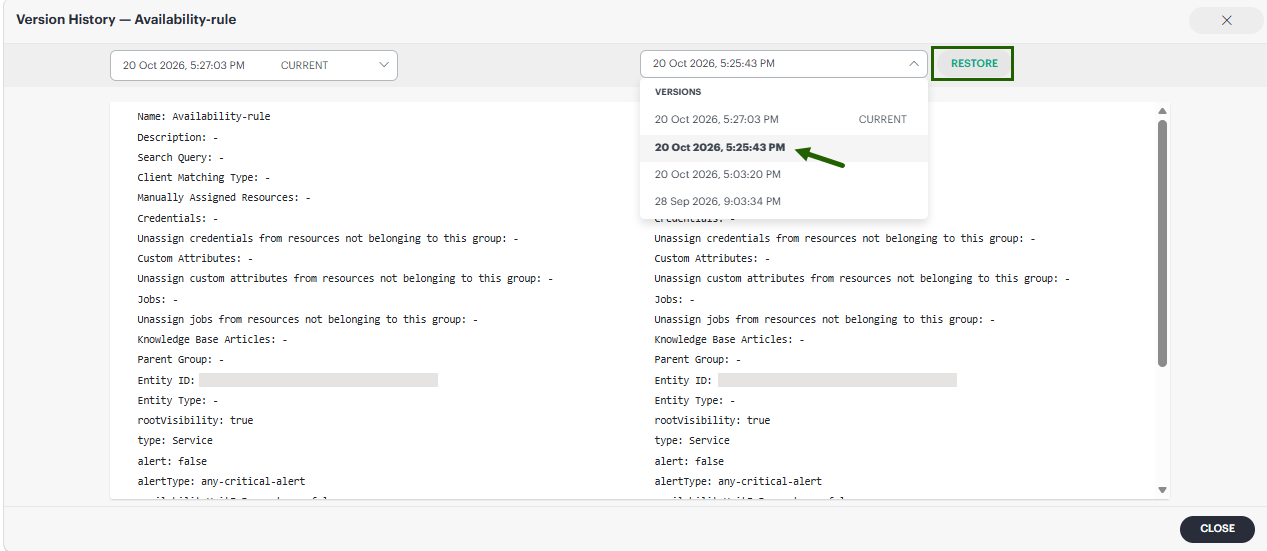
- Click Restore. A confirmation message appears.
- Click Restore.
Restoring a version creates a new version. Existing versions remain in the version history. After the operation is complete, the restored values become the current configuration.
Note
The time required to apply a restored configuration can vary. A configuration that must be applied to a device might take longer to complete.Version retention and deleted nodes
Version history is retained only while the node exists.
Important
Deleting a node also removes its version history. You cannot view or restore versions of a deleted node. Version history is not a backup or recovery mechanism for deleted configurations.
Existing audit logs remain available through the applicable audit or logging features, but deleted configuration snapshots are not available through Version history.