Introduction
Service level agreements (SLAs) are used to configure response and resolution time the tickets based on their priorities.
Note
- SLA policies can be only assigned for incidents or service level requests.
- A partner has to subscribe for the SLA Management Add-On in order to access SLA.
The following can properties can be configured:
- Priority
- Business hours
- Response time
- Resolution time
| Property | Description |
|---|---|
| Priority | Sets the priority level: very low, low, normal, high, and urgent. |
| Business hours | Defines the working hours of the organization using the business hours feature. This information is used while creating SLAs and setting the ticket response and resolution time based on business hours configured. For example: An organization operates standard office hour from 9 AM to 5 PM, Monday to Friday. If a ticket is received at 4 PM on a Friday, 9 AM on Monday would be only one business hour. |
| Response time | How quickly you respond to a ticket being raised. |
| Resolution time | How long it takes from the time an issue is logged until it is fully resolved. |
Configure SLA settings
An SLA (Service Level Agreement) is a negotiated and agreed contract between requester and assignee to resolve entities. SLA quantifies acceptable service levels and outlines when the services are delivered.
SLA policies can be configured for:
- Response time frames for assignees.
- Entity resolution based on priorities.
- Automatic escalation rules for SLA violations and user notifications.
- Incident and service requests.
To configure SLA settings:
Navigate to Setup > Account > Service Desk.The Settings page is displayed.
From the top navigation tabs, select SLA.

From the SLA tab, configure the settings.
Click SAVE.
As shown in the above figure, the following property allows you to customize the SLA property.
| Property | Description |
|---|---|
| Change SLA policy, when priority is updated |
|
| Consider Business Hours Policy for First Time Response Calculation (Calculates only on user conversation) |
|
| When request reOpens, Go with; (Created date, Reopen date) | This option will be useful if the resolved ticket is reopened. For SLA calculation, we will use the ticket created time/ticket reopen time based on the settings. |
| When request priority upgrade/downgrade, Go with (Created date, priority upgrade/downgrade date) |
|
| Consider Any Field Update for Time to First Response Calculation (Calculates on any field update) |
|
Create a SLA
Navigate to Setup > Account> Service Desk.
In the left navigation pane, navigate to the Automation section and select Service Level Agreements.The Service Level Agreements page is displayed.
Click + Add to define a new SLA.The Add Service level agreement screen s displayed.

From New Service Level Agreement, provide:
- Name, request type, name, and priority.
- With Business Hours: If selected provide, the following SLA Business Hours Schedule information:
- Time Zone
- Select Weekday(s): This option is for the days that the response time and resolution time are relevant.
- Start Time and End Time
- SLA Type settings: For
Time to First ResponseandTime to Resolve, set in hours and minutes format.- Create a maximum of two response reminders which can be configured in hours and minutes format or time elapsed percentage.
- Add up to three resolution reminders.
- Add users to be notified when the response time is configured.
Click Add Service Level Agreement.
The SLA is applied to future incidents which have the same criteria.
When an entity is in Pending or On-Hold status, the SLA clock is stopped.
Scenarios
Create a SLA for an incident
An incident, Server Unreachable, is created using the Auto Incident policy with high priority. The incident needs to be resolved in two hours to restore services. The requester needs notification when there is a breach of Incident resolution time.
Solution:
Configure an SLA with expected incident resolution time and set reminder notifications.
For example:
- When the Time for first response is 30 minutes and the reminder is set for 15 minutes, users get notified after 45 minutes of incident creation if there is no response.
- When the Time to resolve is set for two hours and the reminder is set for 15 minutes, users get notified after two hours and 15 minutes if the incident is not resolved.
Set a high-priority alerts
A support administrator wants to set alerts from a specific client as high priority.
Solution:
Configure the Service Level Agreement for a specific client.
Configure SLA business hours
A support administrator wants to configure business hours for SLA.
Solution:
Configure the Service Level Agreement by providing business hours.
Set reminders
A support administrator wants to get timely reminders to respond and resolve incidents.
Solution:
Configure the Service Level Agreement for a specific Client.
Configure SLA Reminder Notifications
SLA reminder notifications can be configured for both First Response and Resolution targets. Each reminder can be defined using either a Time (HH:MM) value or a Percentage (%) value.
The reminder mode determines when a notification is sent before an SLA target reaches a breach state.
Reminder Types
OpsRamp supports two reminder modes:
| Reminder Type | Description |
|---|---|
| Time (HH:MM) | Sends a reminder based on the amount of time remaining before the SLA target is breached. |
| Percentage (%) | Sends a reminder based on the percentage of the SLA target that has already elapsed. |
Each reminder is configured independently and can use either HH:MM or PERCENT.
Note
SLA targets (Time to First Response and Time to Resolve) are always configured using HH:MM. Only reminder notifications support switching between HH:MM and PERCENT.Add a Reminder
Navigate to Setup > Tickets > Configuration > SLA.
Create a new SLA policy or edit an existing one.
Configure the Time to First Response and Time to Resolve targets.
Under either the First Response or Resolution section, click + REMINDER.
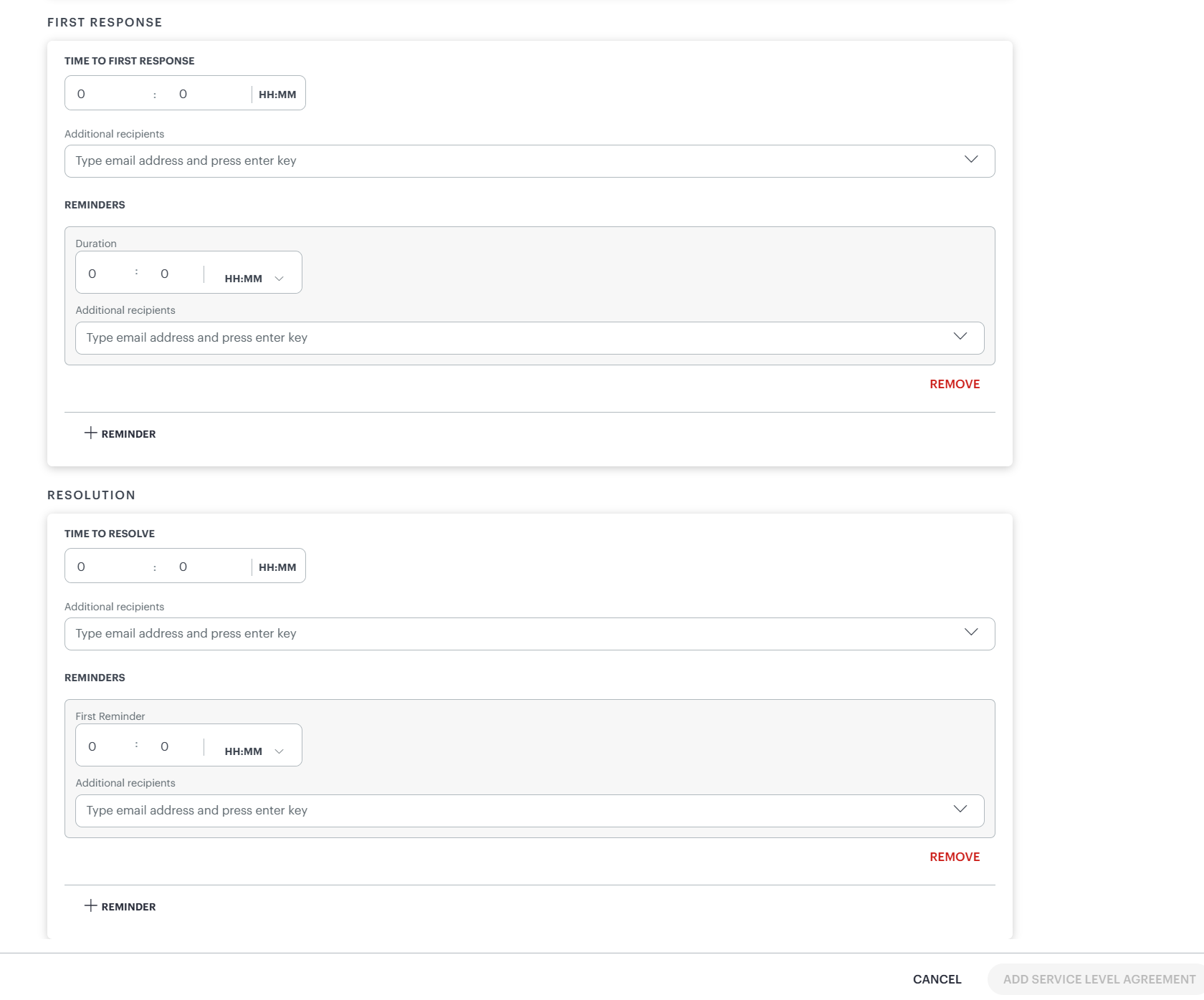
Enter the reminder value.
Select one of the following units:
- HH:MM
- PERCENT
(Optional) Add additional notification recipients.
Save the SLA policy.
Multiple reminders can be configured for each stage.
Understanding Time and Percentage Reminders
Time-based and percentage-based reminders measure the SLA window from opposite directions.
| Mode | Measures | Behavior |
|---|---|---|
| Time (HH:MM) | Time remaining before SLA breach | Larger values trigger earlier reminders. |
| Percentage (%) | Percentage of the SLA target already elapsed | Larger values trigger later reminders. |
Time-Based Reminders (HH:MM)
A time-based reminder specifies the amount of time remaining before the SLA target is breached.
For example:
- Time to First Response = 00:10
- Reminder = 00:08
The reminder is sent when 8 minutes remain, which occurs 2 minutes after ticket creation.
Because the reminder is based on remaining time:
- 00:08 fires earlier than 00:05
Percentage-Based Reminders (%)
A percentage-based reminder specifies how much of the SLA target has already elapsed.
For example:
- Time to First Response = 00:10
- Reminder = 20%
The reminder is sent when 20% of the SLA window has elapsed, which occurs 2 minutes after ticket creation.
Because the reminder is based on elapsed time:
- 20% fires earlier than 50%
Equivalent Reminder Examples
The same reminder point can be expressed using either remaining time or elapsed percentage.
First Response Target: 10 Minutes
| Time-Based Reminder | Percentage Reminder | Reminder Trigger |
|---|---|---|
00:08 remaining | 20% elapsed | 2 minutes elapsed |
00:05 remaining | 50% elapsed | 5 minutes elapsed |
Resolution Target: 20 Minutes
| Time-Based Reminder | Percentage Reminder | Reminder Trigger |
|---|---|---|
00:18 remaining | 10% elapsed | 2 minutes elapsed |
00:15 remaining | 25% elapsed | 5 minutes elapsed |
These examples demonstrate the inverse relationship between the two reminder modes:
- HH:MM represents the time remaining before breach.
- PERCENT represents the percentage of the SLA target already consumed.
Additional Recipients
Each reminder supports optional Additional Recipients.
Use this option to send reminder notifications to users other than the default assignee or team.
Business Hours Considerations
When a Business Hours Schedule is enabled for an SLA policy, both SLA calculations and reminder notifications are evaluated only during the configured business hours.
Reminder timing is calculated using the defined business schedule rather than calendar time.
Note
- Multiple reminders can be configured for both First Response and Resolution stages.
- Each reminder can independently use either HH:MM or PERCENT.
- HH:MM reminders are based on the amount of time remaining before SLA breach.
- PERCENT reminders are based on the percentage of the SLA target already elapsed.
- Larger HH:MM values trigger reminders earlier.
- Larger PERCENT values trigger reminders later.
- The same reminder point can be represented using either reminder mode.
- Reminder notifications honor the configured Business Hours Schedule.