Introduction
NetFlow data describes network traffic using technical attributes such as IP addresses, ports, interfaces, AS numbers, and DSCP values. Grouping lets you associate these technical attributes with meaningful business labels.
For example, you can define a portion of your network, such as the 10.20.0.0/16 subnet or any interface whose name starts with Gi0/, and associate it with a group such as Finance or Branch Office. OpsRamp then labels matching NetFlow traffic with the configured group name. This lets you view and compare traffic by business dimensions such as department, location, application, and security zone instead of relying only on raw network addresses.
Grouping is part of NetFlows and is configured from the Grouping tab in Netflows Configurations.
Intended users: Network administrators and NOC engineers who manage NetFlow monitoring and need to analyze traffic by business unit, site, application, or security zone.
Common use cases include:
- Measuring bandwidth by department.
- Comparing traffic between sites.
- Monitoring traffic between security zones.
- Measuring traffic to cloud providers.
See Use Cases for configuration examples.
Key Concepts
| Term | Meaning |
|---|---|
| Criterion | A named, reusable rule that describes a network attribute. For example, Finance subnets can represent an IP Address criterion, while Web ports can represent a Port criterion. A criterion has one Type and one or more Definitions. |
| Definition | A matching rule within a criterion. A definition consists of a definition type and value, such as IPv4 CIDR 10.20.0.0/16, Range 8080 to 8090, or Regex ^Gi0/. A criterion matches when any one of its definitions matches. |
| Group | A named label, such as Finance, that is applied to matching NetFlow traffic. A group has one Group Type and one or more criteria. |
| Group Type | The business dimension associated with a group, such as Department or Location. Group types let you view groups of the same category together. |
Criteria are shared and reusable. You can use the same criterion in multiple groups. Changes to a criterion apply to every group that uses the criterion.
How Traffic Is Matched to a Group
OpsRamp evaluates each NetFlow record against the configured groups using the following rules:
- Definitions within a criterion use OR logic. A criterion matches when any one of its definitions matches. For example, a criterion containing the CIDRs
10.20.0.0/16and10.30.0.0/16matches addresses in either subnet. - Criteria within a group use AND logic. A group matches only when every criterion in the group matches. For example, a group containing an IP Address criterion for
10.20.0.0/16and a Port criterion for443matches only HTTPS traffic for that subnet. It does not match all traffic for the subnet or all HTTPS traffic. - Source and destination are evaluated separately. A flow can belong to one group as its source and another group as its destination. For a group to match on one side of the flow, all criteria in the group must match on that same side.
- A flow can belong to multiple groups. If a flow matches multiple groups of the same group type, OpsRamp labels the flow with all matching groups.
The following table shows the flow attribute evaluated for each criterion type:
| Criterion type | Source side | Destination side |
|---|---|---|
| IP Address | Source IP address | Destination IP address |
| Port | Source port | Destination port |
| Interface | Input (ingress) interface name | Output (egress) interface name |
| ASN | Source AS number | Destination AS number |
| DSCP | DSCP value of the flow | DSCP value of the flow |
| Exporter | Exporter that sent the flow | Exporter that sent the flow |
Note
DSCP and Exporter describe the entire flow rather than an individual side of the flow. Therefore, a group that contains only DSCP or Exporter criteria matches as both the source and destination group.Example
A group named Finance with the group type Department contains an IP Address criterion with the CIDR 10.20.0.0/16.
| Flow | Source group | Destination group |
|---|---|---|
10.20.4.15 → 8.8.8.8 | Finance | None |
172.16.1.9 → 10.20.7.2 | None | Finance |
10.20.4.15 → 10.20.7.2 | Finance | Finance |
172.16.1.9 → 8.8.8.8 | None | None |
Prerequisites
Before configuring groups, ensure that the following requirements are met:
- You have the NPM_Manage permission. Without this permission, Configurations is not displayed on the Net Flows dashboard.
- NPM Collector version 4.0.0 or later is required to label traffic with groups. Earlier versions do not support group-based traffic labeling, so group fields remain empty even when groups are configured.
- NetFlow data is already being sent from an NPM Collector to OpsRamp.
- Each client can have up to 20 criteria and 20 groups.
- A group can contain up to 6 criteria, with one criterion for each criterion type.
- IP Address criteria support IPv4 addresses only.
Access the Grouping Page
- Navigate to Infrastructure > Net Flows. The NPM dashboard opens.
- Select Configurations. The Netflows Configurations panel opens.
- Select the Grouping tab. The Grouping page opens.
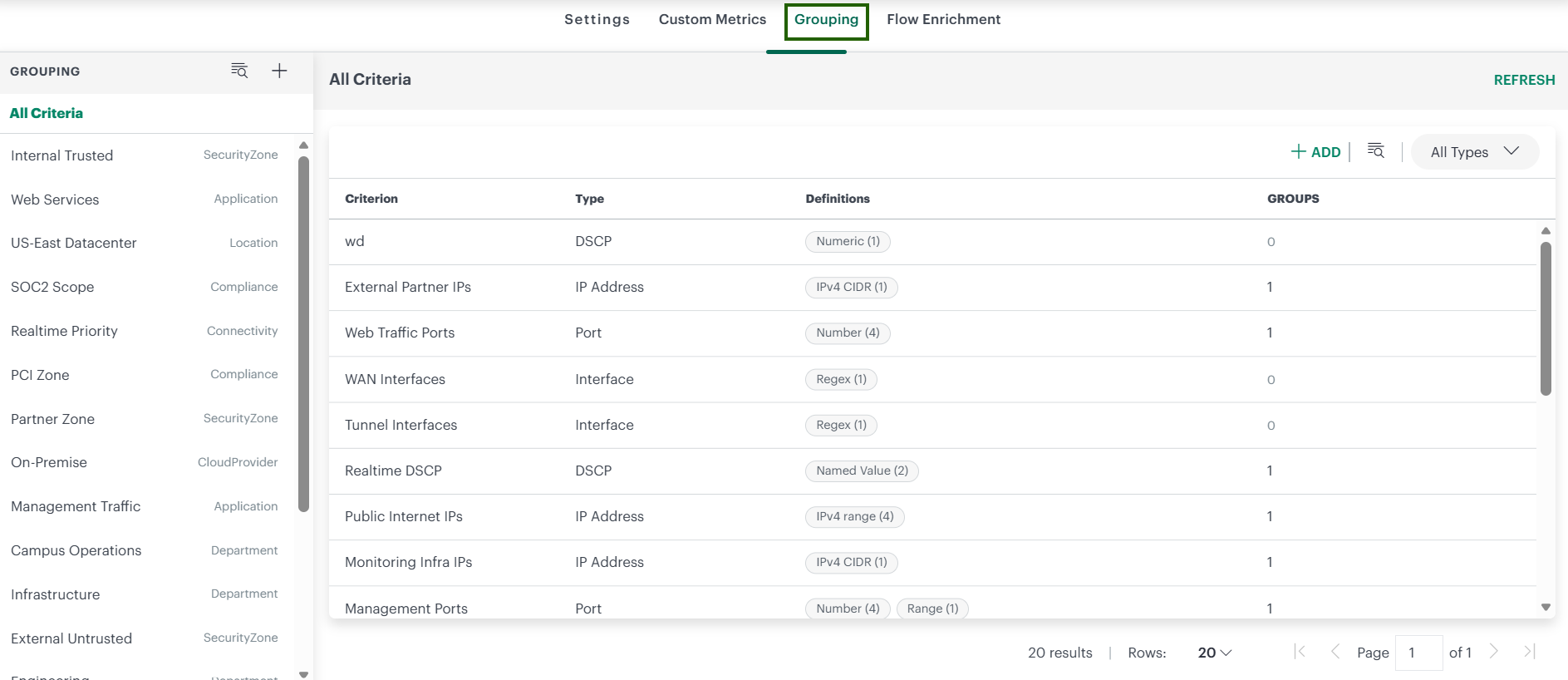
The Grouping page contains the following areas:
- Grouping pane: The left pane lists configured groups. Each group displays its name and group type. Use the search icon to find a group by name, or select + to create a group. If no groups are configured, the pane displays No groups found.
- Criteria view: Select All Criteria in the Grouping pane to display all configured criteria. Select a group to display only the criteria associated with that group.
Manage Criteria
View Criteria
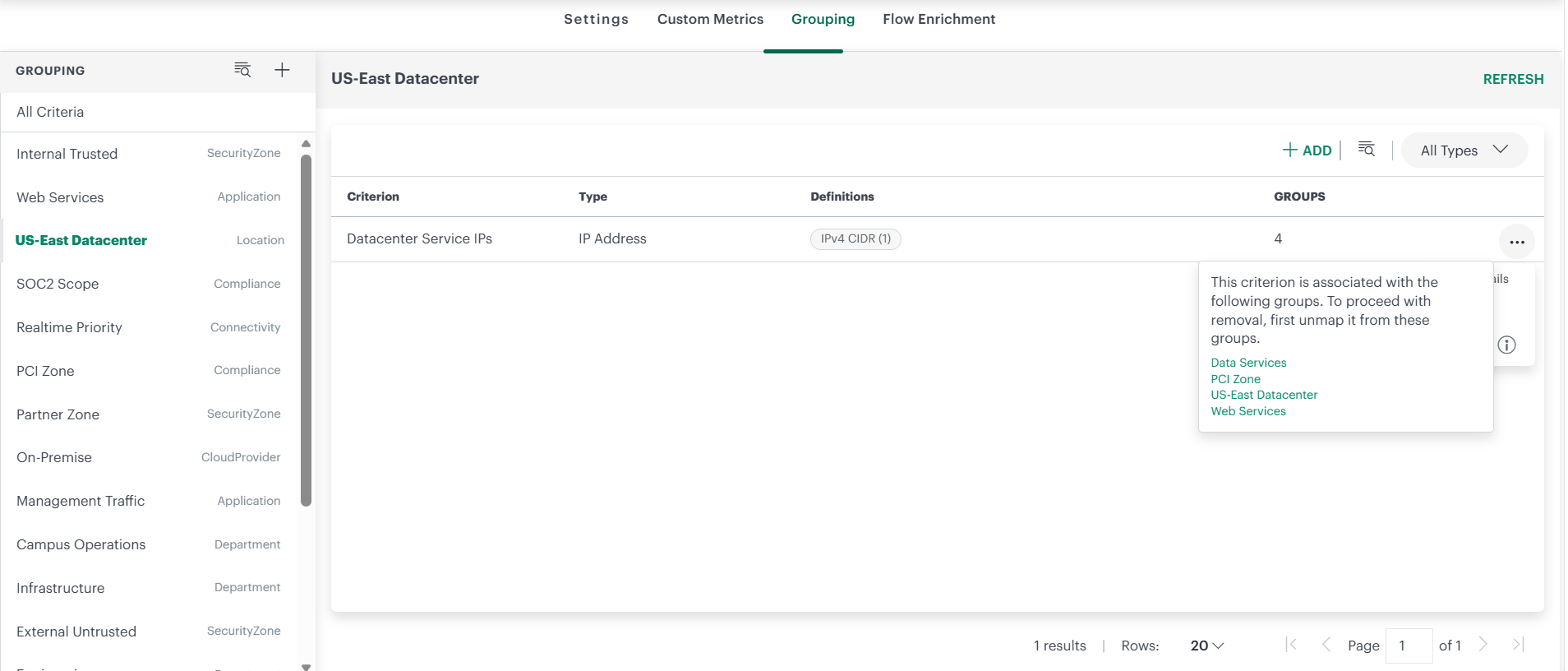
The All Criteria view displays the following information:
| Column | Description |
|---|---|
| Criterion | Name of the criterion. |
| Type | Criterion type: IP Address, Interface, DSCP, Exporter, Port, or ASN. |
| Definitions | Definition types used by the criterion. The number in parentheses indicates the number of definitions of that type. For example, IPv4 CIDR (2) indicates two IPv4 CIDR definitions. |
| Groups | Number of groups that use the criterion. Hover over the number to view the group names. |
From this view you can:
- Select ADD to create a criterion.
- Search for a criterion by name.
- Use All Types to display criteria for selected types.
- Select REFRESH to reload the list.
- Display 20, 50, or 100 rows per page and use the pagination controls to navigate between pages.
If no criteria are configured, the view displays No criteria found.
Add a Criterion
- From the All Criteria view, select ADD. The Add Criteria window opens.
- From Type, select the criterion type.
- In Criterion, enter a name for the criterion.
- Under DEFINITIONS, select + DEFINITION, and then select a definition type. For ASN, a definition row is added directly because ASN has only one definition type.
- Enter the value for the definition.
- Repeat steps 4 and 5 to add additional definitions. The criterion matches when any one of its definitions matches.
- Select ADD CRITERIA.
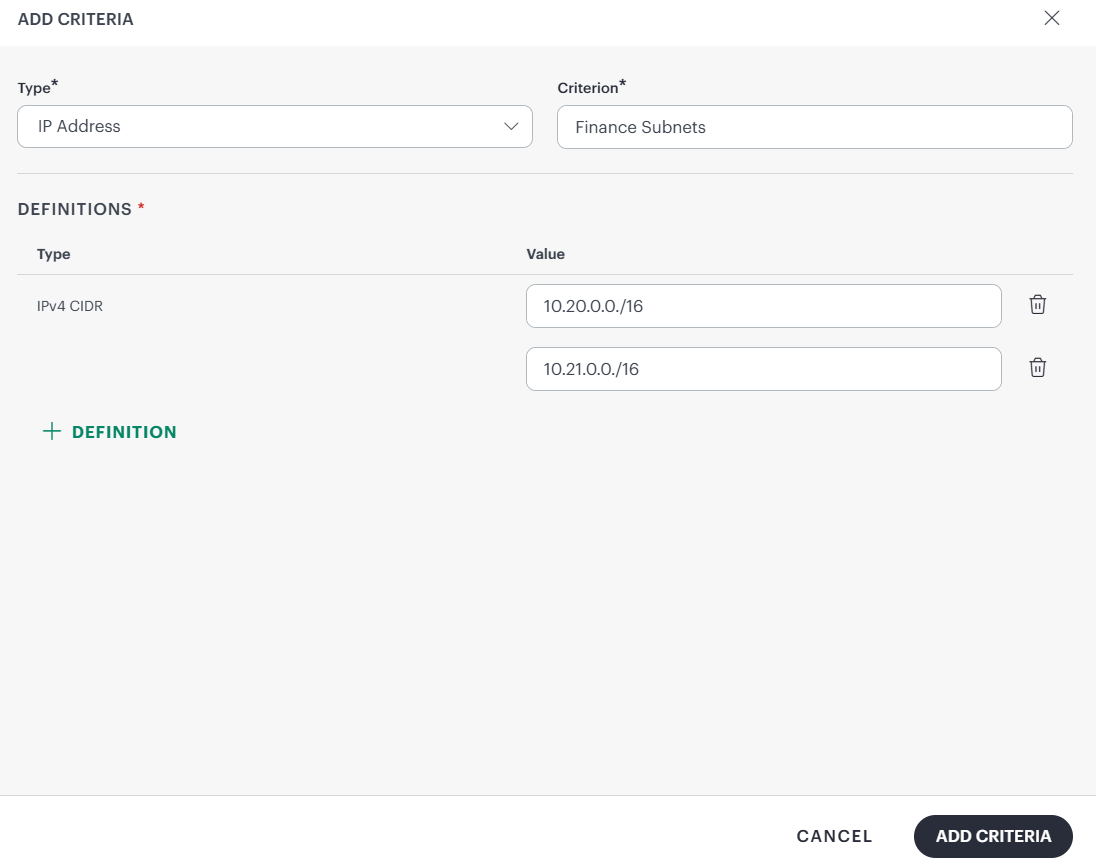
The DEFINITIONS section becomes available after you select a Type and enter a Criterion name. ADD CRITERIA becomes available after all definitions contain valid values.
Definition Types and Valid Values
| Criterion type | Definition type | What to enter | Example | Validation message |
|---|---|---|---|---|
| IP Address | IPv4 address | A single IPv4 address. | 192.168.1.10 | Invalid IPv4 address (e.g. 192.168.1.1) |
| IP Address | IPv4 CIDR | A network in CIDR notation, prefix 0 to 32. | 10.20.0.0/16 | Invalid CIDR (e.g. 10.0.0.0/24, prefix 0-32) |
| IP Address | IPv4 range | A Start IP and an End IP. The start must not be greater than the end. | 10.1.1.1 to 10.1.1.50 | Start IP must be ≤ end IP |
| IP Address | IPv4 Regex | A regular expression matched against the IP address text. | ^10\.20\. | Invalid regular expression |
| Interface | Name | The exact interface name. | GigabitEthernet0/1 | — |
| Interface | Regex | A regular expression matched against the interface name. | ^Gi0/ | Invalid regular expression |
| DSCP | Named Value | Select a DSCP class from the list: DF, BE, EF, VA, LE, CS0 to CS7, or AF11 to AF43. | EF (46) | — |
| DSCP | Numeric | A DSCP value from 0 to 63. | 46 | DSCP numeric value must be 0-63 |
| Exporter | IP address | The IP address of the exporter. | 10.0.0.1 | — |
| Exporter | Hostname | The hostname of the exporter. | core-rtr-01 | Invalid hostname |
| Port | Number | A single port from 0 to 65535. | 443 | Port must be 0-65535 |
| Port | Range | A Start port and an End port. The start must not be greater than the end. | 8080 to 8090 | Start port must be ≤ end port |
| ASN | AS Number | An AS number from 1 to 4294967295. | 16509 | ASN must be 1-4294967295 |
Note
- Interface Name must match the interface name exactly, including uppercase and lowercase letters.
- A Regex definition matches if the pattern is found anywhere in the text, and it is case-sensitive. For example,
Gi0/also matchesTenGi0/1. Use^and$to match the whole text, for example^Gi0/1$.
View or Edit a Criterion
- In the All Criteria view, hover over the criterion row and select the ⋯ (more) icon.
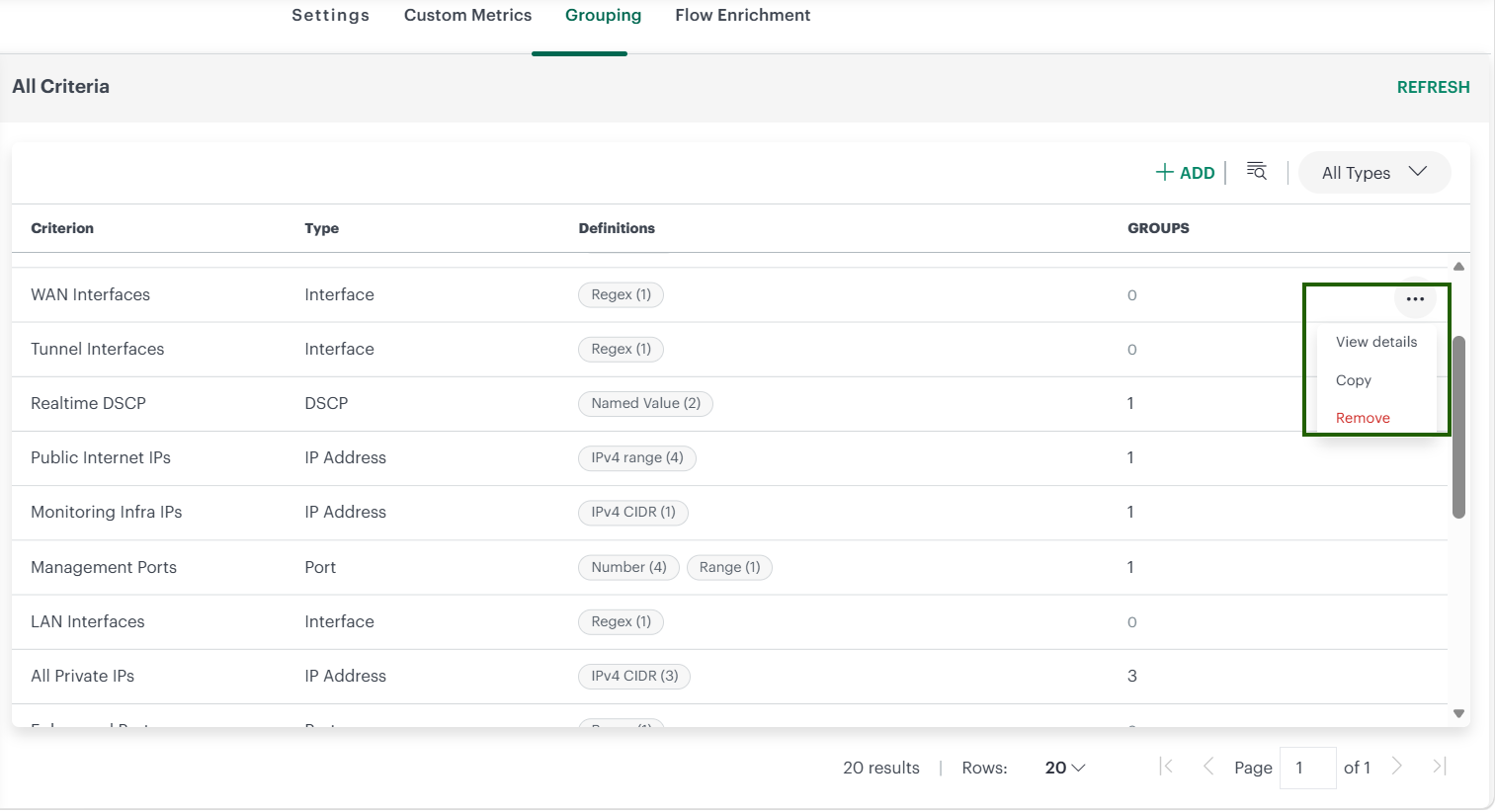
- Select View details. The Edit - window opens.
- Modify the Criterion name or definitions as required. You cannot change the Type.
- Select SAVE.
Note
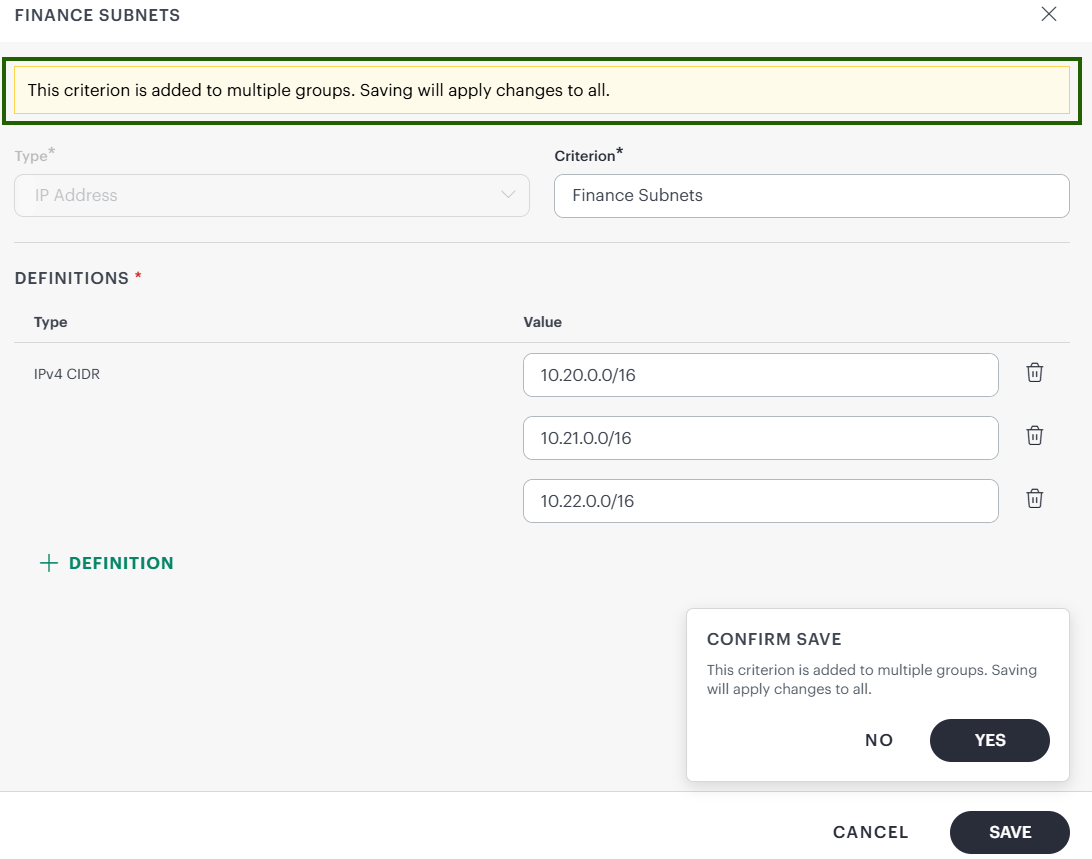
If the criterion is used by multiple groups, OpsRamp displays:
- This criterion is added to multiple groups. Saving will apply changes to all.
- Select YES to apply the changes to all groups that use the criterion, or select NO to return without saving.
Copy a Criterion
Use Copy to create a criterion using the values of an existing criterion as the starting point.
- Hover over the criterion row, select ⋯, and then select Copy. The Copy - window opens with the existing values.
- Enter a new name in Criterion, and modify the type or definitions as required.
- Select COPY.
Remove a Criterion
- Hover over the criterion row, select ⋯, and then select Remove.
- Confirm the removal.
Note
You cannot remove a criterion that is used by a group. For these criteria, Remove is unavailable and the following tooltip identifies the groups using the criterion:
This criterion is associated with the following groups. To proceed with removal, first unmap it from these groups.
Remove the criterion from the associated groups before removing it. See View or Edit a Group.
Manage Groups
Group Types
Every group belongs to one of the following group types. You cannot change the group type after creating the group.
| Group type | Typical use |
|---|---|
| Department | Business units, such as Finance, HR, or Engineering. |
| Location | Physical sites, such as London HQ or Pune Branch. |
| Application | Business applications or services, such as CRM or Voice. |
| Security Zone | Network zones, such as DMZ, Internal, or Guest. |
| Connectivity | Link types, such as WAN, LAN, MPLS, or Internet. |
| Environment | Deployment environments, such as Production, Staging, or Development. |
| Cloud Provider | Public cloud providers. |
| Site Type | Types of sites, such as Data Center, Branch, or Remote Office. |
| Compliance Zone | Regulated areas of the network, such as PCI or HIPAA. |
Create a Group
- From the Grouping pane, select +. The Add Group window opens.
- Under GROUP DETAILS:
- In Name, enter a name for the group.
- From Type, select a group type.
- Under CRITERIA, select + CRITERIA TYPE. This option becomes available after you enter a Name and select a Type. The Add Criteria window opens.
- From Type, select a criterion type. Criterion types that are already used by the group are not displayed because a group can contain only one criterion of each type.
- In Criterion, do one of the following:
Use an existing criterion: Select a criterion from the list. Its definitions are displayed for reference and cannot be modified from this window. To modify the definitions, see View or Edit a Criterion.
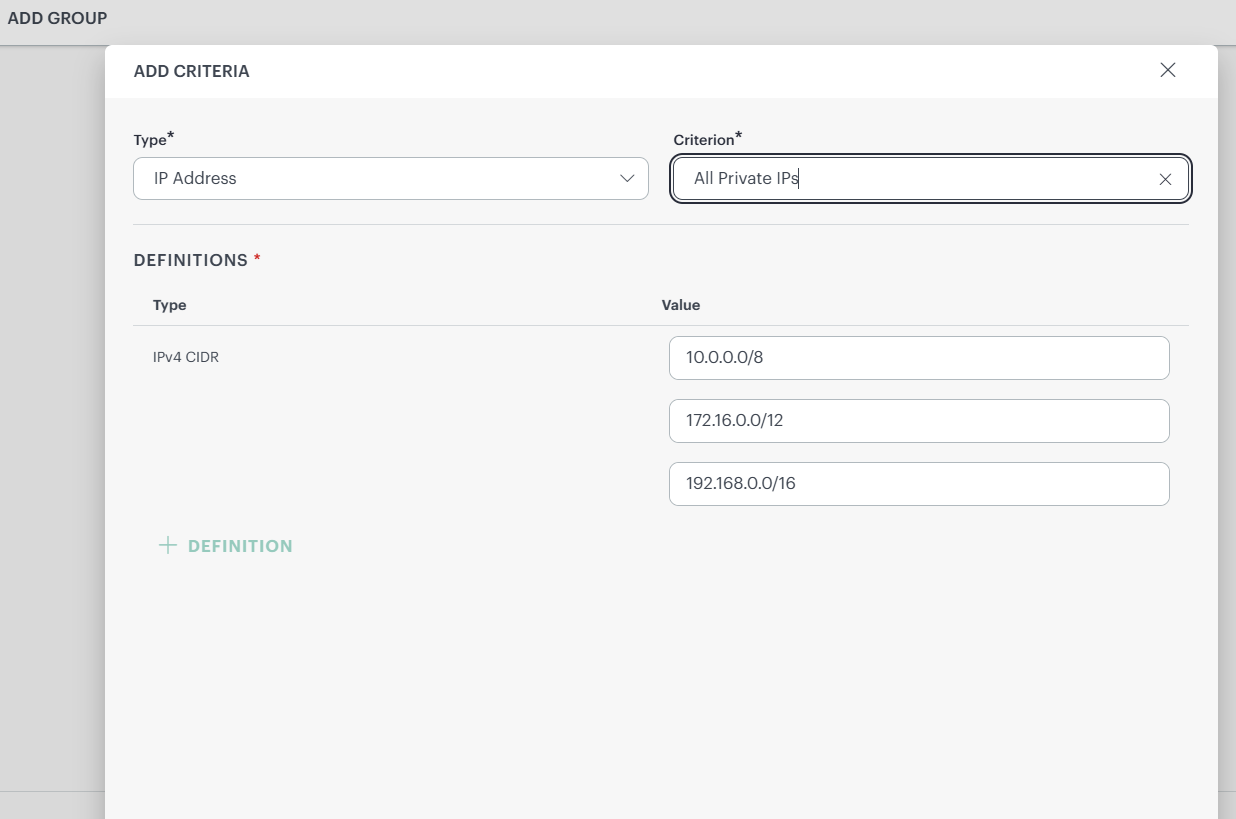
Create a criterion: Select + ADD from the list, enter a name, and select ADD CRITERIA. Add definitions under DEFINITIONS as described in Add a Criterion. If no criteria exist for the selected type, enter the name directly in Criterion.
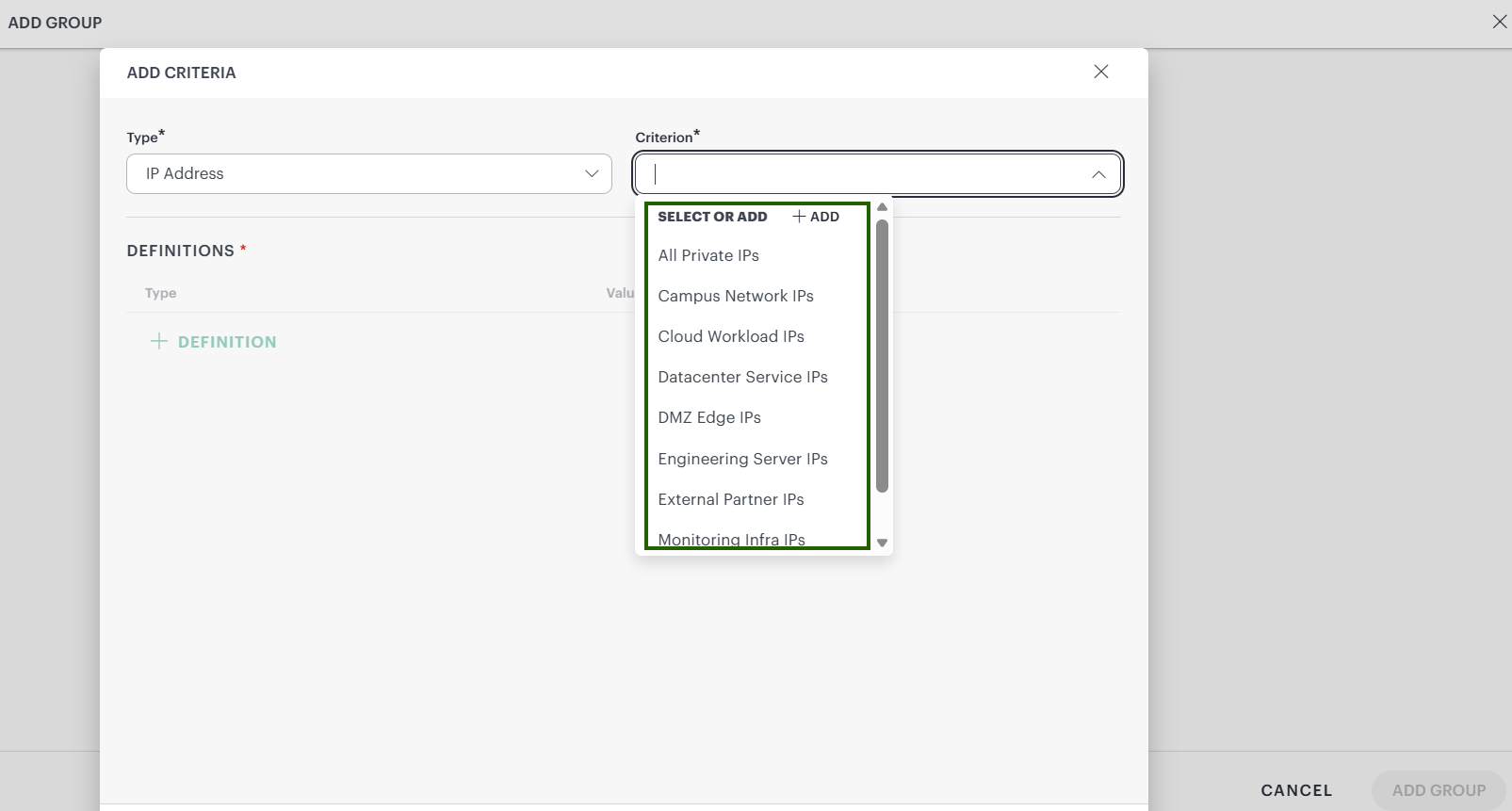
- Select ADD CRITERIA. The criterion is added to the group as a card displaying its name, type, and definitions.
- Repeat steps 3 through 6 to add criteria of other types. Traffic must match all criteria within a group.
- Select ADD GROUP.
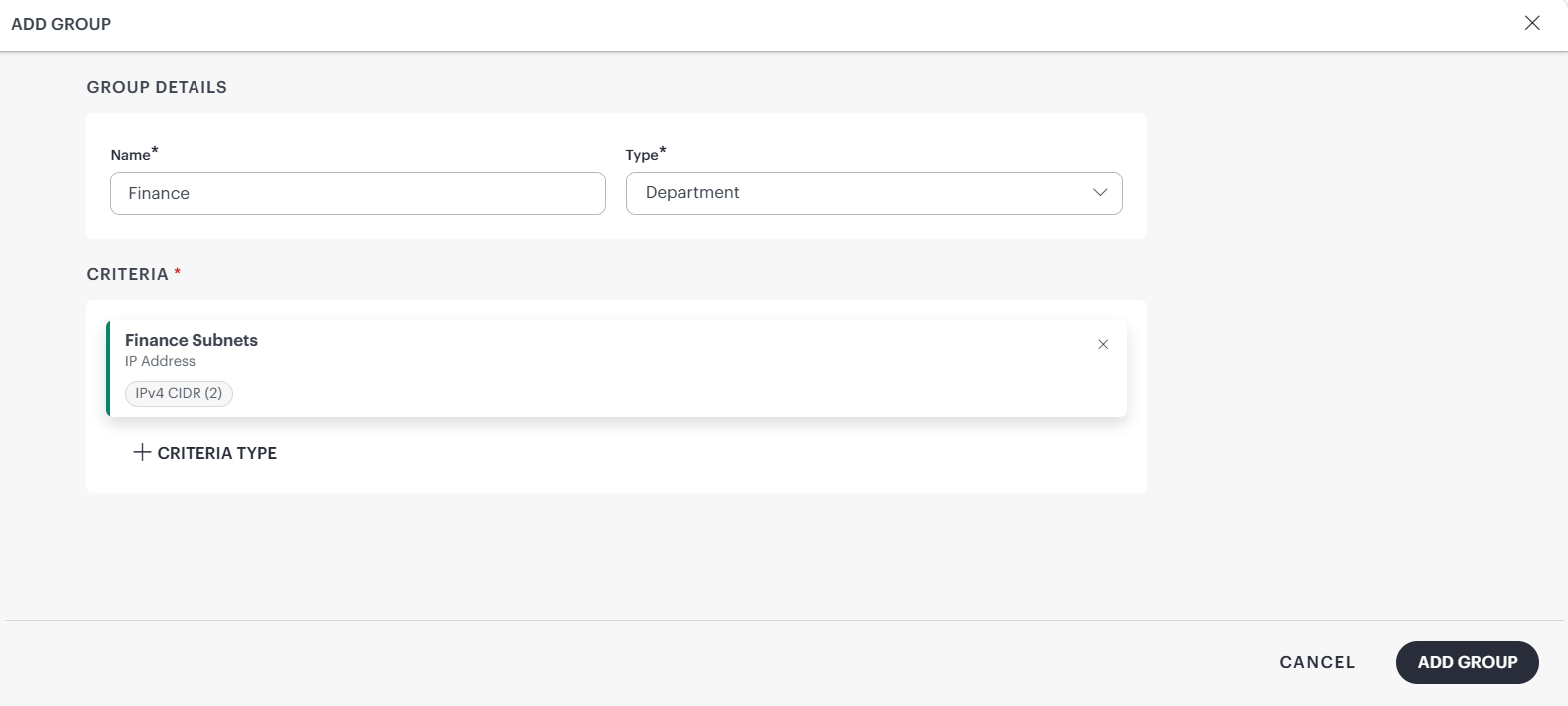
The new group appears in the Grouping pane.
Note
A criterion created from the Add Group window is immediately saved to All Criteria, even if you subsequently cancel the group.To remove a criterion from the group before you save it, select the X icon on its card.
View or Edit a Group
- In the Grouping pane, hover over the group and select the ⋯ (more) icon.
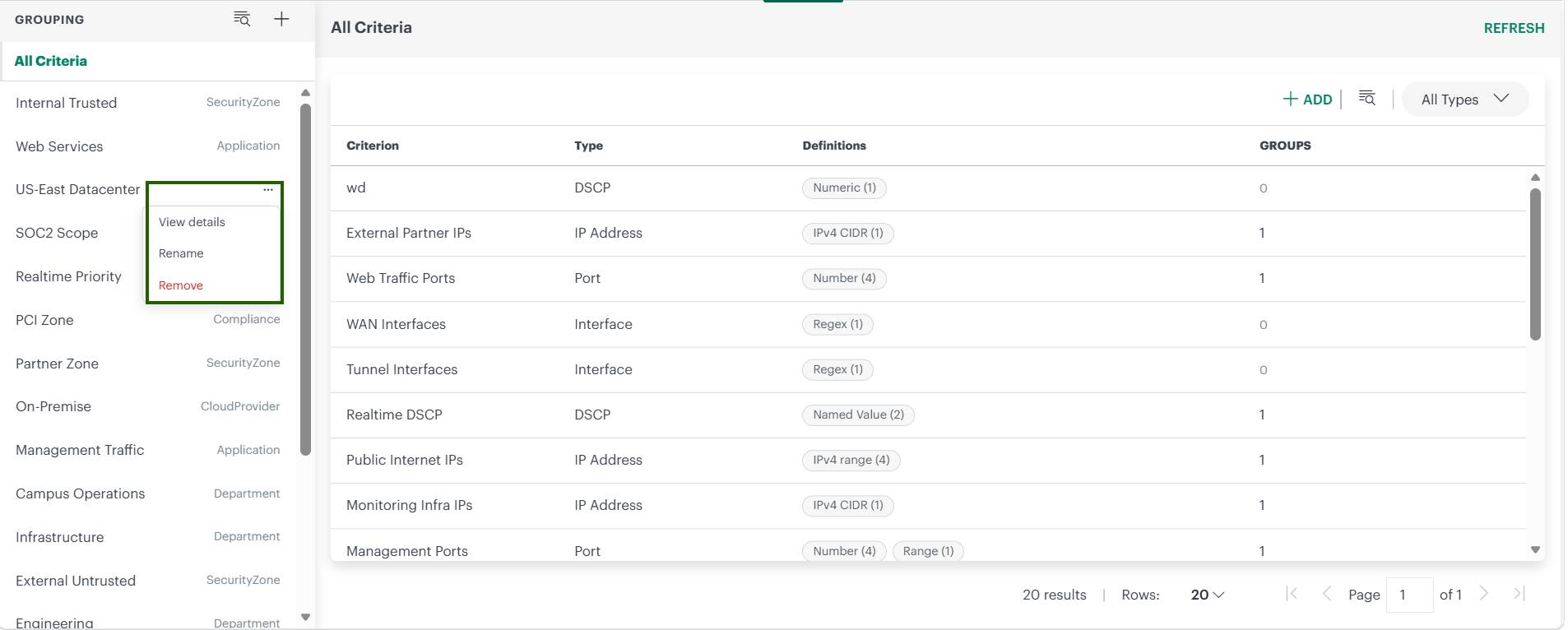
- Select View details. The group opens.
- Make the required changes:
- Change the Name. The Type cannot be changed.
- Select + CRITERIA TYPE to add a criterion of a type that the group does not use yet.
- On a criterion card, select ⋯ > Remove to take that criterion out of the group. The criterion itself stays in All Criteria.
- Select SAVE.
Rename a Group
- In the Grouping pane, hover over the group, select ⋯, and then select Rename.
- In Group Name, enter the new name.
- Select SAVE.
Remove a Group
- In the Grouping pane, hover over the group, select ⋯, and then select Remove.
- In the confirmation message This group will be removed permanently., select REMOVE.
Removing a group does not remove its criteria. The criteria remain in All Criteria and can be used in other groups.
View Grouped Traffic
After traffic is labeled, group types become available as Group By fields on the NPM dashboard.
Group fields are dynamic and appear in field selection lists only when corresponding labeled traffic is available.
- A group field is displayed only after traffic associated with that group type is received. For example:
- Source Department appears after traffic is received from a source that belongs to a Department group.
- Destination Department appears separately after traffic is received for a destination that belongs to a Department group.
- A group type does not appear if no labeled traffic is available for it, such as when no group of that type exists or no traffic matches the configured groups.
- If labeled traffic for a group type is no longer received, the corresponding fields may be removed from the selection list.
This behavior applies wherever NetFlow fields can be selected, including:
- Group By and Query on the NPM dashboard
- Custom Metrics
- Dashboard 2.0 NetFlows tile
- Netflow Insights report
Note
Group information is retained only in raw flow records and is not retained in the 1-hour and 1-day aggregations. Therefore, you can use group fields in Group By and Query only when the selected time range is 8 hours or less. For longer time ranges, the dashboard displays:
The selected time range is too large for the field(s) […]: these detailed fields are only retained for queries spanning 8 hours or less.
Reduce the time range to 8 hours or less. See Data Aggregation and Retention.
- Navigate to Infrastructure > Net Flows.
- Select a time range of 8 hours or less.
- In Group By, select a group field. Each group type has two fields:
Source <Group Type>, such as Source Department, identifies the group associated with the source of the traffic.
Destination <Group Type>, such as Destination Department, identifies the group associated with the destination of the traffic.
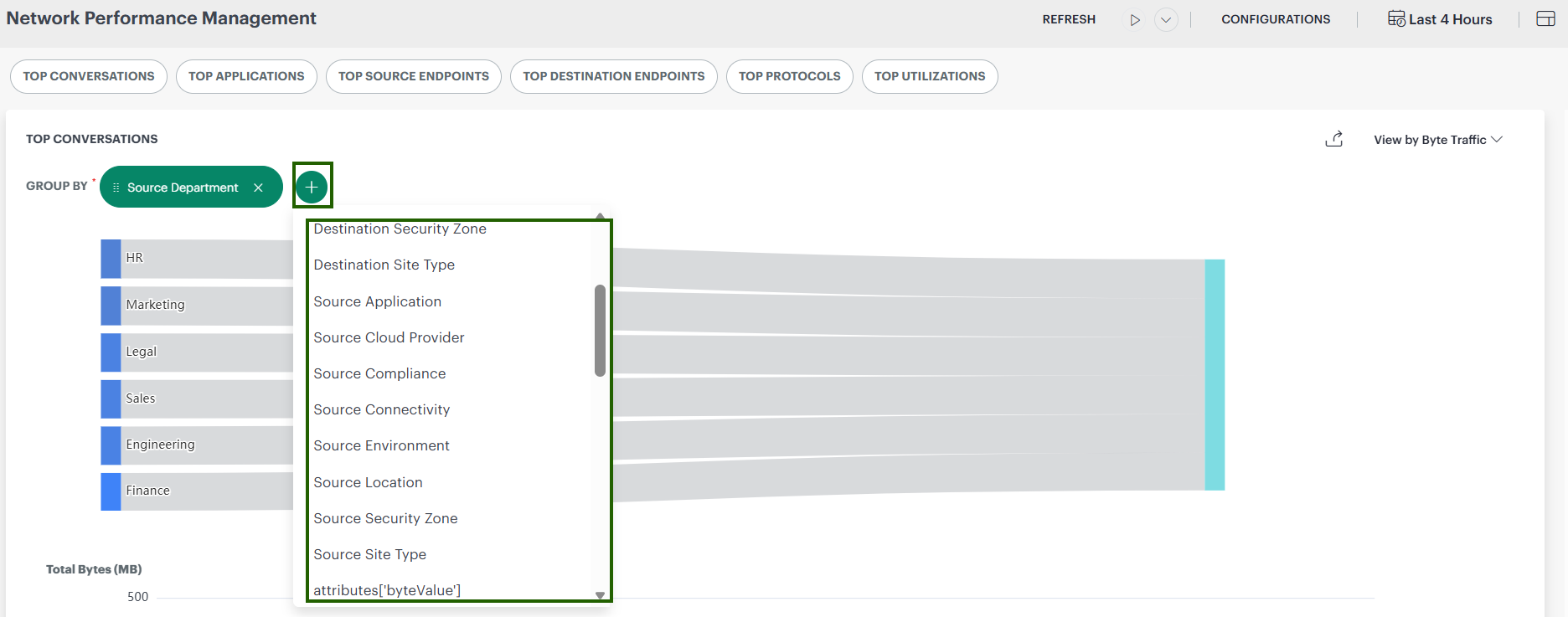
To view the amount of traffic sent by each group, select only a Source field.
To view traffic between groups, select both a Source and Destination field, such as Source Department and Destination Department.
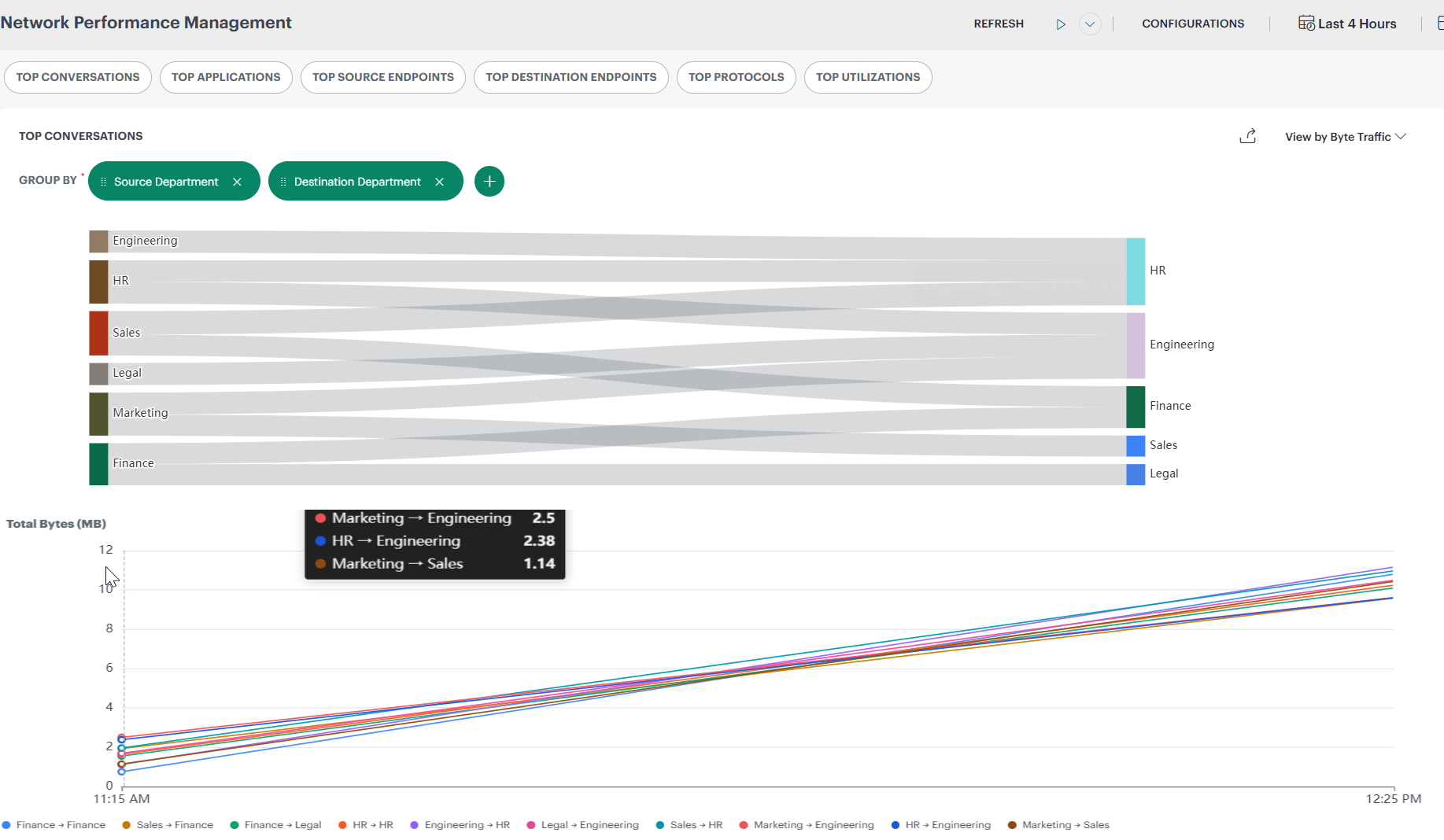
The chart and corresponding table update to display traffic based on the selected group fields.
Note
- The Compliance Zone group type appears as Source Compliance and Destination Compliance.
- Group fields can also be used in Custom Metrics, alerts, the Dashboard 2.0 NetFlows tile, and the Netflow Insights report. See Where Else You Can Use Group Fields.
- Traffic belonging to multiple groups of the same type is counted under each matching group. Therefore, the sum of traffic across all groups can exceed the total traffic.
- When grouping by a group field, traffic that does not belong to a group of that type is excluded from the results.
Filter Traffic by Group
You can use group fields in the Query on the NPM dashboard to display traffic associated with selected groups.
- Navigate to Infrastructure > Net Flows.
- Select a time range of 8 hours or less.
- In Query, enter a condition that uses a group field. Enter the field name as it appears in Group By and specify the group name in double quotation marks.
- Apply the query. The dashboard displays only the matching traffic.
Group fields support the following operators:
=, !=, IN, NOT IN, CONTAINS, NOT CONTAINS, STARTS WITH, NOT STARTS WITH, ENDS WITH, and NOT ENDS WITH.
Combine multiple conditions using AND and OR.
Example Queries
| Query | Result |
|---|---|
Source Department = "Finance" | Traffic sent from the Finance group. |
Destination Location IN ("London", "Pune") | Traffic sent to the London or Pune groups. |
Source Security Zone = "Guest" AND Destination Security Zone = "Cardholder Data" | Traffic from the Guest zone to the Cardholder Data zone. |
Source Department = "Finance" AND protocol = "TCP" | TCP traffic sent from the Finance group. |
Note
If traffic belongs to more than one group of the same type, a filter for any one of those groups includes it. For example, if the same traffic belongs to both Finance and Head Office (both Department groups), the querySource Department = "Finance" includes that traffic.Where Else You Can Use Group Fields
Group fields such as Source Department and Destination Location can be used wherever NetFlow data is filtered or grouped.
| Feature | How to use group fields | More information |
|---|---|---|
| Custom Metrics | Select group fields in Filter Query to measure only the traffic of selected groups, and in Group By to get one value per group. | Netflows Configurations |
| Alerts | Alerts that are based on a Custom Metric use the group fields of that metric, so you can be alerted about the traffic of a specific group, for example when Source Department = "Finance" exceeds a threshold. | Netflows Configurations |
| NetFlows tile (Dashboard 2.0) | In Tile Options, select group fields in +QUERY to filter the tile, and in GROUP BY to show traffic by group. | NetFlows Tile |
| Netflow Insights report | Select group fields in the report filters and grouping options to report traffic by group. | Netflow Insights |
Use Cases
The following examples identify the criteria and groups to create and the Group By fields to select on the NPM dashboard. Replace the example addresses and values with values appropriate for your environment.
Select a time range of 8 hours or less when viewing the results.
Measure Bandwidth by Department
Goal: Determine how much traffic each department generates.
| Criterion | Type | Definitions |
|---|---|---|
| Engineering subnets | IP Address | IPv4 CIDR 10.10.0.0/16, IPv4 CIDR 10.11.0.0/16 |
| Finance subnets | IP Address | IPv4 CIDR 10.20.0.0/16 |
| Sales subnets | IP Address | IPv4 range 10.30.0.1 to 10.30.3.254 |
| Group | Group Type | Criteria |
|---|---|---|
| Engineering | Department | Engineering subnets |
| Finance | Department | Finance subnets |
| Sales | Department | Sales subnets |
View the result: Group By Source Department to rank departments by the traffic they send. Add Destination Department to see traffic between departments.
Understand Traffic Between Sites
Goal: Identify which offices exchange the most traffic, for example, before resizing WAN links.
| Criterion | Type | Definitions |
|---|---|---|
| London addresses | IP Address | IPv4 CIDR 10.100.0.0/16 |
| Pune addresses | IP Address | IPv4 CIDR 10.200.0.0/16 |
| WAN interfaces | Interface | Regex ^Gi0/ |
| Group | Group Type | Criteria |
|---|---|---|
| London | Location | London addresses |
| Pune | Location | Pune addresses |
| WAN | Connectivity | WAN interfaces |
View the result: Group by Source Location and Destination Location to view traffic between offices. Group by Source Connectivity to view the amount of traffic entering through WAN interfaces.
Watch Traffic Between Application Tiers
Goal: Verify that web servers reach databases only through the application tier.
| Criterion | Type | Definitions |
|---|---|---|
| Web servers | IP Address | IPv4 CIDR 10.50.1.0/24 |
| App servers | IP Address | IPv4 CIDR 10.50.2.0/24 |
| DB servers | IP Address | IPv4 CIDR 10.50.3.0/24 |
| Group | Group Type | Criteria |
|---|---|---|
| Web Tier | Application | Web servers |
| App Tier | Application | App servers |
| DB Tier | Application | DB servers |
View the result: Group by Source Application and Destination Application. Traffic from Web Tier to DB Tier identifies direct access that bypasses the application tier.
Monitor Traffic Between Security Zones or Environments
Goal: Verify that zones that must remain separate do not exchange traffic, such as a cardholder-data zone and guest network, or staging and production environments.
| Criterion | Type | Definitions |
|---|---|---|
| Cardholder data network | IP Address | IPv4 CIDR 10.60.0.0/24 |
| Guest network | IP Address | IPv4 CIDR 192.168.100.0/24 |
| Production subnets | IP Address | IPv4 CIDR 10.70.0.0/16 |
| Staging subnets | IP Address | IPv4 CIDR 10.71.0.0/16 |
| Group | Group Type | Criteria |
|---|---|---|
| Cardholder Data | Security Zone | Cardholder data network |
| Guest | Security Zone | Guest network |
| Production | Environment | Production subnets |
| Staging | Environment | Staging subnets |
View the result: Group by Source Security Zone and Destination Security Zone, or by Source Environment and Destination Environment. Traffic between zones that must remain separate appears as a link between those groups.
To display only this traffic, use a query such as:
Source Security Zone = "Guest" AND Destination Security Zone = "Cardholder Data"
Measure Traffic to Cloud Providers and Partners
Goal: Determine how much traffic is exchanged with each cloud provider or partner network identified by its AS number.
| Criterion | Type | Definitions |
|---|---|---|
| Amazon ASN | ASN | AS Number 16509 |
| Microsoft ASN | ASN | AS Number 8075 |
| Google ASN | ASN | AS Number 15169 |
| Group | Group Type | Criteria |
|---|---|---|
| AWS | Cloud Provider | Amazon ASN |
| Azure | Cloud Provider | Microsoft ASN |
| Google Cloud | Cloud Provider | Google ASN |
View the result: Group by Destination Cloud Provider to view traffic sent to each provider. Group by Source Cloud Provider to view traffic received from each provider.
Note
ASN criteria match only when your exporters include source and destination AS numbers in the flow records they send.Check DSCP Markings for Voice Traffic
Goal: Verify that traffic from IP phones contains the expected DSCP marking, such as EF (46).
| Criterion | Type | Definitions |
|---|---|---|
| Voice VLAN | IP Address | IPv4 CIDR 10.80.0.0/22 |
| Group | Group Type | Criteria |
|---|---|---|
| Voice | Application | Voice VLAN |
View the result: Group by Source Application and dscp. Traffic from the Voice group that is not marked EF indicates where the QoS marking is missing.
Compare Traffic by Site Type
Goal: Compare traffic across different site types, for example, before deploying a new service to all stores.
| Criterion | Type | Definitions |
|---|---|---|
| Store networks | IP Address | IPv4 CIDR 10.128.0.0/10 |
| Warehouse networks | IP Address | IPv4 CIDR 10.192.0.0/12 |
| Head office network | IP Address | IPv4 CIDR 10.1.0.0/16 |
| Group | Group Type | Criteria |
|---|---|---|
| Stores | Site Type | Store networks |
| Warehouses | Site Type | Warehouse networks |
| Head Office | Site Type | Head office network |
View the result: Group by Source Site Type to compare the traffic sent by each type of site.
When Changes Take Effect
The NPM Collector applies groups to traffic as the traffic is received. The collector loads the grouping configuration from OpsRamp when it starts and refreshes the configuration once every 24 hours by default.
- After you create, edit, or remove a group or criterion, allow up to 24 hours for the change to appear in NetFlow data.
- Grouping applies only to traffic received after the collector loads the change. Previously received traffic retains the group labels assigned when the traffic was received and is not relabeled.
- If you rename a group, traffic received before the change retains the previous group name. If the selected time range spans the change, both the previous and new group names can appear in the results.
- If you remove a group, traffic received before the change continues to display that group.
Troubleshooting
| What you see | Possible cause | What to do |
|---|---|---|
| Configurations is not displayed on the Net Flows dashboard. | You do not have the NPM_Manage permission. | Ask your administrator for the NPM_Manage permission. |
| A new or edited group does not appear in NetFlow data. | The collector has not refreshed its grouping configuration. | Wait up to 24 hours after making the change. |
| Older traffic does not display a new group. | Grouping is not applied to traffic received before the change. | This behavior is expected. Only new traffic is labeled. |
| A group does not match any traffic. | The group contains multiple criteria and no single flow matches all criteria on the same side. | Review the criteria in the group. To match traffic against any of several values, add those values as definitions within one criterion instead of creating separate criteria. |
| Remove is unavailable for a criterion. | The criterion is used by one or more groups. | Remove the criterion from those groups first. |
| You cannot add another criterion or group. | The client has reached the limit of 20 criteria or 20 groups. | Remove criteria or groups that are no longer required. |
| + CRITERIA TYPE is unavailable in the group window. | Name or Type is empty, or the group already contains a criterion for every type. | Enter a Name and select a Type. |
| The total traffic across all groups is greater than the total traffic. | Some traffic belongs to multiple groups of the same type and is counted under each matching group. | This behavior is expected. To avoid it, ensure that groups of the same type do not overlap. |
| An Interface or Regex criterion matches too much traffic or does not match any traffic. | Regex matches anywhere within the text and is case-sensitive. Interface Name must match exactly. | Anchor the regular expression using ^ and $, and verify the spelling and capitalization of interface names. |
| The selected time range is too large for the field(s) appears when you use a group field. | Group fields are available only for time ranges of 8 hours or less. | Select a time range of 8 hours or less. |
| Group fields are not listed in Group By. | No labeled traffic has been received yet. | Wait for the collector to load the grouping configuration and for new traffic to arrive. See When Changes Take Effect. |
| No traffic is labeled with any group. | The NPM Collector version is earlier than 4.0.0. Earlier versions do not label traffic with groups. | Upgrade the NPM Collector to version 4.0.0 or later. |
Related Topics
- Network Performance Management
- Netflows Configurations
- NPM FAQs
- NetFlows Tile
- Netflow Insights
- NPM Collector