Configure ingestion thresholds to monitor daily and monthly log ingestion volumes. When the configured threshold is exceeded, Log Management generates a notification. The configured threshold is used for monitoring purposes only and does not limit, stop, throttle, or interrupt log ingestion.
Depending on the configured ingestion threshold, warning or critical alerts are generated based on the logs_ingestion_size metric.
- If the limit is greater than or equal to 70, a warning alert is generated.
- If the limit is greater than or equal to 90, a critical alert is generated.
The ingestion limit notification is shown on the Logs home page once for every client per login session if the alerts are in an open state from the start of the month.
To set an upper limit:
- Go to Infrastructure > Logs.
- On the left side of this page, click the hamburger menu icon.
- From the MY LOGS VIEWS slide-out, select Logs Configuration. The configuration page is displayed.
- From the configuration page, select the Settings tab. The Settings details page is displayed.
- Select the INGESTION THRESHOLD tab.
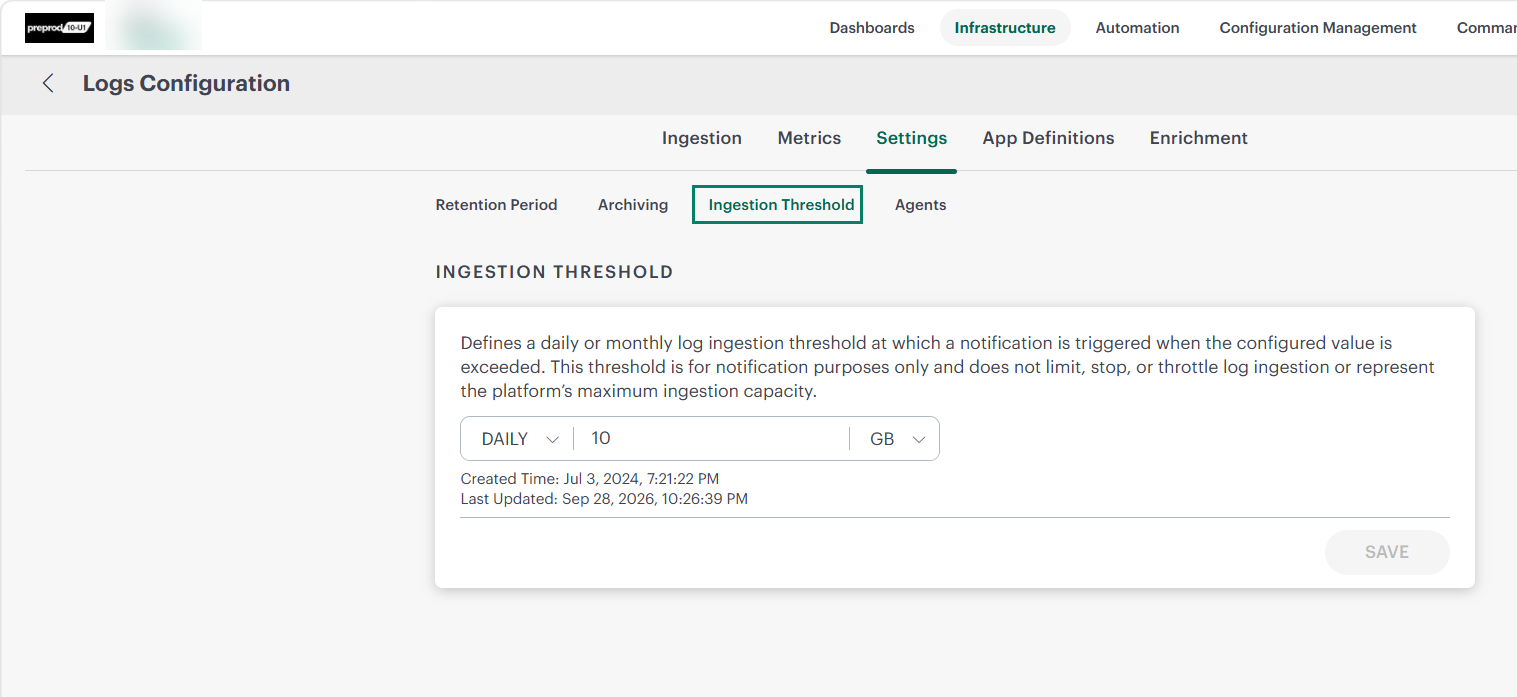
- Under Daily Limit, select the following options:
- Daily/Monthly - Select this option to apply a log ingestion limit. By default, the Daily option is selected.
- Ingestion Threshold limit - Enter the ingestion volume at which a notification is generated when the configured value is exceeded.
- Unit - Select the threshold unit. Supported values are:
- MB
- GB
- TB
- Improved the hard-coded maximum threshold limit.
- For GBs = 1024 (Daily/Monthly)
- For MBs = 1024 (Daily/Monthly)
- For TB’s = 10 (Daily/Monthly)
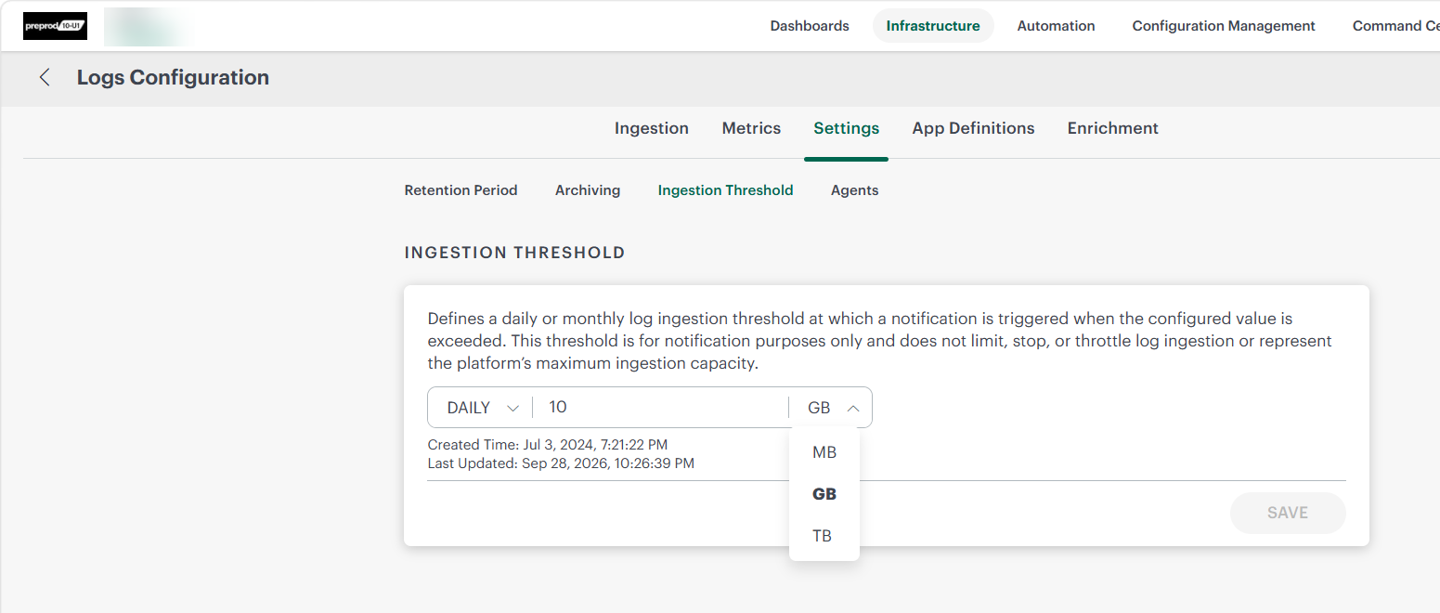
- Once you enter the values, click Save. The data is now saved successfully.
Note
- Users with the “All” AuthZ tag can perform add, update, and delete actions with full administrative control.
- Exceeding a configured ingestion threshold generates a notification but does not stop, restrict, or throttle log ingestion. Log collection and processing continue normally regardless of the configured threshold value.