Introduction
Log Archiving allows you to forward logs from OpsRamp to your own cloud storage system for long‑term retention. This helps you meet compliance requirements, support audits, and investigate historical application or infrastructure issues without keeping logs in hot storage.Currently, OpsRamp supports log archiving only to Amazon S3. The log archival capability now includes the following enhancements:
- Create and manage multiple archival configurations within a tenant.
- Configure up to 10 archival configurations.
- Enable or disable individual archival configurations independently without affecting other configurations.
- Use filter-based archival policies to archive different categories of logs to separate storage buckets.
- Configure overlapping filters across multiple archival configurations when required.
Accessing Log Archiving Settings
To configure log archiving:
- Navigate to Infrastructure > Logs.
- Click the menu icon and select Logs Configuration.
- Open the Settings tab.
- Select the Archiving sub‑tab.
The Archiving page displays the following information for each archival policy:
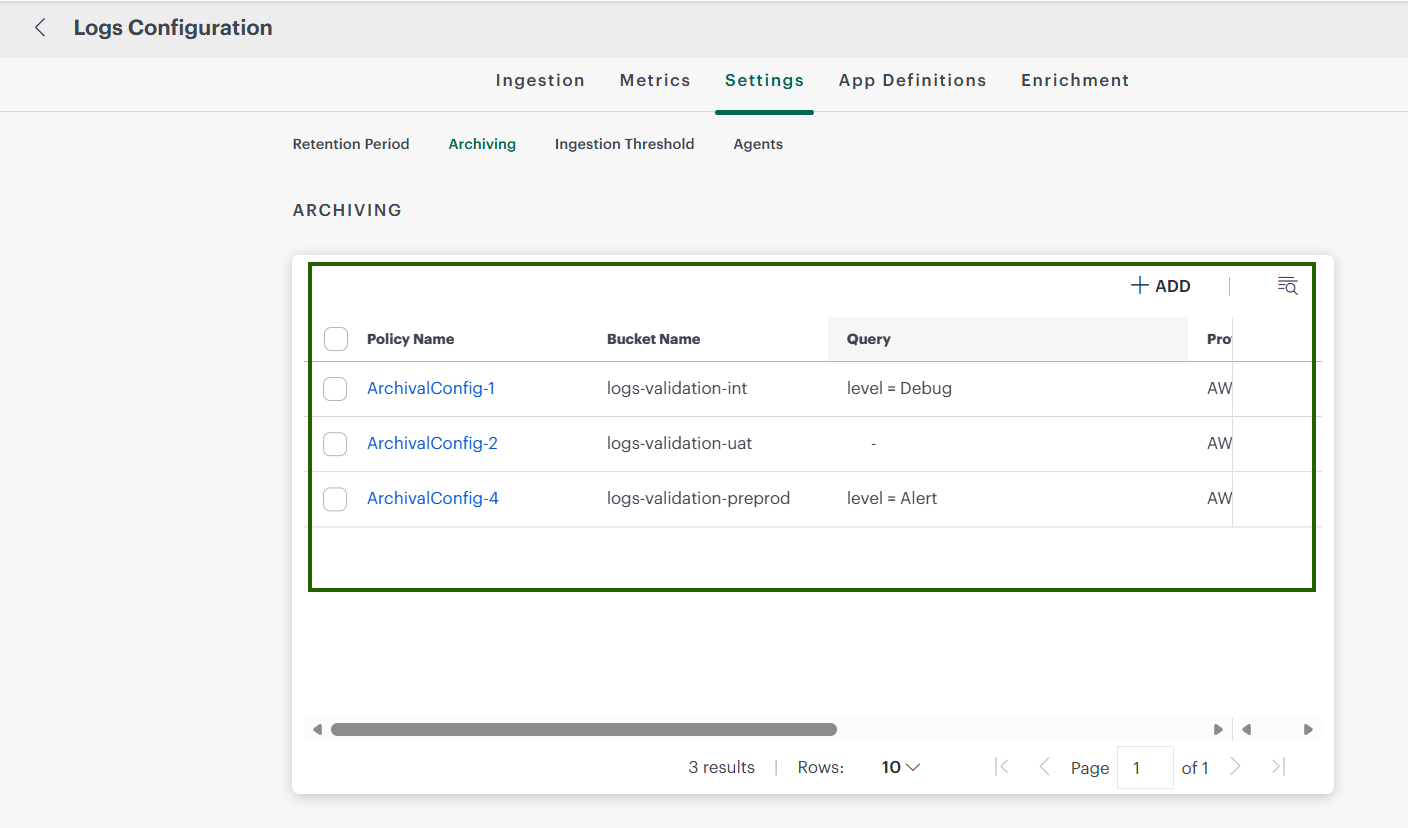
| Field | Description |
|---|---|
| Policy Name | Name of the archival configuration. |
| Bucket Name | Cloud storage bucket where logs are archived. |
| Filter Query | Query used to determine which logs are archived. |
| Provider | Cloud storage provider associated with the archival configuration. |
| Status | Indicates whether the archival configuration is enabled or disabled. |
| Storage Type | Type of storage configured for log archival. |
Configuring Log Archiving
On the Archiving page, provide the following information:
| Field | Description |
|---|---|
| Cloud Storage | Select the cloud storage provider. Currently, only AWS is supported. |
| Bucket Name | Enter the name of the Amazon S3 bucket where archived logs will be stored. The bucket name must be in lowercase. |
| Region | Select the AWS region where the S3 bucket is hosted (for example, us-east-1 or ap-southeast-3). |
| External ID | (Optional) An external ID used during AWS IAM role creation. This value must be entered in the AWS console when configuring the role. |
| Role ARN | Enter the ARN of the IAM role that allows OpsRamp to write logs to the S3 bucket. |
| Filter | (Optional) Define conditions to archive only logs that match the specified criteria. If no filter is configured, all client logs are archived. |
After entering the required details, click Save.
Filtering Logs for Archiving
OpsRamp allows you to optionally filter which logs are archived.
Filter Option
- Click + Filter to add a filter condition.
- Only logs that match the specified filter criteria are forwarded to the S3 bucket.
- The filter is optional:
- If no filter is configured, all logs associated with the client are archived.
- Filters apply only to AWS S3 archiving, which is the only supported storage option at this time.
This option helps you control storage costs and archive only the logs that are relevant for compliance or long‑term analysis.
Note
Users with the “All” AuthZ tag can perform add, update, and delete actions with full administrative control.Overlapping Filter Queries
When creating or updating an archival configuration, if the specified filter query matches a filter already used in another archival configuration, OpsRamp displays a warning message as shown below:
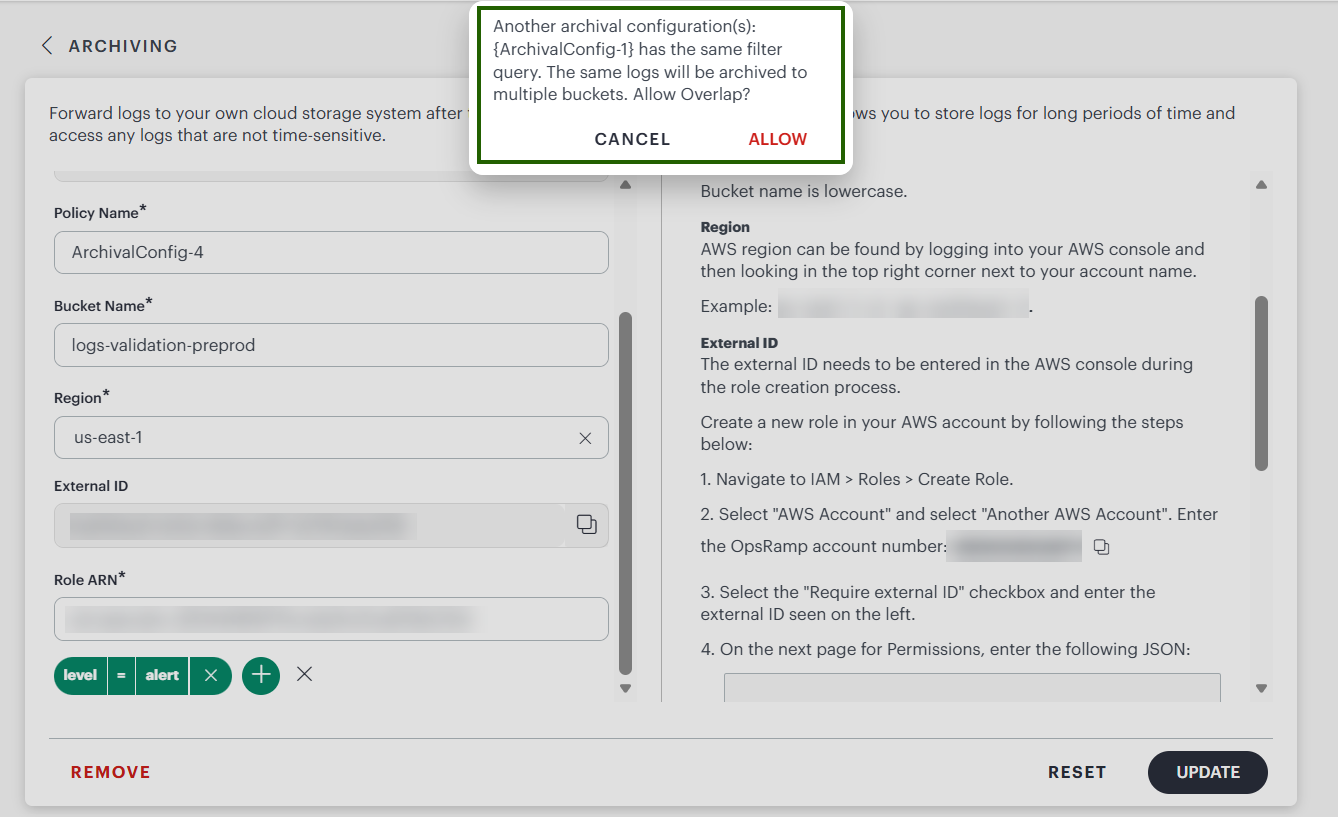
You can:
- Allow to continue creating the configuration and archive the same logs to multiple buckets.
- Cancel to modify the filter query and avoid duplicate archival.