Use this guide to enable and start using OpsPilot in OpsRamp. You will learn how to configure required LLM credentials, access OpsPilot from different areas of the platform, and interact with it effectively using natural language queries.
Note
OpsPilot is supported at Partner level also.Before You Begin
OpsPilot requires LLM credentials to be configured before it can be used. Before configuration, OpsPilot is visible in the interface but remains disabled and displays the following message:
OpsPilot (Disabled – Configure LLM credentials)
To enable OpsPilot, complete the setup in the Bring Your Own LLM/Key (BYO-LLM) section.
Access OpsPilot
You can access OpsPilot from multiple locations within the OpsRamp portal.
From the Home Page
- The OpsPilot icon appears in the top-right corner of the portal.
- If LLM credentials are not configured, clicking the icon shows a disabled message.
- After setup, clicking the icon opens the OpsPilot panel.
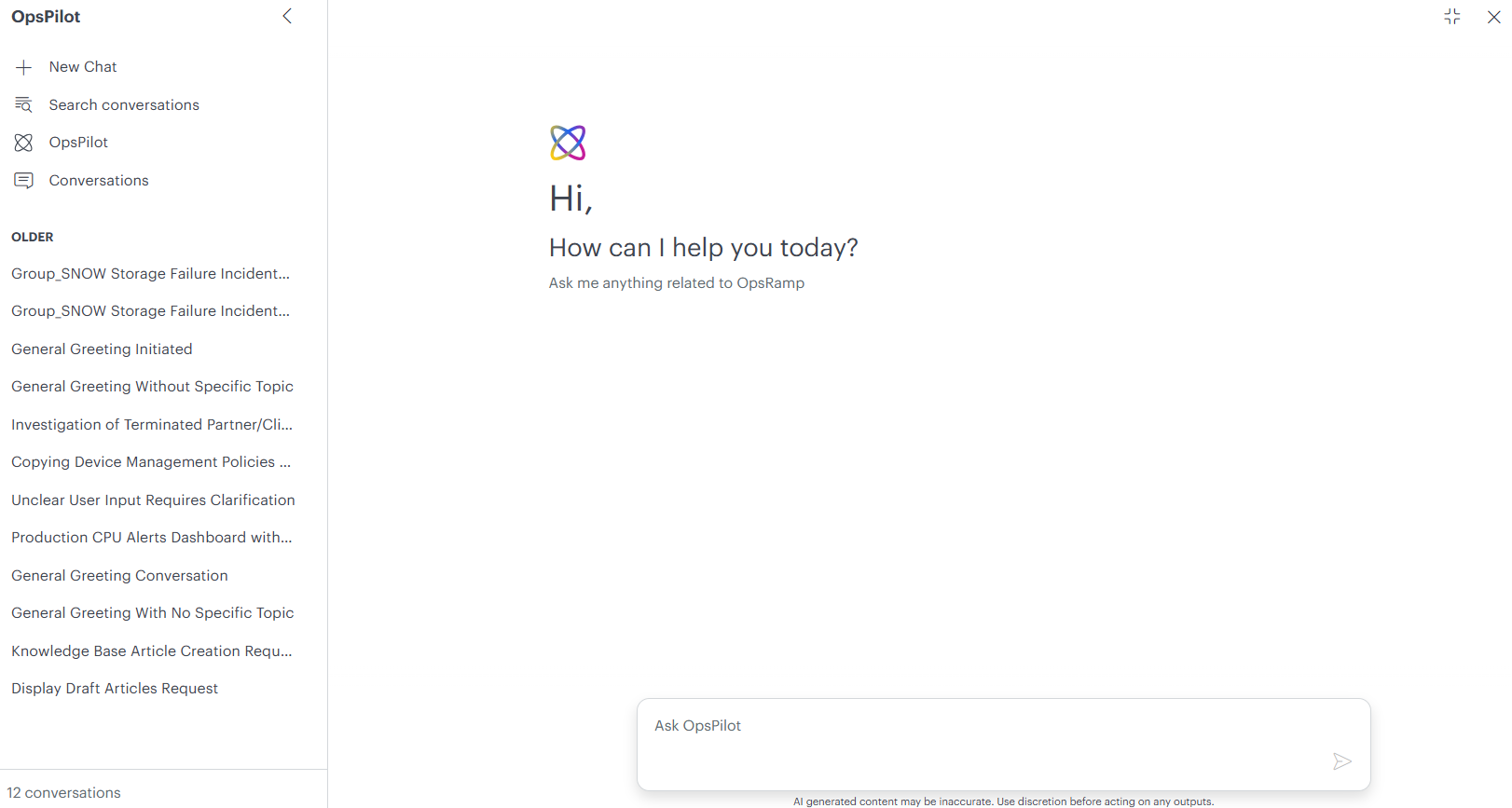
Rename a Conversation
You can rename Copilot conversations to make them easier to identify and organize. Renaming a conversation replaces the default conversation title with a custom name, helping you quickly locate important discussions when managing multiple chat sessions.
To rename a conversation:
Navigate to Conversations in the Copilot navigation pane.
Locate the conversation you want to rename.
Click the More Actions (…) menu next to the conversation.
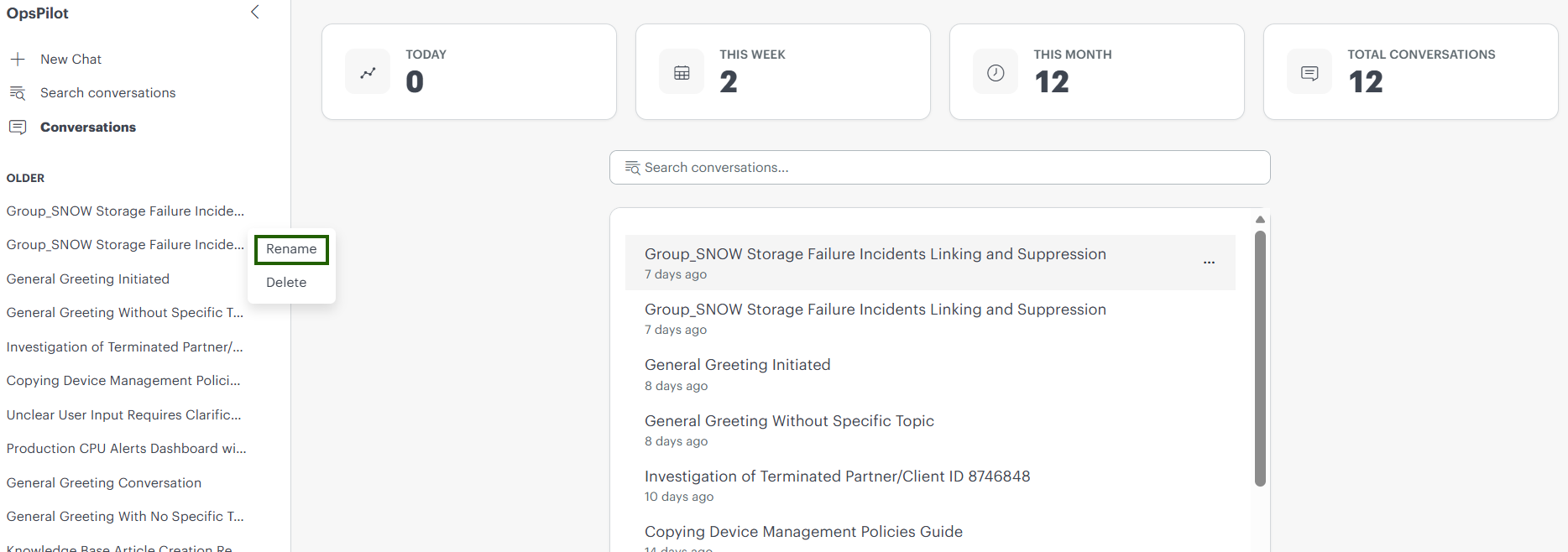
Select Rename.
Enter a new conversation name.
Save the changes.
From Supported Features
You can also access OpsPilot from supported features such as:
- Search
- Command Center (Alerts)
The OpsPilot icon appears in the top-right corner on these pages.
- If credentials are configured, OpsPilot opens in active mode.
- OpsPilot automatically uses the context of the page you are viewing.