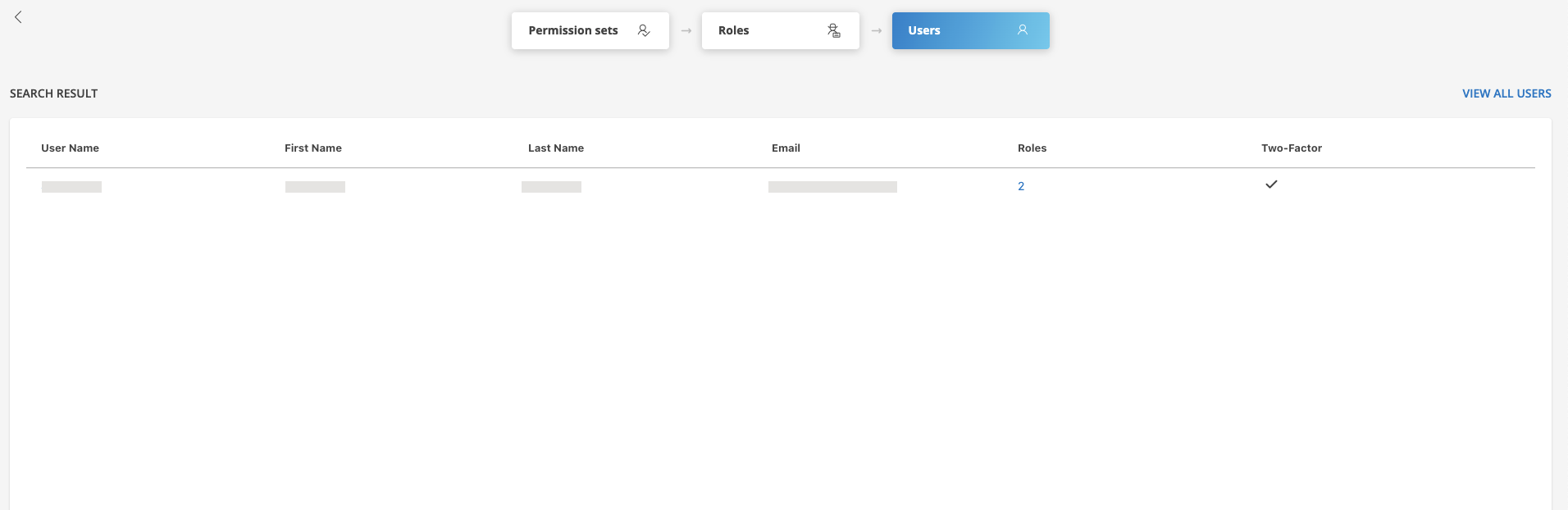
Introduction
Two-factor authentication (2FA) enhances security by requiring you to confirm your identity using multiple factors, typically a smartphone or email. In addition to your login credentials, you must provide a temporary passcode from the authenticating service. Enable two-factor authentication to protect your account from unauthorized access.
To log in using two-factor authentication, you must enable and activate two-factor authentication using one of the following methods:
- YubiKey: A hardware authentication device that supports one-time passwords, public-key encryption, and authentication.
- TOTP: Time-based One-Time Password (TOTP) generates a unique one-time password based on the current time. The password is valid for a short time window (typically 30 seconds), enhancing security.
- Duo Security: A security service that adds a second layer of authentication by requiring you to confirm your identity using multiple factors, typically a smartphone or email. In addition to user login credentials, users are required to provide a temporary passcode received from the authenticating service.
Enable two-factor authentication
Depending on the authentication scope, use one of the following procedures:
- Enable two-factor authentication for a partner or client account
- Enable and activate two-factor authentication for users
Enable two-factor authentication for a partner or client account
Enable two-factor authentication for a partner or client account from the My Profile screen. When you complete this setup, select from the available two-factor authentication methods the next time you log in.
- After logging into OpsRamp, select Setup → Account.
- From the Account Details page, click SETTINGS. The Account Settings page appears.
- Select the SECURITY tab and under Access Management select the Enable Two-Factor Authentication checkbox.
- Click SAVE. Two-factor authentication is now enabled.
To disable two-factor authentication, clear the Enable Two-Factor Authentication checkbox.
Enable and activate two-factor authentication for users
Follow these steps to enable and activate two-factor authentication for a user:
- After logging into OpsRamp, select Setup → Account.
- From the Account Details page, select the Users and Permissions tile.
- Select the Users card. From the Users listing page, search for the user.
- Click the user name.
- In the upper-right corner of the page, click the 2FA toggle button to turn it ON.
- Click ACTIVATE. The Activate two-factor authentication popup appears. The available options (TOTP, YubiKey, Duo Security) depend on the options enabled at the partner or client account level.
Note
These three options appear only for the logged-in user. If you activate two-factor authentication for other users, only the YubiKey authentication option is available. - Select an authenticator option, follow the instructions, and click ACTIVATE. Two-factor authentication is activated for the user and you are logged out automatically.
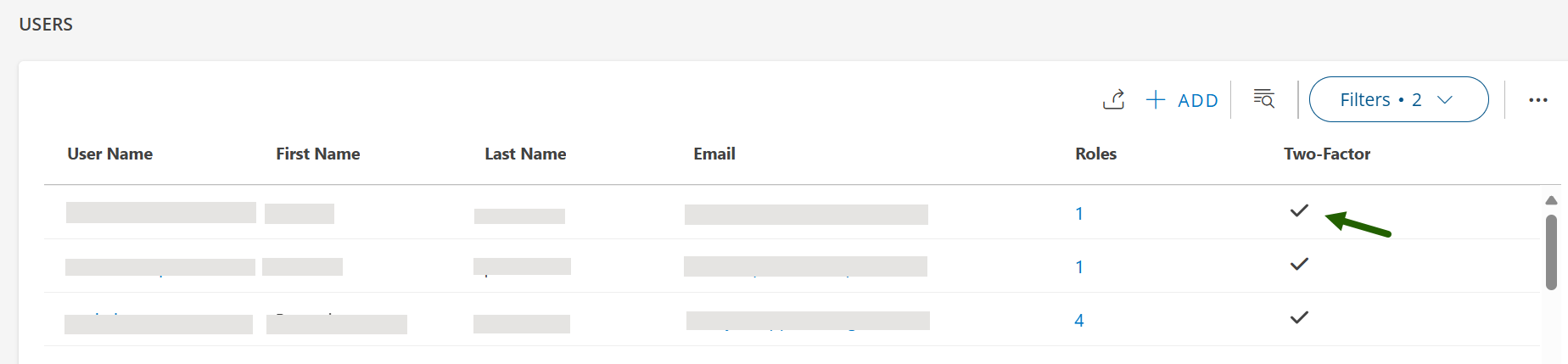
- After you log in successfully, the Two-Factor column on the Users listing page displays a check mark (✓) indicating that two-factor authentication is active.
Note
Re-authentication is required after performing any of the following actions:
- Modifying any field on the partner or client account Account Settings page.
- Disabling two-factor authentication.
Yubico authenticator activation
Yubico authenticator is a small hardware device that offers two-factor authentication with a simple touch of a button.
- After logging into OpsRamp, select Setup → Account.
- From the Account Details page, select the Users and Permissions tile.
- Select the Users card. From the Users listing page, search for the user.
- Click the user name.
- In the upper-right corner of the page, click the 2FA toggle button to turn it ON.
- Click ACTIVATE. The Activate two-factor authentication popup appears.
- Select Yubico Authenticator.
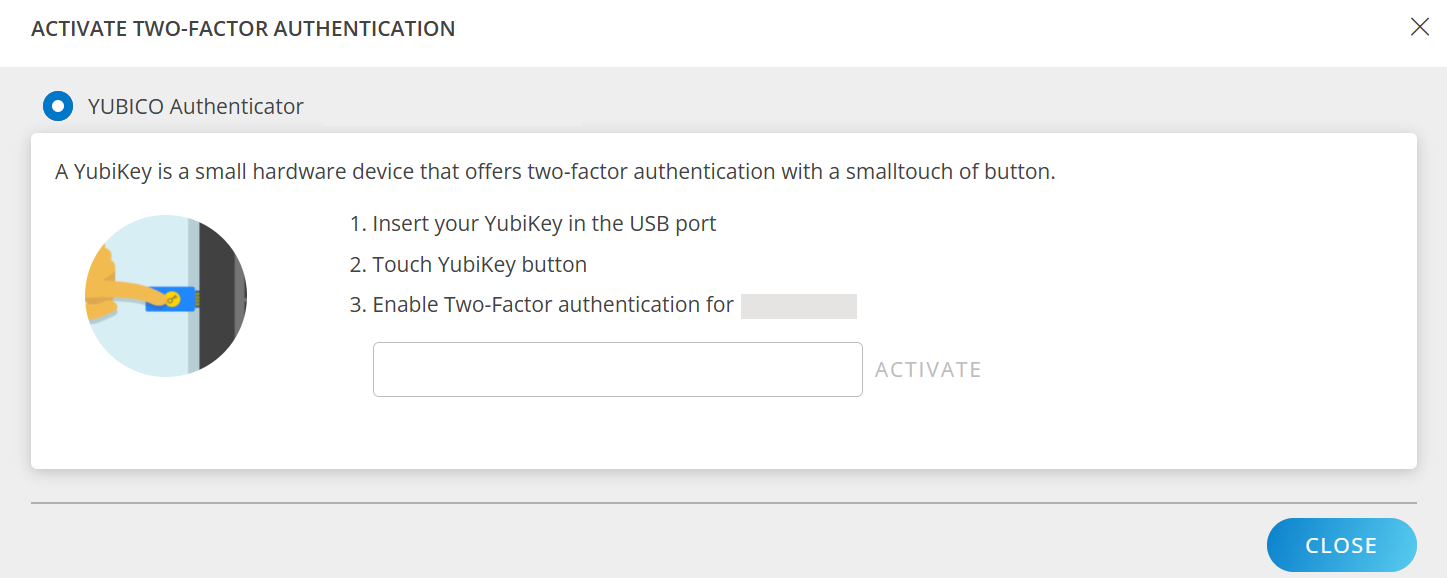
- Follow the instructions and click ACTIVATE.
Two-factor authentication is activated and you are logged out automatically. After you log in successfully, the Two-Factor column on the USERS listing page displays a check mark (✓) indicating that two-factor authentication is active.
TOTP authenticator activation
Time-based One-Time Password (TOTP) is an algorithm that computes a one-time password from a shared secret key and the current time.
Before activating a TOTP authenticator, install a third-party TOTP application on your smartphone. The application generates login passcodes and can receive push notifications for one-tap authentication.
The following applications support TOTP:
- Google Authenticator
- Windows Authenticator
- DUO Authenticator
- Authy Authenticator
- After logging into OpsRamp, select Setup → Account.
- From the Account Details page, select the Users and Permissions tile.
- Select the Users card. From the Users listing page, search for the user.
- Click the user name.
- In the upper-right corner of the page, click the 2FA toggle button to turn it ON.
- Click ACTIVATE. The Activate two-factor authentication popup appears.
- Select TOTP Authenticator.
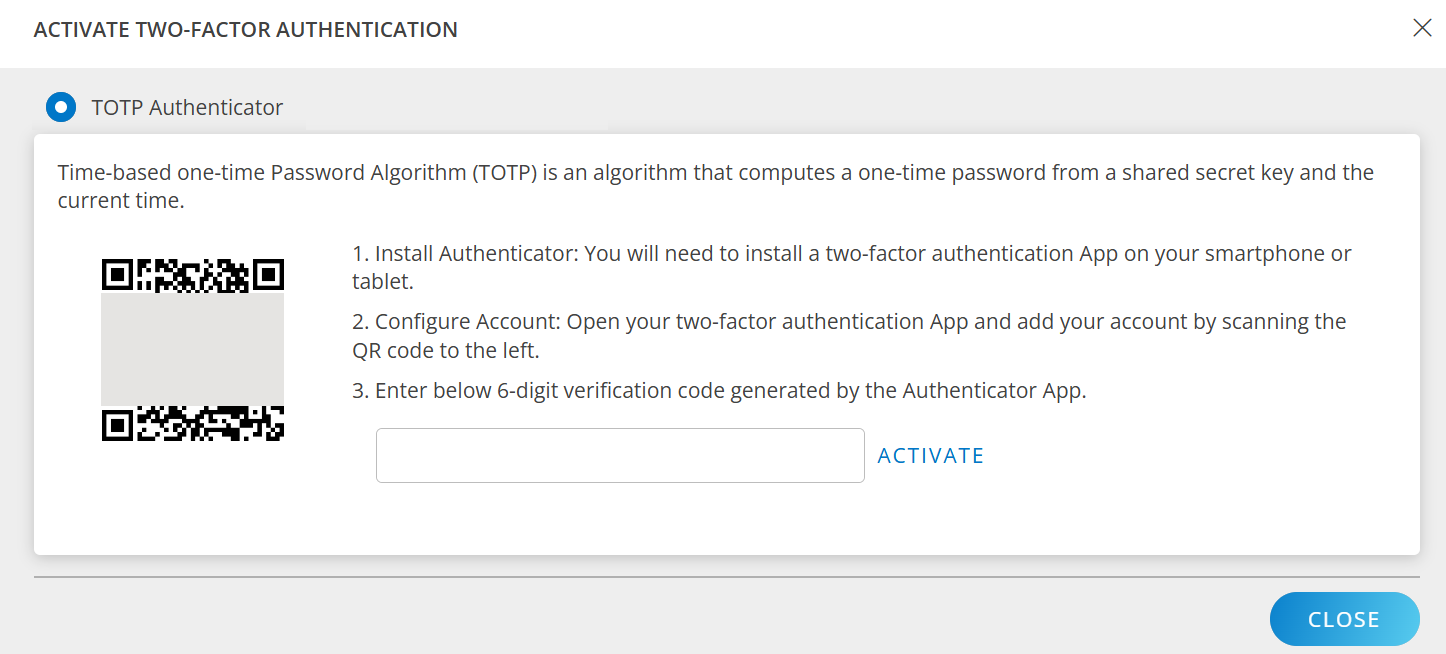
- Follow the instructions and click ACTIVATE.
Two-factor authentication is activated and you are logged out automatically.
After you log in successfully, the Two-Factor column on the Users listing page displays a check mark (✓) indicating that two-factor authentication is active.
Disable two-factor authentication
Disabling two-factor authentication (2FA) removes the additional layer of security from your account, making it accessible with only a username and password. Perform this action with caution, as it reduces protection against unauthorized access. Re-authentication is required after disabling 2FA to ensure the change is authorized.
You can disable two-factor authentication from the USERS details page or My Profile page.
- After logging into OpsRamp, select Setup → Account.
- From the Account Details page, select the Users and Permissions tile.
- Select the Users card. From the Users listing page, search for the user.
- Click the user name.
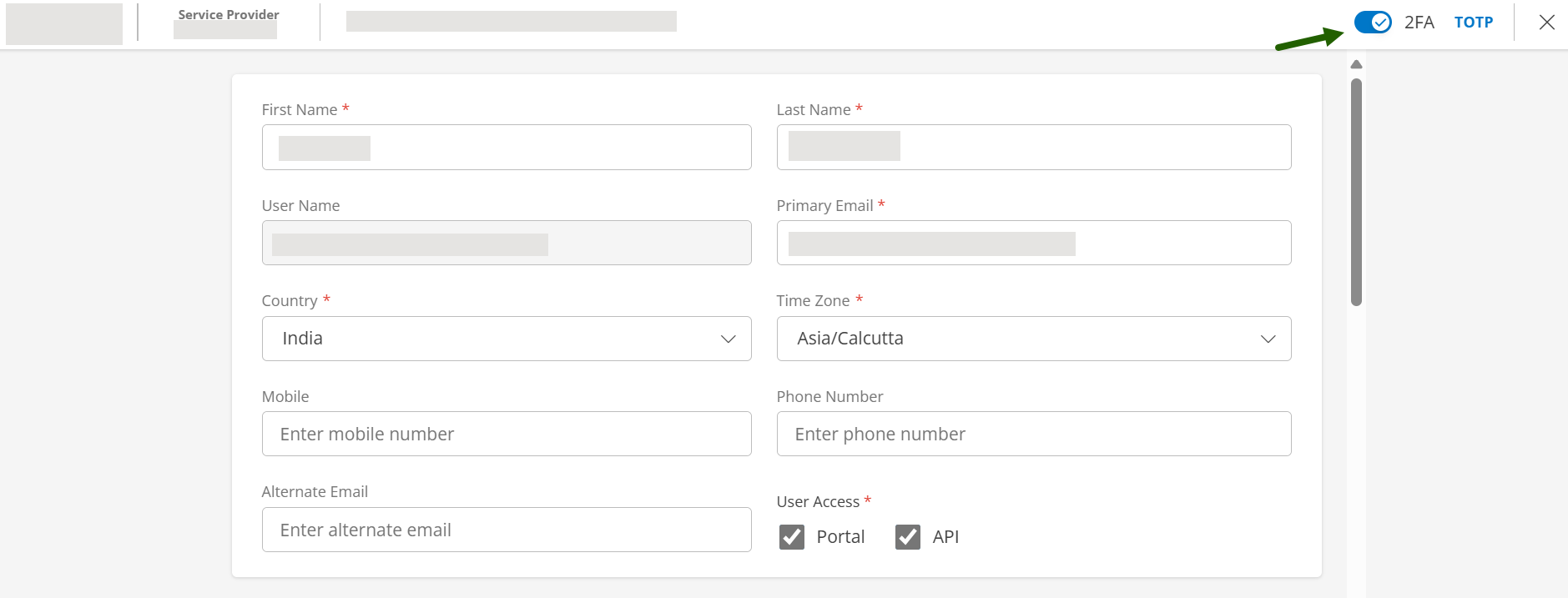
- Click the 2FA toggle button to turn it OFF.
- Follow the steps to validate the authentication and click VALIDATE.
Two-factor authentication is disabled and you are logged out automatically.
After you log in successfully, the Two-Factor column on the USERS listing page displays a block mark indicating that two-factor authentication is disabled.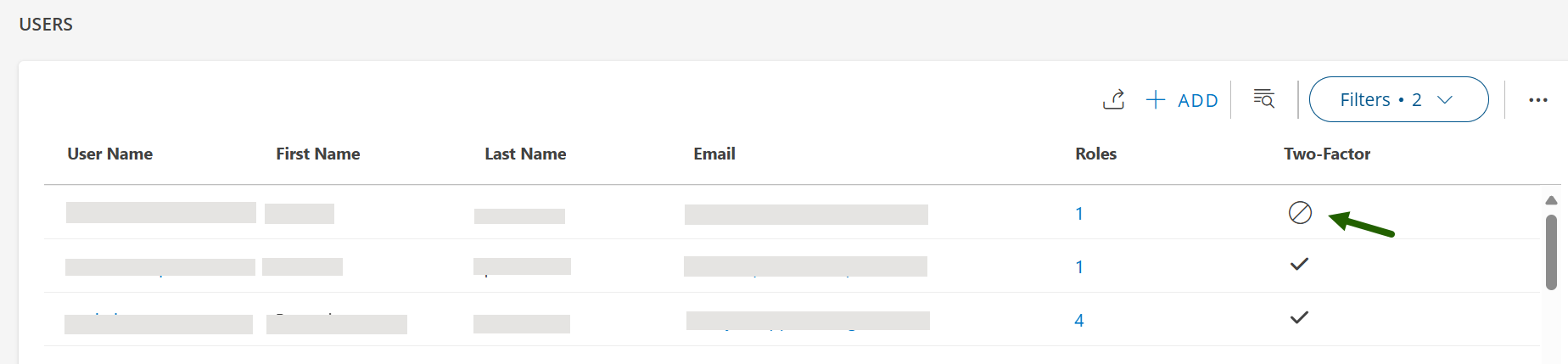
Log in using two-factor authentication
If two-factor authentication is activated for your account, you must provide a passcode after entering your username and password.
After three failed attempts to enter the correct passcode, you are redirected to the login page to re-enter your username and password.
Log in using YubiKey
- Insert the YubiKey into the USB port on the device.
- Log in using your username and password.
- When prompted for the YubiKey login, touch the YubiKey button. A 44-character, one-time passcode is generated and submitted automatically.
Log in using TOTP
TOTP login requires a smartphone.
- Log in using your username and password.
- Enter the 6-digit verification code from your authenticator application. The code expires after 60 seconds before a new verification code is generated.
You are now logged in successfully.
Look up a lost two-factor key
Follow these steps to find the owner of a lost two-factor key:
- After logging into OpsRamp, select Setup → Account.
- From the Account Details page, select the Users and Permissions tile.
- Select the Users card.
- From the Users listing page, click the ellipsis (three dots) icon and select Lookup Two-Factor Key.
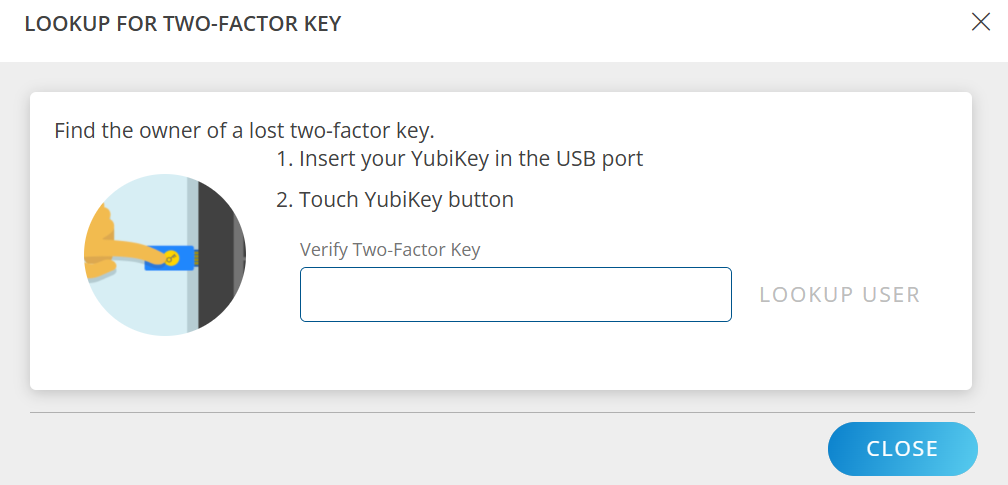
- Follow the instructions and click LOOKUP USER. User details are displayed.