Introduction
OpsRamp supports the installation of a collector in both virtualized and cloud-native environments. The installation process in both environments is achieved in a single unified flow as shown below.
Add Gateway Collector Profile
Follow these steps to add a gateway collector profile:
Navigate to Setup > Account. The Account Details page appears.
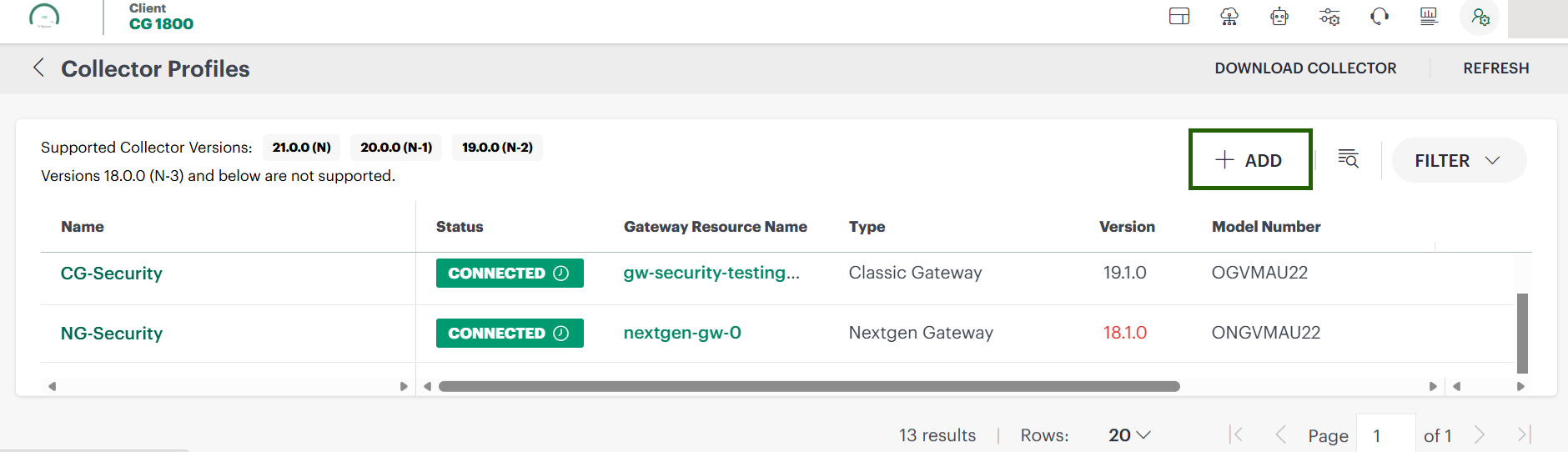
Click the Collector Profiles tile. The Collector Profiles page appears.
Click +Add.
Enter following details in the gateway collector profile page:
- Enter a profile name
- Provide the short description (Optional)
- Select a profile type
Select one of the collector from below as per your requirement:
- Classic
- Amazon Machine Image
- Virtual Appliance (ISO)
- Virtual Appliance (OVA)
- Azure Blob Container
- Google Image
- NextGen
- Virtual Appliance (ISO)
- Virtual Appliance (OVA)
- Cloud-Native Application (Installer)
- Windows
- Installer for Windows OS
- Installer for Windows OS
- Classic
Click Next. Based on the collector selected, the instructions in the Installation and Activation tabs differ.
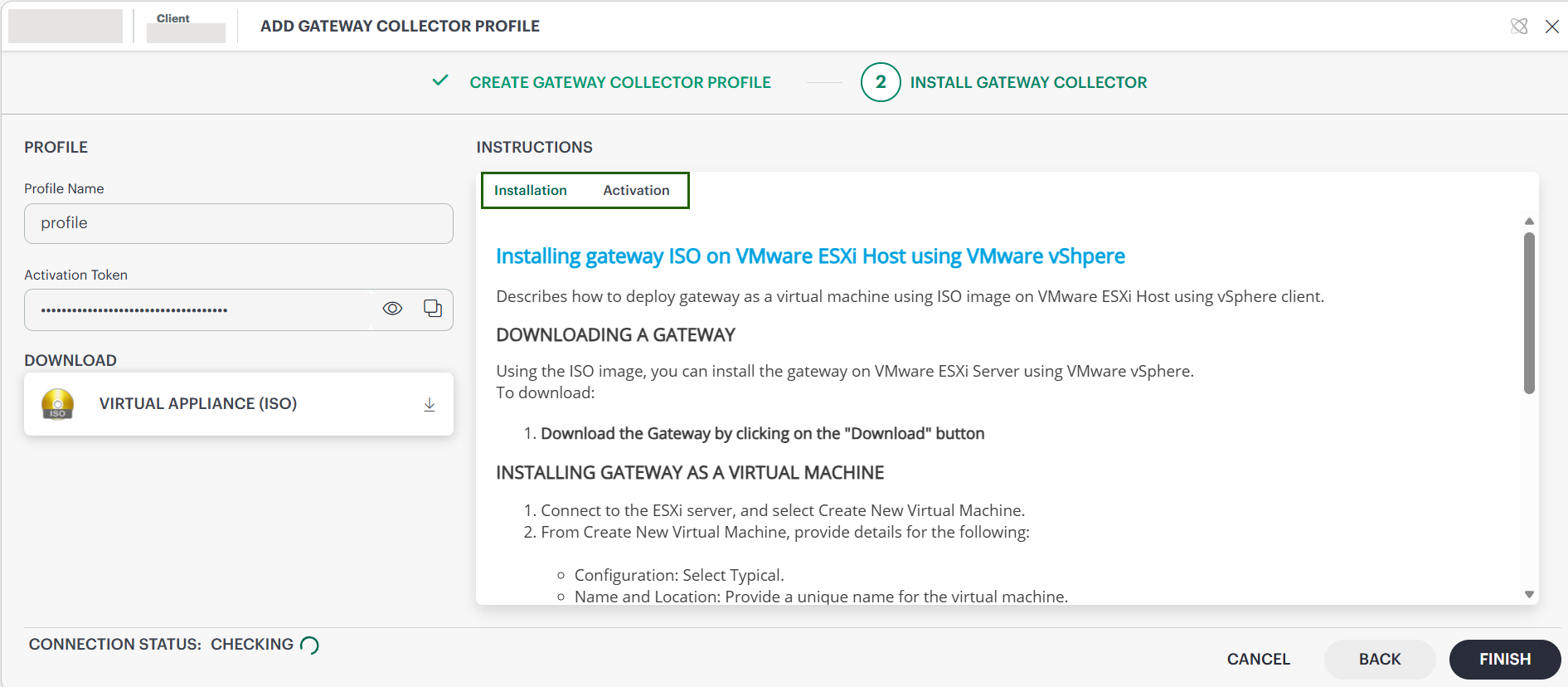
Follow the instructions in the Installation tab.
Download the required file.
Click on Activation tab. Follow the instructions.
Information like URL, System username, password, Admin username and password appears.- You can retrieve the default credentials (username and password) for System user and Admin user and change them when required.
Note: Default passwords vary based on the gateway type and the installed gateway version.
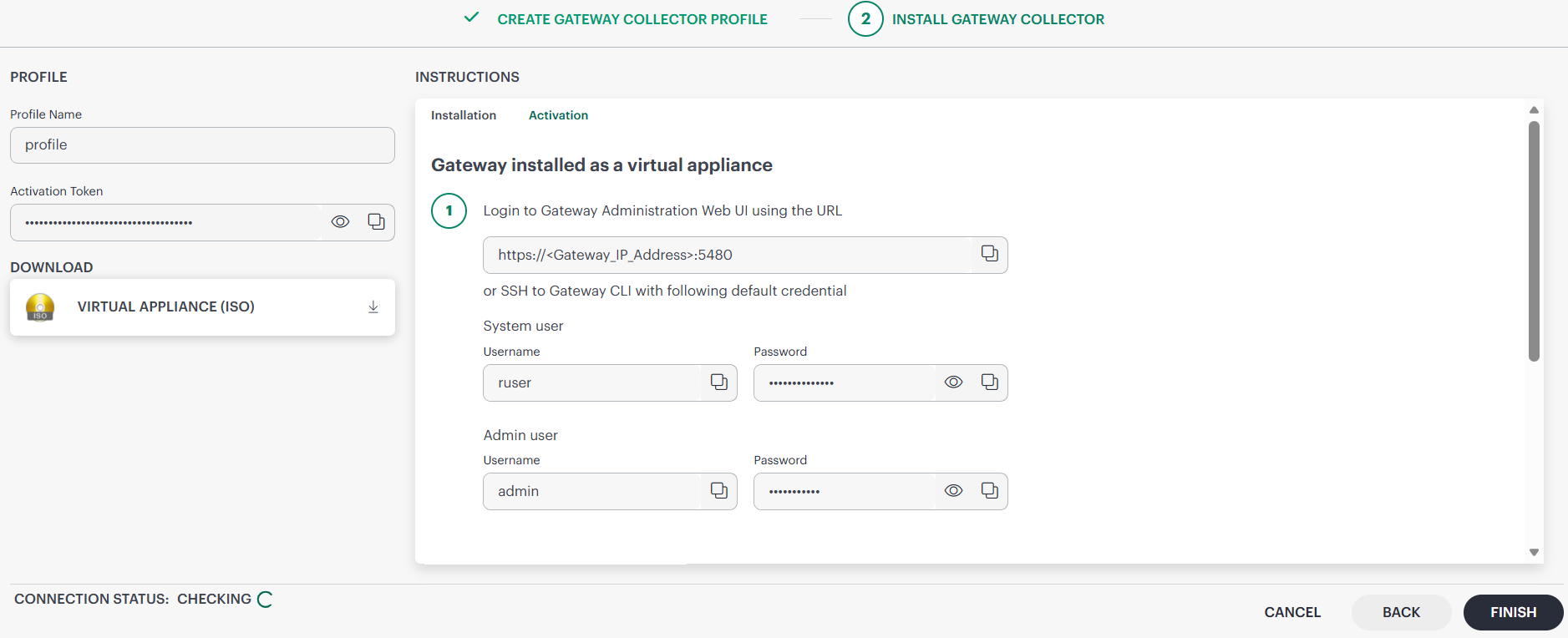
- You can retrieve the default credentials (username and password) for System user and Admin user and change them when required.
Follow the instructions to install and register the Gateway Collector.
Click Finish. The gateway is added to the collector profile.
See Classic Gateways and NextGen Gateways for more information on installing a gateway.
After creating the collector profile and installing the gateway and registering it, you can see all the collector profiles in the Collector Profiles listing page.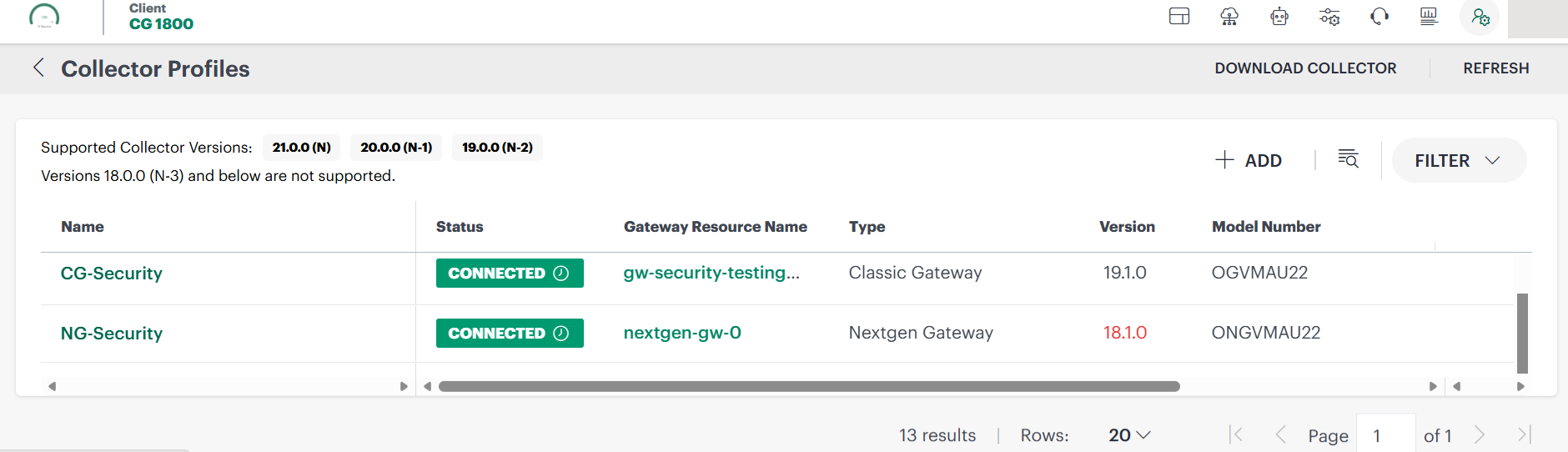
- DOWNLOAD COLLECTOR: Click this option available at the top-right corner of the page, and follow the instructions on the GATEWAY COLLECTORS page to download the collector.
- REFRESH: Click the Refresh option to refresh the Collector Profiles listing page.
Collector Profiles table: Column reference
The Collector Profiles listing page consists of the following columns:
| Column | Description |
|---|---|
| Name | Name of the Collector Profile. |
| Status | Displays the status of the collector profile:
|
| Gateway Resource Name | Name of the gateway resource associated with this profile. |
| Type | Type of gateway: NextGen, Classic, or Windows. |
| Version | Installed gateway version. |
| Model Number | Model number of installed gateways. (Example: Classic gateway model number starts with OG, NextGen starts with ONG, Windows starts with OWG). |
| Profile Type | Standard: A fixed-capacity profile designed for stable, predictable workloads. Elastic: A scalable profile designed for horizontal scaling by adding replica profiles (child gateway profiles) to increase capacity and distribute workload. Note: Elastic profile type is applicable only to NextGen Gateway. |
| Replica Profile Count | Number of replica profiles associated with the collector profile. Note: This field will have a value only if the Profile type is Elastic. |
| Upgrade State | Patch availability of the gateway. Not Available - When the Gateway is with unsupported version, and there is no patch available for the specific gateway registered model. Up-to-date - Profile is running the latest gateway version. Upgrade Available - A newer version is available for the gateway. Upgrade on Schedule - A gateway upgrade is already scheduled for this gateway. Not Allowed - Filters gateways where a firmware upgrade is available in the patch but is currently blocked or restricted from being applied. |
| Upgrade Status | Status of the latest upgrade operation.
|
| Client Name (visible only in Partner scope.) | Name of the client associated with the collector profile. |
Collector Profile summary panel
The Collector Profile summary panel displays additional information about a selected collector profile, organized into three sections (Overview, Configurations, Capabilities) for better clarity and accessibility:
- Navigate to Setup > Account. The Account Details page appears.
- Click the Collector Profiles tile. The Collector Profiles listing page appears.
- Search for the collector profile you want to view the summary.
- Click anywhere on the row. The collector profile summary panel appears on the right side of the page.
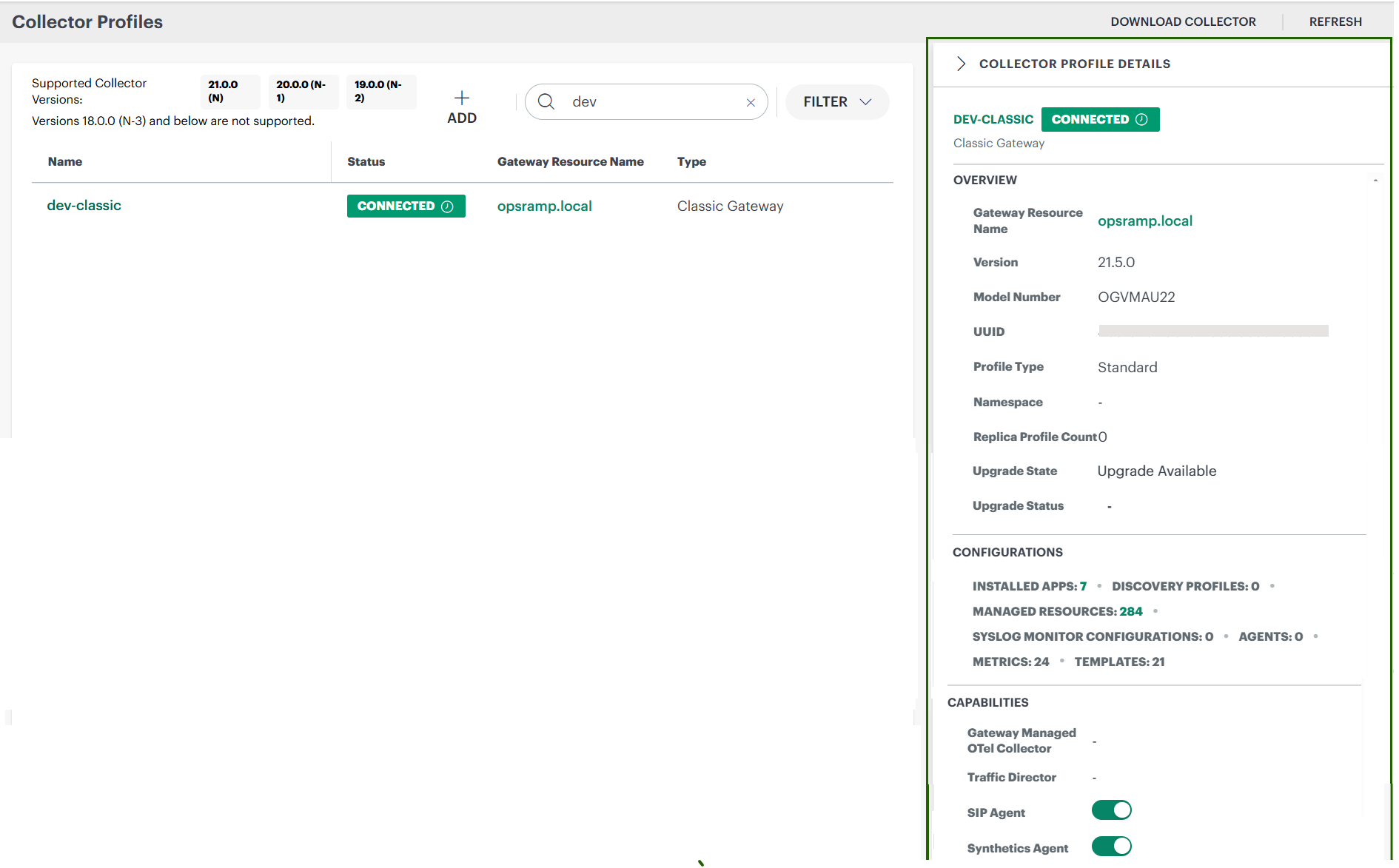
Overview
Displays high-level details of the selected collector profile:
| Field | Description |
|---|---|
| Client Name | Name of the client associated with the collector profile. (Partner scope only) |
| Gateway Resource Name | Name of the gateway resource associated with this profile. |
| Version | Installed gateway version. |
| Model Number | Model number of installed gateway. Example: ONG, OGV, OGA |
| UUID | Unique identifier of the collector profile. |
| Namespace | Kubernetes namespace or logical grouping. All NextGen Gateways show the Kubernetes namespace in which the gateway is deployed. For Classic and Windows Gateways, this field displays N/A |
| Profile Type | Standard: A fixed-capacity profile designed for stable, predictable workloads. Elastic: A scalable profile designed for horizontal scaling by adding replica profiles (child gateway profiles) to increase capacity and distribute workload. Note: Elastic profile type is applicable only to NextGen Gateway. |
| Replica Profile Count | Number of replica profiles associated with the collector profile. Note: This field will have a value only if the Profile type is Elastic. |
| Upgrade State | Patch availability of the gateway. Not Available - When the Gateway is with unsupported version, and there is no patch available for the specific gateway registered model. Up-to-date - Profile is running the latest gateway version. Upgrade Available - A newer version is available for the gateway. Upgrade on Schedule - A gateway upgrade is already scheduled for this gateway. Not Allowed - Filters gateways where a firmware upgrade is available in the patch but is currently blocked or restricted from being applied. |
| Upgrade Status | Status of the latest upgrade operation.
|
Configurations
Provides visibility into the configuration artifacts associated with the collector profile:
| Field | Description |
|---|---|
| Installed Apps | Number of applications installed on the collector profile. |
| Discovery Profiles | Number of discovery profiles configured for the collector profile. |
| Managed Resources | Number of resources managed by the collector profile. |
| Syslog Monitor Configurations | Number of syslog monitor configurations mapped to the collector profile. |
| Agents | Number of agents using this gateway as a proxy. |
| Metrics | Count of active G2 monitoring metrics retrieved from gateway resources over the last 15 minutes. |
| Templates | Number of unique monitoring templates applied across all managed resources under the collector profile. |
Capabilities
Displays supported capabilities along with their enabled/disabled states:
| Field | Description |
|---|---|
| Gateway Managed OTel Collector (Enabled/Disabled – NextGen only) | Manages OpenTelemetry collectors directly on the NextGen gateway for advanced observability and data collection. |
| SIP Agent (Enabled/Disabled – Classic only) | Monitors SIP protocol traffic and call signaling for Classic gateways. |
| Synthetics Agent (Enabled/Disabled – Classic & NextGen) | Performs synthetic monitoring and proactive testing of applications and services. |
| Traffic Director | Routes and directs network traffic according to configured policies and rules. Note: This is applicable for only NextGen Gateways deployed on AWS EKS. |
Note: You can directly manage the SIP Agent and Synthetics Agent from this section.
Filter
You can use the Filter option to narrow down search results.
- Navigate to Setup > Account. The Account Details page appears.
- Click the Collector Profiles tile. A list of collector profiles appears.
- Click the FILTER option at the upper-right corner of the page.
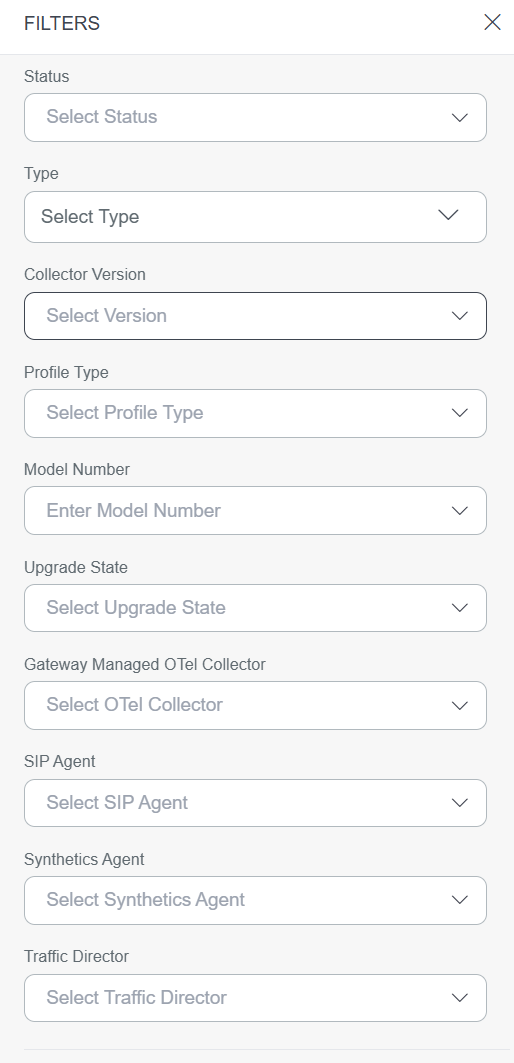
- Select the filters based on your requirement.
- Click FILTER. The search result appears.
Actions on a collector profile
Following are the options that appear on the Collector Profiles listing page.
- The options appear based on the Gateway status.
- Your scope determines which actions you can perform.
Client Scope: Access to all actions.
Partner Scope: Access is restricted to Rename, Remove, Enable Debug Console, and Copy ID.
| Action | Description |
|---|---|
| Run remote command | This option appears only if the Gateway is in the Connected state (The SNMP Walk cannot be executed when the Gateway is down). The Run Remote Command is used to execute SNMP commands on remote devices. To run a remote command:
|
| Rename | To rename a collector profile:
|
| Detach | To detach a collector profile:
|
| Reinstall | To reinstall a collector profile:
|
| Remove | To remove a collector profile:
|
| Scale Up | Scale Up is available only for Elastic type collector profile. To scale up:
|
| Scale Down | Scale Down is available only for Elastic type collector profile. Use this option when there are limited resources running and you do not want an additional profile. To scale down:
|
| Rebalance | Rebalance is available only for Elastic type collector profile. Use this option to distribute resources evenly across profiles. To Rebalance:
|
| Reboot Gateway (Only available for Classic Gateways) | To reboot the gateway:
|
| Reset Password (Available for Classic & NextGen Gateways) | To reset the gateway password:
|
| Enable Debug Console (available for NextGen Gateways) | To enable debug console:
|
| Copy Id | To copy gateway UUID:
|
Upgrade gateway
You can upgrade a gateway from the current version to the next available versions.
Prerequisite: The collector profile should be in Connected status.
To upgrade a gateway:
Navigate to Setup > Account. The Account Details page appears.
Click the Collector Profiles tile. A list of collector profiles appears.
Search for the collector profile you want to upgrade.
Use the checkbox to select the profile.

Click Upgrade. The Upgrade Gateway Version window appears.
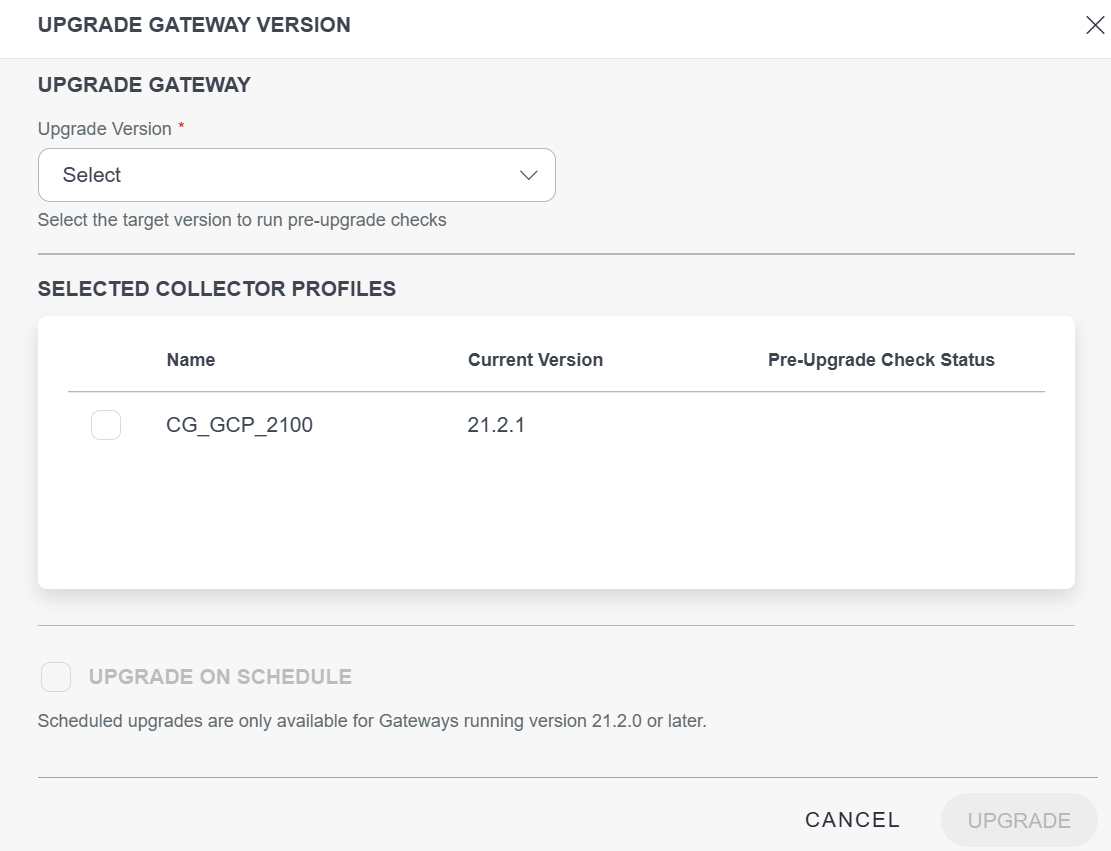
Select a version you want to upgrade from the Upgrade Version dropdown. As soon as you select the version, pre-upgrade checks run. A confirmation message appears once the checks are run successfully.
Note: The most recent patch for the supported major versions would be available in the dropdown.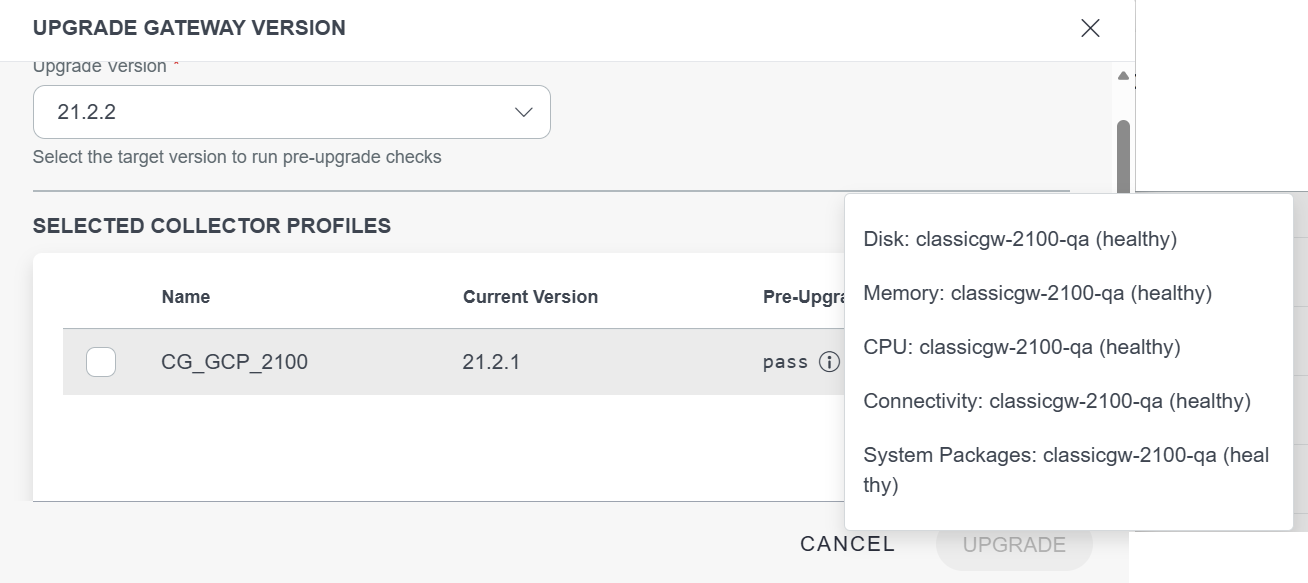
If all the check points (Disk, Memory, CPU, Connectivity, System Packages) are healthy, the Pre-Upgrade Check Status column shows pass. If the checks are unhealthy, it shows fail.Choose one of the following upgrade options:
- To directly upgrade: Click UPGRADE to start the upgrade immediately.
- To schedule upgrade: Check the UPGRADE ON SCHEDULE checkbox. Select the date and time for the scheduled upgrade in the Schedule details field. The date and time should be in UTC. Click UPGRADE to schedule the upgrade.
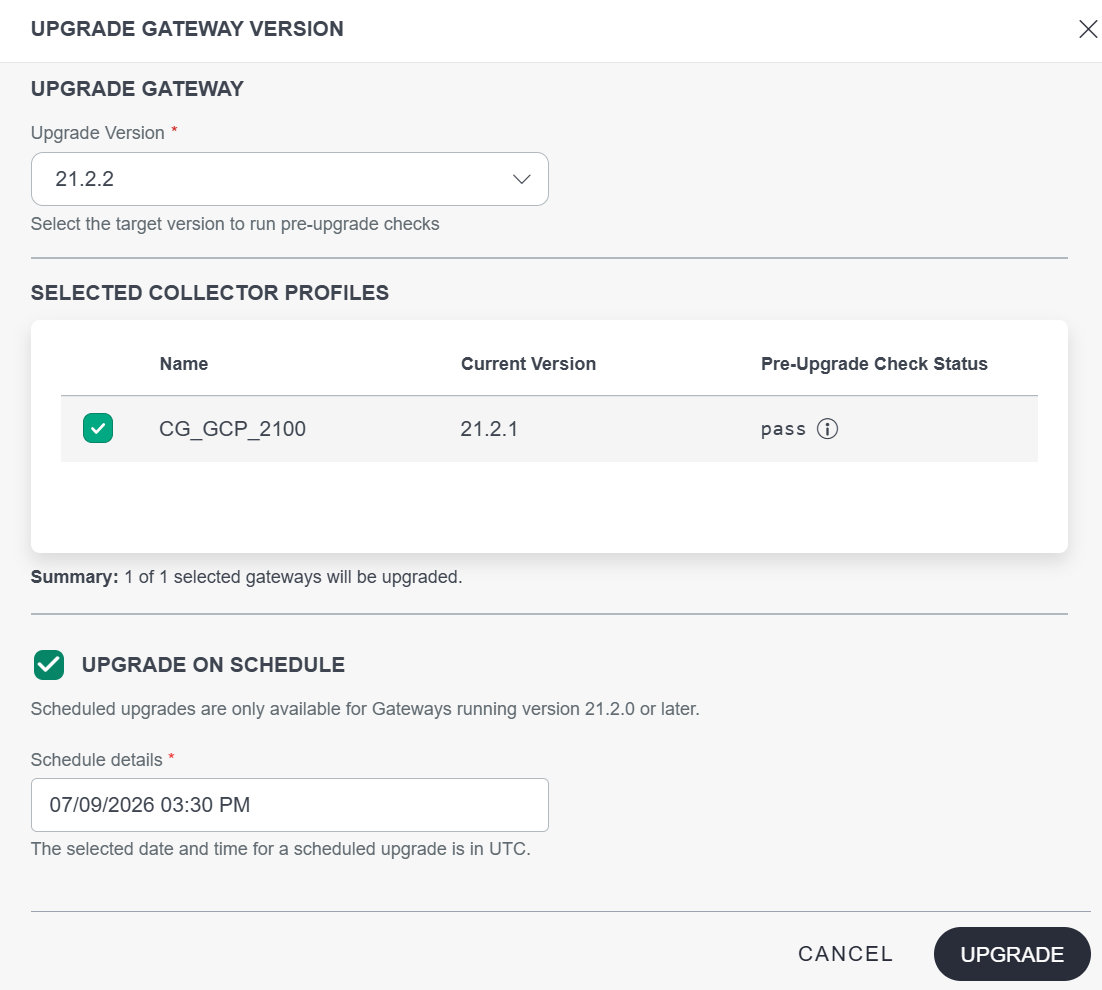
A confirmation popup appears, The gateways will be temporarily unavailable during the upgrade process.
The collector profile is upgraded to the specified version.
Note
Pre-checks and scheduled upgrades are only available for Gateways running version 21.2.0 or later.Edit Collector Profile
Below are the allowed modifications on a collector profile based on gateway state:
- NOT INSTALLED: All fields can be modified.
- CONNECTED/DISCONNECTED: Only profile name and description can be modified.
Follow these steps to edit Collector Profile details:
- Navigate to Setup > Account. The Account Details page appears.
- Click the Collector Profiles tile. The Collector Profiles listing page appears.
- Search for the collector profile you want to make changes.
- Click the collector profile name. The EDIT GATEWAY COLLECTOR PROFILE page appears.
- Make the necessary changes. Follow the steps in the Add Gateway Collector Profile section.
- Click SAVE.
Collector Profile management - Connected state
When the gateway is in a CONNECTED state, the following actions are available on the collector profile details page: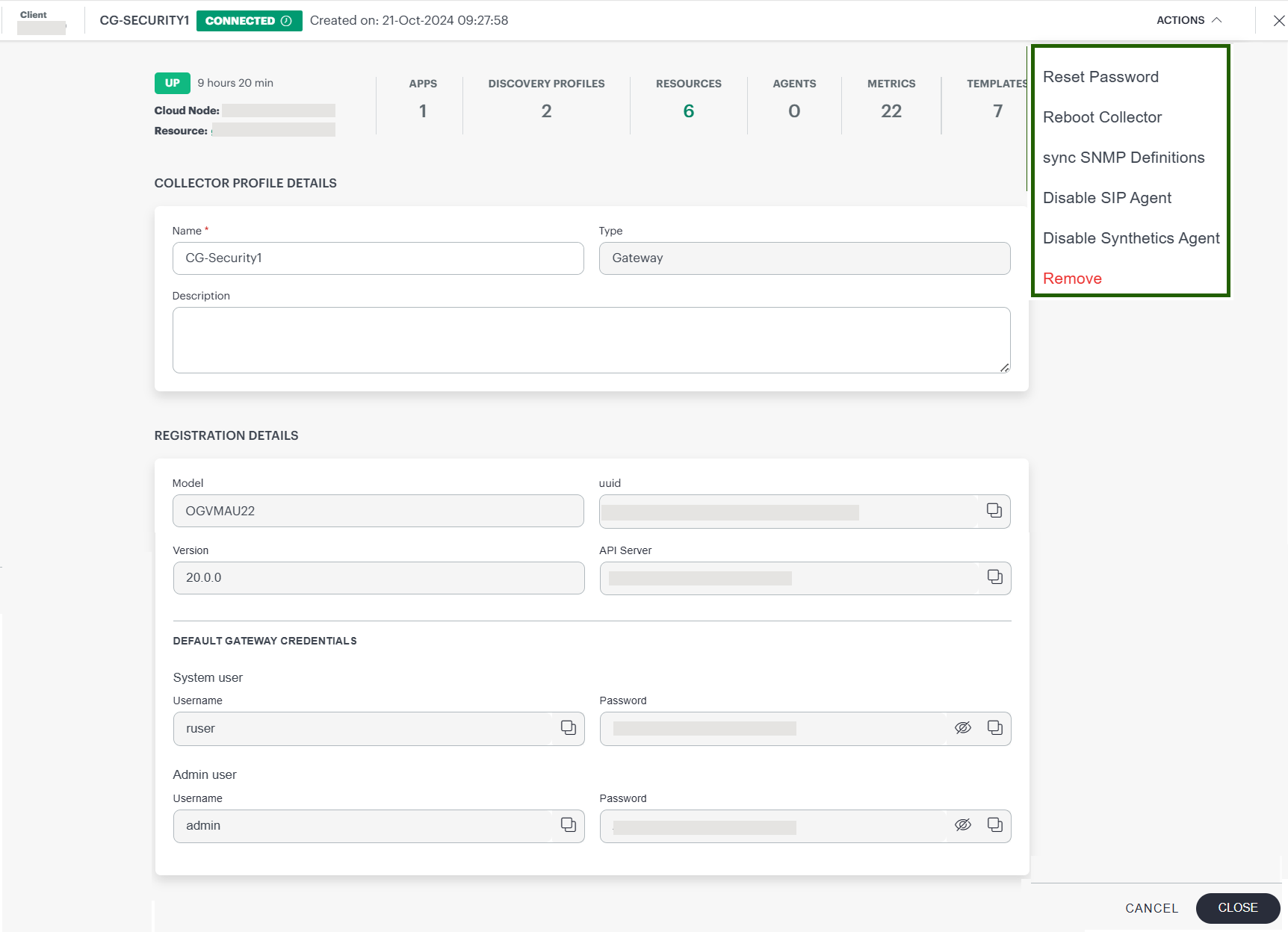
| Column | Description |
|---|---|
| Reset Password | The gateway password is reset to default password. |
| Reboot Collector | The gateway will restart. |
| Sync SNMP Definitions | Synchronizes all the SNMP Definitions between the cloud and the selected gateway. |
| Enable/Disable SIP Agent | Select to enable or disable the SIP Agent. |
| Enable/Disable Synthetics Agent | Select to enable or disable the Synthetics Agent. |
| Remove | Click to Remove the profile. Note: Gateway Collector profile will not be deleted, if the profile has Installed App, Discovery Profiles, Managed Resources, or Syslog Monitor Configurations. |