OpsRamp integration with Amazon CloudWatch Metric Streams provides a way to ingest AWS metrics without periodically polling AWS APIs.
To continuously deliver metric data from each AWS account to OpsRamp, create:
- A Kinesis Data Firehose delivery stream that delivers metrics to OpsRamp.
- A CloudWatch Metric Stream linked to the delivery stream.
After these resources are created, OpsRamp receives the streamed metrics. Resource and metric identification is based on labels sent from AWS and their mapping to resources in OpsRamp. Templates are used to configure alerts and resource availability; they are not required to map streamed metric data.
Enable AWS Metric Streaming
From All Clients, select a client.
Go to Setup > Integrations and Apps.
Under Options, select Enable Metric Streaming. This option is available when installing a new AWS integration or editing an existing integration. The existing screenshot is retained.
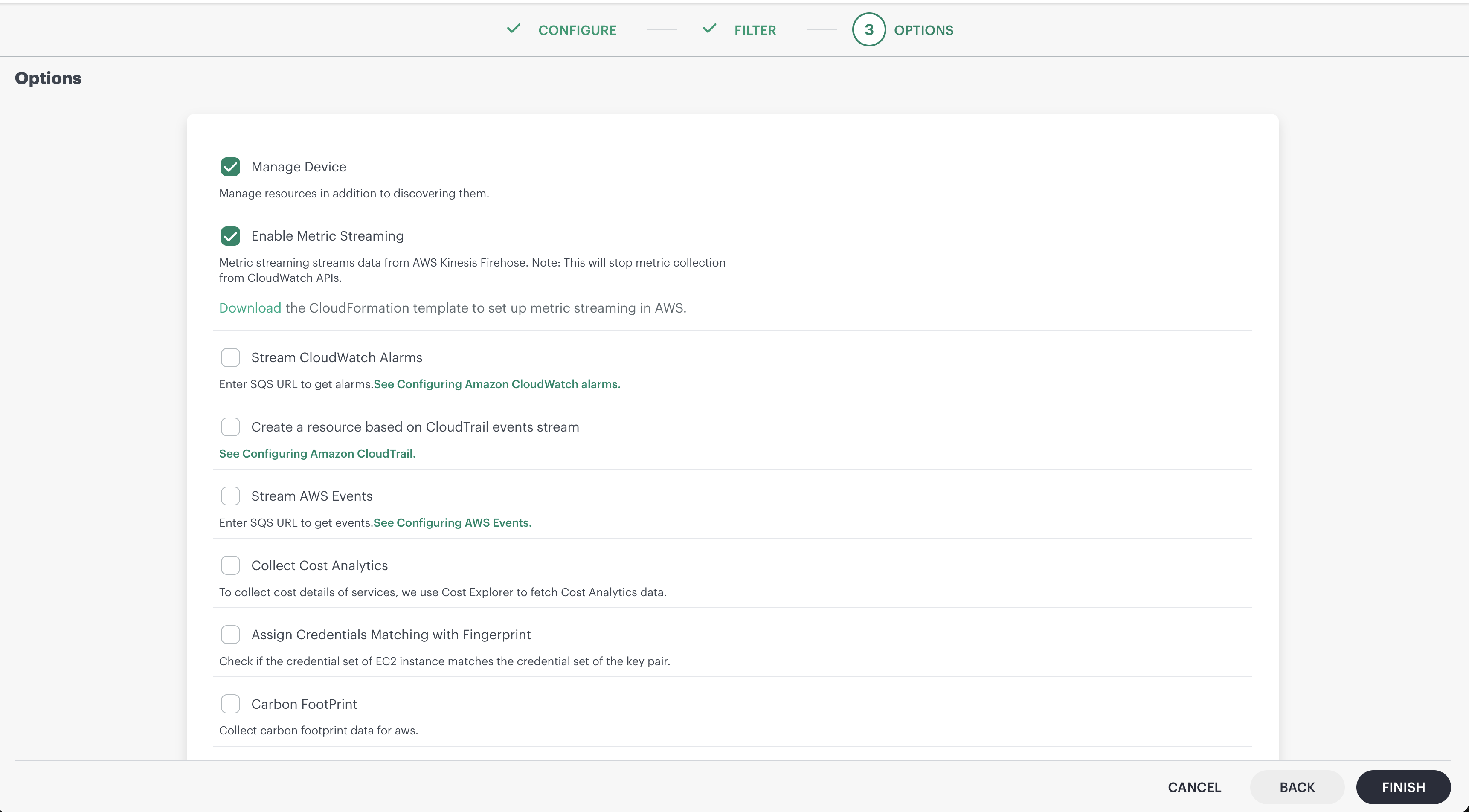
Click Save.
Go to Installed Integrations and select the integration for which you enabled metric streaming.
From the Actions menu, click Edit.
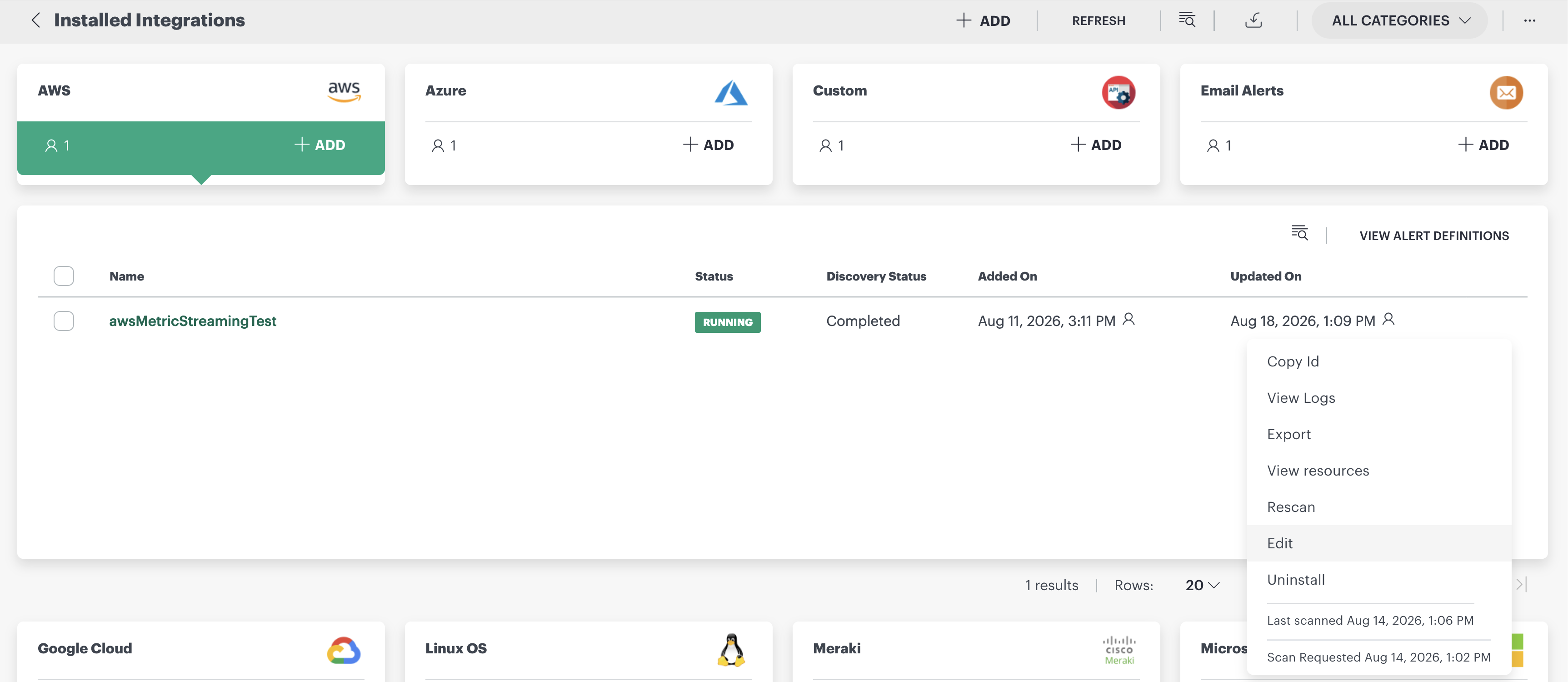
Go to the Perform Actions tab and copy the metric streaming URL. You need this URL when configuring metric streaming in AWS.
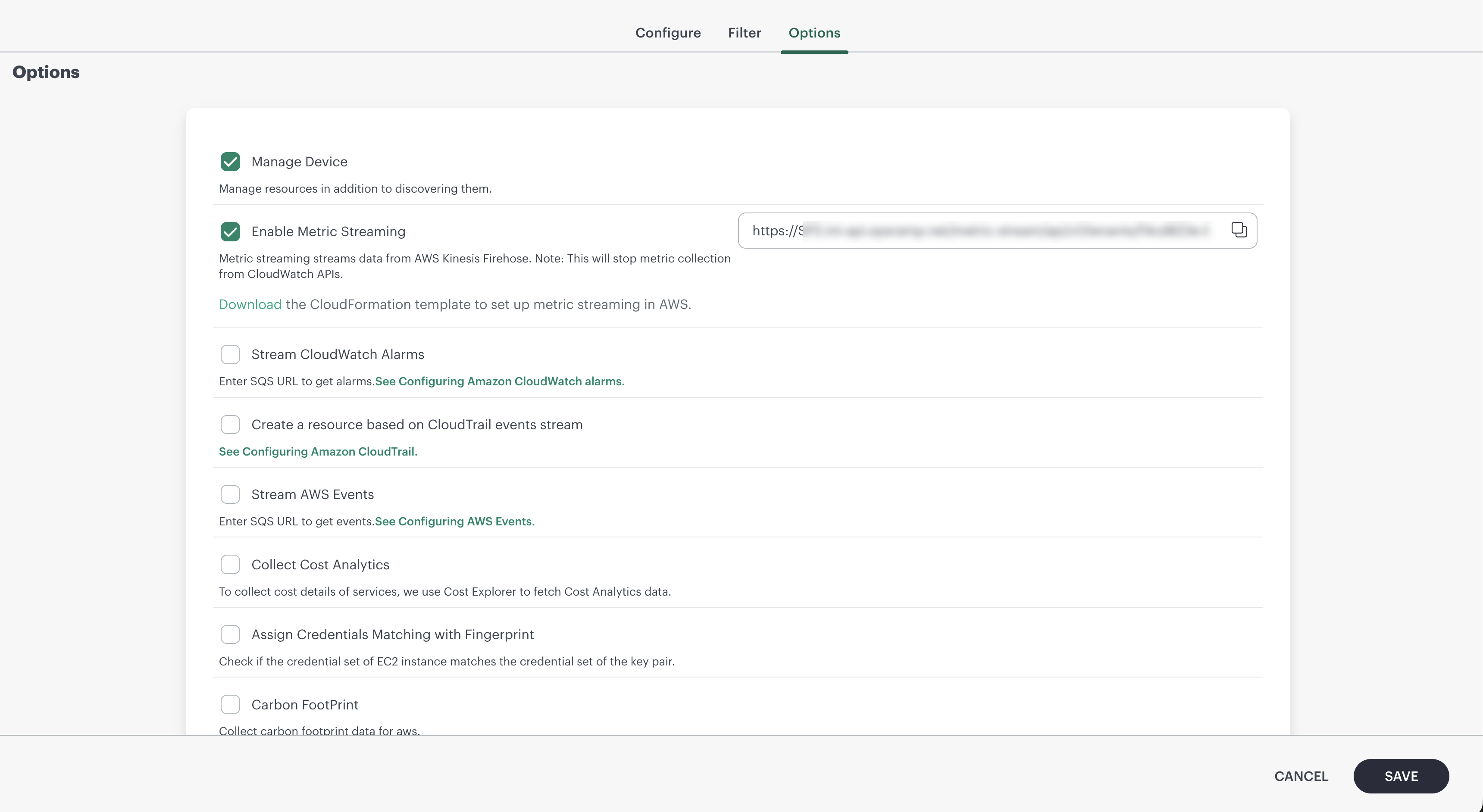
Configure AWS Metric Streaming in AWS Console
Configure AWS Metric Streaming using a CloudFormation template (Recommended)
OpsRamp provides a CloudFormation template that provisions the resources required for metric streaming in your AWS account:
- A Kinesis Data Firehose delivery stream that delivers metrics to the OpsRamp HTTP endpoint.
- A CloudWatch Metric Stream linked to the delivery stream.
- The IAM roles required by Firehose and the metric stream.
This is the recommended approach because it creates and configures these resources for you.
Download the CloudFormation template
From All Clients, select a client.
Go to Setup > Integrations and Apps.
Under Options, ensure that Enable Metric Streaming is selected.
Open the integration’s Options tab.
Next to the Enable Metric Streaming URL, click Download CloudFormation Template.The CloudFormation template is downloaded as a
.yamlfile.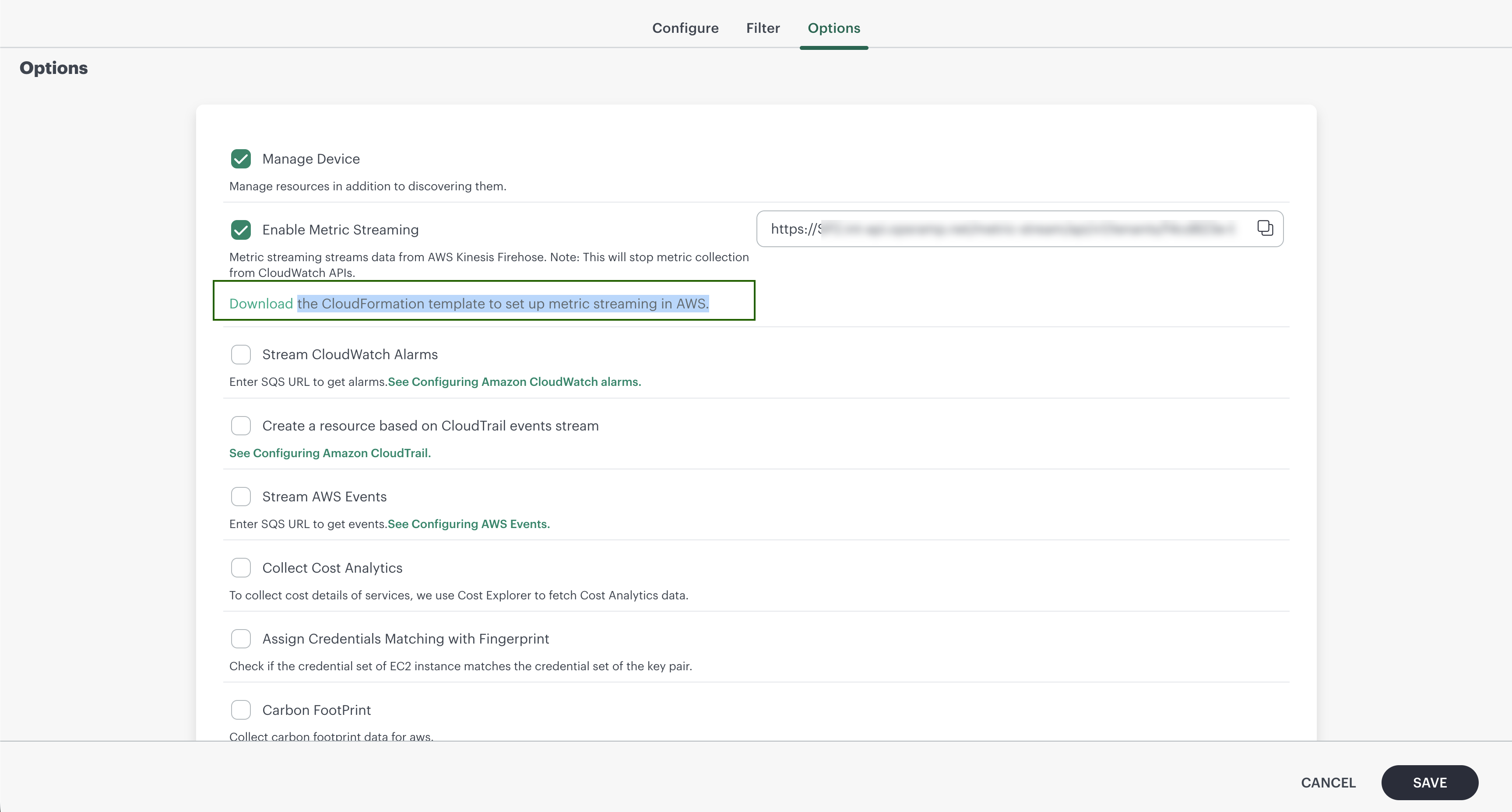
Note
- For an existing integration with metric streaming already enabled, the downloaded template includes the OpsRamp metric streaming endpoint URL and token.
- For a new integration, the endpoint URL and token are not prepopulated in the template. Copy the URL from the Options tab and provide the required parameters when you deploy the template.
Deploy the template in AWS
Sign in to the AWS Management Console and open CloudFormation in the AWS account and Region where you want to stream metrics.
Select Create stack > With new resources (standard).
Under Specify template, select Upload a template file.
Select the downloaded
.yamltemplate, and then click Next.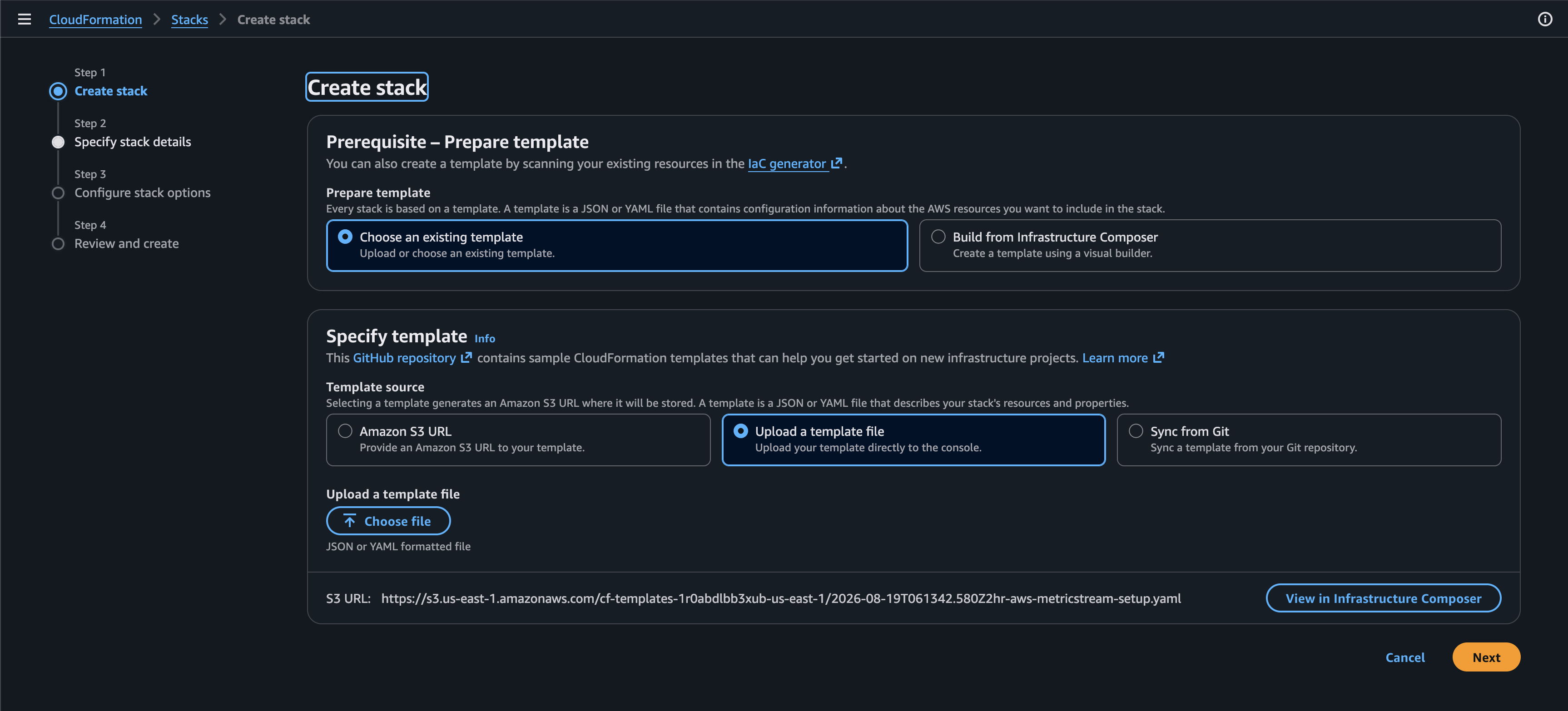
Enter a name for the stack.
Under Parameters, review or provide the required values:
- Existing integration: If metric streaming is already enabled, the endpoint URL is prepopulated.
- New integration: Enter the required parameters, such as OpsRampMetricStreamUrl, using the URL available on the integration’s Options tab.
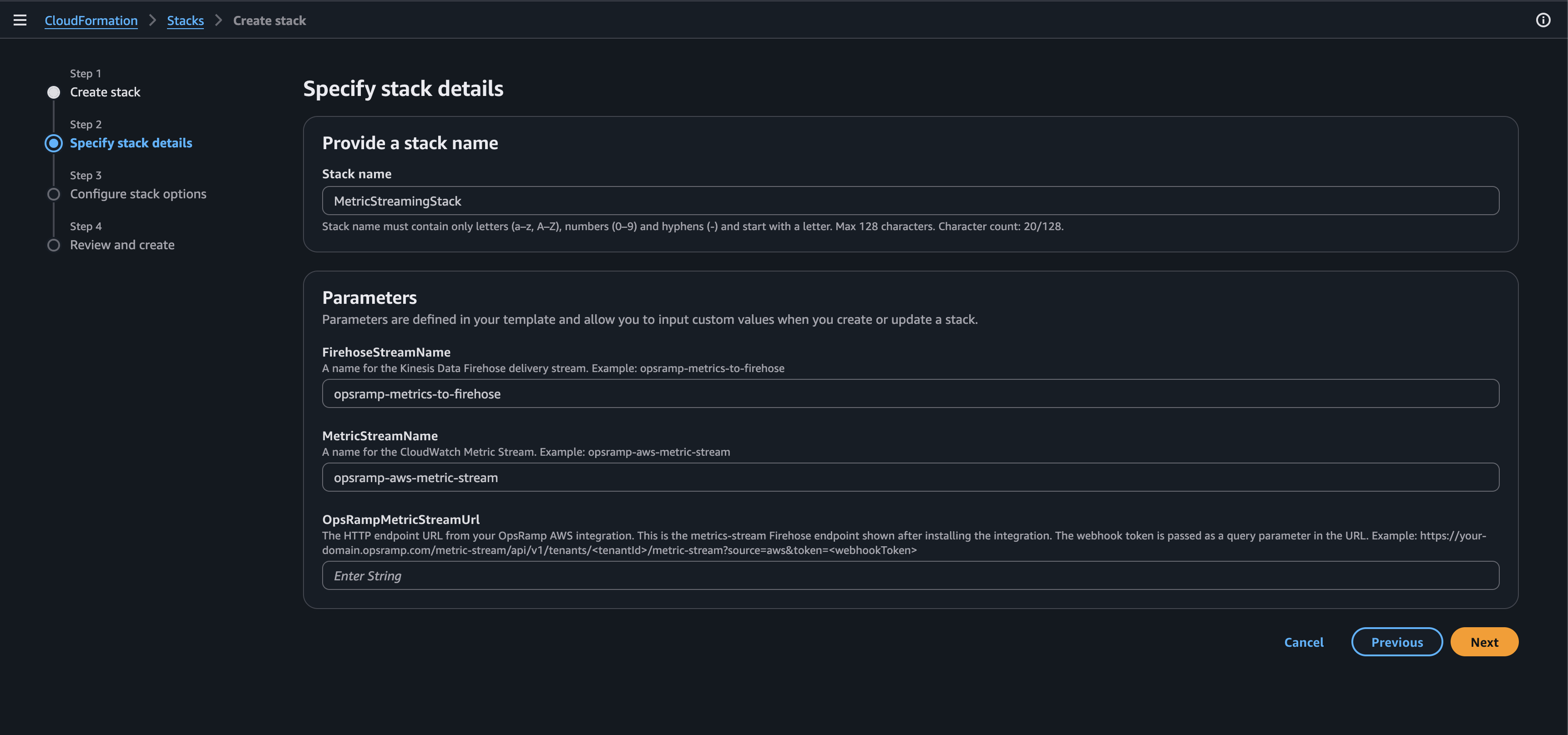
Click Next and review the stack configuration.
Acknowledge that AWS CloudFormation might create IAM resources, and then create the stack.
Wait until the stack status changes to CREATE_COMPLETE.
Repeat these steps for each AWS account and Region from which you want to stream metrics.
Configure AWS Metric Streaming manually
If you prefer not to use the CloudFormation template, create the Kinesis Data Firehose delivery stream and CloudWatch Metric Stream manually.
Create a delivery stream in Kinesis Data Firehose
In the AWS Console, go to Amazon Kinesis > Delivery streams > Create delivery stream.
Create a delivery stream with the following settings:
- Source: Direct PUT.
- Destination: HTTP Endpoint.
Enter a delivery stream name.

Under Destination settings, enter the URL copied from the OpsRamp AWS integration in the HTTP endpoint URL field.
Set Retry duration to 60 seconds. The allowed range is 0 to 7200 seconds. This is the length of time Firehose retries delivery after a failure, including the first attempt.

Under Buffer hints, set Buffer size to 1 MiB.

Choose the S3 backup bucket to receive data that cannot be delivered to the HTTP endpoint.

Click Create Delivery stream. The delivery stream is created.

Create a metric stream in CloudWatch
In CloudWatch, go to Metrics > Streams.
Select All metrics to stream monitoring data for all resources onboarded in AWS.
Under Configuration, select the delivery stream you created earlier.

Set the output format to JSON.

Enter a name in the Metric stream name field.

Click Create metric stream. The metric stream is created.
Validate
After the CloudFormation stack is created or manual configuration is complete, wait for OpsRamp to recognize the change. Go to the Metrics section in OpsRamp and verify that streamed metrics are populating for the specified AWS account.