Introduction
The AWS Event Collector integration collects real‑time AWS events including CloudTrail management events, CloudWatch Alarms, and AWS Health Events that are forwarded to OpsRamp via Kinesis Firehose.
For onboarded AWS accounts, CloudTrail events automatically update resource inventory in OpsRamp. CloudWatch Alarms and AWS Health Events generate alerts, while other incoming events can optionally be stored as searchable logs.
The integration uses AWS EventBridge and Amazon Kinesis Data Firehose to securely forward events from your AWS account(s) to OpsRamp. A set of CloudFormation templates automates the AWS‑side setup.
Supported Event Sources
| Event Source | What It Does |
|---|---|
| CloudTrail Events | Captures AWS management events such as launching, modifying, or terminating resources. Updates resource inventory in OpsRamp for onboarded accounts. |
| CloudWatch Alarms | Monitors AWS metrics and generates alerts in OpsRamp when thresholds are crossed. |
| AWS Health Events | Provides alerts for AWS service issues, maintenance, and operational changes. |
Prerequisites
Ensure the following before configuring the integration:
- An OpsRamp partner‑level or client‑level account with permissions to install integrations
- An active AWS account with permissions to create:
- CloudFormation stacks
- IAM roles
- EventBridge rules
- Kinesis Data Firehose streams
- (Recommended) An existing AWS integration in OpsRamp to select discovered AWS accounts during setup
Configure the Integration
1. Add the AWS Event Collector App
- Log in to the OpsRamp portal.
- Navigate to Setup > Account.
- On the ACCOUNT DETAILS page, select Integrations.
- The INSTALLED INTEGRATIONS page is displayed with all the installed applications. Note: If there are no installed applications, it will navigate to the AVAILABLE INTEGRATIONS AND APPS page.
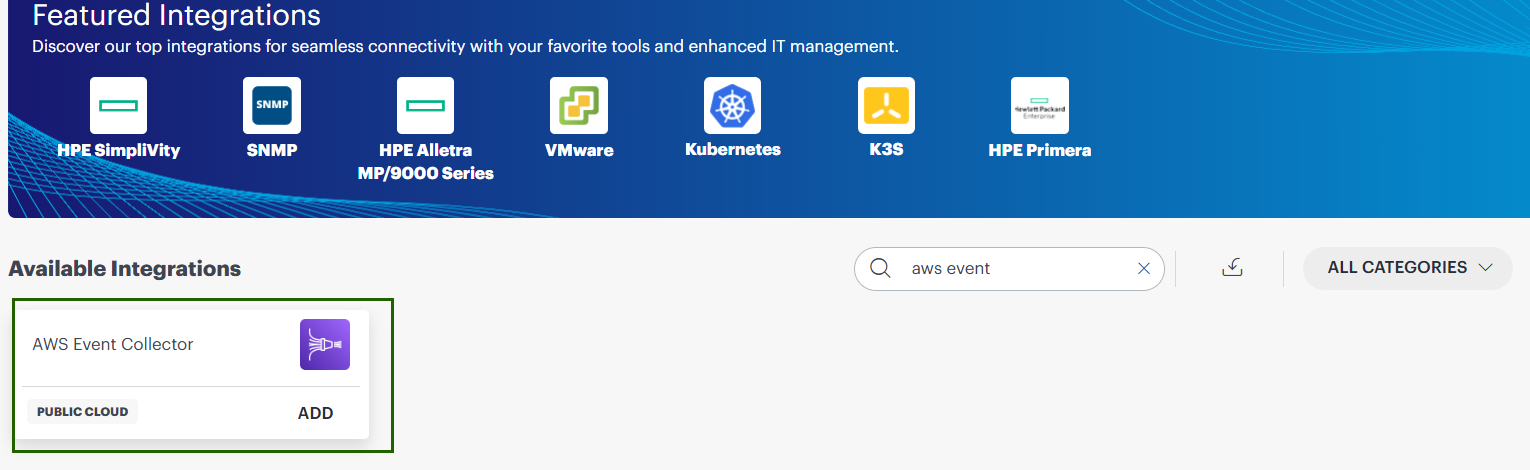
- Click + ADD on the INSTALLED INTEGRATIONS page. The AVAILABLE INTEGRATIONS AND APPS page displays all the available applications along with the newly created application.Note: You can even search for the application using the search option available. Also, you can use the All Categories option to search.
- Click ADD in the AWS Event Collector application.
- Provide the following details on the Add AWS Event Collector page:
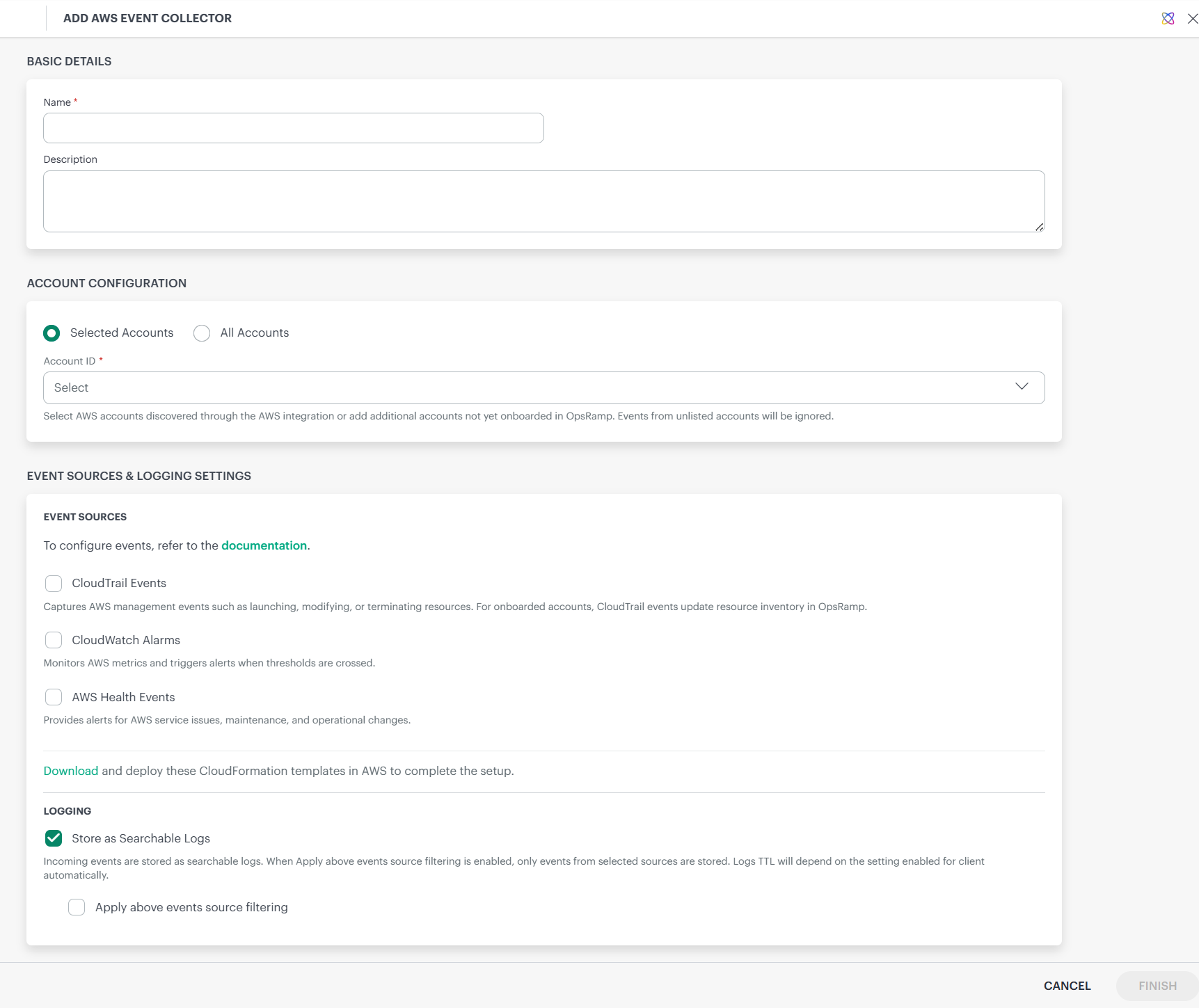
| Field | Description |
|---|---|
| Name | Display name for the integration instance |
| Description | Optional description for reference |
- In the Account Configuration section, choose one of the following options:
Selected Accounts
Events are collected only from the specified AWS account IDs.
You can:
- Select AWS accounts discovered through an existing AWS integration, or
- Manually enter additional AWS account IDs
Note
For manually entered accounts (not onboarded in OpsRamp), only logging is supported.All Accounts
Events are accepted from all AWS accounts.
- For onboarded accounts, events (CloudTrail, CloudWatch, and AWS Health) are processed and alerts are generated
- For non‑onboarded accounts, events are stored as logs only, based on your logging configuration
- From the Event Sources & Logging Settings section, configure the following:
Event Sources
| Setting | Description |
|---|---|
| CloudTrail Events | Captures AWS management events and updates inventory for onboarded accounts |
| CloudWatch Alarms | Generates alerts when AWS metric thresholds are breached |
| Generate alerts for resources not onboarded | (Optional) Generates alerts for resources not yet discovered in OpsRamp |
| AWS Health Events | Generates alerts for AWS service health and maintenance events |
Logging Settings
| Setting | Description |
|---|---|
| Store as Searchable Logs | Stores incoming events as searchable logs based on the client's log retention policyNoteLog Management must be enabled for the Store as Searchable Logs option to work. Ensure that Log Management is active in your OpsRamp client before configuring this setting. See Enable Log Management for more details. |
| Apply above event source filtering | When enabled, only events from selected sources are stored as logs |
- Click Download to retrieve the CloudFormation templates ZIP file required for AWS‑side configuration. See AWS Configuration Using CloudFormation Templates for more details.The ZIP includes:
| File | Purpose |
|---|---|
| awseventcollector-setup.yaml | Main template—deploy in the primary AWS region |
| awseventcollector-forwarding-rule.yaml | Deploy in additional regions or child accounts |
| awseventcollector-README.txt | Detailed deployment instructions |
- Click Finish to complete the installation.
- The AWS Event Collector application is displayed on the Installed Integrations page.
Retrieve Event Ingestion Endpoint and Token
After installing the integration, retrieve the values required for AWS configuration.
- Navigate to Installed Integrations.
- Click the AWS Event Collector integration.
- Scroll to the Endpoint Details section.
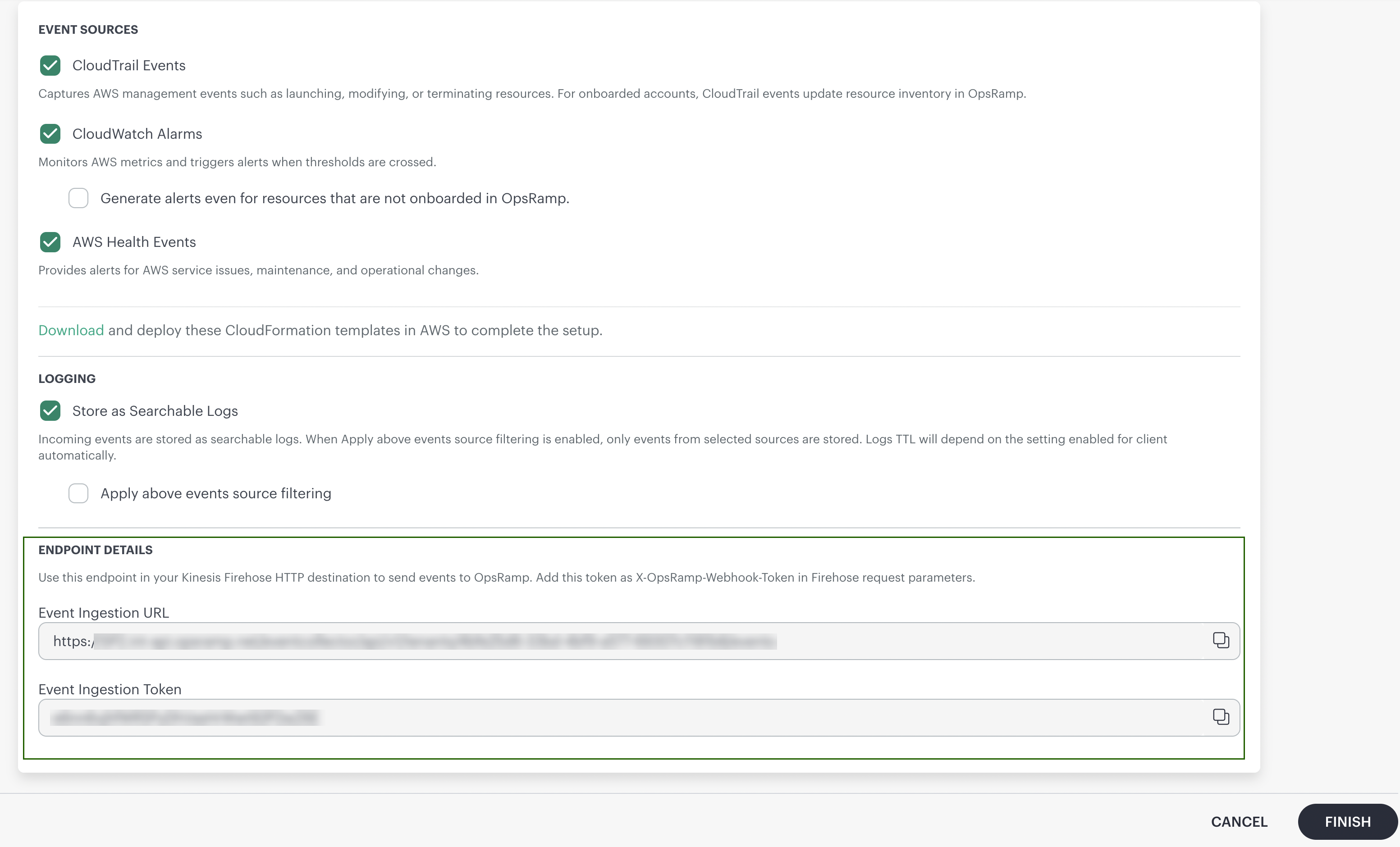
| Field | Description |
|---|---|
| Event Ingestion URL | HTTP endpoint where Kinesis Firehose sends events to OpsRamp |
| Event Ingestion Token | Authentication token included in Firehose requests |
- Copy both values using the copy icon.
Important: Keep the Event Ingestion Token secure and do not share it via unsecured channels.
Note
- Ensure that relevant events are being generated in AWS for ingestion. This includes enabling services such as CloudTrail (by creating a trail), configuring CloudWatch alarms, and ensuring AWS Health events are available so that events can be captured and forwarded to OpsRamp.
- When the Store as Searchable Logs option is enabled, the same event may occasionally appear multiple times. This can happen when the same event is received from multiple AWS sources via Kinesis Firehose.For event processing within the AWS integration, mechanisms are in place to identify and handle scenarios where multiple events are generated from the same operation.
- Store as Searchable Logs will be enabled only when Log Management is active.
- If the AWS Event Collector app is installed at the partner level, at least one associated client must have Log Management enabled.
- If the AWS Event Collector app is installed at the client level, Log Management must be enabled for that specific client.
- If all accounts are selected or accounts are added that are not yet onboarded in OpsRamp:
- When the AWS Event Collector app is installed at the partner level, logs will not be stored, as Log Management operates at the client level and there is no client mapping for such accounts.
- When the AWS Event Collector app is installed at the client level, logs will still be pushed to that client, since events can be mapped to the specific client even if the accounts are not yet onboarded.
- If Amazon CloudTrail, CloudWatch Alarms, and Health Events are enabled in both the AWS Integration and the AWS Event Collector app simultaneously, and data is being collected from both sources, duplicate alerts and duplicate resources may appear within the AWS integration. To avoid duplicate event processing and resource duplication, enable these options in only one source—either the AWS Integration or the AWS Event Collector app. It is recommended to use a single source for event collection to help avoid duplicate alerts and support proper resource deduplication.
Troubleshooting
Use the following table to diagnose and resolve common issues when configuring or running the AWS Event Collector integration.
Common Issues and Resolutions
| Issue | Possible Cause | Resolution |
|---|---|---|
| Events not appearing in OpsRamp | EventBridge rule is disabled | Check that rule State is ENABLED in EventBridge |
| Events not appearing in OpsRamp | Incorrect Endpoint URL or Token | Verify the values in the Firehose HTTP endpoint configuration match what OpsRamp shows |
| Events not appearing in OpsRamp | Not delivering to HTTP endpoint | Check for HTTP endpoint delivery success graph in Kinesis Firehose |
| Events not appearing in OpsRamp | Endpoint unreachable | Check Destination Error Logs in Firehose |
| Cross-account events not flowing | Organization ID mismatch | Verify the OrganizationId parameter matches your AWS Organization ID |
| Cross-region events not flowing | Incorrect TargetEventBusArn | Verify the TargetEventBusArn matches the CustomEventBusArn output from the main stack |
| Stack creation fails | Insufficient IAM permissions | Ensure the deploying user/role has permissions for CloudFormation, IAM, S3, CloudWatch Logs, Firehose, and EventBridge |
| Stack creation fails | Resource name conflict | Change the EventBusName or FirehoseStreamName parameter |
| Alerts not generated for CloudWatch Alarms | Resource not onboarded | Enable "Generate alerts even for resources that are not onboarded in OpsRamp" in the Event Collector settings |