Introduction
Use the downloaded CloudFormation templates to set up secure and scalable event forwarding from your AWS account(s) to OpsRamp. This automated approach is recommended for configuring the AWS Event Collector, as it ensures consistency across accounts and regions while minimizing manual effort. Alternatively, you can configure the AWS Event Collector manually without using CloudFormation by following the manual setup steps.
AWS Configuration Using CloudFormation Templates
Deployment Scenarios
Choose the deployment scenario that matches your AWS environment.
| Scenario | Templates to Deploy |
|---|---|
| Single account, single region | awseventcollector-setup.yaml in the target region |
| Single account, multiple regions | awseventcollector-setup.yaml in the primary region + awseventcollector-forwarding-rule.yaml in each additional region |
| Multiple accounts (AWS Organization) | awseventcollector-setup.yaml in the main account (with OrganizationId) + awseventcollector-forwarding-rule.yaml in each child account |
| Multiple accounts, multiple regions | awseventcollector-setup.yaml in the main account primary region (with OrganizationId) + awseventcollector-forwarding-rule.yaml in all other regions and child accounts |
Single Account, Single Region Setup
This is the most common deployment scenario.
- Sign in to the AWS Management Console.
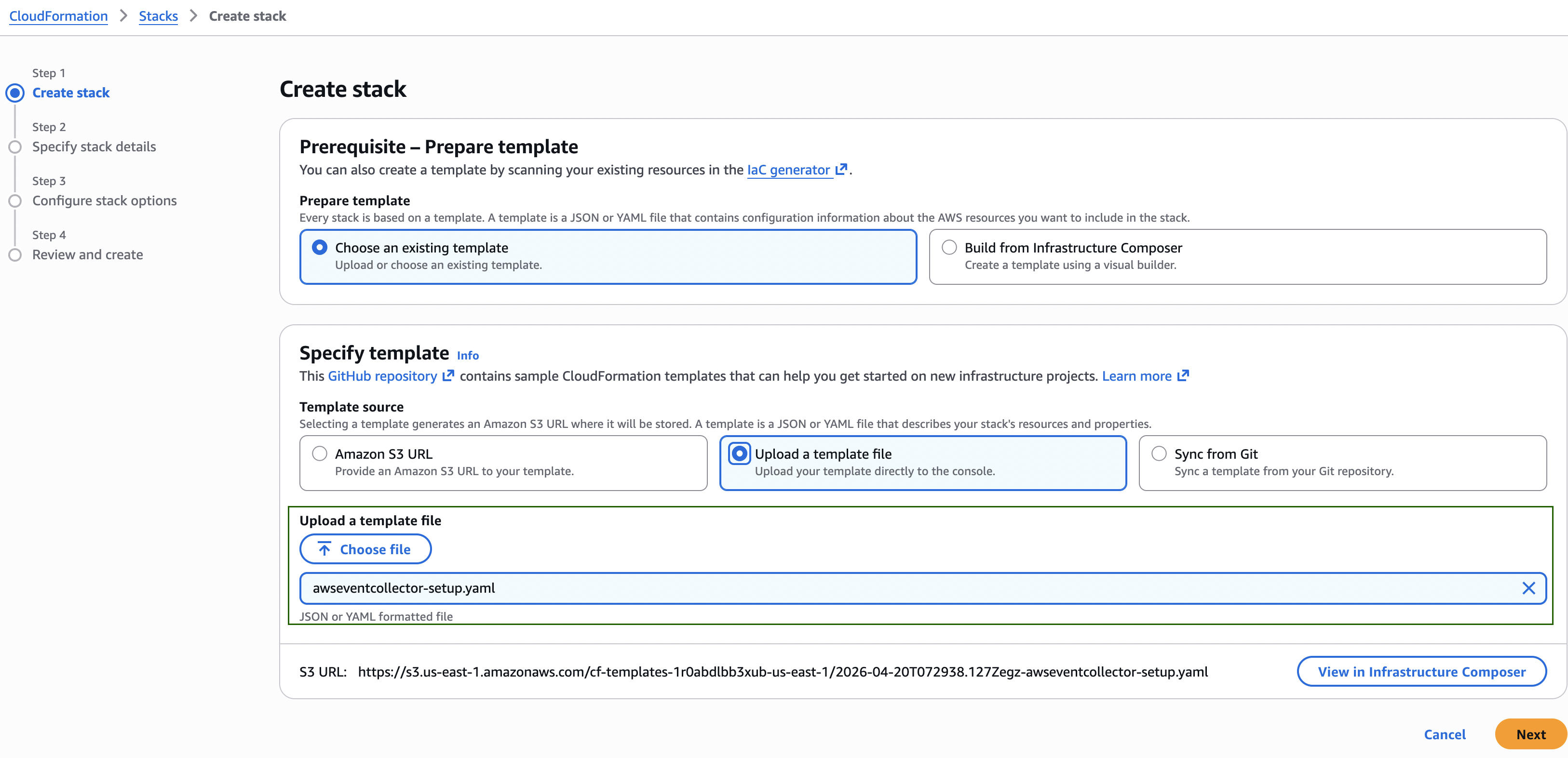
- Navigate to CloudFormation > Stacks > Create stack > With new resources (standard).
- Select Upload a template file, click Choose file, and select
awseventcollector-setup.yamlfrom the downloaded ZIP file. - Select Next.
Stack Parameters
Provide the following values when prompted:
| Parameter | Description |
|---|---|
| Stack name | A descriptive name for the stack (for example, opsramp-event-collector) |
| EventBusName | Name of the custom Amazon EventBridge event bus (default: opsramp-events-collector) |
| FirehoseStreamName | Name of the Amazon Kinesis Data Firehose delivery stream (default: opsramp-events-to-firehose) |
| OpsRampEndpointUrl | Event Ingestion URL copied from OpsRamp. This is automatically populated if the ZIP file is downloaded from the installed Event Collector app. |
| OpsRampToken | Event Ingestion Token copied from OpsRamp. This is automatically populated if the ZIP file is downloaded from the installed Event Collector app. |
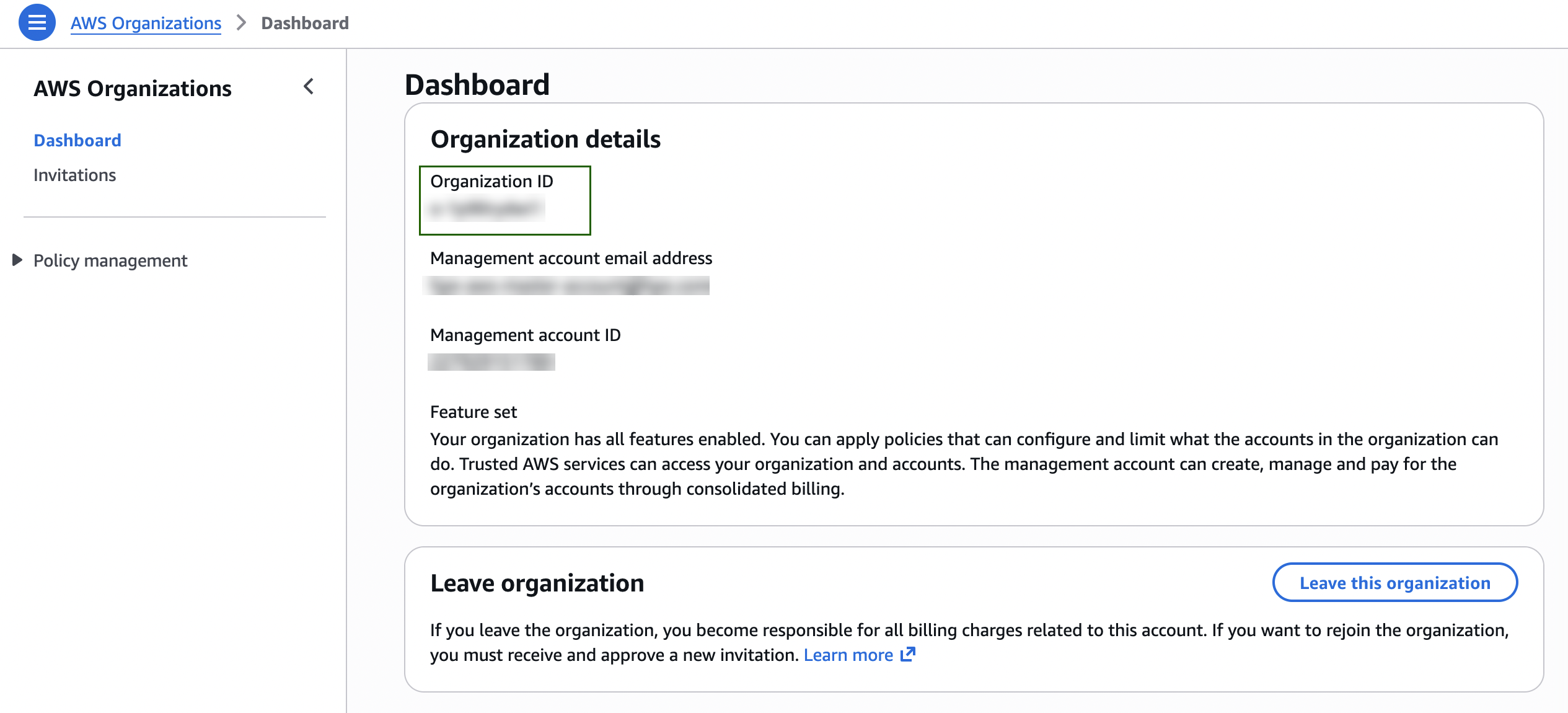
| OrganizationId | Leave blank for single‑account setups. Required only when deploying across AWS Organizations. To obtain the Organization ID, go to AWS Organizations > Dashboard. |
Event Pattern Configuration: When the ZIP file is downloaded from an already installed integration, the event pattern is automatically configured based on the sources enabled within that integration. If the ZIP file is downloaded from a new integration, a generic event pattern is applied by default to capture all AWS events (i.e., all sources starting with “aws.").
Note
After creating the required resources in AWS via CloudFormation or manually, you should update the event pattern based on your specific requirements to control which events are forwarded to OpsRamp. For more details, refer to the Customizing Event Patterns section.- Select Next.
Create the Stack
- On the Configure stack options page, retain the default settings.
- Review the configuration.
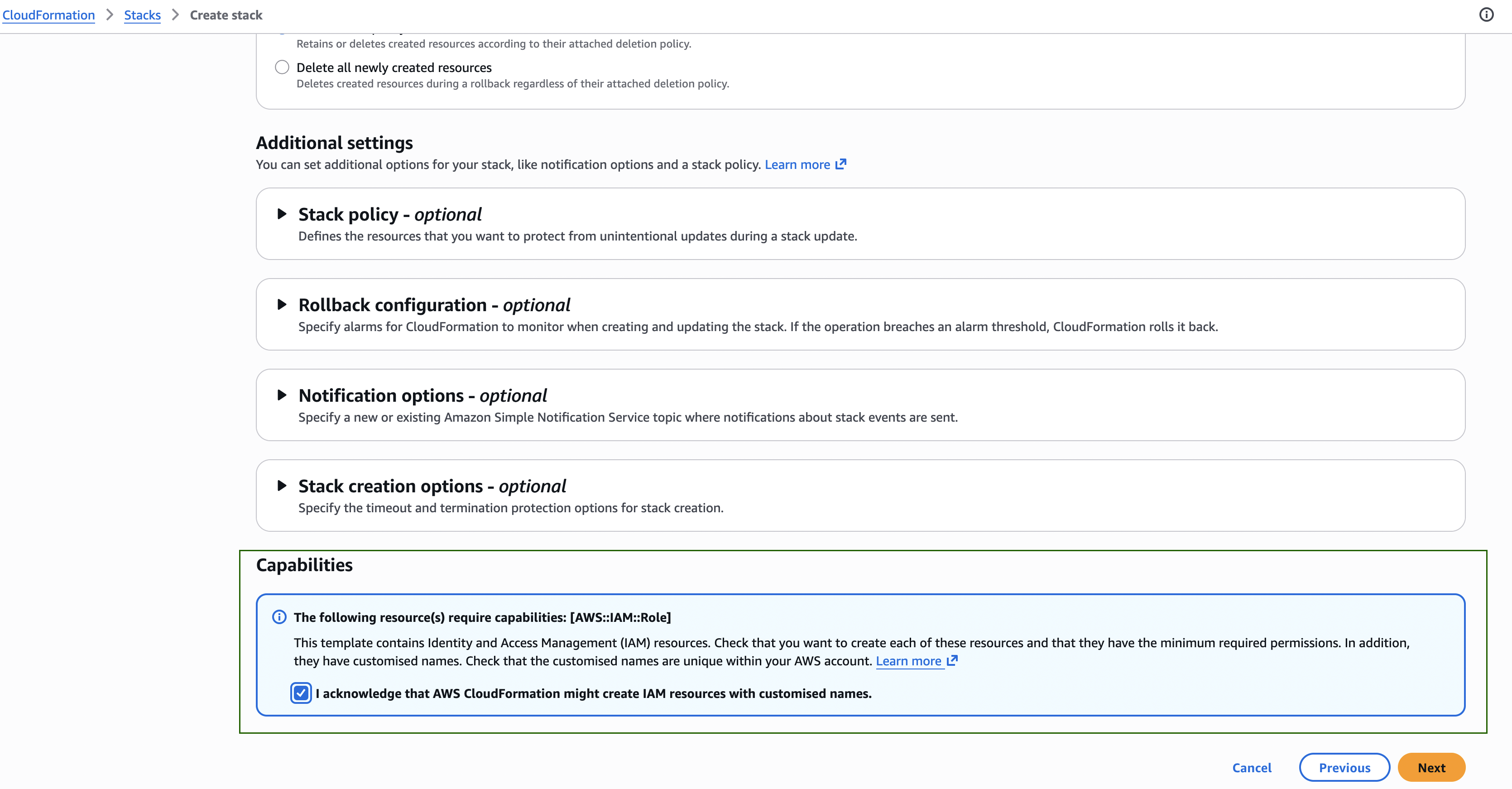
- Select I acknowledge that AWS CloudFormation might create IAM resources with custom names.
- Select Submit.
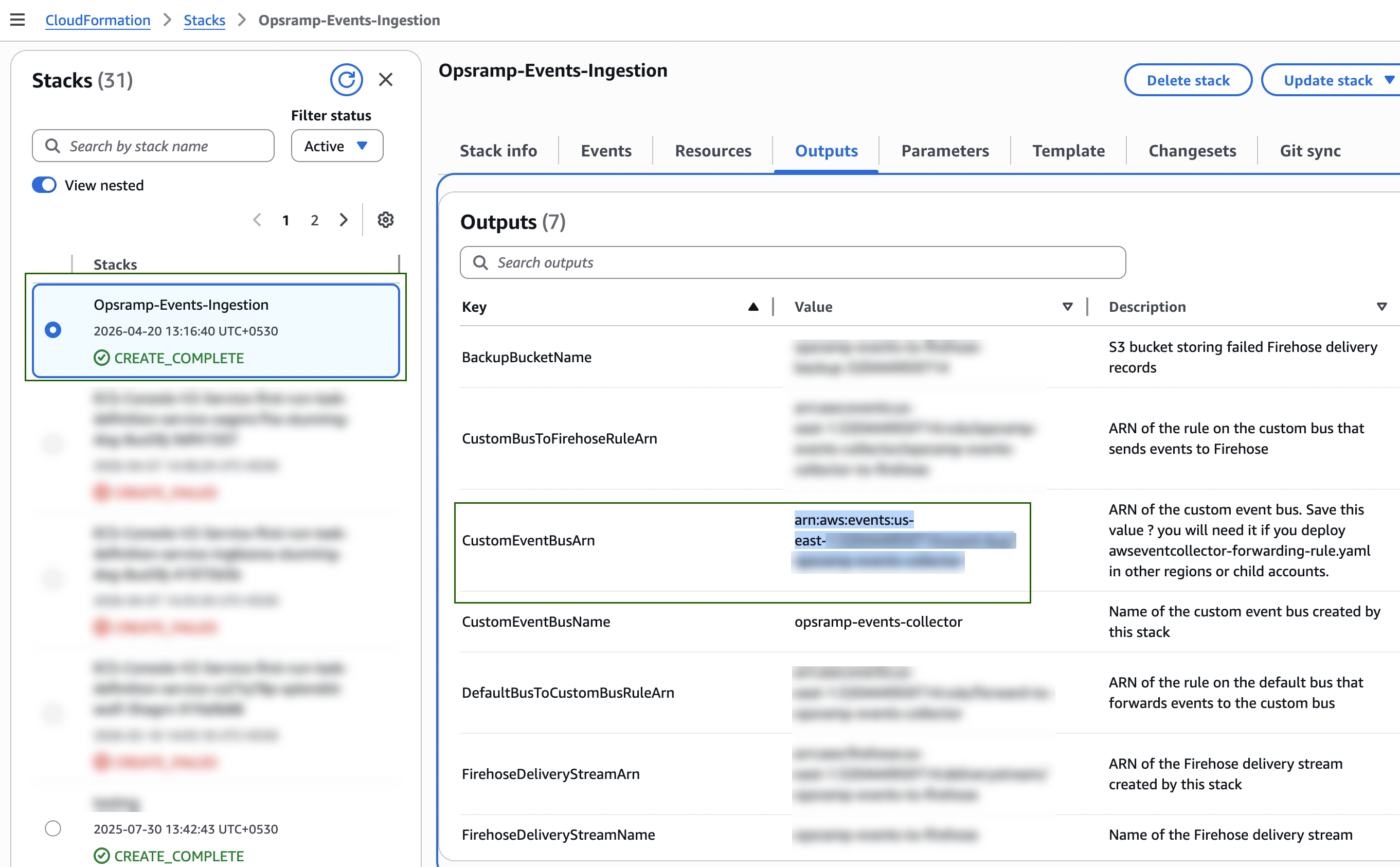
- Wait until the stack status changes to CREATE_COMPLETE (typically 2–3 minutes).
Resources Created
The CloudFormation template automatically provisions the following AWS resources:
- Amazon Kinesis Data Firehose delivery stream
- Amazon S3 backup bucket
- Amazon CloudWatch log group
- Custom Amazon EventBridge event bus
- EventBridge rules
- Required IAM roles
Copy the CustomEventBusArn value from the Outputs tab. This value is required for multi‑region and multi‑account deployments.
Verify the AWS Resources
After stack creation, verify the following resources in the AWS Console:
Amazon Data Firehose > Firehose streams
- Confirm that the Firehose delivery stream (for example,
opsramp-events-to-firehose) is in Active status.
Amazon EventBridge > Event buses
- Confirm that the custom event bus (for example,
opsramp-events-collector) is listed.
Amazon EventBridge > Rules
- Confirm that the following rules exist:
forward-to-opsramp-events-collectoron the default event busopsramp-events-collector-to-firehoseon the custom event bus
Amazon S3
- Confirm that the backup bucket (for example,
opsramp-events-to-firehose-backup-<account-id>) exists.
Multi‑Region Setup (Single Account)
To collect events from additional AWS regions in the same account:
Deploy
awseventcollector-setup.yamlin the primary region.From the Outputs tab of the created stack, copy the
CustomEventBusArn.In each additional region:
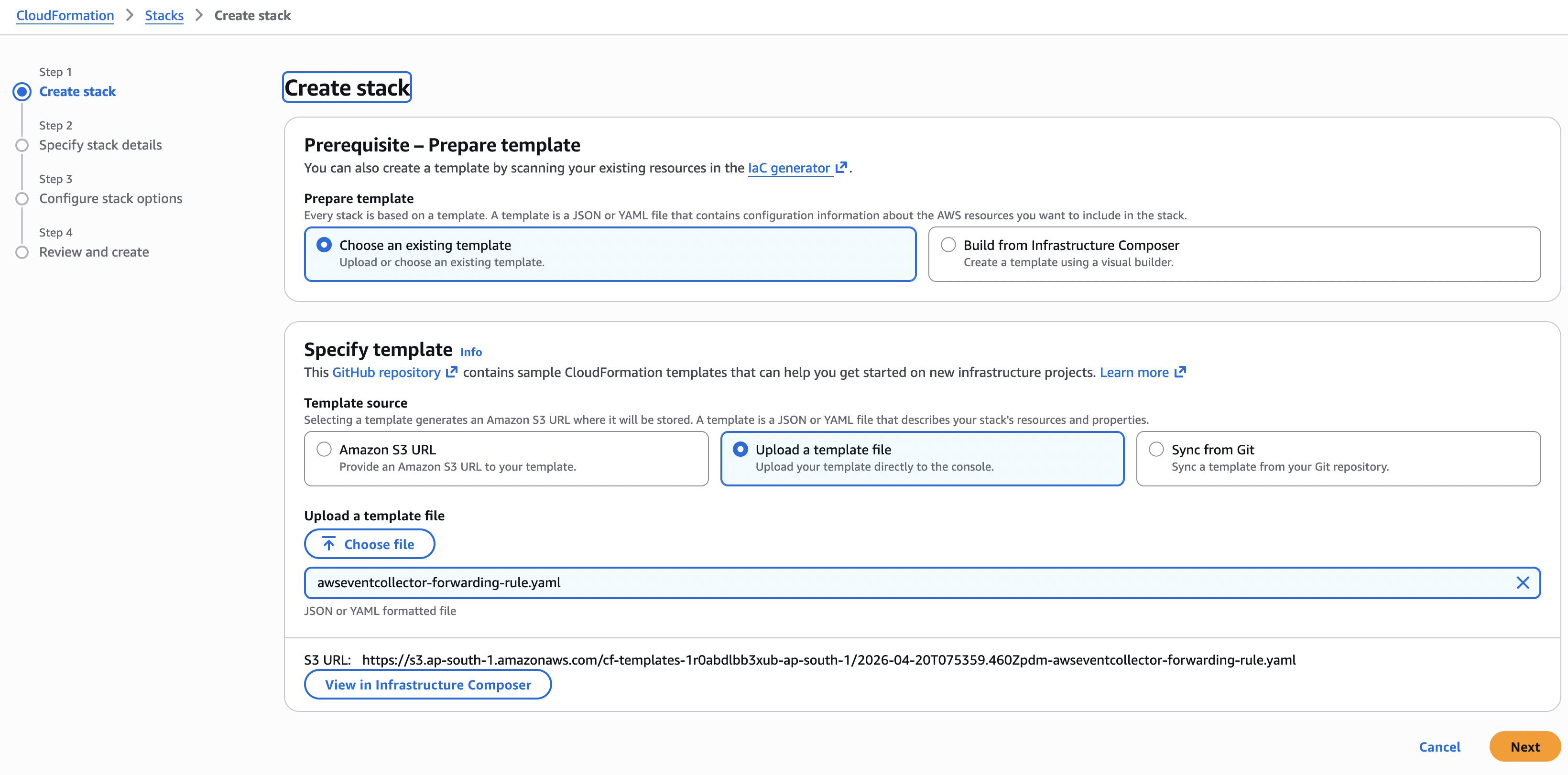
- Create a new CloudFormation stack.
- Upload
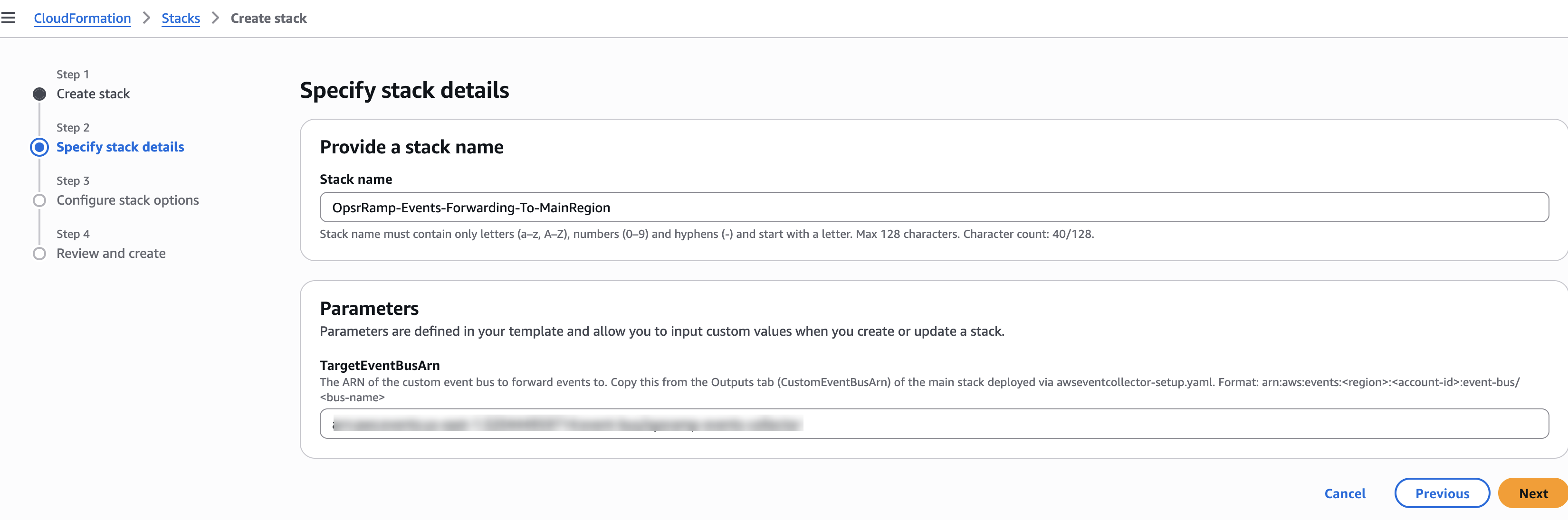
awseventcollector-forwarding-rule.yaml. - Set the
TargetEventBusArnparameter to the copied ARN. - Complete stack creation.
Multi‑Account Setup (AWS Organization)
To collect events from multiple AWS accounts within an organization:
Deploy
awseventcollector-setup.yamlin the main account and primary region.Provide all required parameter values.
Set
OrganizationIdto your AWS Organization ID (format:o-xxxxxxxxxx).Note: You can find the Organization ID in AWS Console > AWS Organizations > Dashboard, or by running
aws organizations describe-organization --query Organization.Id.Copy the
CustomEventBusArnfrom the Outputs tab.In each child account, create a CloudFormation stack using
awseventcollector-forwarding-rule.yamland setTargetEventBusArnto the copied ARN.
Multi‑Account, Multi‑Region Setup
For environments spanning multiple AWS accounts and regions:
- Deploy
awseventcollector-setup.yamlin the main account primary region withOrganizationIdset. - Copy the
CustomEventBusArnfrom the Outputs tab. - Deploy
awseventcollector-forwarding-rule.yaml:- In each additional region of the main account
- In every region of each child account
Verify Event Ingestion
Generate a test event
Perform any AWS action (for example, start or stop an EC2 instance, or create a security group).
Check Firehose metrics
In the AWS Console, go to Amazon Data Firehose > Monitoring and review Incoming records and HTTP endpoint delivery success metrics. Event delivery may be delayed by the 60‑second buffer interval.
Check OpsRamp
Navigate to Alerts to confirm alert generation. If Store as Searchable Logs is enabled, navigate to Logs to verify event ingestion.
Delete the Setup
To stop event collection:
- Delete all stacks created using
awseventcollector-forwarding-rule.yamlin child accounts and additional regions. - Delete the stack created using
awseventcollector-setup.yamlin the main account. - Manually delete the S3 backup bucket. The bucket is retained by default to prevent accidental data loss.
AWS Configuration — Manual Setup (Without CloudFormation)
This option describes manual creation of AWS resources using the AWS Console. If possible, use the CloudFormation templates described earlier for automated and consistent setup.
Prerequisites
- AWS Event Collector app installed in OpsRamp
- Event Ingestion URL and Event Ingestion Token retrieved from the installed integration
- AWS Console access with permissions to create Kinesis Firehose streams and EventBridge resources
Resources Required
| Order | Resource | Purpose |
|---|---|---|
| 1 | Kinesis Data Firehose stream | Delivers events to the OpsRamp HTTP endpoint |
| 2 | Custom EventBridge event bus | Central routing for OpsRamp events |
| 3 | EventBridge rule (Custom Bus → Firehose) | Routes events to Firehose |
| 4 | EventBridge rule (Default Bus → Custom Bus) | Forwards matching events |
Create the Kinesis Data Firehose Stream
- Navigate to Amazon Kinesis Data Firehose > Create Firehose stream.
- Configure the source and destination:
| Setting | Value |
|---|---|
| Source | Direct PUT |
| Destination | HTTP Endpoint |
| Firehose stream name | opsramp-events-to-firehose |
Destination Settings
Provide the following HTTP endpoint details:
| Setting | Value |
|---|---|
| HTTP endpoint URL | Paste the Event Ingestion URL from OpsRamp |
| HTTP endpoint name | OpsRamp Event Collector |
| Content encoding | GZIP |
HTTP Endpoint Request Parameters
Under HTTP endpoint request configuration, add the following parameter:
| Key | Value |
|---|---|
| X-OpsRamp-Webhook-Token | Paste the Event Ingestion Token from OpsRamp |
Buffer Configuration
| Setting | Value |
|---|---|
| Buffer size | 5 MiB |
| Buffer interval | 60 seconds |
Retry Settings
| Setting | Value |
|---|---|
| Retry duration | 30 seconds |
S3 Backup Settings
| Setting | Value |
|---|---|
| S3 backup mode | Failed data only |
| S3 bucket | Create a new bucket or select an existing bucket |
Service Access
| Setting | Value |
|---|---|
| IAM role | Create new role (automatically created by AWS) |
CloudWatch Error Logging
| Setting | Value |
|---|---|
| Enable error logging | Yes |
- Click Create Firehose stream.
- Wait for the stream status to change to Active.
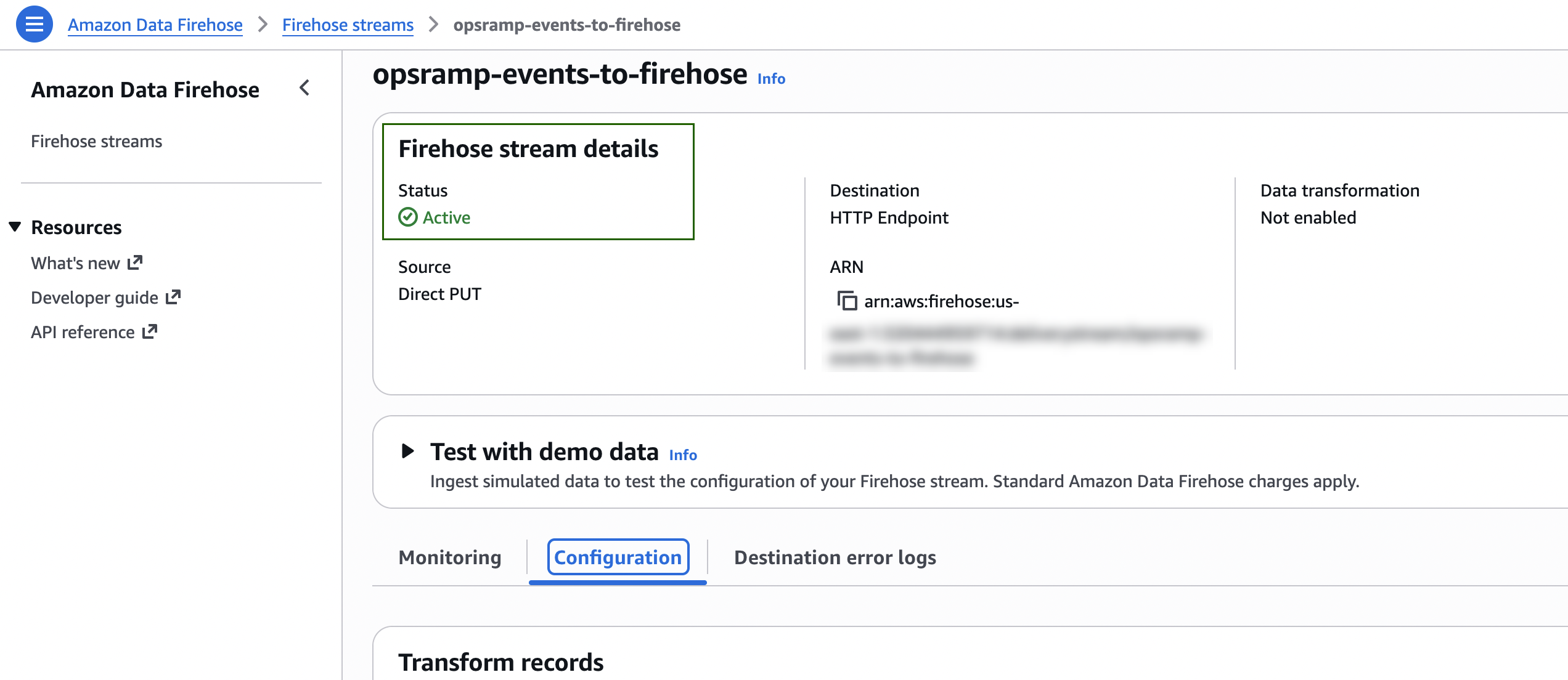
The S3 backup bucket, CloudWatch log group, and IAM role are created automatically as part of the Firehose stream creation.
Create the Custom EventBridge Event Bus
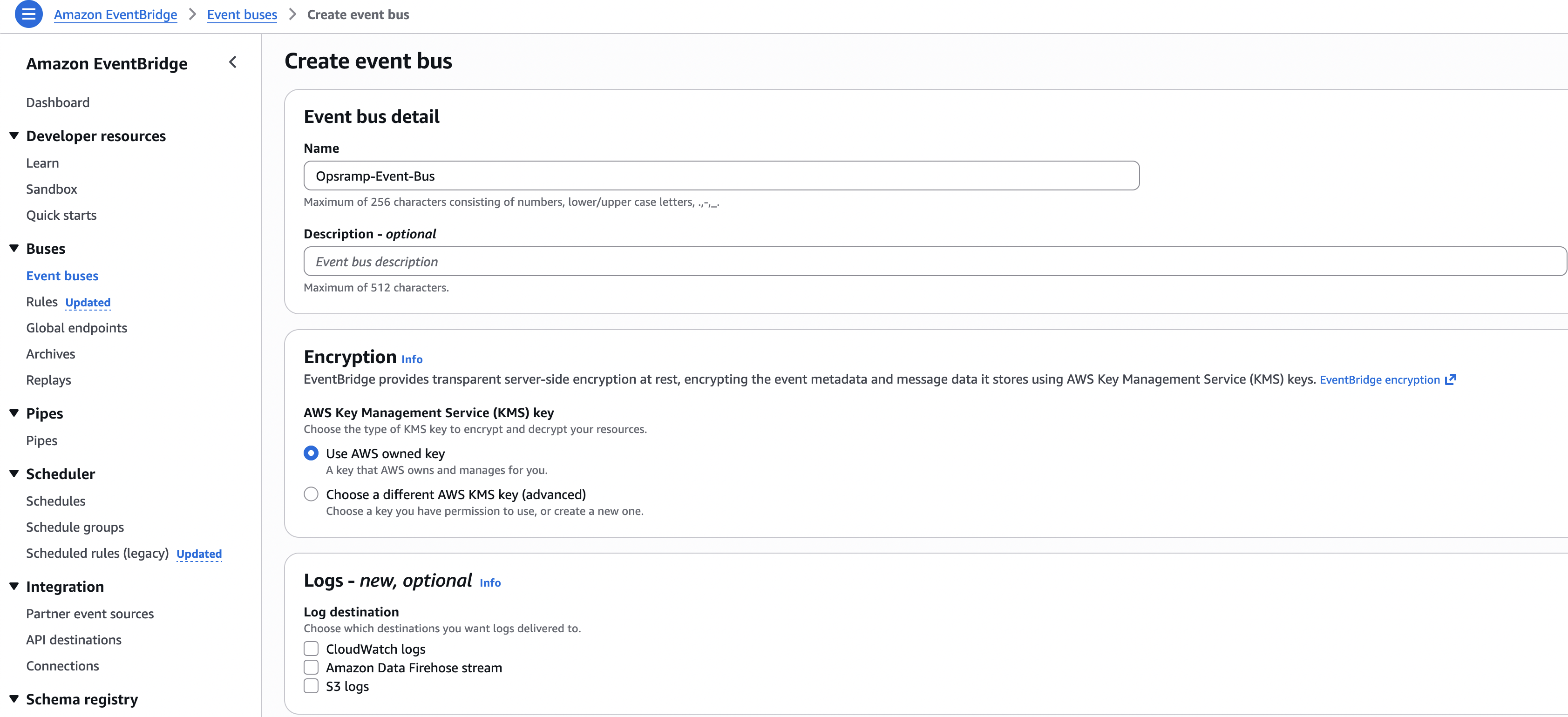
- Navigate to Amazon EventBridge > Event buses > Create event bus.
- Enter the event bus name:
opsramp-events-collector - Click Create.
(Multi‑Account only) Add a Resource Policy to the Custom Event Bus
If you are collecting events from multiple AWS accounts in the same AWS Organization, add a resource policy to the custom EventBridge bus.
- Open the custom event bus and go to Permissions.
- Click Manage permissions and add the following policy. Replace the placeholders:
{
  "Version": "2012-10-17",
  "Statement": [
    {
      "Sid": "AllowOrganizationAccountsPutEvents",
      "Effect": "Allow",
      "Principal": "*",
      "Action": "events:PutEvents",
      "Resource": "<custom-event-bus-arn>",
      "Condition": {
        "StringEquals": {
          "aws:PrincipalOrgID": "<your-org-id>"
        }
      }
    }
  ]
}
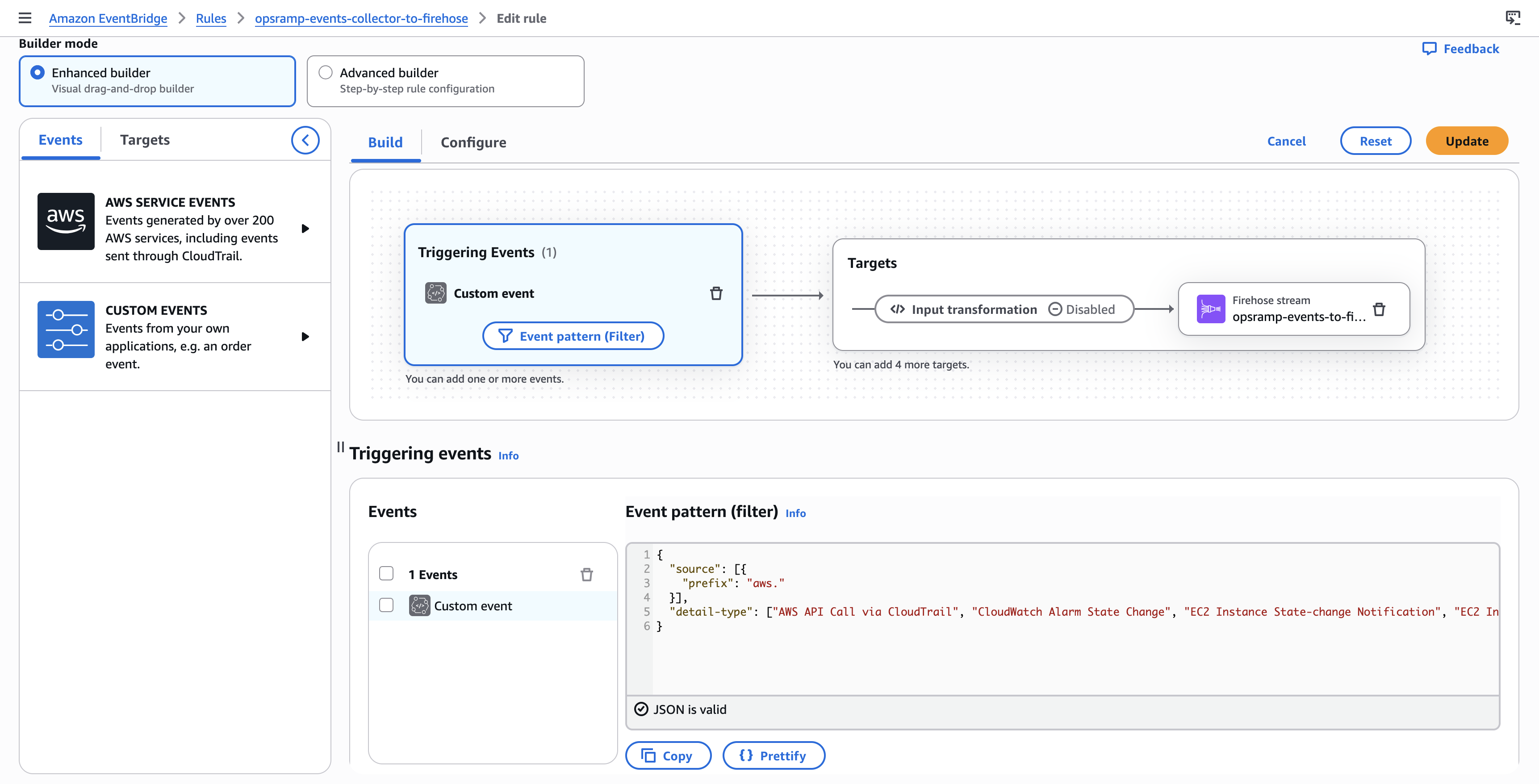
Create the EventBridge Rule (Custom Bus → Firehose)
This rule routes matching events from the custom event bus to the Kinesis Data Firehose stream.
- Navigate to Amazon EventBridge > Rules > Create rule.
- Configure the rule:
| Setting | Value |
|---|---|
| Name | opsramp-events-collector-to-firehose |
| Description | Sends matching events from the custom bus to the OpsRamp Firehose endpoint |
| Event bus | Select opsramp-events-collector (custom bus) |
| Rule type | Rule with an event pattern |
- Click Next and set the Event pattern:
{
  "source": [{"prefix": "aws."}]
}
This default pattern captures all AWS events. Narrow it down based on your needs (see Customizing Event Patterns).
- Click Next and configure the Target:
| Setting | Value |
|---|---|
| Target type | AWS service |
| Target | Firehose delivery stream |
| Delivery stream | Select opsramp-events-to-firehose |
| Execution role | Create a new role for this specific resource |
- Click Next, skip tags, and click Create rule.
Create the EventBridge Rule (Default Bus → Custom Bus)
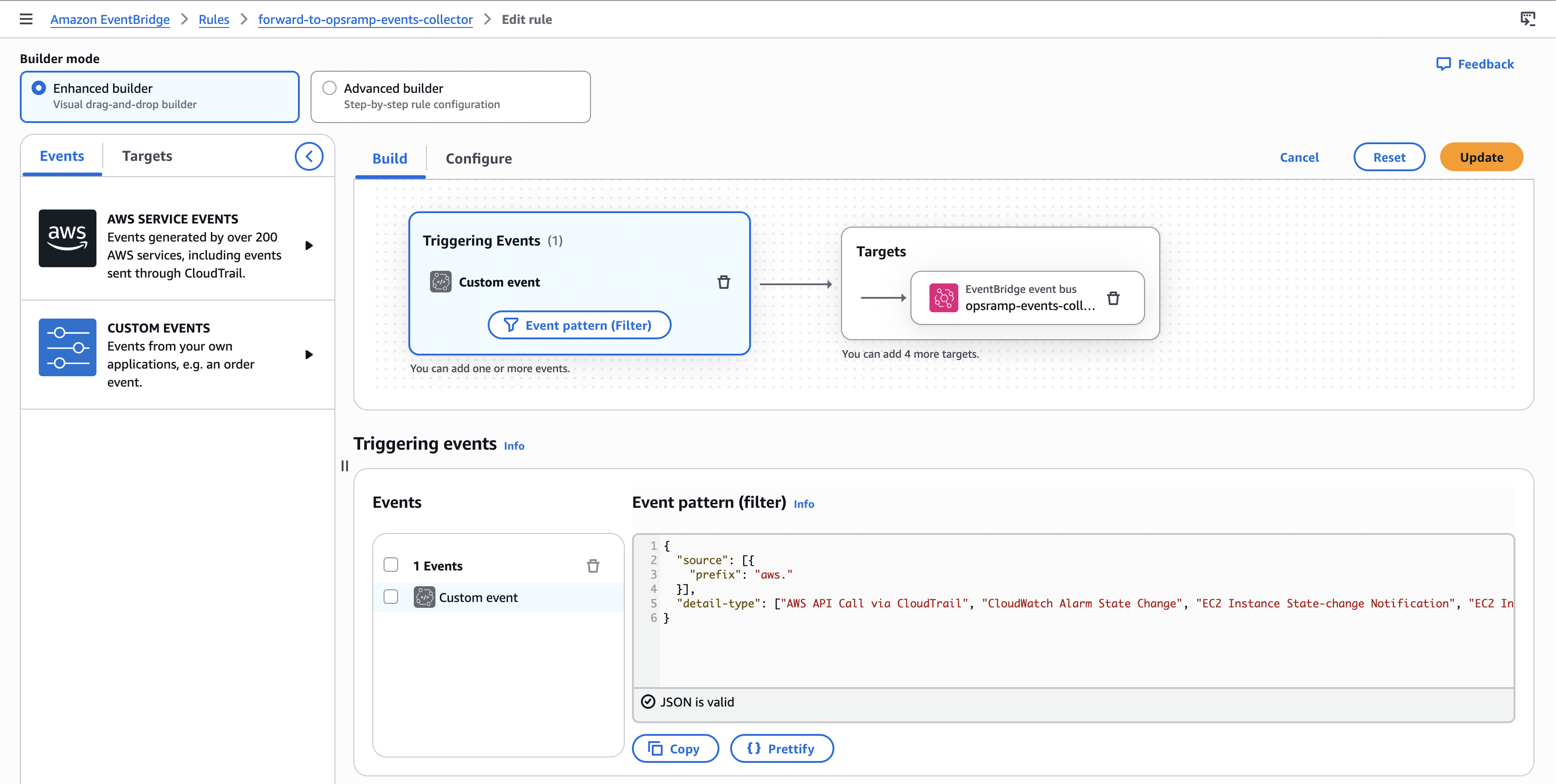
This rule forwards matching events from the default event bus to the custom event bus.
- Navigate to Amazon EventBridge > Rules > Create rule.
- Configure the rule:
| Setting | Value |
|---|---|
| Name | forward-to-opsramp-events-collector |
| Description | Forwards matching events from the default bus to the OpsRamp custom bus |
| Event bus | Select default |
| Rule type | Rule with an event pattern |
- Click Next and use the same Event pattern used in the custom bus rule:
{
  "source": [{"prefix": "aws."}]
}
- Click Next and configure the Target:
| Setting | Value |
|---|---|
| Target type | EventBridge event bus |
| Event bus | Select opsramp-events-collector (custom bus) |
| Execution role | Create a new role for this specific resource |
- Click Next, skip tags, and click Create rule.
Verification
After creating all required resources, verify the setup:
Firehose stream
- Confirm the stream status is Active in Amazon Data Firehose.
EventBridge rules
- Confirm both rules are in Enabled state.
Generate a test event
- Perform any AWS action (for example, create a security group) and verify:
- Firehose Monitoring shows incoming records
- OpsRamp shows ingested data in Alerts or Logs (based on your integration settings)
Multi‑Region / Multi‑Account Forwarding
To forward events from additional regions or child accounts:
In each additional region or child account:
- Create an EventBridge rule on the default event bus.
- Use the same event pattern as the main rule.
- Set the target as:
- Target type: EventBridge event bus
- Target: Paste the custom event bus ARN from the primary region/main account
- Create an execution role for this rule as prompted.
Cleanup
To remove the manual setup, delete resources in reverse order:
- Delete EventBridge rules (both rules)
- Delete the custom event bus
- Delete the Kinesis Data Firehose stream
- Delete the S3 backup bucket (empty it first, if required by AWS)
Customizing Event Patterns
By default, the templates and rules capture all AWS service events using this pattern:
{"source":[{"prefix":"aws."}]}
To reduce volume and cost, narrow the pattern to only the event types you need.
| Use Case | Event Pattern |
|---|---|
| All AWS events (default) | {"source":[{"prefix":"aws."}]} |
| CloudTrail only | {"detail-type": ["AWS API Call via CloudTrail"]} |
| CloudWatch Only | {"source":["aws.cloudwatch"]} |
| EC2 only | {"source":["aws.ec2"]} |
| EC2 state changes only | {"source":["aws.ec2"],"detail-type":["EC2 Instance State-change Notification"]} |
| S3 only | {"source":["aws.s3"]} |
| Multiple services | {"source":["aws.ec2","aws.s3","aws.lambda"]} |
| Health events only | {"source":["aws.health"]} |
| To get all events supported by only AWS integration in OpsRamp | |
Updating the Event Pattern After Deployment
To modify event filtering after deployment:
In the main region/account
- Go to the custom event bus (for example,
opsramp-events-collector) and edit the rule (for example,opsramp-events-collector-to-firehose). Update the EventPattern JSON and save.
In forwarding regions/accounts
- Go to Amazon EventBridge > Rules, select the forwarding rule (for example,
forward-to-opsramp-events-collector), update the Event pattern JSON, and save.