Configure the integration
Follow these steps to configure MCP server integration:
- Click Setup > Account.
- Select the Integrations tile.
- The Installed Integrations screen is displayed, with all the installed applications. Click + ADD on the Installed Integrations page.
- If you do not have any installed applications, you will be navigated to the Available Integrations page. The Available Integrations page displays all the available applications
Note: Search for MCP Server using the search option available. Alternatively, use the All Categories option to search. - Click +ADD on the MCP Server tile.
- Enter a unique name for the integration in the popup box and click Add.
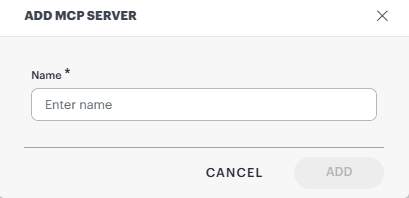
The MCP Outbound configuration page appears.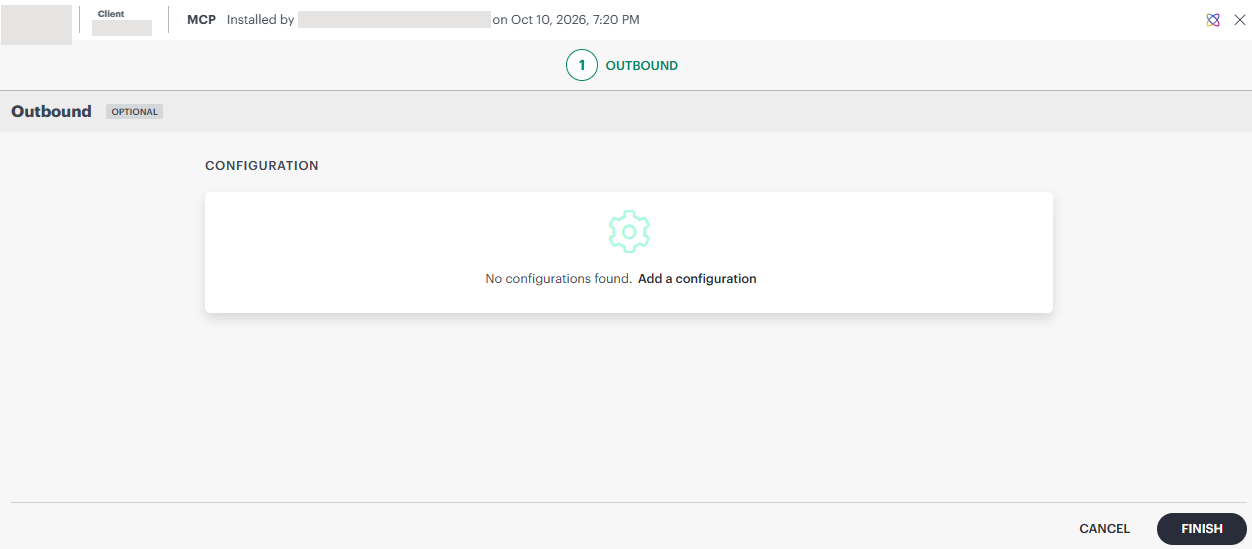
- Click Add a configuration.
- Enter the following information in the Add Configuration window:
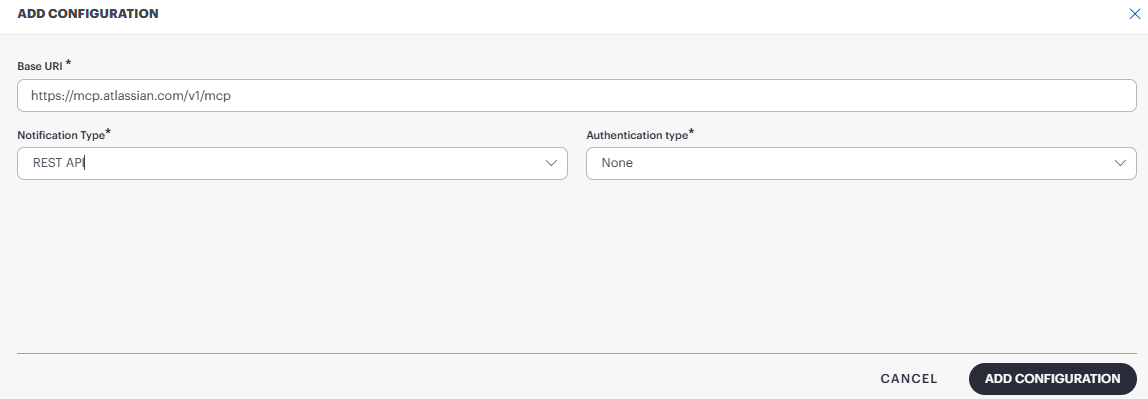
- Enter the Base URI.
Always required. The URL of the MCP server, supplied by its provider—not an ordinary Jira, Splunk, or GitHub REST API URL. Use HTTPS for a hosted server. Confirm the exact path with the provider.https://mcp.atlassian.com/v1/mcp - Select the Notification Type from the dropdown. Based on the Notification Type selected, the values in the Authentication type change.
REST API
If you select REST API as Notification Type, the Authentication type dropdown has None, Basic, OAuth2, JWT, and Custom options.
Select the Authentication type that matches how your MCP server authenticates requests:
- None: Select this if the MCP server does not require authentication. No additional fields are displayed.
- Basic: Select this if the MCP server uses a user name and password. Enter the credentials as described below.
- OAuth2: Select this if the MCP server uses token-based authorization. Choose the Grant Type and enter the token URL, key, secret, and scope as described below.
- JWT: Select this if the MCP server accepts a JSON Web Token. Enter the JWT details as described below.
- Custom: Select this if the MCP server requires custom authentication, such as a specific header or API key. Enter the required values as described below.
The fields displayed change based on the option you select.
Basic: Enter the following information:
Field Name Description User Name Enter the user name. Password Enter the password. OAuth2: Enter the following information:
Field Name Description Grant Type Select the Grant Type from the dropdown. If you select Password Credentials or Refresh Token, enter the User Name and Password. Access Token URL The provider's OAuth token endpoint Key OAuth client ID issued for this MCP connection. Secret Enter the Secret. If the provider uses a public client with no secret, the tested Atlassian configuration uses the literal none; the connector omits it from the token request.Scope Enter the scope. JWT: Enter the following information:
Field Name Description Token URL Enter the Token URL. User Name Enter the user name. Password Enter the password. Token Payload Enter the Token Payload. Token Headers The Name and Value are displayed by default. You can change them accordingly. Tokens Path Enter Name (displayed by default) and Value, and click SAVE. Resource Authorization Headers Enter Name and Value (displayed by default), and click SAVE.
SOAP API
If you select SOAP API as Notification Type, the Authentication type dropdown will have None and Basic options.
Select the Authentication type that matches how your MCP server authenticates requests:
- None: Select this if the MCP server does not require authentication. No additional fields are displayed.
- Basic: Select this if the MCP server uses a user name and password. Enter the credentials as described below.
The fields displayed change based on the option you select.
Basic: Enter the following information:
Field Name Description User Name Enter Account name or email. The integration requires it; changing this field alone does not change the authorized external account. Password For Basic in this connector, enter a bearer token (not a standard HTTP Basic password). For Refresh Token, enter the provider's refresh token, not an access token. For Password Credentials, enter the provider account's password.
- Click Add Configuration. A success message appears.
- Click Finish.