This section guides you through setting up, configuring, and managing the MS SQL integration.
Prerequisites
On Gateway
- OpsRamp Classic Gateway (Linux) version 15.0.0 or later.
- OpsRamp NextGen Gateway version 15.0.0 or later.
Note: We recommend using the latest Gateway version for full coverage of (Recent bug fixes, enhancements, etc.)
- Ensure the cluster or standalone node, all applicable nodes, and the SQL Server instance port are accessible from the Gateway.
- Open TCP port 22 for PowerShell over SSH.
- For legacy PowerShell Remoting, open TCP ports 5985 and/or 5986.
Note: By default, WS-Man and PowerShell remoting use port 5985 and 5986 for connections over HTTP and HTTPS, users should be present in nodes and cluster.
Add Windows Domain Permissions
- The Windows domain user should be added to the Performance Monitor Users group to fetch performance counter metrics.
net localgroup "Performance Monitor Users" /add <user>
Grant Remote WMI Rights
- Click Start and select Run.
- Enter
wmimgmt.mscand click OK. - Right-click WMI Control (Local) and select Properties.
- Click the Security tab.
- Select Root and click Security.
- Add the user and select the following permissions:
- Execute methods
- Enable account
- Enable remoting
- Read security
- Click Advanced, select the added non-admin domain user and click Edit.
- Select
This namespace and subnamespacesfrom the dropdown in the field Applies to. - Click OK three times.
Non-Admin user priviliges
The following permissions are required regardless of the selected connection option:
Configure the non-administrator user on the target cluster and all applicable node
Note
Execute all commands in an elevated PowerShell session (Run as Administrator).1. Add User to the Performance Monitor Users Group
The user must be a member of the Performance Monitor Users group to collect performance counter metrics.
net localgroup "Performance Monitor Users" /add "<domain\user>"
2. Grant Remote WMI Read-Only Permissions
To grant remote WMI read-only access, perform the following steps on each monitored system:
- Press Windows Key + R, type wmimgmt.msc, and press Enter.
- In the left pane, right-click WMI Control (Local) and select Properties.
- Navigate to the Security tab.
- Expand Root and select CIMV2.
- Click Security.
- Click Add, enter the non-administrator user account, and click OK.
- Select the user and grant only the following permissions:
- Enable Account (Allows local read access)
- Remote Enable (Allows remote read access)
- Execute Methods
- Read Security
- Click Advanced.
- Select the user and click Edit. Set Applies to as This namespace and subnamespaces.
- Click OK, then Apply, and close all WMI management windows.
“Execute Methods” allows method execution, so the permissions aren’t strictly read-only if that permission is granted. Enable Account and Remote Enable are the core permissions for remote WMI access; follow the product’s requirements for any additional permissions.
3. Grant SQL authorization permissions
- SQL DB instance should accept connections on the DB port. Ensure the firewall is allowing traffic over the DB instance port.
- OpsRamp supports mixed authentication (both NTLM and SQL Server authentication).
- To monitor DB metrics, you should have the following minimum privileges:
- Server Role: public - This server role is available by default
- Securables: Enable the following securables for connecting to SQL instances and underlying databases, along with required read-only permissions:
CONNECT ANY DATABASE
GRANT CONNECT ANY DATABASE TO <domain\user>
CONNECT SQL
GRANT CONNECT SQL TO <domain\user>
SELECT ALL USER SECURABLES
GRANT SELECT ALL USER SECURABLES TO <domain\user>
VIEW ANY DATABASE
GRANT VIEW ANY DATABASE TO <domain\user>
VIEW ANY DEFINITION
GRANT VIEW ANY DEFINITION TO <domain\user>
VIEW SERVER STATE
GRANT VIEW SERVER STATE TO <domain\user>
Create the login on every monitored SQL instance (For NTLM/domain authentication)
USE master;
IF SUSER_ID('<domain\user>') IS NULL
    CREATE LOGIN [<domain\user>] FROM WINDOWS;
Grant VIEW SERVER PERFORMANCE STATE for SQL Server 2022+ versions only
GRANT VIEW SERVER PERFORMANCE STATE TO <domain\user>;
Explicit Backup-History Access
USE msdb;
IF USER_ID('<user>') IS NULL
    CREATE USER [<domain\user>] FOR LOGIN [<domain\user>];
4. Grant Read-Only Failover Cluster Access
The domain user must be granted read-only access to the failover cluster.
Grant-ClusterAccess -User "<domain\user>" -ReadOnly
For monitoring services like Windows Cluster Service, Windows domain users must be a part of the Local Administrators group as the integration uses win32_Service class for fetching the details. Refer to Get-CimInstance..
If the non-administrator monitoring account cannot retrieve Windows service information because of insufficient permissions, follow these steps to grant read/query access without adding the account to the local Administrators group.
Note
Skip these steps if service monitoring already works with the existing account configuration.Refer the steps Enable Windows Service Monitoring Permissions.
Connection Modes
Starting from MS SQL Cluster version 6.3.0, you can select the connection mode. The options available are:
- PowerShell (existing)
- OpenSSH (new)
Note: PowerShell Remoting over WinRM is deprecated and will no longer be supported in the applicable updated application versions. These instructions apply only to earlier application versions that still support this connection option.
PowerShell Remoting over WinRM
Configuration steps
- Enable PowerShell Remoting on every applicable target:
Enable-PSRemoting -Force
- Add the user to Remote Management Users:
net localgroup "Remote Management Users" /add "<user>"
- Add the OpsRamp Gateway IP to TrustedHosts:
Set-Item WSMan:\localhost\Client\TrustedHosts -Force -Concatenate -Value "<OpsRampGatewayIP>"
To allow any host, when explicitly required:
Set-Item WSMan:\localhost\Client\TrustedHosts -Force -Value "*"
- Configure and restart WinRM:
  Set-Service WinRM -StartupType Automatic
  Restart-Service WinRM -Force
- Open WinRM ports on every applicable target:
- 5985 for WinRM over HTTP.
- 5986 for WinRM over HTTPS.
PowerShell pre-checks
Verify network connectivity from the Gateway:
ping <IP-address-or-hostname>
telnet <IP-address-or-hostname> 5985
telnet <IP-address-or-hostname> 5986
- For a Classic Gateway, launch PowerShell directly:
pwsh
- For a NextGen Gateway, enter the NativeBridge container and launch PowerShell:
  kubectl exec -it nextgen-gw-0 -c nativebridge -- /bin/bash
  pwsh
Test PowerShell Remoting using the integration credential:
$password = ConvertTo-SecureString -AsPlainText -Force -String "<password>"
$credential = New-Object `
    -TypeName System.Management.Automation.PSCredential `
    -ArgumentList "<username>", $password
$session = New-PSSession `
    -ComputerName "<IP-address-or-hostname>" `
    -Credential $credential `
    -Authentication Negotiate `
    -ErrorAction Stop
$session.State
The session state must be Open. Close the test session:
Remove-PSSession $session
A successful PowerShell session confirms connectivity and authentication only. The user must also have the application-specific permissions required to execute discovery and monitoring commands.
PowerShell over SSH using OpenSSH
If the user is non-administrator then must have the following privileges:
- Membership in the Performance Monitor Users group.
- Remote WMI read-only access to the Root\CIMV2 namespace and subnamespaces.
- Grant SQL authorization permissions
- Read-only access to the failover cluster.
- Ensure that all privileges must be enabled before installing the integration.
Pre-checks
Check whether OpenSSH Server is installed:
Get-WindowsCapability -Online -Name OpenSSH.Server*
Check the SSH service:
Get-Service sshd
Configuration steps
- Install OpenSSH Server if it is not already installed:
Add-WindowsCapability -Online -Name OpenSSH.Server~~~~0.0.1.0
- Start
sshdand configure automatic startup:
  Start-Service sshd
  Set-Service sshd -StartupType Automatic
- Open inbound TCP port 22:
  New-NetFirewallRule `
      -Name "Allow-SSH-Port-22" `
      -DisplayName "Allow SSH Port 22" `
      -Protocol TCP `
      -Direction Inbound `
      -LocalPort 22 `
      -Action Allow `
      -Profile Domain,Private,Public
- Open
C:\ProgramData\ssh\sshd_configas an administrator:
notepad C:\ProgramData\ssh\sshd_config
- Configure password authentication and the permitted user:
  PasswordAuthentication yes
  AllowUsers <ssh-username>
- Set Windows PowerShell as the OpenSSH default shell:
  Set-ItemProperty `
      -Path "HKLM:\SOFTWARE\OpenSSH" `
      -Name DefaultShell `
      -Value "$PSHOME\powershell.exe"
- Restart
sshdand confirm that it is running:
  Restart-Service sshd
  Get-Service sshd
Validate connectivity from the Gateway
ping <IP-address-or-hostname>
telnet <IP-address-or-hostname> 22
ssh <username>@<IP-address-or-hostname>
The SSH connection must be established successfully, and PowerShell must be configured as the default shell. After connecting, run the following command to verify the installed PowerShell version and confirm that the active shell is PowerShell:
$PSVersionTable.PSVersion
Configure and Install the MS SQL Cluster Integration
- From All Clients, select a client.
- Go to Setup > Account.
- Select the Integrations and Apps tab.
- The INSTALLED INTEGRATIONS page, where all the installed applications are displayed.
Note: If there are no installed applications, it will navigate to the Available Integrations and Apps page. - Click + ADD on the INSTALLED INTEGRATIONS page. The AVAILABLE INTEGRATIONS AND APPS page displays all the available applications along with the newly created application with the version.
Note: You can even search for the application using the search option available. Also you can use the All Categories option to search. - Click ADD in the MS SQL Cluster application.
- In the Configurations page, click + ADD. The Add Configuration page appears.
- Enter the following BASIC INFORMATION:
| Field Name | Field Type | Field Dependency | Description |
|---|---|---|---|
| Name | String | NA | Enter the name for the integration. |
| MSSQL Type* | Dropdown | N/A | Select the type of Microsoft SQL Server instance you are integrating. The options availble are:
|
| IpAddress/HostName* | Text | N/A | If the MSSQL Type is set to CLUSTER, enter the IP address or hostname of the Windows cluster. If set to STANDALONE, enter the IP address or hostname of the individual node instead. |
| MSSQL Cluster Type | Dropdown | Appears only when Cluster is selected in the MSSQL Type field. | Select the type of SQL Server cluster configuration being integrated. The options available are:
|
| MSSQL Cluster / Node Credentials* | Dropdown | N/A | Provide the Windows authentication credentials required to connect to the Windows cluster hosting the SQL Server cluster, or to the individual nodes in the case of a standalone SQL Server deployment. You can either select from the dropdown if the credentials are existing. Else click +ADD to create credentials. In the ADD CREDENTIAL window enter the following:
|
| SQL Server Authentication Mode | Checkbox | N/A | Enable this option to provide SQL Server credentials if the specified Windows credentials do not have sufficient SQL Server access rights.
|
| SQL Server Credentials | Dropdown | This field is displayed only when the SQL Server Authentication Mode checkbox is selected. | Select the SQL Server credentials from the dropdown. You can either select from the dropdown if the credentials are existing. Else click +ADD to create credentials. In the ADD CREDENTIAL window enter the following:
|
| Connection Mode | Dropdown | N/A | Open SSH is the only supported option.Note: The PowerShell connection model was removed for security reasons. Migration to OpenSSH is recommended for continued support and improved security.For more information, see Deprecation notice for PowerShell Communication. |
| App Failure Notifications | Checkbox | N/A | This checkbox is used to confirm whether a notification should be sent in the event of an app failure due to authentication or connection-related exceptions.
|
| Request Timeouts | Checkbox | N/A | Selecting this checkbox enables you to configure the timeout settings for NativeBridge connections and script execution requests made by the integration to the end device. |
| Connection TimeOut In Mins | Dropdown | This field appears only if the Request Timeouts checkbox is selected. | Select the maximum time, in minutes, that the integration should wait while establishing a connection with the nativeBridge. Default value: 10 minutes. |
| Connection Request TimeOut In Min | Dropdown | This field appears only if the Request Timeouts checkbox is selected. | Select the maximum time, in minutes, required to process a NativeBridge HTTP call, from sending the request to receiving the response. Default value: 10 minutes. |
| Socket Timeout In Mins | Dropdown | This field appears only if the Request Timeouts checkbox is selected. | Select the maximum allowable time of inactivity between two data packets during data exchange with the server. Default value: 10 minutes. |
| Script Execution TimeOut In Mins | Dropdown | This field appears only if the Request Timeouts checkbox is selected. | Select the maximum time, in minutes, that the integration should wait while establishing a connection with the nativeBridge. Default value: 10 minutes. |
- Select the below mentioned Custom Attribute:
| Field Name | Field Type | Field Dependency | Description |
|---|---|---|---|
| Custom Attribute | Dropdown | N/A | Select the custom attribute from the dropdown. |
| Value | Dropdown | N/A | Select the value from the dropdown. |
Note: The custom attribute that you add here will be assigned to all the resources that are created by the integration. You can add a maximum of five custom attributes (key and value pair).
- In the Native Types section, select the native types to be discovered.
- In the DISCOVERY SCHEDULE section, select Recurrence Pattern to add one of the following patterns:
- Minutes
- Hourly
- Daily
- Weekly
- Monthly
- Click ADD.
Note
Sample values shown in the configuration fields are for illustration purposes only. Use your actual integration details when configuring.The configuration is saved and displayed on the configurations page after you save it.
Note: From the same page, you may Edit and Remove the created configuration.
- Click Next.
- Below are the optional steps you can perform on the Installation page.
Under the ADVANCED SETTINGS, Select the Bypass Resource Reconciliation option, if you wish to bypass resource reconciliation when encountering the same resources discovered by multiple applications.
Note: If two different applications provide identical discovery attributes, two separate resources will be generated with those respective attributes from the individual discoveries.

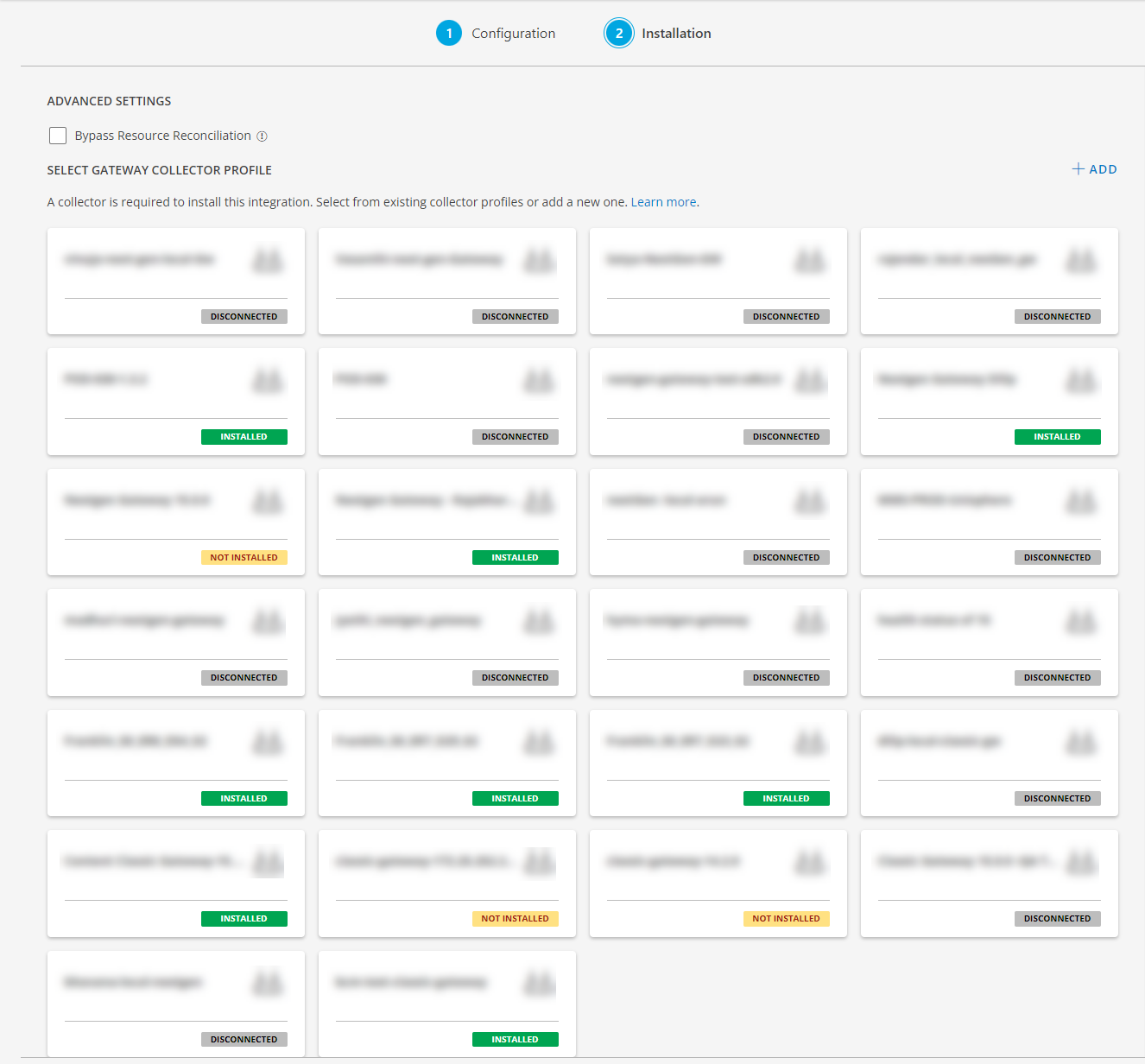
- Click +ADD to create a new collector by providing a name or use the pre-populated name.
- Select an existing registered profile.
- Click FINISH.
The application is now installed and displayed on the INSTALLED INTEGRATION page. Use the search field to find the installed application.
Modify the Configuration
See Modify an Installed Integration or Application article.
Note: Select the MS SQL Cluster application.
View the MS SQL Cluster Details
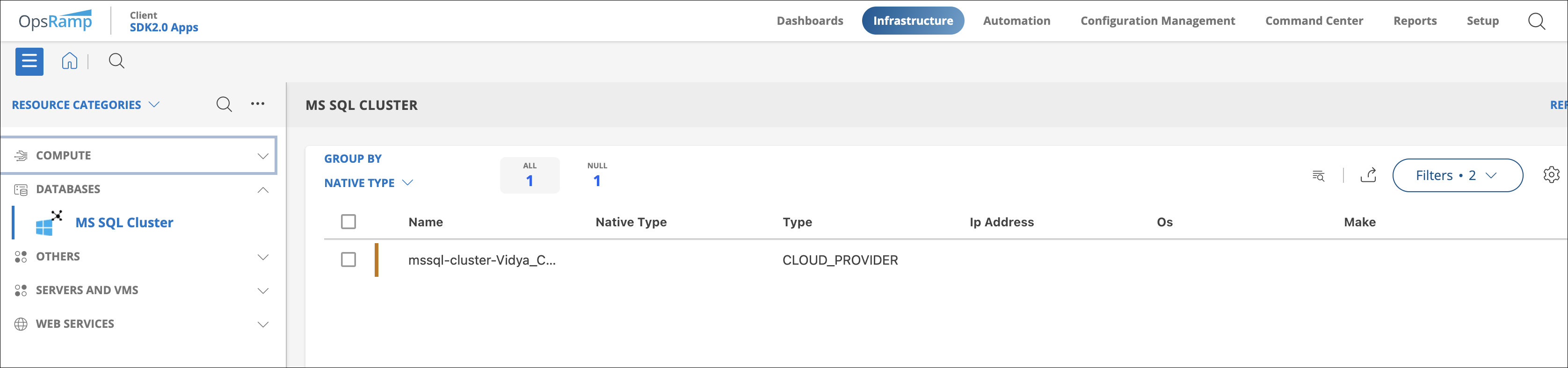
- Navigate to Infrastructure > Search > DATABASES > MS SQL Cluster.
- Select the application on the MS SQL Cluster page.
- The RESOURCE page appears from the right.
- Click the ellipsis (…) on the top right and select View Details.
View resource metrics
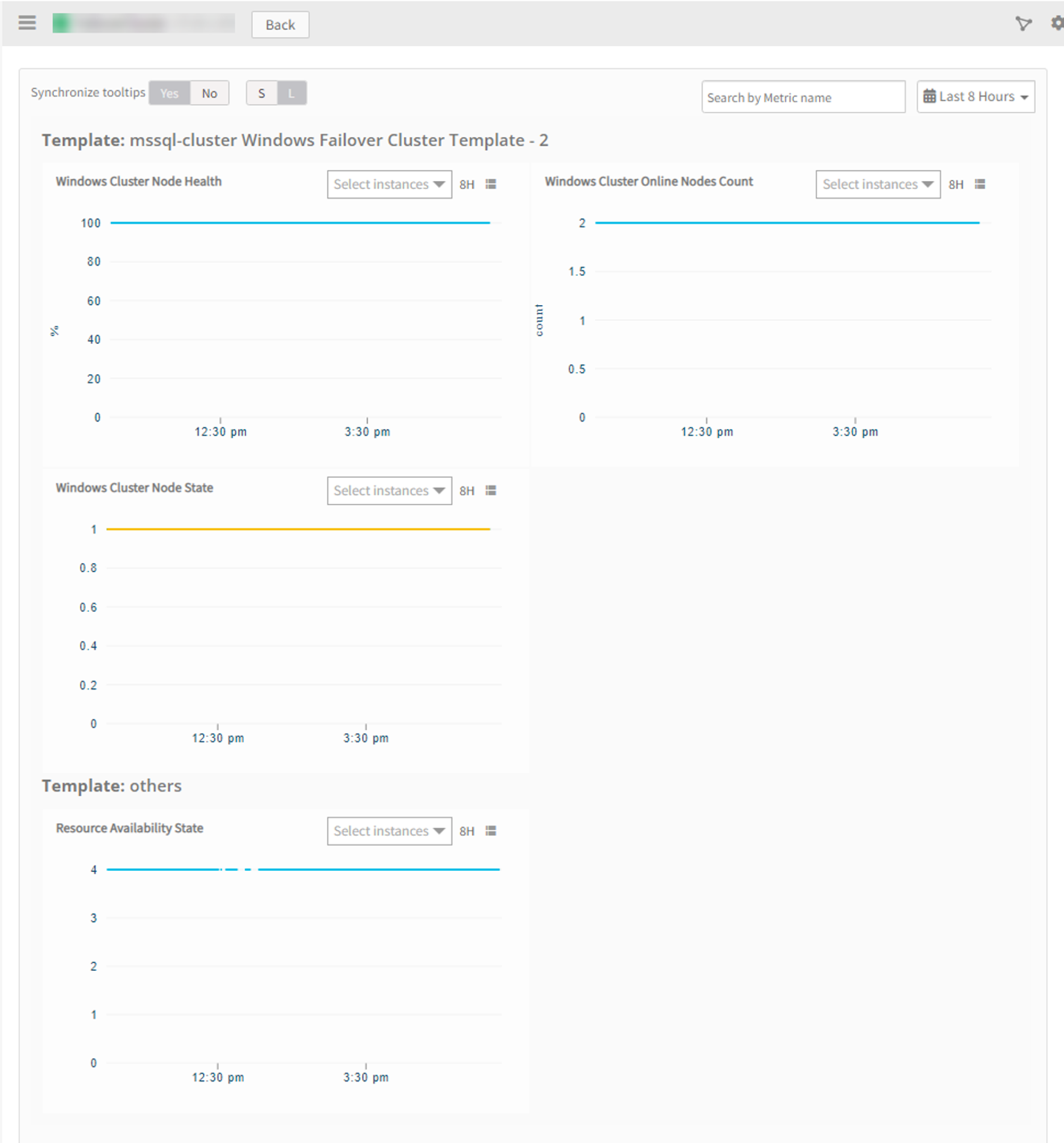
To confirm MS SQL Cluster monitoring, review the following:
- Metric graphs: A graph is plotted for each metric that is enabled in the configuration.
- Alerts: Alerts are generated for metrics that are configured as defined for integration.